Start your 3-day free trial
Sign up to experience all premium features at no cost.
*Available only to new users. Each user is limited to one trial.
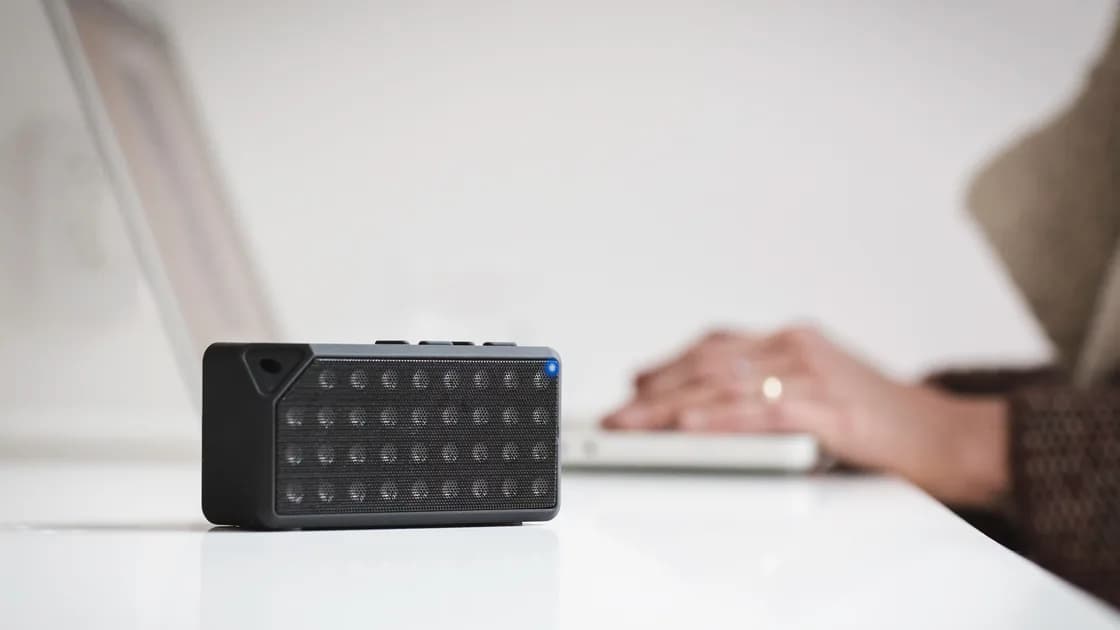

When Bluetooth is not working in Windows, start with the symptom: the Bluetooth switch or adapter is missing, the device is not discoverable, pairing fails, a paired device will not reconnect, or the device connects but has no sound or input. Fixing the wrong layer can turn one recoverable pairing problem into a driver problem.
Key Takeaways
- Check power, range, airplane mode, discovery state, and competing connections before changing Windows.
- Use Windows troubleshooting, Windows Update, and the hardware manufacturer's official driver path.
- Remove and re-pair only the affected device before considering a driver rollback or uninstall.
- Never use random driver sites, registry cleaners, or broad instructions to disable system services.
Use the Device and App Troubleshooting Guide to separate hardware, Windows, accessory, and application failures before applying a repair.
Record the Windows version, computer model, Bluetooth adapter name, accessory model, and the last known working state.
| Symptom | First branch |
|---|---|
| Bluetooth toggle and adapter are missing | Hardware, firmware, airplane mode, or driver detection |
| Accessory never appears in the device list | Power, discoverable mode, range, or another host connection |
| Pairing asks for a code or fails repeatedly | Wrong mode, stale pairing, or incompatible profile |
| Paired device will not reconnect | Battery, distance, competing host, or stale connection |
| Connected device has no sound or input | Output/input selection, permissions, or Bluetooth profile |
Do not remove the driver while the issue is still clearly limited to one accessory. Test another known Bluetooth device if available; this distinguishes an adapter-wide fault from one peripheral.
Charge or replace the accessory battery, move it close to the computer, and disconnect it from phones, tablets, or other computers. Put it into the manufacturer's documented pairing mode. A remembered device is not necessarily discoverable.
Turn airplane mode off and confirm Bluetooth is enabled in Windows. Microsoft also recommends checking that the accessory is on, charged, in range, and ready to pair.[1] If the computer has a hardware wireless switch or firmware control, confirm it is enabled.
USB 3 devices can interfere with nearby Bluetooth radios in some setups. Microsoft recommends moving an unshielded USB device away from the Bluetooth adapter when connection quality is poor. Change one physical variable, then test again.
Run the Bluetooth troubleshooter offered by Windows, apply any specific recommendation, and restart once. Then install current Windows updates, including relevant optional driver updates from Windows Update. Microsoft places troubleshooting and updates before manual driver replacement.
On a new computer, complete the broader checks in the Windows 11 setup checklist. Do not install a generic “driver updater.” If Windows Update has no suitable driver, use the computer or adapter manufacturer's support page for the exact model and supported Windows release.
If Bluetooth disappeared after a firmware, Windows, or driver update, record the update and current driver version before changing anything. This evidence determines whether rollback is available.
Follow the accessory's pairing instructions and keep it in discoverable mode while Windows searches. Microsoft's pairing guidance distinguishes Bluetooth devices from Swift Pair prompts and other wireless-device methods.[2] Accept only the expected device name and pairing code.
If the device is listed but will not reconnect:
Do not remove every paired device. For keyboards and mice, keep a wired or built-in input method available before deleting the only working pairing.
A connected status proves a Bluetooth link, not that Windows selected the right audio endpoint or input profile. Choose the intended speaker, headset, microphone, keyboard, or mouse in the relevant Windows output/input settings and in the application itself.
For audio, test system sound before troubleshooting one application. Microsoft recommends checking the output device, volume, default audio service state, and driver when Bluetooth is connected but silent.[3] A headset may expose separate high-quality playback and call/microphone profiles; switching profile can change sound quality.
If only one application fails, check its microphone or audio-device choice rather than re-pairing. If all Bluetooth devices work except one, consult that accessory's supported profiles and firmware instructions.
Open Device Manager and identify the exact Bluetooth adapter. Microsoft recommends searching automatically first and then using the PC manufacturer's website when Windows cannot find a newer driver.[4] Match the computer model, adapter, Windows edition, and architecture.
Use these higher-risk steps only with a recovery path:
Stop if the adapter remains absent from Device Manager, appears with a hardware error, or disappears from firmware. That points to platform firmware, hardware, or organization policy, not a pairing reset.
Contact the computer or adapter manufacturer when the radio is not detected, repeatedly fails after an official driver installation, or is missing from firmware diagnostics. Contact the accessory manufacturer when the device cannot enter pairing mode or cannot connect to any known-good host.
For a work or school PC, ask the administrator whether Bluetooth or specific device classes are restricted. Do not enable disabled services, edit the registry, or bypass policy. If the problem involves Ubuntu instead, use the separate Ubuntu Bluetooth guide.
Test the symptom that originally failed:
One successful pairing is not enough if the original failure occurred after sleep or reboot. Repeat that transition once before closing the issue.
Windows may not be detecting the adapter because of airplane mode, a hardware or firmware switch, a driver problem, policy, or hardware failure. Check Device Manager and the computer manufacturer's diagnostics.
It may be off, low on battery, out of range, not in pairing mode, or already connected to another host.
Only after simpler reconnect steps fail and you know how to return the accessory to pairing mode. Remove the single affected device, not the entire pairing list.
Windows or the application may be using another output, or the headset may expose a different audio profile. Check output, volume, microphone, and application settings first.
Yes. Microsoft notes that unshielded USB 3 devices can interfere with Bluetooth. Move the USB device or adapter and retest.
Use Windows Update or the official support page for the computer or adapter model. Avoid third-party driver collections and automatic driver tools.
Consider rollback when the problem started immediately after an update, the previous driver is available, and you have recorded the current version and recovery source.
The adapter driver, accessory power state, or reconnection profile may be failing. Update through official channels and include the sleep/resume cycle in the verification test.
Disclaimer: Menus and driver behavior vary by Windows version, PC firmware, adapter, accessory, and organization policy. Preserve a working input method and an official recovery driver before removing an adapter or pairing.
Sources:
Sources checked 27 August 2026.
Related Articles:
Sign up to experience all premium features at no cost.
*Available only to new users. Each user is limited to one trial.