Start your 3-day free trial
Sign up to experience all premium features at no cost.
*Available only to new users. Each user is limited to one trial.
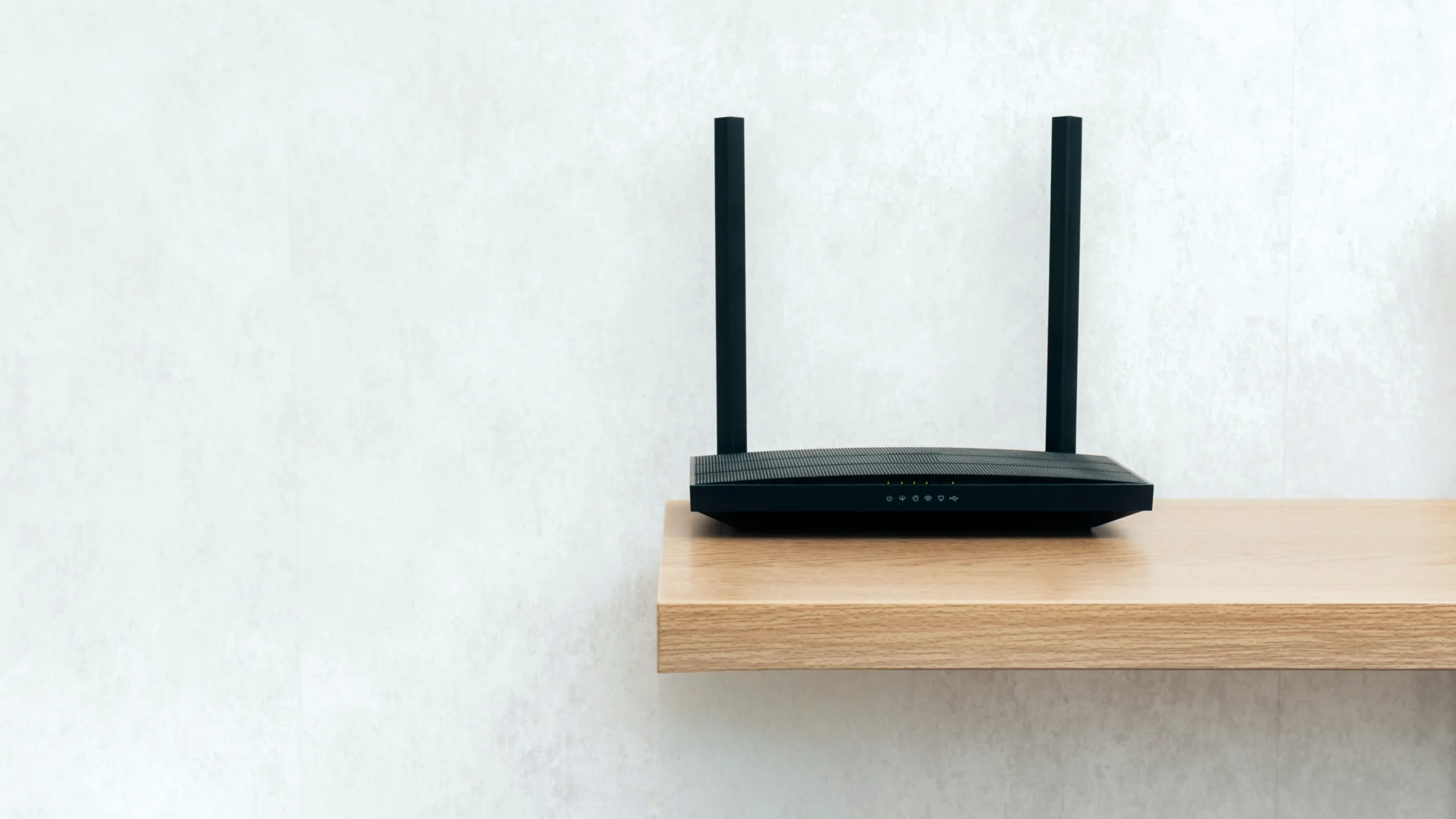

The clearest hacked Wi‑Fi signs point to the router itself: unknown devices in the admin panel, DNS or administrator settings you did not change, sudden lockout from the router dashboard, strange pop-ups across multiple devices, or unusually high traffic when your habits have not changed. If you see one of these, treat it as a sign your router may be hacked and start the recovery steps below. Slow speed alone does not prove an intrusion, but slow speed plus another red flag should prompt quick action.[1][3][4]
The real problem is not only someone using your bandwidth. If an attacker controls your router, they may change network rules, hijack DNS resolution, or send you toward phishing sites.
Use the digital privacy guide as the wider checklist: it connects this issue to accounts, devices, identifiers, and data-broker exposure.
Key Takeaways
- The strongest signs are usually unknown devices, changed settings, and unusual router admin behavior.[1][2]
- A hacked router can affect DNS, Wi‑Fi passwords, remote management, and local device safety, not just speed.[2][3]
- The safest response order is usually disconnect from the internet, reset, update firmware, change the admin and Wi‑Fi passwords, then disable unnecessary features.
- Home Wi‑Fi risk and public Wi‑Fi risk are related, but they are not the same problem.
- Long-term protection comes from firmware updates, strong passwords, WPA3 or WPA2, disabling WPS, and segmenting devices when possible.
Most home router problems do not start with cinematic, high-skill attacks. They usually start with practical weaknesses:
That is why “someone is stealing my Wi‑Fi” and “my router has been hacked” are connected but different. The first may mean unauthorized access. The second means someone may be able to change your network rules.
This is one of the most direct signs. If the device list shows a phone, computer, TV box, or other endpoint you do not recognize, check it immediately.[2]
Slow internet is not proof by itself. But if speed tests stay abnormal and the device list also looks wrong, this is more than a bad signal day. The FBI also lists an overheating router and repeated connection problems among common signs of router malware.[4]
Watch for changed DNS servers, a renamed Wi‑Fi network, remote management suddenly enabled, or unexpected firewall changes. Settings that the administrator does not recognize are one of the signs the FBI highlights.[4]
If your usual credentials suddenly stop working, the administrator password may have been changed.
If your provider reports a sharp increase in usage but your household behavior has not changed, that can point to suspicious activity.
This is especially important. It may not be one infected device. If router DNS has been changed, many devices can be sent down the same bad path.
If local devices start showing connection problems, messy sharing, or unexpected access changes, consider whether the local network has been altered.
| Sign | Signal strength | What to do first |
|---|---|---|
| Unknown devices in the dashboard | High | Take screenshots, then prepare to remove them and change passwords |
| You cannot access the admin panel | High | Disconnect from the internet and prepare to reset |
| DNS or remote management looks wrong | High | Record the settings, reset, and update firmware |
| Speed is slow | Medium | Check it together with the device list and settings |
| More pop-ups appear | Medium | Check whether endpoints are also affected |
The first goal is not to fix everything. It is to stop remote changes while you recover.
Note unknown devices, strange DNS settings, admin lockout, Wi‑Fi name changes, and anything else that helps you confirm what changed later.
If you suspect the configuration was modified, resetting is usually safer than guessing one setting at a time.
A reset clears current changes, but it does not patch known vulnerabilities. Firmware updates close the entry point.[1][3] If the manufacturer no longer releases updates for your model because it has reached end of life, replace the router rather than putting it back online.[4]
Do not reuse the same password for both, and do not keep any default password.
Every unnecessary feature you close removes one possible attack surface.
Old protocols should be retired. Do not let “old device compatibility” become a permanent security excuse.
The difference matters:
The first mostly affects bandwidth and local exposure. The second can affect DNS, admin credentials, remote access, and even where your browser is sent.
If your main concern is unauthorized access, read Is someone stealing your Wi‑Fi? 6 signs and a full protection checklist.
Not necessarily. Slow speed can come from congestion, old hardware, channel interference, or unauthorized access. Check it together with device lists and settings.
The clearest signs are usually unknown devices in the dashboard, a failed admin password, or changed DNS and Wi‑Fi settings.[1][2]
Usually not. You should also change the admin password, update firmware, disable WPS and remote management, and check encryption.
It can remove many malicious changes, but the risk can return if you do not update firmware, use strong passwords, and close unnecessary entry points.
Not directly. A VPN protects the connection path. It does not replace router hardening, firmware updates, or password management.
Disclaimer: This article is for general home network security education only and does not constitute technical support for any specific router model. Admin interfaces, feature names, and update paths vary by brand. Follow the official documentation for your device.
Sources:
Sources checked 4 October 2026.
Related Articles:
Sign up to experience all premium features at no cost.
*Available only to new users. Each user is limited to one trial.