Start your 3-day free trial
Sign up to experience all premium features at no cost.
*Available only to new users. Each user is limited to one trial.
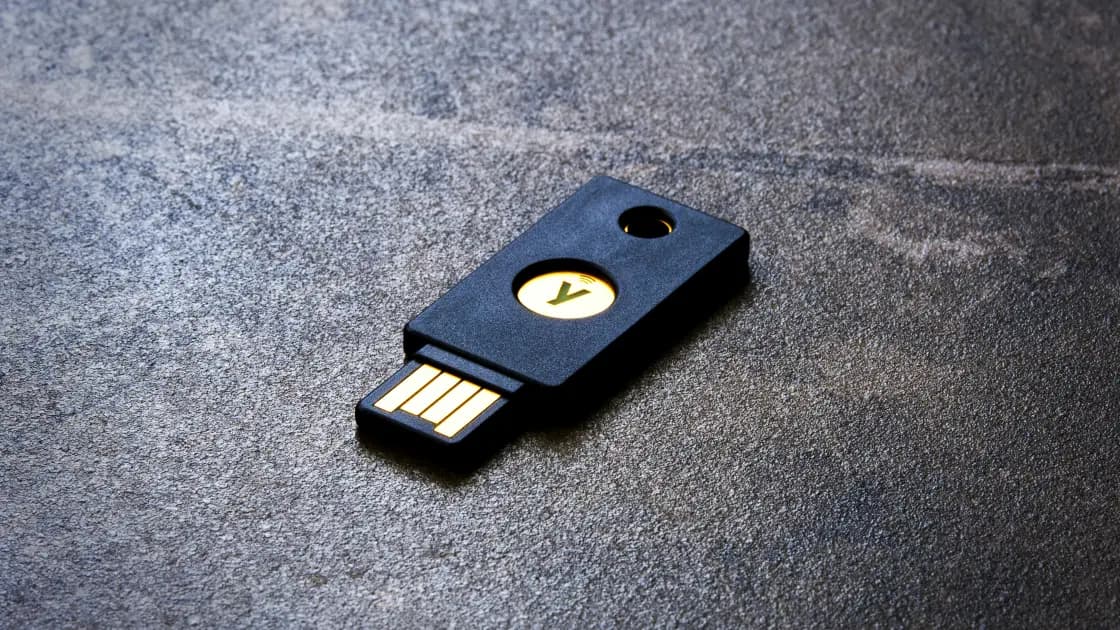

A hardware security key lost during a business trip requires prompt but controlled action. Protect yourself first, record what disappeared, notify the organization that registered the key, and use only an approved backup authenticator. Ask an authorized administrator to revoke the missing credential and register a replacement through the normal identity-verification process.
Key Takeaways:
- Move to a safe place and record when and where you last controlled the key.
- Identify every employer, account, and physical item connected with the missing key.
- Use a separately stored, pre-enrolled backup method; do not improvise a bypass.
- Have IT revoke the lost authenticator even though losing it does not prove that your password was exposed.
- Verify the replacement, recovery methods, and any related badge or device incident before closing the case.
This checklist starts after a registered work key has gone missing. For prevention before departure, use the travel 2FA preparation guide and the broader international travel guide.
Do not search an unsafe street, vehicle, platform, or unfamiliar room while distracted by account access. Move to a secure place, then write down the last time you physically used or saw the key. Record the venue, approximate time, bag or key ring, transport segment, and whether someone else handled the item.
Make a bounded check of likely locations: the computer port, a dedicated pouch, hotel safe, meeting room, security desk, and transport lost-and-found. If policy allows, ask venue staff without revealing which company or privileged systems the key can access. Do not publish a photograph, serial number, username, or employer name in a public lost-property post.
Preserve receipts, incident numbers, and messages from the venue. Note whether the key was attached to a badge, house key, luggage tag, USB drive, or other identifiable object. Those details affect physical-security and privacy response even if the authenticator itself contains no readable account list.
Set a short search deadline. A key that might be found later can still be used by someone else while it remains registered. Reporting and revocation should not wait for an open-ended search when the organization's policy requires prompt notice.
Determine whether the key belongs to your employer, a client, or you personally, and which organization enrolled it. One physical authenticator may be registered with several work identities, administrative portals, source-code hosts, or password managers. Do not assume that notifying one service automatically protects every registration.
Use an inventory, password-manager note, identity portal, or help-desk record only from a trusted device. List accounts by organization and role, not by copying secrets. Include privileged or break-glass access, if applicable, and tell the appropriate security owner without attempting to inspect systems outside your authorization.
Check what disappeared with the key. A lost badge can reveal the employer; a labeled key ring can reveal an office; a laptop or phone can hold an active session; and a passport or wallet creates a separate identity-theft or travel-document problem. Follow each applicable incident process instead of treating everything as one authentication ticket.
Loss of the key does not, by itself, prove that a password, PIN, or account was compromised. FIDO authenticators are designed so the private credential is not exported like a reusable password. However, the missing device may still be a valid registered factor, so its status must be addressed promptly rather than dismissed.
Choose a backup that was enrolled before the trip and stored separately from the missing key. Depending on company policy, that might be a second hardware key, an authenticator app, a platform passkey, a managed recovery credential, or a verified service-desk process. FIDO guidance recommends supporting more than one authenticator so the loss of one does not force an insecure recovery shortcut.[1]
Do not use recovery codes found in the same lost bag. Do not accept an unsolicited push, borrow another person's key, share a one-time code, or let a caller take remote control of your device. A person who found the key could exploit the confusion with a convincing support message.
If the approved backup works, use it only to reach the official account or incident channel. Do not delete the missing key record yourself unless policy explicitly assigns that action to you; administrators may need its credential identifier and registration history. Do not register an unknown replacement purchased from an airport shop without approval.
If no backup works, stop retrying before lockout. Contact the help desk through a verified number or managed application and expect identity proofing. FIDO's recovery guidance treats recovery as a distinct authentication process whose assurance should match the account risk, not as a request to waive authentication.[2]
Report the loss through the employer's established security or identity route. Provide the account, organization, last-known possession time, approximate location, key model or asset tag if known, whether a PIN may be known, and what other items were lost. State which backup method you are using and whether you observed any unexpected prompts or account activity.
Ask the authorized administrator to identify and revoke the missing authenticator. FIDO lifecycle guidance describes removing a lost authenticator from the user's account and replacing it through the organization's managed process.[1] Revocation prevents the key from remaining an accepted credential even if it is found by someone else.
Do not equate a password reset with key revocation. The key registration can be independent of the password, and active sessions can be independent of both. The identity team decides whether to revoke sessions, reset credentials, review audit logs, or temporarily restrict the account based on the surrounding evidence.
A VPN cannot revoke a corporate security key, validate your identity, issue a replacement, or override an employer's authentication policy. Network location changes are not a substitute for removing the lost credential.
If the key later returns, do not resume using it automatically. Treat it as untrusted until the owner confirms whether it may be re-enrolled, inspected, reset, or destroyed. A revoked credential should not be silently restored simply because the object looks undamaged.
Use the organization's approved procurement and handoff route. A replacement may need an asset record, supported firmware, a particular protocol, attestation, a PIN policy, or in-person custody verification. Keep shipping and collection details out of public channels, especially when the recipient has privileged access.
Register the new key from a managed device and the genuine identity portal. Verify the account and tenant before touching the key, and reject unexpected QR codes or enrollment links. Complete any required identity proofing rather than asking support to add a credential based only on an email or chat request.
Name the new authenticator clearly enough to distinguish it from the revoked one without exposing travel plans or privilege. Confirm that the credential list shows the new registration and no longer accepts the missing key. Where policy permits multiple authenticators, enroll a second approved factor and store it separately.
Test the replacement with a low-risk authorized sign-in, then sign out and test the backup method independently. Do not remove the only working backup until both the new key and recovery route have been confirmed. Record the registration date, asset identifier, custodian, and help-desk ticket according to company rules.
Ask the incident owner to confirm that the lost credential is revoked across every relevant work account, not merely hidden from your view. Confirm whether active sessions were reviewed, whether any suspicious sign-in occurred, and whether monitoring or a credential reset remains required.
Resolve linked incidents. Replace or deactivate a badge, report a lost laptop or phone, change a luggage lock, and contact the appropriate authorities or insurer when policy calls for it. The lost laptop guide covers device containment; it does not replace the authenticator revocation step here.
Document the final state: loss time, report time, accounts checked, credential identifier revoked, replacement registered, backup tested, related property cases, and the person or team that approved closure. Keep the record in the corporate ticketing system rather than a personal notes application.
Before the next trip, separate the primary key, backup authenticator, recovery information, and work device. Verify the help-desk route and supported replacement process in advance. The objective is not to make loss impossible, but to ensure that one missing object cannot force an unsafe recovery decision.
No. The events are different, and a FIDO key does not normally expose a reusable private credential. The missing key can still be a registered authenticator, so report and revoke it promptly.
That depends on the key, account, PIN requirements, attached labels, and other information lost with it. Do not try to estimate the risk alone; give IT the context and remove the registration.
You can make a bounded lost-property inquiry, but do not delay a required security report or revocation. The key may remain usable while the search is open.
Treat anything in the missing bag as potentially lost too. Use a separately stored approved method or the employer's verified recovery process.
Not as a substitute. Passwords, registered authenticators, and active sessions are separate controls. Follow the identity team's decision for each one.
Only if your organization explicitly approves the model and enrollment route. Managed environments may require supported hardware, asset tracking, firmware, or attestation.
Not without authorization. Keep it disconnected and ask the owner whether it should be inspected, reset, re-enrolled, or destroyed.
Disclaimer: This article is for general informational purposes only and does not constitute legal, technical, or other professional advice. We make no guarantees regarding the accuracy, completeness, or timeliness of the content.
Sources checked 12 September 2026.
Related Articles:
Sign up to experience all premium features at no cost.
*Available only to new users. Each user is limited to one trial.