Start your 3-day free trial
Sign up to experience all premium features at no cost.
*Available only to new users. Each user is limited to one trial.
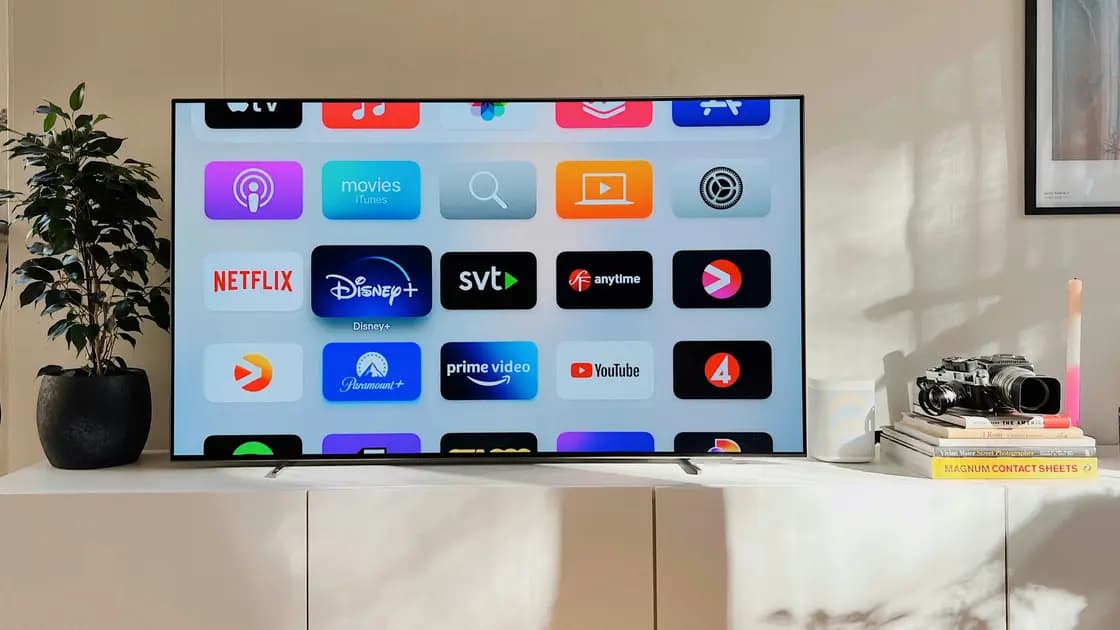

Most Apple TV network problems come down to one of five things: the box cannot join Wi-Fi, it joins the router but cannot reach the internet, an Ethernet cable has taken over the connection, a hotel or campus network needs a sign-in, or only one app is failing. Apple TV network troubleshooting means finding which of these applies before you forget a network or reset anything. Check the connection shown under Settings > Network, compare another device, and use reversible tests first. For the broader method behind this sequence, see the device troubleshooting guide.
Key Takeaways
- Separate Wi-Fi association, local-network access, internet access, and one-app failures.
- If Ethernet is connected, Apple TV uses it instead of Wi-Fi; inspect the active path first.
- Restart Apple TV and the network equipment before deleting saved credentials.
- A captive network may require completing sign-in with a nearby iPhone or iPad.
- Forget only the affected network, and leave reset or restore as a last resort.
Begin with the exact symptom and the exact time it appeared. Record the Apple TV model, tvOS version if available, whether an Ethernet cable is attached, the Wi-Fi network name, and any message or error code. This short record prevents a later restart from erasing useful evidence.
| Observation | Most likely layer to test next | First comparison |
|---|---|---|
| The network name is missing | Wi-Fi signal, band, or router radio | Move closer and check another device |
| Password is rejected | Credentials or network policy | Re-enter it carefully; ask the network owner |
| Wi-Fi is connected but nothing loads | Router, modem, DNS, or ISP | Test another device on the same network |
| Only one streaming app fails | App account, service, or app state | Open another app on Apple TV |
| Wi-Fi settings seem unavailable | Ethernet is active | Inspect and, for testing, disconnect Ethernet |
| A hotel or campus network asks for sign-in | Captive-network authorization | Follow the approved sign-in path |
Apple says to check Settings > Network and verify that the correct Wi-Fi name appears. It also notes that an attached Ethernet cable takes precedence, so Wi-Fi options may not describe the path currently carrying traffic.[1] Do not assume the wireless radio is broken until you have identified the active interface.
Run three small comparisons: another app on the same Apple TV, another device on the same network, and the Apple TV on another trusted network if one is available. If one app alone fails, use that provider's status, account, and app guidance. If every device fails, move to the router no-internet decision tree rather than repeatedly changing the Apple TV.
If only Apple TV fails, continue with device-specific steps. If 2.4 GHz, 5 GHz, and 6 GHz names are separate, the Wi-Fi band guide explains why a farther television may see a slower band more reliably than a faster, shorter-range one.
Use the following order. Stop as soon as the connection becomes stable so that you know which change mattered.
Apple's support sequence places device and network-equipment restarts before more disruptive steps. A restart preserves accounts and installed apps; forgetting the network removes its saved Wi-Fi credentials and may also discard network-specific state.
First test another device on the same Wi-Fi. If it also has no internet, the likely fault is the router, modem, ISP, or network administrator rather than Apple TV. If the other device works, compare the Apple TV's active network, signal, date and time, and whether a manual DNS or router-level filter was recently changed.
Do not start by replacing DNS values, disabling router security, or factory-resetting the router. Those changes affect more devices and can hide the original fault. Record any custom DNS, filtering, static addressing, or managed-network requirements before changing them, and restore each temporary test afterward.
Open a second app and, if possible, play a different item. A working second app proves that Apple TV has at least some network and service access; it does not prove that the first provider, account, subscription, or title is available. Check the affected service's status and account guidance instead of forgetting Wi-Fi.
Force-quitting or reinstalling an app can remove local state and require another sign-in. Use those steps only after confirming the failure is app-specific and that you have the necessary account or activation details.
Hotels, residences, schools, and business networks may use a captive page rather than an ordinary Wi-Fi password. Apple documents an Apple TV flow that can use a nearby iPhone or iPad to complete the required sign-in. The network owner may still restrict streaming devices, device-to-device discovery, or the number of registered devices.
Do not enter credentials into a page whose network name or operator you cannot verify. On a managed network, ask the administrator whether Apple TV devices are supported and whether device registration is required. A captive sign-in is authorization for that network, not proof that every streaming service will work.
For Ethernet, confirm that the cable is seated at both ends and that the switch or router port is active. Test a known-good cable or port when available. Disconnecting Ethernet briefly can be a useful isolation test, but reconnect it afterward if wired service is the intended configuration.
If no Wi-Fi names appear, or Apple TV says the network is unavailable, first confirm whether a network cable is attached: while Ethernet is connected, Apple TV hides its Wi-Fi options, and after you unplug the cable they can take several minutes to return.[1] If the router's network is still missing after that wait, check whether other devices can see it before suspecting Apple TV.
A cable can also help when Wi-Fi keeps failing. On models with an Ethernet port, Apple suggests connecting directly to the router or modem, installing any update under Settings > System > Software Updates, then disconnecting the cable and trying Wi-Fi again.[1] If your model has no Ethernet port, use the other-network comparison above instead.
Once the basic path is stable enough to download reliably, check Settings > System > Software Updates. Apple instructs users to keep Apple TV powered and connected throughout an update; interrupting the process can leave the device needing recovery or service.[2] If an update appears stuck, follow Apple's time and recovery guidance instead of repeatedly unplugging the box.
Use reset or restore only after you have ruled out the network, cable, router, ISP, captive authorization, and single-app branches. Before a reset, confirm the Apple Account, app credentials, activation methods, home settings, and any managed-device requirements you will need afterward. A factory reset cannot repair an upstream outage or a router that is offline.
Escalate with a compact evidence set:
Contact the ISP or network administrator when multiple devices fail. Contact the app provider when one app alone fails. Contact Apple when Apple TV alone continues to reject known-good networks or wired connections after supported restarts and updates.
Apple TV uses an attached Ethernet connection instead of Wi-Fi. Check the cable and router port first; disconnect Ethernet only as a temporary isolation test if you specifically need to test wireless service.
The local Wi-Fi link may be working while the router, modem, DNS path, ISP, or upstream service is not. Test another device on the same network before changing Apple TV settings.
No. Restart the device and network equipment, verify the active network and password, and compare another device first. Forgetting the network removes saved credentials and is useful only when the saved network state is the likely fault.
Some captive networks are supported through a sign-in flow involving a nearby iPhone or iPad. The venue may still block streaming devices or require registration, so confirm its policy with the network owner.
One-app failure usually points to that app, its account, its service, or a specific title rather than the whole Wi-Fi connection. Test another app and consult the affected provider before resetting network settings.
Not necessarily. Buffering can come from signal quality, congestion, the ISP, or the streaming provider. Change DNS only when evidence points to name resolution and you have recorded the original value.
Update after the connection is stable enough to complete the download without interruption. Keep the Apple TV connected to power and follow Apple's recovery guidance if the update does not progress.
Only as a last resort after the network, router, cable, ISP, captive authorization, and app-specific branches are excluded. Confirm all account and setup recovery details first. AethoVPN belongs only to a compatible VPN connection step after Apple TV can reach the internet; it does not fix HDMI, Wi‑Fi credentials, or app sign-in.
Sources checked 4 October 2026.
Sign up to experience all premium features at no cost.
*Available only to new users. Each user is limited to one trial.