Start your 3-day free trial
Sign up to experience all premium features at no cost.
*Available only to new users. Each user is limited to one trial.
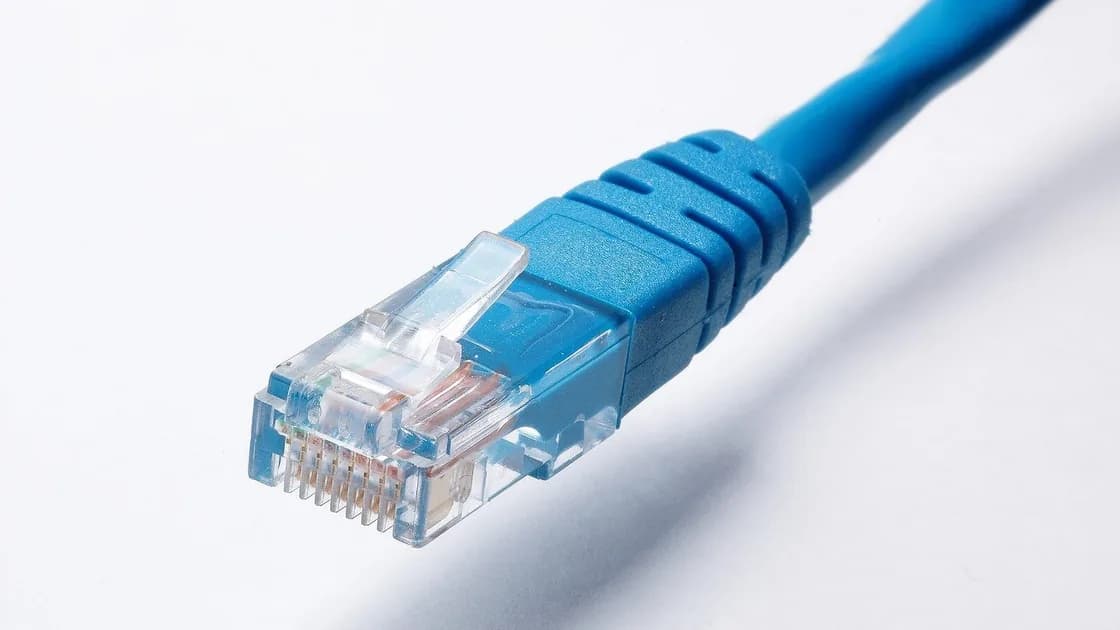

When Windows or another system shows Ethernet connected but no internet, the cable's physical link is up, but a layer above it is failing: DHCP did not supply a usable address, the gateway is unreachable, DNS fails, or the router has no internet service. Check those layers in order: cable and port, adapter, local address, gateway, then DNS and upstream access. Replace only one variable at a time so each test has meaning.
Key Takeaways
- Link lights and a connected icon cover only the physical layer.
- Automatic DHCP is the normal home-network baseline; do not invent a static address.
- Compare Wi-Fi and another device to separate one client from the whole network.
- Test one cable, port, adapter, or device change at a time.
- Driver removal, protocol-stack commands, and full network reset belong near the end.
Start with the device and app troubleshooting guide if the symptom has not yet been narrowed to one wired client.
Ethernet negotiates a physical link before the computer can reach the internet. A cable can therefore show link while the client has no valid address, the VLAN is wrong, the gateway is unavailable, DNS fails, or the router’s WAN is offline.
| Layer | Evidence to collect | What failure looks like |
|---|---|---|
| Physical link | Port light, adapter presence, negotiated speed | No link, repeated connect/disconnect |
| Local address | DHCP address, subnet, gateway | Missing gateway or self-assigned address |
| Gateway | Router reachable locally | Local address exists but router cannot answer |
| DNS | Names resolve | Addresses work but domain names fail |
| Upstream | Router/ISP has service | Local network works but internet destinations fail |
Record the active adapter name, port used, link state, and whether Wi-Fi works. Do not publish the full address, device identifier, or managed-network details. A single “no internet” icon is a summary, not a diagnosis.
Trace the cable end to end. It should run from the computer or adapter to a LAN port, wall jack, switch, or approved dock. A router’s WAN or Internet port is not interchangeable with an ordinary LAN port.
Use this controlled sequence:
Do not replace the cable, port, dock, and computer at once. A successful result would not identify which variable mattered. Also check whether a docking station needs external power or whether a USB-C port supports the dock’s functions.
Microsoft’s Ethernet guide starts with a cable seated at both ends in the router’s Ethernet port rather than its Internet port, another cable if available, and a modem and router restart; it then compares Wi-Fi and another PC before driver reinstall and network reset.[1] That order is useful beyond Windows because it separates physical and network-wide failures.
If the computer shows no reaction to the cable—no link light, no Ethernet status, or a message that the network cable is unplugged—the fault sits below DHCP, the gateway, and DNS. Confirm that the Ethernet adapter appears and is enabled in the system’s network settings, then repeat the single-variable cable and port swaps above. A USB adapter or dock that never appears points to the adapter, its power, or the computer’s port rather than the router.
Most home routers assign addresses automatically with DHCP. Inspect the active Ethernet connection for an IP address, subnet, router or default gateway, and DNS servers. A self-assigned or link-local address indicates that the adapter has a link but did not receive the expected configuration.
Keep automatic configuration as the baseline unless the ISP or network administrator supplied exact values. Guessing a static address can create an address conflict, put the computer on the wrong subnet, or hide the real DHCP failure.
If DHCP data is missing:
Apple notes that Ethernet commonly connects automatically and recommends DHCP when no specific address was supplied; manual values should come from the ISP or administrator.[2]
The default gateway is the local router that forwards traffic outside the subnet. If the client has a plausible address, test local reachability before changing DNS. Opening the router’s local page or using the platform’s supported network diagnostics can establish whether the gateway path exists.
Interpret the comparison carefully:
Do not start by entering public DNS servers. DNS cannot repair a missing local gateway. Likewise, a successful DNS lookup does not prove that every application protocol is allowed.
If Wi-Fi on the same computer works while Ethernet does not, the shared internet service probably exists and the wired path deserves attention. If Ethernet and Wi-Fi fail on every device, use the router no-internet checklist.
Build a small comparison matrix instead of repeatedly resetting equipment:
| Test | Meaning |
|---|---|
| Same computer on Wi-Fi works | Internet exists; wired client path is suspect |
| Another computer on same cable/port works | Original adapter or configuration is suspect |
| Original computer on another cable/port works | Cable, jack, or switch port is suspect |
| No device works on router LAN or Wi-Fi | Shared router or upstream problem |
| Office jack fails but neighboring approved jack works | Jack, switch port, VLAN, or authorization issue |
USB Ethernet adapters and docks add their own power, firmware, driver, and compatibility layer. Test a direct compatible adapter when possible, but do not assume every USB-C hub exposes Ethernet correctly on every computer.
Chromebook Help lists Ethernet dongles among supported peripheral categories and recommends current ChromeOS and certified peripherals for best results.[3] That does not make every dongle universal; managed policies and hardware compatibility still apply.
On a work, school, hotel, or apartment network, the port may require device registration, 802.1X authentication, a portal, or a particular room service. Do not copy another device’s address or bypass network access controls.
Confirm that the Ethernet adapter is enabled and has no hardware or driver error. Install operating-system and adapter updates from the computer or adapter maker, not a third-party driver site. Reboot once after an update if required.
Then inspect only the active service:
Do not uninstall the driver as a first step. A generic replacement may omit dock features or enterprise configuration. Avoid copying “reset the TCP/IP stack” commands without knowing their scope; they can remove routes, DNS, virtual adapters, and managed settings.
If a network reset is eventually required, document Wi-Fi credentials, VPN profiles, static settings, virtual adapters, and corporate requirements first. Use the platform’s supported procedure and expect to reinstall or reapprove some adapters.
Escalate to the network owner when a managed jack lacks authorization, the expected VLAN or gateway is unknown, or another approved device also fails on that port. Contact the ISP or router owner when all local devices lose upstream service.
Escalate for hardware service when the adapter repeatedly disappears, the connector is damaged, link drops when the cable moves, or multiple known-good cables and ports reproduce the problem on one machine. Provide the adapter model, operating-system version, link state, address category, gateway result, and comparison tests—never passwords or full private configuration.
An active Ethernet link is only the first layer. Verify the cable, LAN port, adapter, and dock; confirm automatic DHCP produced a usable address and gateway; then test gateway, DNS, and upstream service. Use Wi-Fi and a second device to narrow the scope. Keep driver removal, protocol-stack reset, and full network reset behind the reversible comparisons.
The physical link succeeded, but DHCP, the gateway, DNS, router WAN, or network policy may still be failing.
Not unless the ISP or administrator supplied exact settings. A guessed address can create conflicts and conceal a DHCP problem.
It proves some electrical negotiation occurred. A damaged cable can still negotiate poorly or drop under load, so compare one known-good cable.
A client normally connects to a LAN port. The WAN or Internet port normally connects the router to its upstream service.
That narrows the problem toward the cable, port, adapter, dock, wired service, or wired configuration on that computer.
Yes, but only after local addressing and gateway reachability work. Test the layers before replacing DNS settings.
Only after physical, DHCP, and supported update checks. Record the approved driver source and recovery path first.
Use it late, when the problem is isolated to one client and narrower fixes failed. Back up VPN, static, and managed settings first. AethoVPN requires a working underlying Ethernet route; it cannot repair a loose cable, invalid gateway, or failed upstream connection.
Sources checked 4 October 2026.
Sign up to experience all premium features at no cost.
*Available only to new users. Each user is limited to one trial.