Start your 3-day free trial
Sign up to experience all premium features at no cost.
*Available only to new users. Each user is limited to one trial.
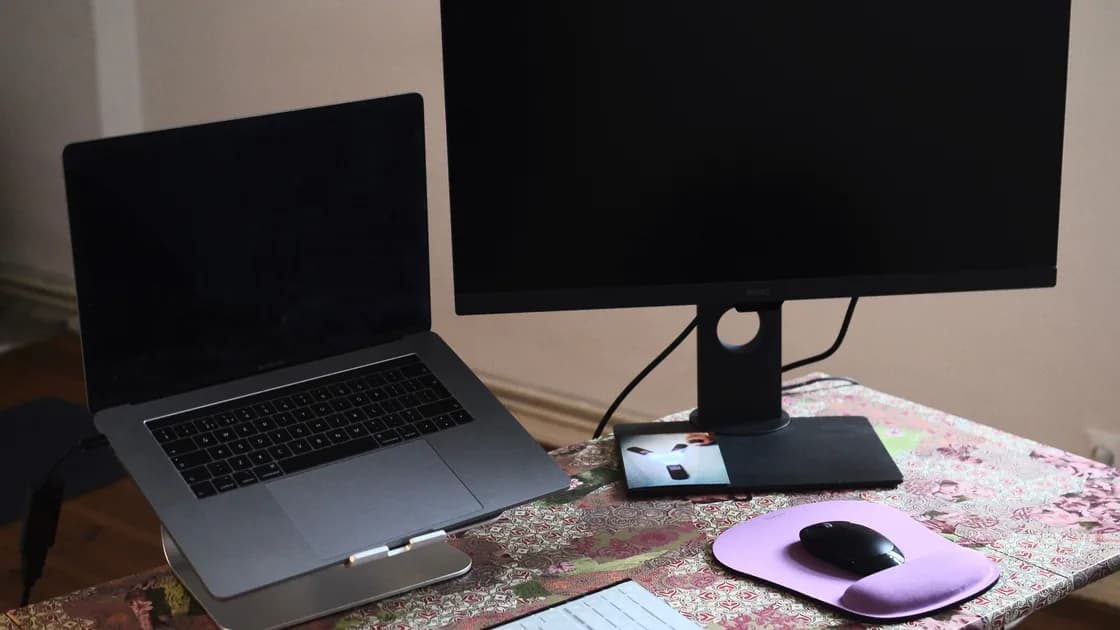

External monitor not detected? Check three things in order: the monitor is powered and set to the input you plugged into, the cable runs directly from a video-capable port, and the computer has been asked to look for it—on Windows, Settings > System > Display > Multiple displays > Detect. If the screen stays dark, separate a monitor with no power from “no signal,” a display detected but still black, and a picture that appears only at the wrong resolution or refresh rate. Connector shape alone does not prove that a port or cable carries video.
Key Takeaways
- Power, signal detection, image mode, and image quality are different stages.
- Select the monitor’s actual HDMI, DisplayPort, or USB-C input instead of relying on auto detection.
- A USB-C connector may support charging or data without video output.
- Bypass docks, KVMs, splitters, and adapters to isolate the direct display path.
- Record a working resolution and keep a timed or keyboard recovery path before risky display changes.
If several peripherals fail through the same computer or dock, begin with the device and app troubleshooting guide and locate the shared component.
| What you observe | Likely layer | First useful check |
|---|---|---|
| Monitor has no power light or menu | Power, cable, outlet, or monitor | Test its controls and a known-good outlet |
| Monitor menu works but says no signal | Input source, video cable, port, adapter, or computer output | Select the exact input and reconnect both ends |
| Computer lists the display but screen is black | Display mode, unsupported timing, HDCP/app content, or panel path | Return to a known-safe resolution and duplicate mode |
| Image appears at low resolution | Cable/adapter bandwidth, mode, driver, or display identification | Test direct connection and a supported mode |
| Display works alone but not with other screens | Host, dock, GPU, or bandwidth limit | Reduce the number of displays and refresh rate |
| Image flickers or drops | Cable, connector, bandwidth, power, or refresh mode | Use a shorter certified cable and safe refresh rate |
Record the computer model, monitor model, connection chain, cable markings, adapter or dock model, and whether this combination worked before. “USB-C to monitor” is not enough: the path may include a charge-only port, data cable, passive adapter, dock, or input that does not support the requested mode.
Microsoft, Apple, Google, and Ubuntu all begin with connection and display configuration before destructive recovery.
Open the monitor’s own on-screen menu. If the menu does not appear, troubleshoot power independently of the computer: reseat the power cable, use the monitor’s documented power button, and test a known-good outlet. Do not open a monitor or power supply; internal components can retain dangerous voltage.
If the monitor menu works, select the exact connected input—such as HDMI 1, DisplayPort, or USB-C. Auto input switching can stay on an inactive port or take time after sleep. A “no signal” message proves that the monitor is powered and displaying its own menu, not that the computer output is healthy.
Reconnect the video cable at both ends. Inspect for bent pins, a loose latch, debris, or a connector that moves under light pressure. DisplayPort connectors with a latch must be released correctly. Stop using damaged or overheating adapters.
Match the entire path, not just the plug:
Check the computer, monitor, cable, and adapter documentation for the requested direction and mode. Do not assume that a charging symbol, a high charging wattage, or successful USB storage proves video capability.
For the first controlled test, use one monitor and one direct cable. Remove the dock, KVM, splitter, capture device, extension, and unnecessary adapters. If direct connection works, the monitor and computer can exchange video; add the intermediate components back one at a time. This uses a dock only as an isolation variable rather than turning the article into a full dock repair guide.
Laptops add three checks that desktops rarely need. First, confirm which side port carries video: many laptops have several USB-C ports, but only some support DisplayPort Alt Mode or Thunderbolt, and the manual or the symbol beside the port shows which ones.
Second, check the display-switch setting. On Windows, Windows logo key + P chooses PC screen only, Duplicate, Extend, or Second screen only, and some laptops add a function key for the same switch. With PC screen only selected, a connected monitor can stay on “no signal.”
Third, test with the lid open and the charger connected, so a closed-lid or power-saving setting cannot hide the result. If the monitor works on one port only, or only on the charger, record that pattern before changing drivers.
A computer may detect the monitor while sending the desktop somewhere unexpected. Start with a simple duplicate/mirror mode at a conservative supported resolution. Once the image is stable, switch to extend mode and arrange the displays.
If the external display is positioned far to one side in the virtual layout, windows and the pointer can appear lost even though the display is working. If the internal screen is disabled in a lid-closed setup, reopen the lid during diagnosis so you retain a visible control surface.
Before changing resolution or refresh rate, note the current working value. Prefer settings that automatically revert after a short confirmation timeout. If a change produces a black screen, do not keep clicking blindly. Wait for the automatic rollback, disconnect and reconnect the monitor, or use the documented safe display recovery for the platform.
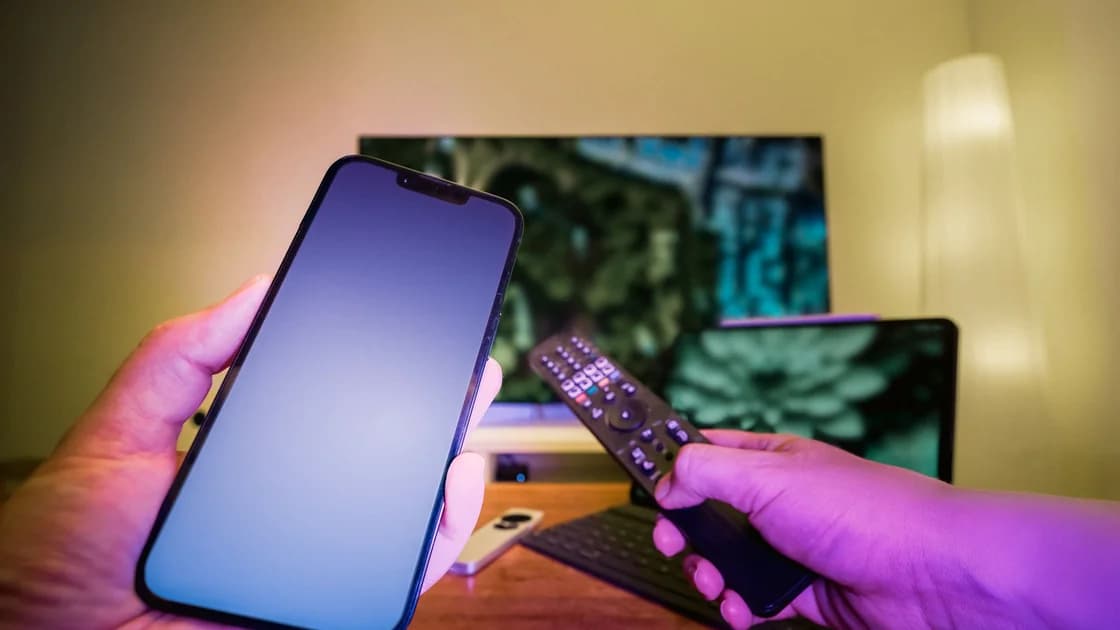
Screen casting is a different wireless path. If a television or receiver is discoverable but wireless mirroring fails, use the screen-casting guide instead of changing physical cables.
Use Settings > System > Display > Multiple displays and select Detect when Windows has not picked up a connected monitor, then try duplicate mode. Microsoft’s sequence for Windows 11 and Windows 10 starts with Windows logo key + P to confirm the projection mode, then disconnects docks and adapters, checks or swaps the cable, tries another video port, and resets the graphics driver with Windows logo key + Ctrl + Shift + B before rolling back or reinstalling the display driver.[1]
If the screen became black after a display-mode change, return to one known-good display and a safe resolution. Use supported Windows and computer/GPU vendor updates only after the connection path is proven.
Open System Settings > Displays with the monitor connected directly. Apple documents display detection, cable/adapter compatibility, supported resolution and refresh rate, and Mac model display limits.[2]
Do not infer multi-display capacity from the number of physical ports. The Mac model, chip, connection type, dock, display resolution, and refresh rate can all affect the supported combination. The new Mac setup checklist provides a broader post-setup hardware check.
Connect the monitor, then open Settings > Device > Displays to turn mirroring on or off and arrange the screens. Google notes that some Chromebooks need an adapter cable and that a USB-C cable must be fast enough for the display connection; otherwise ChromeOS can show a “Cable may not support displays” message.[3]
Test one direct display before adding a USB-C hub. A school-managed Chromebook may restrict settings or use hardware with a fixed external-display limit.
Open Settings > Displays, select the arrangement, and apply a supported mode. Ubuntu documents joining displays, mirroring, primary display selection, and orientation.[4]
Keep the internal display active until the external path is stable. If a new mode goes black, allow the confirmation to time out rather than accepting an unseen setting. The Ubuntu setup checklist covers broader hardware validation.
A path may work at 1920×1080 and fail at a higher resolution or refresh rate because required bandwidth changes. HDR, high color depth, display-stream compression, and multiple monitors can also alter the supported combination. Do not promise a mode based only on a connector label.
Reduce variables in this order:
If the picture returns at a lower mode, nothing has yet proved that the monitor is defective. Check the documented limits of the host, adapter, cable, dock, and monitor as a chain.
Use normal operating-system updates and the exact computer, GPU, dock, or monitor vendor’s support pages. Random driver cleaners and firmware files create a larger recovery problem and may target the wrong hardware revision.
Cross-test methodically:
If one monitor fails with two known-good sources while another monitor works on the original computer, the monitor or its input is the stronger lead. If several displays fail only through one port or dock, focus on that shared component. If all displays fail after liquid damage, impact, burning smell, or excessive heat, stop and seek service.
Separate power, no-signal, detected-but-black, image-quality, and multi-display-limit symptoms. Select the monitor’s real input, verify every component can carry the requested video, and prove a one-monitor direct connection. Use a conservative mirrored mode before adding docks and advanced settings. Keep drivers and firmware late, with a visible recovery path for any display change.
It is powered but may be on the wrong input, connected through an incompatible cable or adapter, or receiving no output from the computer. Select the exact input and test a direct cable.
No. USB-C describes the connector. The port and cable must also support a video mode such as DisplayPort Alt Mode or Thunderbolt as documented by the devices.
The computer may use an unsupported mode, send the desktop to another arrangement, or have a display-path problem. Return to one screen, duplicate mode, and a safe resolution.
No. First prove monitor power, input, cable capability, direct connection, and display mode. Use an exact supported driver only when the system path remains the stronger lead.
The dock, its upstream cable, power, firmware, port capability, or bandwidth may be the limiting component. Add one component at a time to identify which one changes the result.
The host or dock may have a display-count or bandwidth limit, or the requested resolution and refresh combination may be unsupported. Check the exact model limits.
Yes. An unstable or insufficient cable can produce intermittent black screens, artifacts, or failure only at higher modes. Test one known-good certified cable.
Contact support when the monitor cannot display its own menu, fails with two known-good sources, or a computer cannot drive any known-good display through a documented supported port.
Sources checked 4 October 2026.
Sign up to experience all premium features at no cost.
*Available only to new users. Each user is limited to one trial.