Start your 3-day free trial
Sign up to experience all premium features at no cost.
*Available only to new users. Each user is limited to one trial.
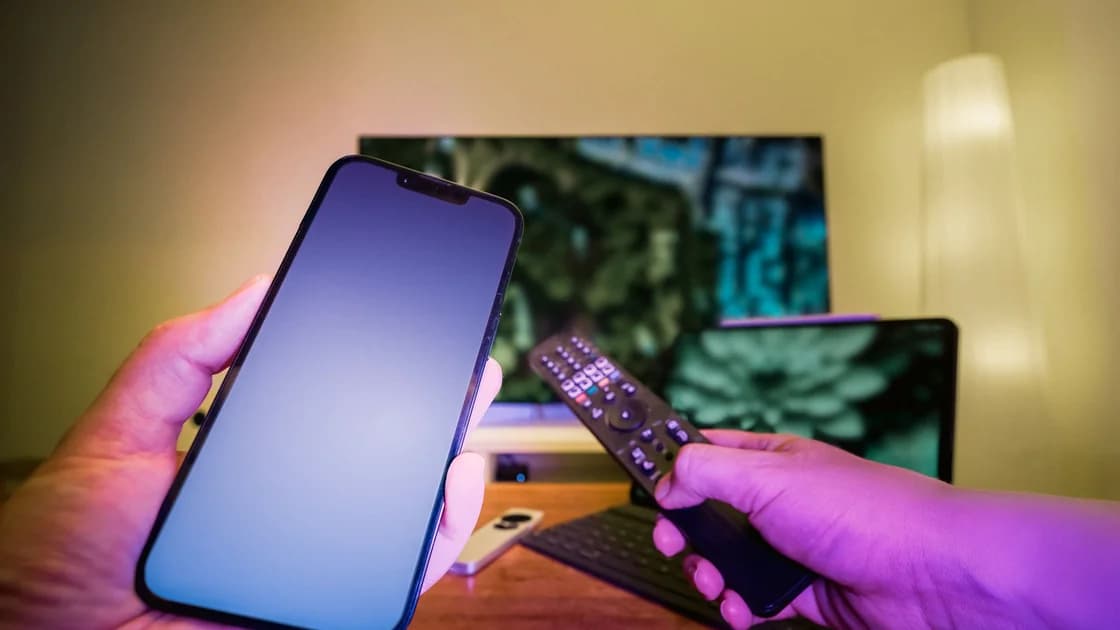

Screen casting not working from a phone to a TV usually has one of four causes: the two devices use different technologies, the network blocks local discovery, an app lacks a permission, or the receiver is not ready. Screen mirroring fails for the same reasons, so identify whether you are using Google Cast, AirPlay, Miracast, or full screen mirroring before changing the router or resetting either device.
Key Takeaways
- Casting names are not interchangeable protocols.
- Check sender, receiver, app, and content compatibility first.
- For Cast and the Wi-Fi AirPlay workflow, use the same trusted local network; check Miracast separately.
- Local Network and receiver permissions can hide an otherwise compatible display.
- Update, restart, and reconnect before considering any reset.
For the general evidence-first method behind these checks, use the device and app troubleshooting guide.
Google documents Local Network discovery for Cast.[1] Apple documents AirPlay use.[2] Apple also documents connection troubleshooting.[3] Microsoft documents wireless-display connection checks.[4]
The first decision is the connection technology. A Cast button inside an app, AirPlay, Miracast, and a vendor's Screen Mirroring feature may look similar but do not guarantee cross-protocol compatibility.
| Method | Typical sender | Typical receiver requirement | What is sent |
|---|---|---|---|
| Google Cast | Cast-enabled app or Chrome | Google Cast receiver | App media, tab, or supported screen |
| AirPlay | Apple device and supported app | AirPlay-enabled TV or Apple TV | App media or Apple screen mirror |
| Miracast | Compatible Windows or Android device | Miracast display or adapter | Wireless display session |
| App-specific connection | The service's own app | Matching TV app or code flow | Service-controlled playback |
Microsoft notes that a sender without Miracast support needs another display method, and a receiver without Miracast needs a compatible adapter. Apple likewise notes that some video apps do not support AirPlay.
Do not assume that a phone can mirror to any television merely because both have Wi-Fi. Check the TV or receiver manual for the exact supported method.
Keep discovery, connection, and playback as separate phases:
| Symptom | Likely layer | First check |
|---|---|---|
| No Cast or AirPlay button in one app | App, content, account, or permission | Test a known supported app |
| The display never appears | Compatibility, receiver mode, network discovery, or permission | Check protocol and local network |
| The display appears but connection fails | Receiver readiness, stale pairing, or software | Restart and reconnect |
| Connection starts, then playback is rejected | App or content policy | Contact the service owner |
| Mirroring works but one protected video is black | Content protection or app policy | Use the supported TV app |
This guide focuses on discovery and initial connection. It does not treat later buffering, black video, subscription access, regional availability, or a session that disconnects after it has already started.
Confirm four pieces:
For AirPlay, Apple recommends compatible devices that are powered on, nearby, current, and connected to the same Wi-Fi. For Miracast, Microsoft recommends checking support on both the PC and display, enabling Wi-Fi, and installing current display firmware and drivers.
If the television supports AirPlay but the Android app only offers Google Cast, those labels do not create a common transport. Use an app or external receiver that officially supports both ends.
Check this for Google Cast and the Wi-Fi AirPlay workflow described here. Miracast can establish a peer-to-peer Wi-Fi Direct connection, so sharing one router is not a universal requirement for every wireless display. Keep Wi-Fi enabled and follow the actual sender and receiver instructions.[5]
Check the exact Wi-Fi name on both devices. A main network and a guest network can share an internet connection while deliberately blocking device-to-device discovery.
Google requires the sender to be on the same Wi-Fi network as the Cast receiver for local discovery. If either device uses a guest SSID, extender network, or managed network, move both to the same trusted network you control and test again.
The guest Wi-Fi guide explains client isolation. Do not disable isolation on a public, workplace, school, or accommodation network. Ask the network owner whether local device discovery is supported.
If the TV itself has no internet, first use the Smart TV network checklist. Internet access is not required by every mirroring technology, but an offline receiver can still fail app setup, updates, or service-controlled playback.
On iPhone and iPad running iOS 14 or later, a Cast-enabled app may need Local Network access to discover receivers. On macOS 15 and later, Chrome and relevant apps can require the same permission. Google documents both paths and states that denying access prevents casting discovery.
Check only the app you intend to use:
Do not enable local-network access for every app. The permission allows discovery of devices on the local network and should remain limited to apps whose function needs it.
AirPlay also depends on receiver settings. Apple recommends checking that AirPlay receiving is enabled and that Home settings do not limit who can use it. Do not weaken a household or organization access rule without the owner's approval.
Power on the television, receiver, adapter, or target PC and select the correct input or receiver mode. Some displays advertise themselves only while a Wireless Display, Screen Mirroring, AirPlay, or Cast-ready screen is active.
For a Windows PC used as the target, Microsoft says the Wireless Display app must be installed and the PC configured to be discoverable. For an external adapter, confirm that it has power and that the TV shows its HDMI input.
Keep the devices reasonably close for the initial connection. Remove an unrelated sender that is already connected if the receiver accepts only one session, but do not erase every paired device as a first step.
Restart the smallest relevant set:
Apple recommends updating and restarting AirPlay devices. Microsoft gives the same update-and-restart direction for wireless displays and adapters.
Avoid unplugging equipment during a firmware update. Do not install firmware from an unofficial site or a different model.
If a previously used Miracast display appears but will not reconnect, remove only that wireless display from the sender's saved devices and add it again. Microsoft includes this as a later troubleshooting step.
For app-level casting, clear only the stale receiver selection or sign-in state described by the app owner. For AirPlay, verify receiver permission and Home restrictions before removing a home or resetting an Apple TV.
Do not reset the router, television, phone, or computer to factory settings for a discovery problem. A reset can erase accounts, home configuration, network state, and accessibility settings without resolving protocol incompatibility or network isolation.
That result proves that the devices and local discovery can work together. Keep the investigation at the failing app, account, content, or service policy.
Apple explicitly notes that some apps may not support AirPlay. A service may also require its TV app, limit screen mirroring for protected video, or provide its own device-code connection. Use the service's documented method instead of trying to bypass the restriction.
Do not describe a black screen or rejected protected title as a broken local network when menus, photos, or another supported app cast normally.
Capture the connection facts without exposing account secrets:
Contact the sender or receiver manufacturer for protocol or discovery failures. Contact the app or content provider when the same devices work in other supported apps.
The devices may use different casting methods, be on different or isolated networks, lack Local Network permission, or have the receiver feature turned off. Check protocol compatibility before resetting anything.
Google Cast and AirPlay normally require the sender and receiver to be on the same local Wi-Fi for discovery. A guest network can block device-to-device traffic even when both devices have internet access.
The app or selected content may not support casting, or the app may lack local-network permission. Compare another officially supported app to distinguish app support from receiver discovery.
No. They are different technologies. Some receivers support more than one, but both ends still need a common method for the specific action.
The receiver may be busy, not in the correct mode, using stale pairing state, or running outdated software. Restart both ends and reconnect only the affected display.
Yes. Guest networks often isolate clients so they cannot discover or connect to each other. Do not disable that protection on a network you do not own.
The app or content provider may restrict protected playback or require its native TV app. That is an app or content-policy boundary, not proof that local discovery is broken.
No. Factory reset is disproportionate for a discovery problem and cannot make incompatible protocols communicate or remove a network owner's isolation policy.
First establish a supported protocol and an awake receiver. If a Google Cast receiver remains missing from Chrome, Google includes VPN or proxy disconnection among its checks.[6] Where AethoVPN is already running on the sender, record that state and, on your trusted network where policy permits, disconnect it briefly while keeping the same app and receiver. Compare device discovery, then restore the connection.
If the receiver appears only during that test, investigate the sender’s route or local-access policy with the provider; do not reset every device or disable the network owner’s isolation. If nothing changes, return to app permissions, receiver mode and compatibility. This comparison cannot make incompatible protocols interoperate, repair a missing Miracast capability or authorize protected video.
Sources:
Sources checked 4 October 2026.
Related guides:
Sign up to experience all premium features at no cost.
*Available only to new users. Each user is limited to one trial.