Start your 3-day free trial
Sign up to experience all premium features at no cost.
*Available only to new users. Each user is limited to one trial.

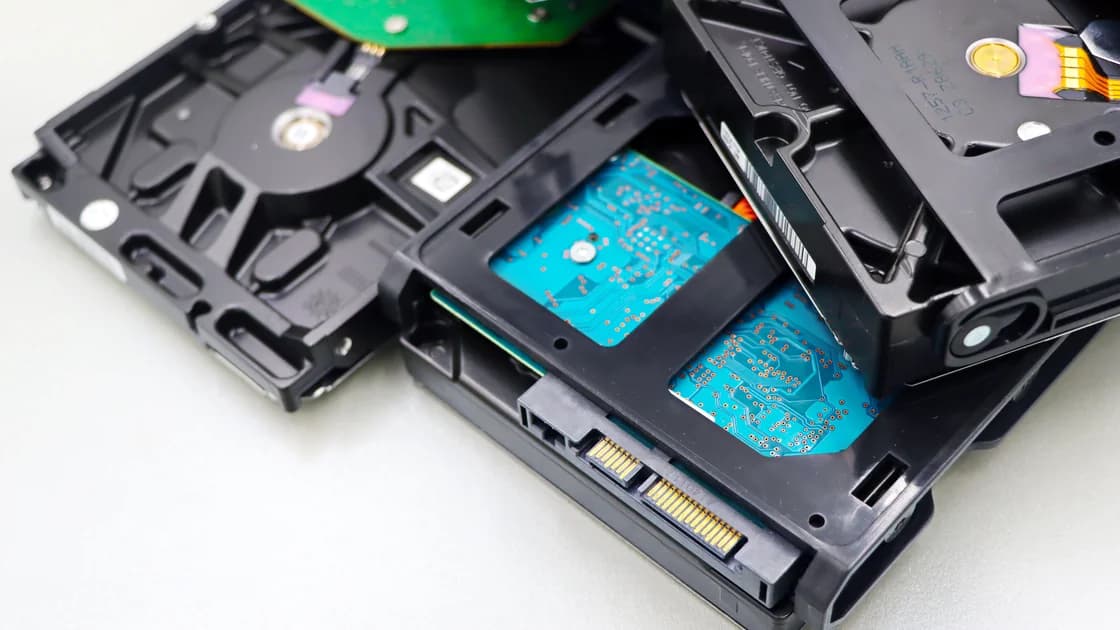
Why is NAS file transfer so slow? Usually the slowest part of the path cannot sustain the workload: the source disk, Wi-Fi or Ethernet link, client CPU, SMB processing, NAS CPU, array, or destination disk. Start with one large file over wired Ethernet, then change one variable at a time; a folder containing thousands of small files is not comparable to one large video of the same total size.
Key Takeaways
- Link speed is not the same as useful file-copy throughput.
- Establish a repeatable wired, single-client, large-file baseline first.
- Measure read and write separately and compare one large file with many small files.
- Watch sustained disk and CPU behavior, not only the fast cache at the beginning.
- Do not permanently disable SMB signing, encryption, antivirus, or integrity features to chase a benchmark.
If you are still choosing storage, review what a NAS is. If the share will not connect at all, use the SMB connection troubleshooting guide before measuring speed. The broader device troubleshooting guide helps with client-specific problems.
Write down the test instead of relying on the copy dialog's changing estimate.
| Field | Example of useful evidence |
|---|---|
| Direction | Client to NAS write, or NAS to client read |
| File set | One 10 GB file, or 20,000 files below 1 MB |
| Client path | Internal SSD, external HDD, or another network share |
| Network | Wired Ethernet or Wi-Fi band and signal |
| Link rate | Negotiated client and NAS port rates |
| Share and protocol | Exact SMB share and current supported SMB version |
| Duration | Total bytes divided by total elapsed seconds |
| Other work | Backup, indexing, media scan, RAID rebuild, antivirus, snapshots |
Use a non-sensitive test file that is larger than the easy memory and disk caches but small enough to repeat safely. Record total bytes and elapsed time. The momentary peak in a graphical copy dialog can reflect buffering; it is not the sustained result.
Do not compare unlike tools and workloads. A browser download, cloud sync, USB copy, and SMB copy exercise different servers and paths. A folder of photos also creates and closes many files, while a large video pays that metadata cost far fewer times.
Begin with the simplest path you can control.
Microsoft gives an approximate upper reference of about 110 MB/s of sustained storage throughput per 1 Gbps of network bandwidth when no other bottleneck exists.[1] That is not a promise for every NAS: protocol overhead, client and server hardware, storage, file mix, security features, and competing work all reduce useful throughput.
If a client reports a 1 Gbps link but sustained large-file copying is far below the baseline of another client on the same port and share, investigate the client path. If every client is slow in one direction, focus on the NAS storage and server layers. If wired is consistent but Wi-Fi varies, investigate the wireless path without changing the NAS array.
Small files require repeated create, metadata, permission, scan, write, close, and acknowledgment operations. Microsoft notes that hundreds, thousands, or millions of files below 1 MB can produce very low throughput in a single-threaded copy because file creation and protocol latency repeat for each file.
Compare two controlled workloads with similar total bytes:
If only the small-file workload is slow, do not assume the Ethernet link is faulty. For a one-time transfer, packaging a directory into a trusted archive can reduce file-creation overhead, but only when the archive can be safely created locally, verified, transferred, and extracted on the destination. Do not archive live databases, active mail stores, virtual machines, or application data without an application-supported backup procedure.
Multithreaded copy tools can improve some small-file workloads, but excessive concurrency can overload the client CPU, NAS CPU, disks, or antivirus. Increase concurrency gradually, preserve logs, and compare total elapsed time. Do not use a high thread count as a universal setting.
Check the negotiated path rather than the printed capability on the box.
TCP retransmissions can force congestion control to reduce throughput, while a shrinking receive window can reflect slow storage or another component that is not draining data quickly enough.[2] Network symptoms therefore do not always mean the cable or router is the root cause.
Do not enable jumbo frames across only one device. Every relevant interface and path component must support the same tested MTU, and a mismatch can create intermittent or size-dependent failures. Leave the normal MTU in place unless you own the entire path and have a specific measured reason to change it.
For Wi-Fi, the 2.4, 5, and 6 GHz guide explains range and capacity tradeoffs. A high physical Wi-Fi rate still shares airtime and includes protocol overhead; it cannot guarantee a matching file-copy number.
Measure the source and destination separately. Copying from a slow USB hard drive to a NAS can be limited before data reaches the network. Copying from the NAS to another slow local disk can hide healthy NAS read performance.
On the NAS, examine supported health and performance views during the complete transfer:
A copy that starts fast and then slows may have filled client memory buffers or storage caches, after which sustained disk write speed becomes visible. Microsoft describes this cache-to-write-through transition as a common reason for an initially high rate that later falls. Measure a long enough transfer before concluding that the first peak is normal performance.
RAID level, drive type, array width, random workload, and other clients affect performance. Do not change RAID layout, cache mode, sync behavior, or power-loss protection from a blog benchmark. Those changes can endanger data and normally require a vendor-specific maintenance and backup plan. The first NAS setup checklist keeps storage layout and backup roles separate.
They can add CPU and processing overhead, and the size of the impact depends on client and server hardware. Microsoft states that SMB signing and encryption can reduce transfer performance, but also says not to disable required signing because it provides important protection against spoofing, tampering, and relay attacks.
Current SMB security behavior also varies by operating-system and server capability. Microsoft notes that Windows 11, version 24H2 and Windows Server 2025 require SMB signing by default, so copies that slow down after a client upgrade may reflect signing work on an older NAS CPU rather than a network fault. Microsoft also documents security enhancements and encrypted-share behavior for current SMB versions.[3] Treat an unexpected change after an OS or NAS update as a compatibility and capacity question, not permission to remove protection.
Use this decision sequence:
Do not disable endpoint protection permanently. A tightly controlled temporary comparison may be appropriate only under the security product owner's procedure, with the NAS and test data isolated and protection restored immediately. Home users should normally leave protection enabled and compare another client or file set instead.
Use a fixed matrix and change one variable per row.
| Test | Variable changed | What the result can show |
|---|---|---|
| A | Wired instead of Wi-Fi | Wireless contribution |
| B | One large file instead of small files | Metadata and per-file overhead |
| C | NAS read instead of NAS write | Direction and destination storage |
| D | Fast internal SSD instead of external source | Client source-disk limit |
| E | Second known-good client | Client-specific limit |
| F | Quiet NAS instead of background workload | Server contention |
Keep the same file, share, tool, and timing method wherever possible. Repeat surprising results. If a change improves one run but not the next, the variable may not be the cause.
Stop and seek vendor support when the NAS reports drive errors, a degraded or read-only volume, overheating, repeated reboots, data corruption, or an active rebuild that does not progress. Performance tuning is secondary to preserving data integrity.
The link rate includes protocol overhead and says nothing about whether the source disk, destination disk, CPU, SMB processing, or competing workloads can sustain it. Useful throughput is limited by the slowest active component.
Memory and storage caches can absorb the beginning of a write. Once they fill, the transfer exposes the destination's sustained write speed, so a long test is more useful than the initial peak.
Every small file requires repeated create, metadata, permission, scanning, and close operations. One large file pays those fixed costs far fewer times and can keep more data in flight.
Usually not for a transfer that stays inside the home LAN. Local client, Wi-Fi or Ethernet, switch, NAS server, and storage determine that path. Internet speed matters only when the transfer actually crosses the internet.
Not as a generic optimization. They provide security properties, may be required by current systems or policy, and should remain enabled. Update or upgrade hardware that cannot meet the needed protected performance.
No. Benefits depend on workload and hardware, and every relevant path component must use a compatible MTU. A partial configuration can cause failures and is not a first-line fix.
No. RAID behavior depends on level, drives, controller, workload, rebuild state, and cache policy. It also does not replace backup, and changing it can require destructive migration.
Treat health alerts, read-only or degraded volumes, rising errors, timeouts, abnormal noise, overheating, and unexplained reboots as integrity issues. Stop tuning, protect available data, and follow the vendor's recovery process.
For slow NAS transfers, AethoVPN is relevant only if the transfer actually crosses its VPN route; local disk, Wi‑Fi, SMB, and Ethernet bottlenecks need separate measurements.
Sources checked 4 October 2026.
Sign up to experience all premium features at no cost.
*Available only to new users. Each user is limited to one trial.