Start your 3-day free trial
Sign up to experience all premium features at no cost.
*Available only to new users. Each user is limited to one trial.
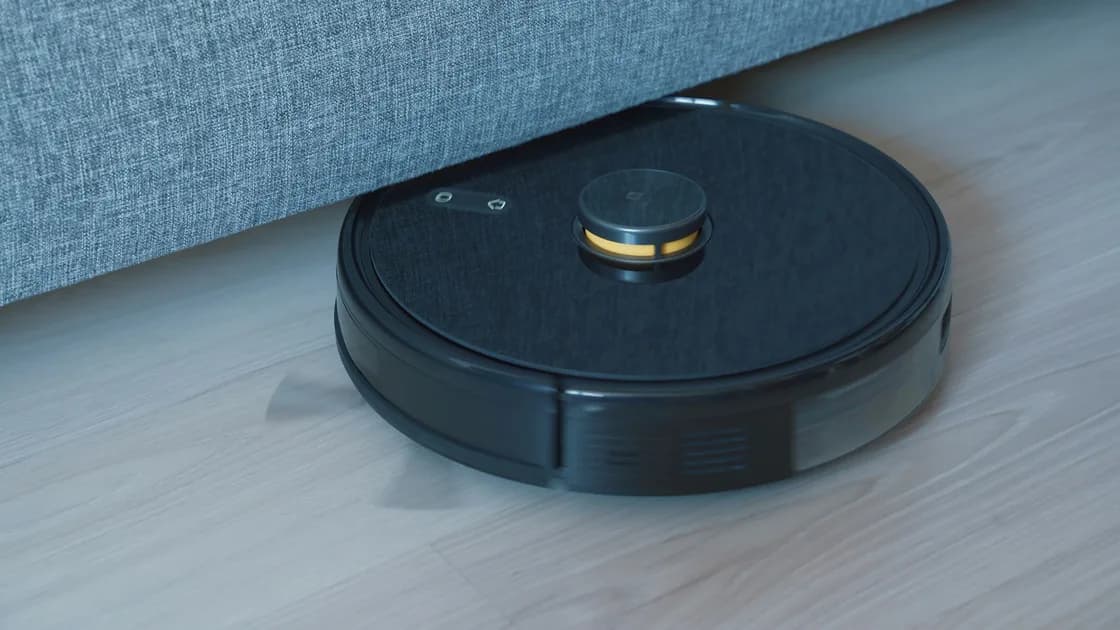

A robot vacuum shows offline when its app can no longer reach it through your account, home Wi-Fi, and the maker's cloud, while the robot itself often still works. The same layers apply to a Roomba, a Roborock, or another brand. First check whether the robot powers on, responds to its buttons, and can start or return to the dock locally. If it can, work through the app, account, Wi-Fi, and saved network profile before reconnecting it, and keep a factory reset for last because it can remove maps, schedules, preferences, and account associations.
Key Takeaways
- An offline badge in the app does not prove the robot itself has failed.
- Compare local controls, another authorized phone, and any service notice before changing Wi-Fi.
- A powered dock does not guarantee useful Wi-Fi coverage where the robot rests.
- Rebooting is normally narrower than removing the robot or restoring factory settings.
- Model-specific frequency support, buttons, offline functions, and reset effects must come from the manufacturer.
Use the device and app troubleshooting guide if you have not established whether the problem belongs to one app, one device, the home network, or an upstream service.
“Offline” usually means the app cannot currently reach the robot through the expected account and network path. It does not tell you which link failed. The robot might be asleep, discharged, off the dock, connected to an old Wi-Fi name, blocked from the cloud, assigned to another account, or simply absent from one phone’s stale app session.
Start with a small evidence table:
| Observation | More likely layer | First check |
|---|---|---|
| Robot has no lights or response | Power, battery, contacts, or hardware | Dock power and local controls |
| Robot cleans from its own button but app says offline | App, account, cloud, or Wi-Fi | Another authorized phone and service status |
| Robot went offline after a router change | Saved network profile | SSID, password, security, and supported band |
| It appears offline only far from the dock | Coverage or roaming | Signal near the dock and access point placement |
| Every robot in the same account is unavailable | Account, app, or service | Sign-in and official service notice |
| One robot repeatedly disconnects | Robot, dock location, or local network | Cross-test location and supported reconnect flow |
Record the exact model, app name, account, last successful task, time of failure, and any original error. Do not share a home map, Wi-Fi password, serial number, or account screenshot publicly.
Stand beside the robot before opening router settings. Confirm that the dock is plugged in, the cable is fully seated, and the robot is aligned with clean, dry charging contacts. Look for a normal charging response rather than assuming that a wall socket or dock light proves the robot is charging.
Then try only the local functions documented for the model:
Some models can start a basic cleaning job while offline; others depend more heavily on the app for room selection, maps, schedules, or settings. A successful local task proves that the robot can perform at least one physical function. It does not prove that its Wi-Fi radio, account association, map sync, or cloud connection is healthy.
If the robot will not power on, charge, or respond locally, stop treating the problem as an app-only outage. Follow the exact model’s power and battery documentation or contact support. Repeated network resets will not repair damaged contacts, a failed battery, liquid damage, or a mechanical fault.
Close and reopen the official app, then confirm that you are signed into the account that originally owns or shares the robot. Check whether the correct home, household, region, and robot are selected. Do not remove the robot merely because it is missing from a filtered room or another family member’s account.
If another authorized phone is available, compare the same robot there. These results are useful:
Check the manufacturer’s official status or support channel if the problem began suddenly and affects many devices. Avoid third-party “status” pages that ask for account credentials. Updating the official app is reasonable, but do not install an unofficial APK or configuration tool to recover a household device.
The dock is both a charging location and the place where many robots spend long periods. It should have stable power, safe clearance, and useful Wi-Fi coverage. A robot can navigate into a weak area and fail to report progress, while later reconnecting near an access point.
Test coverage at the dock with an ordinary authorized phone, but treat signal bars as a rough comparison, not a measurement of the robot’s radio. If the dock is behind metal furniture, inside a cabinet, beside a large appliance, or at the edge of a mesh node’s coverage, temporarily test a safer documented location without blocking the robot’s approach.
iRobot’s setup guidance says to power the dock, place it on a level surface near the router during setup, select a compatible network, and use Product Settings > Wi-Fi Settings > Reconnect or Change Product Wi-Fi in the iRobot HOME app when an already configured robot cannot connect. It also lists frequency support by model: most recent Roomba models handle both 2.4 GHz and 5 GHz, while older families such as Roomba Essential, i1–i5, and the 800 and 900 series use 2.4 GHz only.[1]
Do not permanently weaken Wi-Fi security, disable the firewall, or split a working mesh solely on generic advice. Consult the exact robot and router documentation. The Wi-Fi band guide explains why a band name alone does not guarantee compatibility or coverage.
Recent changes often identify the shortest repair path. Ask whether anyone:
If the SSID or password changed, use the manufacturer’s reconnect or change-network flow. Do not rename the whole home network again just to match an uncertain memory. If the router was replaced, confirm that its security and band settings are supported by the exact robot.
For a robot that was never successfully set up on this network, use the separate smart-home Wi-Fi setup guide. This article assumes the robot previously worked and later appeared offline.
Preserve evidence first: note the robot name, model, account, maps that matter, schedules, integrations, and the last error. Then use the narrowest restart sequence:
iRobot states that a reboot is safe and does not delete maps, schedules, or preferences, while button timing varies across model families.[2] That is why a generic “hold two buttons for 20 seconds” instruction is unsafe: on another model it may do nothing or invoke a different operation.
After reconnecting, test in stages. Confirm that the robot becomes visible, start one small local job, verify that it reports progress, ask it to dock, and check that an existing map or schedule still appears. Do not immediately run a whole-home mission while you are still establishing whether state synchronization is stable.
A factory reset is justified only when the manufacturer’s exact support flow calls for it, ownership genuinely needs to change, or narrower power, account, service, Wi-Fi, reboot, and reconnect checks have failed. Read the reset screen and model documentation before confirming.
iRobot distinguishes rebooting from factory reset: an app-based factory reset removes the robot from the account and erases cloud data, settings, preferences, time zone, smart-speaker associations, and customized maps unless the model can save them first, while a manual button reset keeps cloud data and account associations.[3] Back up or document what can be recovered, and make sure you can sign into the owner account again.
Escalate instead of resetting when the robot will not charge, smells hot or burned, has liquid damage, reports a persistent hardware code, repeatedly loses power, or belongs to a landlord, workplace, or another account owner. If a reset would destroy the only useful map or access record, clarify recovery options with the manufacturer first.
Brand searches such as “Roomba offline” or “Roborock device offline” lead back to the same layers, but each maker uses its own app, band support, and reset effects. Use the notes below to find the right page in your own model’s documentation, not as steps for another brand.
| Brand | What to check first when it keeps dropping |
|---|---|
| Roomba (iRobot HOME app) | Whether the model is one of the older 2.4 GHz-only families, the app’s reconnect path after a router or password change, and a reboot with the model’s own button timing |
| Roborock | The Wi-Fi band that model supports and the phone permissions the Roborock app requests during reconnection |
| Other brands, including eufy RoboVac | The maker’s own app, reconnect flow, and reset warning; do not reuse iRobot or Roborock button sequences |
Roborock’s offline guidance, for example, describes model-specific Wi-Fi limits and app permissions rather than a universal robot-vacuum procedure.[4] If a robot keeps going offline only at the far end of the home, return to the dock-coverage checks. If it drops everywhere on a supported network, record the times and errors before contacting support.
An app’s offline badge identifies a failed communication path, not a failed vacuum motor. Confirm local power and controls, compare another authorized phone and official service status, inspect dock coverage, and review recent network or account changes. Reboot with model-specific instructions, then use the supported reconnect flow. Keep factory reset last because it can remove maps, schedules, preferences, integrations, and account associations.
Local cleaning and cloud control are separate functions. The robot may run from its own button while its Wi-Fi, account, app session, or cloud path is unavailable.
Some do, while others also support 5 GHz. Check the exact model specification for robot vacuum 2.4 GHz Wi-Fi support; do not apply one frequency rule to every robot.
It is a useful temporary comparison when coverage at the dock is weak. Keep the dock on a safe level surface with the manufacturer’s required clearance and do not block its approach path.
It may still hold the previous Wi-Fi name, password, security settings, or network association. Use the manufacturer’s change-network or reconnect flow.
Only after checking account selection, service state, power, coverage, and supported reconnection. Removal may affect ownership, maps, schedules, and integrations.
A normal reboot should not on models whose manufacturer explicitly says it preserves data. Use the exact model instructions and do not confuse reboot with factory reset.
It can. Effects differ by model and reset method, so read the manufacturer’s warning and preserve recoverable information before confirming.
Contact support when the robot cannot power on or charge, reports a hardware fault, repeatedly drops offline on a known-good supported network, or cannot be recovered without risking important maps or ownership data.
Sources checked 4 October 2026.
Sign up to experience all premium features at no cost.
*Available only to new users. Each user is limited to one trial.