Start your 3-day free trial
Sign up to experience all premium features at no cost.
*Available only to new users. Each user is limited to one trial.
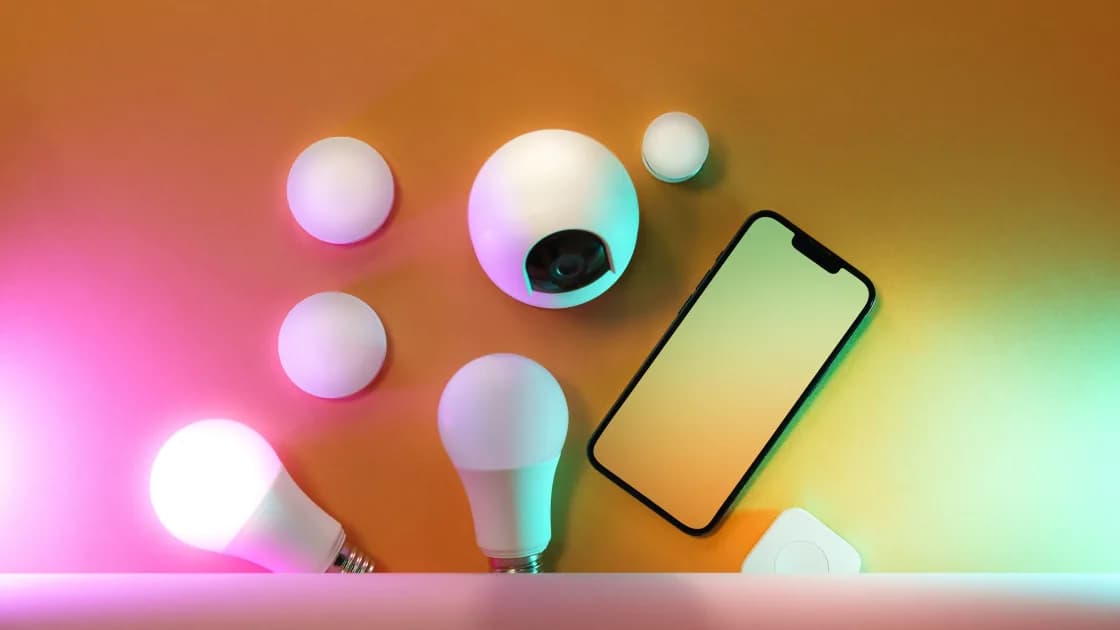

If a smart home device won’t connect to Wi-Fi, or setup stops with an error such as “could not establish a connection to access point,” one setup stage is usually failing: the device is not discoverable, the network uses a band or mode the model does not support, client isolation blocks local discovery, or the device is still tied to another home or account.[1][2][4][5] Identify that stage before changing the router. Then check power and pairing mode, the phone's Bluetooth and local-network permissions, supported Wi-Fi and security modes, network isolation, previous account binding, and any required hub or Matter controller.
Key Takeaways:
- “Won't connect” can mean discovery, temporary pairing, Wi-Fi authentication, or account enrollment.
- Requirements vary by model; not every smart device is limited to 2.4 GHz.
- Phone permissions and client isolation can block setup even when the Internet works.
- Do not permanently weaken Wi-Fi security or factory-reset the device first.
This guide covers initial setup and moving a device to a new network. If an installed camera connects successfully and later drops repeatedly, use the smart-camera disconnect guide instead.
Write down the last successful step and the exact error message. Google groups pairing failures around insufficient power, phone Bluetooth state, network conditions, and network-equipment settings.[1] Apple separates errors such as an accessory already being added, an incompatible network, an unsupported accessory, and a Matter-specific problem.[2]
Use this stage map:
| Failed stage | What you observe | Likely area to check |
|---|---|---|
| Device not discovered | Nothing appears in the app | Power, pairing mode, Bluetooth, proximity, permissions |
| Phone cannot join temporary setup network | Setup pauses before home Wi-Fi selection | Phone Wi-Fi, cellular fallback, app workflow |
| Home Wi-Fi is not listed | Network name absent | Band support, hidden SSID, signal, region, router compatibility |
| Password or authentication fails | Network is visible but join fails | Password, security mode, stale saved network |
| Join succeeds but setup never finishes | Device disappears or account step times out | Isolation, Internet, cloud service, ownership, hub |
| Device says it is already added | Setup code works but ownership blocks enrollment | Previous home/account and official reset process |
Do not repeat the whole flow without noting where it stops. An access-point connection error belongs to the temporary-setup-network row if the app was joining the device's own setup network at that moment, and to the password row if the device was joining your home Wi-Fi. A different error after one controlled change is useful evidence.
Use the model's manual to identify its setup indicator. A blinking color, spoken prompt, or button sequence is not universal. Confirm that the approved power adapter, battery, or fixed wiring is stable and that the device has completed its boot sequence.
If the product was configured before, it may not automatically return to pairing mode. Do not hold a reset button until you know whether it performs a restart, network reset, or full factory reset.
Perform setup near the device and reasonably near the router. Google recommends moving pairing devices closer to the router and trying another phone or tablet if the first device remains unable to complete setup. After setup, move the product to its intended location and test again.
Many setup flows use Bluetooth for discovery and the local network for device communication. On iPhone and iPad, apps must request permission before browsing devices on the local network, and that access can later be changed under Privacy & Security > Local Network.[3]
Check only the permissions the manufacturer documents:
Do not grant unrelated permissions merely to see whether setup starts. If the permission request is unclear, consult the app developer's explanation.
Keep the phone on the intended home Wi-Fi unless the setup flow explicitly asks it to join a temporary device network. Cellular fallback, an active hotspot, or an automatic jump to another saved Wi-Fi network can interrupt some onboarding flows.
Do not assume a VPN is the cause or the solution. Pairing is primarily a local-device, permission, and network-compatibility process.
Check the exact model's supported bands, security modes, region, and network types. Some devices are 2.4-GHz-only, others support 5 GHz, and the presence of a combined network name does not automatically make it incompatible.
Google's Nest documentation says that some, not all, products are incompatible with 5-GHz-only networks. It also identifies captive-portal and 802.1X/RADIUS enterprise networks as incompatible for the covered Nest products.[4] Apply those claims only to the documented products, not to every IoT device.
Review these network properties:
The 2.4, 5, and 6 GHz guide explains range and capacity tradeoffs. Do not permanently split SSIDs or disable WPA3 for the entire home unless the device and router documentation justify that design.
If you make a temporary compatibility change for diagnosis, document the previous value and restore it after the test. Never leave the network open or use WEP.
Yes. A phone may have Internet access while being unable to discover a nearby device because the router prevents clients from communicating locally. Google notes that its Seamless Setup workflow requires AP isolation to be off for supported Wi-Fi smart devices.[5]
Common boundaries include:
The guest Wi-Fi guide explains why isolation can be useful and why it may break local discovery. Do not disable isolation globally without understanding which devices would gain access to one another.
For a controlled test, place the phone and device on the same trusted home network and follow the vendor's supported setup path. After enrollment, move the device only if the platform documents how controllers, hubs, and phones communicate across your network design.
An accessory can retain an association with a previous home, account, controller, or fabric. Apple says an accessory reported as already added may need to be reset using the manufacturer's instructions. A Matter device may also require a new pairing code generated from the platform where it is currently commissioned.
If the product is second-hand, ask the previous owner to remove it from their account and home. A local reset may not remove a cloud-side ownership lock, subscription, camera encryption relationship, or anti-theft control.
Before resetting your own device, record:
Use only the exact model's reset instructions. A brief press and a long hold can perform different operations.
Yes. “Smart home device” does not always mean a standalone Wi-Fi client. A product may use Thread, Zigbee, Bluetooth, or another local protocol and depend on a bridge or home hub that uses Ethernet or Wi-Fi.
Google's Matter guidance explains that compatible devices may require a Matter-enabled hub and that the hub must be on the home network.[6] Apple tells users to check whether an accessory requires extra hardware, firmware, or setup in the manufacturer's app, and to confirm Home, HomeKit, or Matter compatibility.
Ask these questions:
Restart a hub only when evidence points to it, because it may serve many working devices. Avoid removing an entire home or fabric to fix one accessory.
This path applies the one-change-at-a-time method from the device and app troubleshooting guide to smart home setup:
If a newly replaced router is the common factor, compare its settings with the new-router setup checklist. Change one item at a time instead of enabling a permanent “compatibility mode” with unknown security consequences.
No. Support varies by model. Some devices are 2.4-GHz-only, while others support more than one band. Check the product documentation before changing the router.
The phone may lack Bluetooth or local-network permission, be on another segment, or be blocked by client isolation. Internet access does not prove local discovery is allowed.
Only if the device and router documentation identify a compatibility issue and you understand the secure fallback. Do not permanently weaken the whole network as a blind test.
Yes. Many guest networks isolate clients, which can block discovery and configuration. Use the vendor-supported network design rather than disabling isolation without a plan.
It may still belong to another home, account, or Matter fabric. Remove it through the previous platform and follow the exact reset or transfer instructions.
No. Matter can operate over Wi-Fi, Ethernet, or Thread, and Thread accessories depend on a suitable border router or hub. Check the product's transport and controller requirements.
No. It will not fix an incompatible network, missing phone permission, active cloud ownership lock, or unavailable hub. It can also erase useful setup context.
The installation location may have weaker coverage or interference. Complete a placement test and improve the supported network path rather than assuming successful onboarding guarantees a stable final location. AethoVPN cannot pair a smart-home device to local Wi‑Fi or repair weak coverage at its final location; test band support, credentials, and placement first.
Sources checked 4 October 2026.
Sign up to experience all premium features at no cost.
*Available only to new users. Each user is limited to one trial.