Start your 3-day free trial
Sign up to experience all premium features at no cost.
*Available only to new users. Each user is limited to one trial.
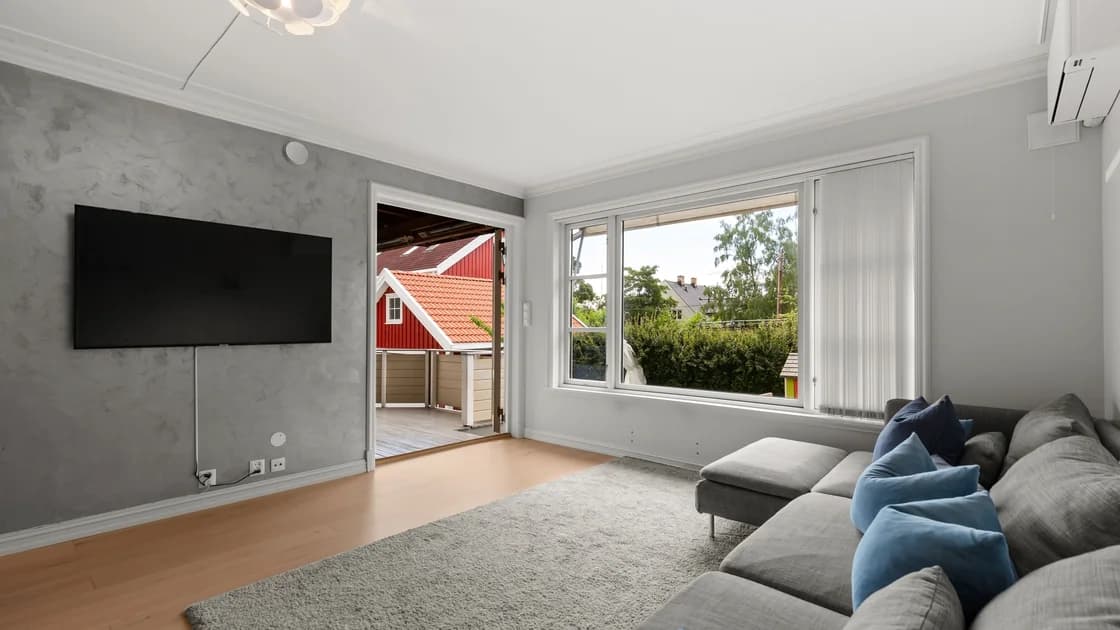

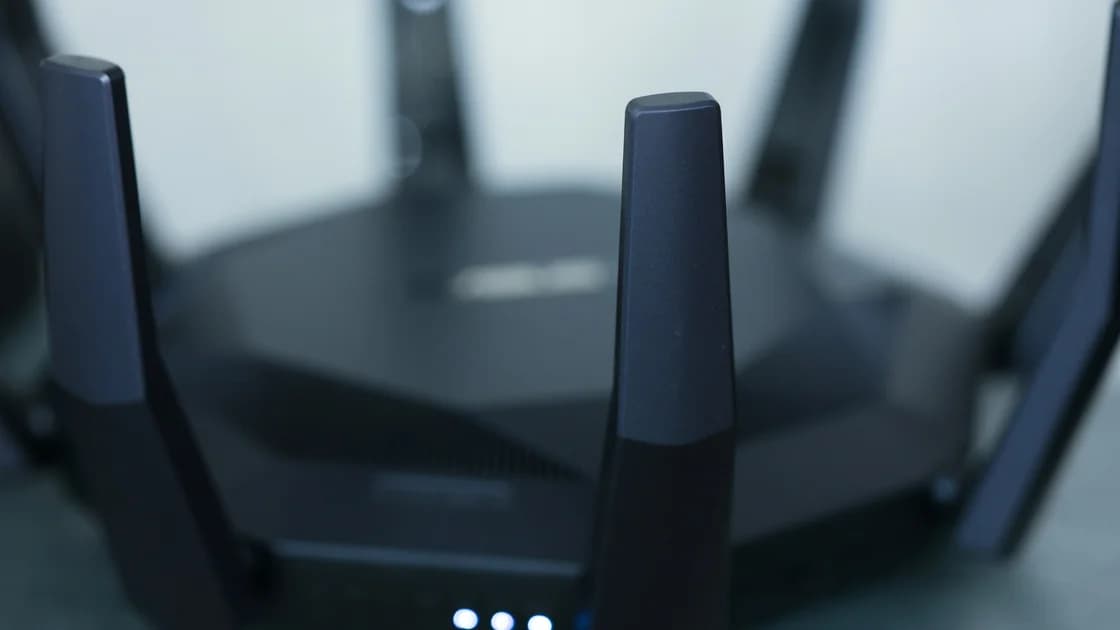
“Smart TV connected to Wi-Fi but no internet” means the television joined the router without proving that the upstream path works. Start by comparing another device on the same network and the TV on another trusted connection. Those two tests usually show whether to work on the television, the home network, or the internet service. If the TV still joins the network after a factory reset, it was most likely set up over Ethernet or with a phone that shared its Wi-Fi details, so the same layered checks still apply.
Key Takeaways
- Treat Wi-Fi association and internet access as separate states.
- Compare another device, another network, and the TV's network status before changing settings.
- Restart only equipment you own and allow each layer to finish starting.
- Check the clock, official software update, and automatic network values before Forget Network or Network Reset.
- Do not factory-reset the TV or router for an ordinary connection fault.
For a reusable way to separate device, app, account, and network failures, begin with the device and app troubleshooting guide.
Samsung documents TV network-status checks and official firmware updates.[1] LG documents hotspot comparisons.[2] Roku documents separate network and internet checks.[3]
The connected label normally means the TV exchanged Wi-Fi credentials with an access point. It does not prove that the router has a working upstream connection, that the TV received usable network details, or that a venue sign-in page has granted access.
Use this first-pass matrix before opening advanced settings:
| Observation | Most useful interpretation | Next check |
|---|---|---|
| Every device fails on the same network | Router, modem, provider, or venue access | Check the router and service |
| Other devices work, but the TV fails | TV connection, compatibility, or saved network state | Run the TV network test |
| The TV works on a trusted hotspot | Home network or router path | Review the home network |
| The TV fails on Wi-Fi but works by Ethernet | Wireless signal or Wi-Fi configuration | Check signal and saved Wi-Fi |
| Only one TV app fails | App, account, or service | Keep the investigation at the app layer |
If all devices are offline, follow the router connected but no internet checklist. Do not reset the TV simply because the shared internet service is down.
Run the same small comparison after every step so that a temporary recovery is not mistaken for a diagnosis.
LG recommends a different network, such as a phone hotspot, as a way to separate a television fault from the normal router path. Use that comparison only if your mobile plan permits tethering, and remove the hotspot from the TV's saved networks afterward.
Do not use an unknown open hotspot for diagnosis. It introduces another owner, another policy, and unnecessary account exposure.
Open the television's Network, Connection, or Network Status area. Names and paths vary by brand, model year, and software version, so use the manual for the exact device rather than forcing a menu path from another TV.
Samsung's Network Status test can distinguish the TV-to-router segment from the router-to-internet segment and may provide an error for the failing layer. Roku likewise separates checking the network connection from confirming internet reachability.
Record these details if the TV displays them:
A missing or obviously invalid address points toward local network assignment. A passed router stage with a failed internet stage points farther upstream. One code alone is not permission to change DNS, a router firewall, or provider settings.
A TV may stay associated at a signal level too weak for reliable traffic. Check the signal near the TV with another device, then compare the TV after temporarily reducing distance or obstacles. Samsung specifically recommends comparing a phone near the television and notes that menu placement differs across models.
Confirm that the TV joined the intended main network, not a similarly named extender or guest network. A guest Wi-Fi network may deliberately isolate devices or apply a different internet policy. If you use separate Wi-Fi bands, the 2.4, 5, and 6 GHz guide explains the range and compatibility tradeoffs without promising that one band is always faster.
Do not disable wireless security, expose a hidden network, or change router-wide channel settings merely to make one TV connect. Those changes affect every device and can erase useful evidence.
Hotel, dormitory, hospital, and some apartment networks require a browser sign-in or acceptance page. A television may join the Wi-Fi but lack a suitable flow for completing that page. The result looks exactly like “connected, no internet.”
Check the venue's official instructions. If the network owner requires device registration, a room code, or an approved connection method, use that process. Do not copy a different device's address, install an unknown certificate, or ask the TV to bypass the venue's access control.
If the venue does not support televisions or streaming devices, stop. This is a compatibility and policy boundary, not a reason to erase the TV.
Restart the smallest affected layer first.
Do not press a recessed Reset button. A router factory reset can erase provider credentials, Wi-Fi names, passwords, telephone settings, and custom network rules. A TV factory reset can remove accounts, apps, preferences, and accessibility settings.
Before clearing the saved network, verify that the TV's date and time are correct or set automatically. An incorrect clock can break certificate validation and account or service connections even when Wi-Fi association succeeds.
Open the manufacturer's software-update instructions for the exact TV model and install only its official update. If the TV cannot update online, use only the manufacturer's documented offline method; do not install third-party firmware or interrupt power during installation.
Finally, reopen the network details. The IP address, gateway, DNS, and proxy values should remain automatic unless the network owner deliberately supplied static settings. Record every custom value before changing it.
Forget only the affected Wi-Fi network after confirming that you know its correct password and can restore any enterprise or venue requirements. Rejoin it from the trusted network list and repeat the same test.
If the TV offers Network Reset, treat it as a later, TV-local step. Samsung includes a network reset in its troubleshooting flow, but the exact path varies by model. Record the current network name, manual address values, proxy values, and other custom settings first.
Stop if the television belongs to a hotel, employer, school, landlord, or managed venue. Do not remove certificates, static addresses, or administrator settings that you cannot restore.
Not by default. A manual address copied from another device can create a duplicate, and a public DNS address cannot repair a provider outage, failed Wi-Fi signal, captive portal, or blocked account.
Consider an address or DNS test only when the network-status evidence points to that layer and you have recorded the automatic values. Prefer the router, provider, or TV manufacturer's instructions for the actual network. Restore automatic settings if the controlled test does not change the result.
Avoid random service-menu codes, developer menus, and router firewall changes. They broaden the fault and make support evidence less reliable.
Contact the internet provider or router owner when every device fails on the same network. Contact the TV manufacturer when the television fails on several trusted networks, reports a persistent hardware or MAC-address error, or cannot retain its network state after documented updates.
Before contacting support, save:
That evidence is more useful than a factory-reset television with its history erased.
The TV has joined the local access point, but another layer can still fail. Common scopes include the router's upstream service, network-address assignment, a captive portal, weak traffic quality, or TV-specific saved settings.
That comparison narrows the problem to the TV, its compatibility with the network, or a rule that treats the TV differently. Run the TV's network test, compare a trusted hotspot or Ethernet connection, and avoid changing the whole router first.
Only when evidence shows that name resolution is the failing layer. DNS changes do not repair weak Wi-Fi, provider outages, captive portals, account errors, or an invalid local address.
Yes. Some televisions cannot complete a browser-based captive portal even though they join the wireless network. Use the venue's supported registration method or ask the network owner whether televisions are allowed.
No, not for an ordinary connection fault. A factory reset removes accounts, apps, and preferences while leaving a router or provider problem untouched.
Usually because something supplied the connection details again during setup. An Ethernet cable normally provides automatic network settings without a password, and an Android TV set up through Quick Start with an Android phone signs in to the Google Account and joins the same Wi-Fi as the phone.[4] The menu option you used may also have reset only some settings, so check the manual. If the TV reconnects but still has no internet, the cause is probably not its saved network settings; continue with the network status test and the comparisons above.
Yes. Association can survive at a signal level that produces unreliable traffic. Compare signal near the TV and, if possible, test Ethernet or a closer trusted access point.
That pattern usually belongs to the app, account, or service layer rather than the television's internet connection. Check the app's update, compatibility, and service support before resetting networking.
Provide the TV model and software version, the exact Network Status result, whether other devices work, whether Ethernet or another trusted network works, and the steps already tested. Do not include Wi-Fi passwords or account credentials.
Complete the venue's approved sign-in or device-registration process before adding a VPN to this test. Confirm that the TV itself, not just the phone used to sign in, passes its internet check. A working phone connection alone does not establish that the television has been authorized. If the venue has no supported TV connection method, ask its network owner rather than resetting the television.
After that baseline works, test AethoVPN only through a supported setup you control and the venue permits. Record which device carries the VPN and repeat the same TV app test; a VPN running only on your phone does not establish that the TV's traffic uses it. If the failure appears only with that setup active, restore the working connection and take the comparison to the VPN provider. A VPN cannot perform the venue's device registration, create a missing upstream connection, or grant a streaming account additional rights.
Sources:
Sources checked 4 October 2026.
Related guides:
Sign up to experience all premium features at no cost.
*Available only to new users. Each user is limited to one trial.