Start your 3-day free trial
Sign up to experience all premium features at no cost.
*Available only to new users. Each user is limited to one trial.

A safe new router setup checklist starts with the physical internet path, then the administrator account, wireless security, guest access, updates, and a deliberate verification pass. Do not change every advanced option at once: establish a working baseline, record it, and test one trust boundary at a time.
Key Takeaways
- Confirm what the ISP device does before connecting the new router.
- Treat the router administrator password and Wi-Fi password as separate credentials.
- Use WPA3 Personal when all devices support it, or a documented compatible WPA2/WPA3 mode.
- Put visitors on a guest network and verify whether local devices are isolated.
- Save a configuration record and test wired, wireless, guest, restart, and recovery paths.
If a device later fails, the device and app troubleshooting guide helps identify the failing layer. This checklist is for the first known-good configuration, not for copying a vendor’s menu names.
Photograph the cable layout and labels, then record the current ISP equipment, router model, hardware revision, account owner, network names, and any settings you know are required. Keep serial numbers and recovery codes in a protected record rather than in a public note.
Ask the ISP whether its modem, optical network terminal, or gateway is already routing. If it is a combined gateway, decide whether the new device will replace routing, operate as an access point, or sit behind the ISP router. Two devices both trying to be the main router can complicate addressing and inbound services.
Also note any ISP-specific requirements such as a login, VLAN, fixed address, or activation step. Do not copy obscure values from an old screen unless the ISP or router documentation says they are required.
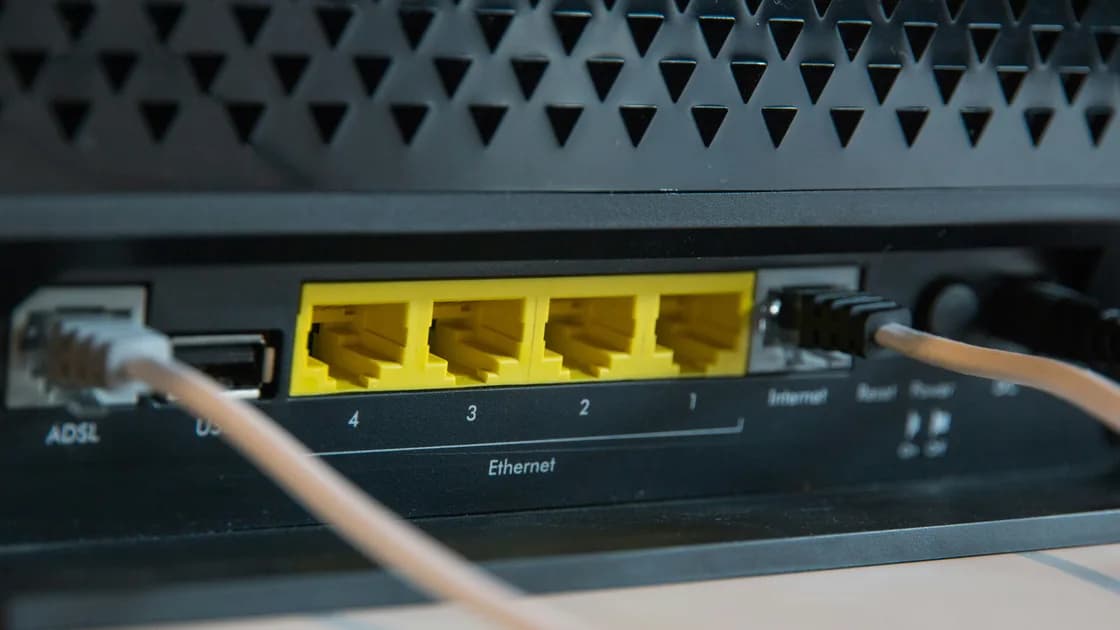
Power down only the devices whose instructions call for it. Connect the incoming modem or Ethernet service to the new router’s designated Internet or WAN port, attach power, and wait for the documented startup state. NETGEAR’s installation example follows this same physical order before its app completes the internet setup.[1]
Use one computer over Ethernet for the first administration session when practical. A wired client removes one wireless variable while you confirm that the router has an upstream address and can reach the internet. If the product has no usable Ethernet administration path, use its documented local setup method.
Do not interpret “connected to Wi-Fi” as proof that the WAN works. The client may have joined the local network while the router still lacks an ISP lease, activation, or correct upstream cable.
Create a unique administrator password before adding household devices. The FTC distinguishes this credential from the Wi-Fi password: the administrator password controls router settings, while the Wi-Fi password allows devices to join the network.[2]
Then review these controls without assuming every product uses the same name:
Do not expose the administration page to the public internet for convenience. Local management and supported secure remote access are different trust boundaries.
Choose a network name that does not reveal your address, surname, or router model. Use a unique Wi-Fi password that is not the administrator password.
For security, the FTC recommends WPA3 Personal or WPA2 Personal rather than obsolete WPA or WEP.[2] Apple recommends WPA3 Personal when supported, or WPA2/WPA3 Transitional for compatibility with older devices, with a strong joining password in either case.[3] Check all access points and bands so one legacy setting does not weaken the rest of the network.
Keep all supported bands enabled initially and let the router use automatic channel selection unless your environment requires a measured exception. If you need to understand the tradeoffs, use the 2.4 GHz, 5 GHz, and 6 GHz guide after the baseline works.
Yes, if visitors or temporary devices will connect. A guest network reduces how widely the main Wi-Fi password is shared and can separate guests from private local devices. The FTC recommends this separation, but the exact isolation behavior still needs verification on your router.[2]
Give the guest network a different password. Confirm whether guests can reach printers, storage, smart-home controllers, and the router administration page. “Guest” in a menu is not evidence of isolation; test the allowed and blocked paths described in the guest Wi-Fi guide.
Test the configuration as a matrix rather than with one successful speed test:
| Path | Expected result | What a failure suggests |
|---|---|---|
| Wired client to router | Local address and administration access | Cable, port, client, or local router issue |
| Wired client to internet | Several independent destinations work | WAN, ISP, or upstream issue |
| Main Wi-Fi to internet | Reconnect succeeds after forgetting old network | Wireless security, password, or compatibility issue |
| Guest Wi-Fi to internet | Internet works with intended local isolation | Guest policy or upstream issue |
| Router restart | Configuration and connectivity return | Unsaved state, startup, or ISP lease issue |
| Recovery record | Admin access and backup record are available | Documentation or account-recovery gap |
Repeat the main checks on at least one modern device and one older device you intend to keep. Verify that the router reports the expected firmware version, time, WAN state, and connected clients. Save a configuration export if the vendor supports it, and protect it because it may contain sensitive settings. Apple recommends backing up existing router settings before changes and keeping firmware current.[3]
Leave manual DNS, port forwarding, custom routes, traffic prioritization, experimental radio modes, and unusual firewall exceptions at their defaults unless a documented requirement exists. Each extra change creates another variable before you have a stable reference point.
Do not factory-reset the ISP device or erase the old router until the new path has survived a restart and you have a recovery plan. Keep the old equipment powered off but available for a short rollback window if the ISP permits it.
Sometimes. Contact the ISP if it binds service to equipment, requires credentials or VLAN settings, controls a combined gateway, or must activate the new device.
Follow the ISP and manufacturer instructions because equipment differs. The important point is to let each required upstream device finish startup before judging the new router’s WAN state.
You can, but every saved device may reconnect immediately. A new password gives you a controlled enrollment window; reusing credentials is convenient only when you also review which devices regain access.
No. The administrator password changes router settings; the Wi-Fi password joins the wireless network. Keep them unique.
Not by default. A shared name often lets modern routers steer compatible devices. Split them only when a real device or troubleshooting need justifies the added complexity.
It does not replace strong authentication and encryption. Use current security modes and a strong password rather than relying on a hidden network name.
Leave internet-facing remote administration off unless you have a specific supported design, strong account protection, updates, and a clear way to revoke access.
It is finished when the expected wired, main Wi-Fi, guest, restart, administration, and recovery paths all behave as recorded—not when one phone opens one website.
Disclaimer: This checklist provides general guidance. ISP activation, topology, security modes, and recovery procedures vary by equipment and service. AethoVPN is a separate VPN choice after a new router's WAN, Wi‑Fi, DNS, and access controls work; it cannot activate ISP service or configure the router for you.
Sources:
Sources checked 24 August 2026.
Related articles:
Sign up to experience all premium features at no cost.
*Available only to new users. Each user is limited to one trial.