Start your 3-day free trial
Sign up to experience all premium features at no cost.
*Available only to new users. Each user is limited to one trial.

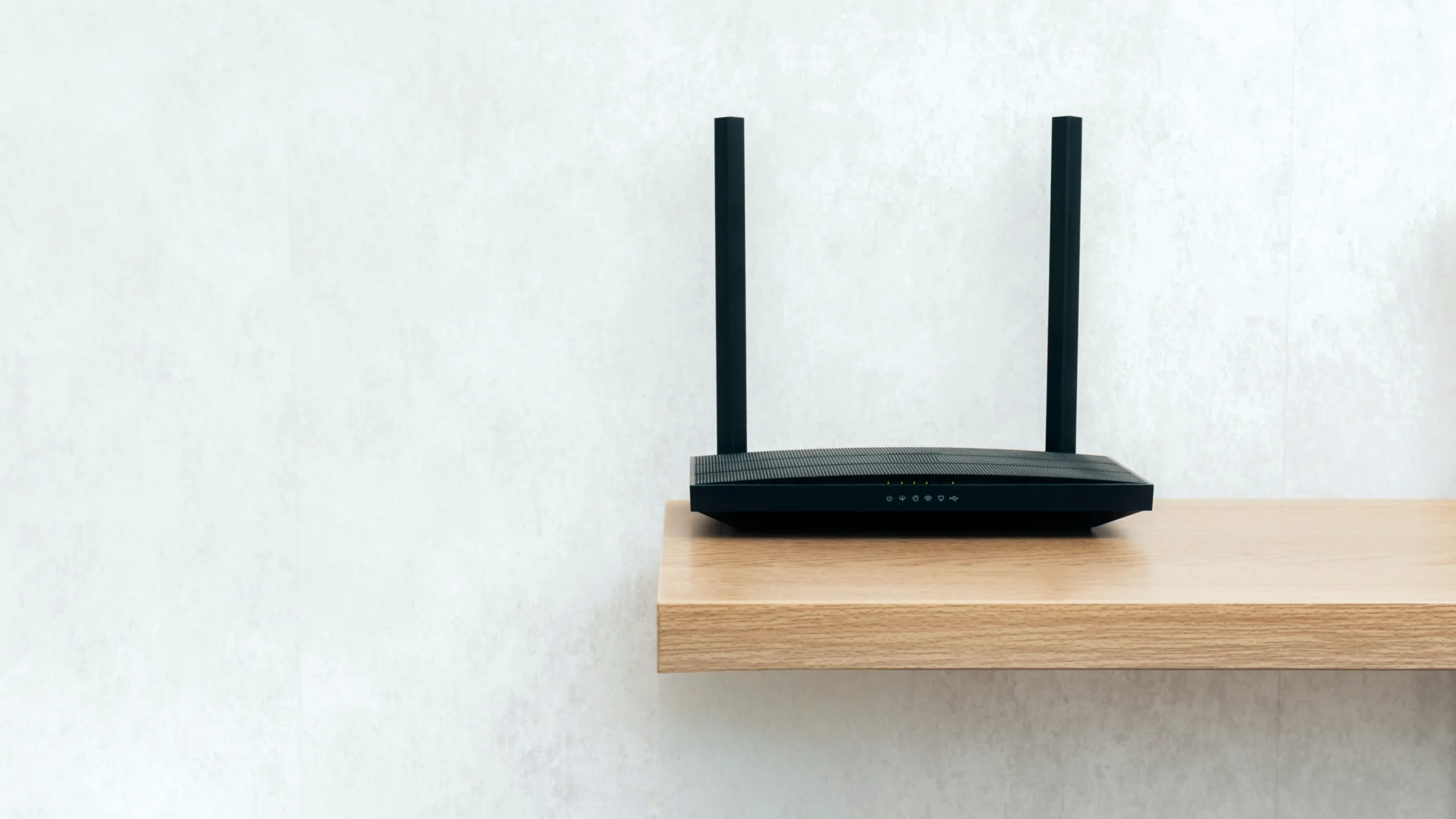
If you only do one thing to improve home Wi-Fi security, it should not be just “make the password harder.” The stronger move is to tighten the admin password, wireless encryption, firmware updates, guest networks, and IoT isolation together. Public guidance from the FTC, CISA, and Apple points to the same pattern: home network risk often comes from old settings, default settings, and settings nobody has checked in months.[1][2][3]
Key Takeaways
- Home Wi‑Fi security depends on a set of settings working together, not one trick.[1][2]
- Admin passwords, WPA3/WPA2, firmware updates, and disabling WPS are usually the first steps.[1][2][3]
- Separating guest and IoT devices from your main network often lowers lateral risk more than simply changing the Wi‑Fi password.
- A router that still runs default settings is hard to call “hardened.”
- Your home network protects the local entry point; hotel and cafe hotspots need a separate layer of connection encryption.
Many people treat home Wi‑Fi as background plumbing: if it connects, it is fine. In practice, it is the front door to your digital home. A loose lock can affect more than speed; it can expose laptops, phones, cameras, and NAS devices.
If you first want to check whether someone is using your Wi‑Fi or whether your router looks tampered with, read the guides on whether someone else is using your Wi‑Fi and the warning signs of a hacked router. To place home network issues in a broader security framework, see the Complete Network Security Guide. For a more everyday privacy angle, start with the practical digital privacy checklist.
The problem is easier to solve when you split it into layers:
Most home network problems are not caused by unusually advanced attacks. They happen because one layer stays on a default setting, goes unpatched, or is never reviewed.
Before changing settings, confirm that you own the router or have the administrator's permission. Record its model, firmware, router/access-point mode, and the working local admin address. Keep a supported configuration backup offline; Apple recommends backing up settings before changes and checking devices afterward.[3] Protect that backup because it may contain credentials. Arrange local access and a maintenance window, and note the current wireless security, guest rules and management settings without copying secrets into a shared checklist. This guide is based on documentation; the author has not completed an end-to-end test on your router. The checks below describe expected results.
Your Wi‑Fi password and your router admin password are different. The first controls who can join the network; the second controls who can change the rules. Both the FTC and CISA advise home users to replace default admin credentials early.[1][2]
If you still use the username and password printed by the manufacturer, put this at the top of the list.
Apple’s router recommendations and CISA’s home network advice point in the same direction: old protocols should not remain the default.[2][3] If your router and devices support WPA3, use it. If compatibility is a problem, use WPA2 consistently instead.
If you are not sure what you are using now, see What Is a Network Security Key? How to Find Your Wi‑Fi Password and Security Type.
The problem with WPS is not that it is convenient; it is that it can add attack surface. Remote management is similar. Unless you have a clear need for it, turning it off is usually safer.[1][2]
Check IPv6 management separately from IPv4 port forwarding. A globally routed IPv6 address does not by itself show whether a management service listens on that interface, whether the router/host allows inbound access, or whether authentication protects the application. RFC 6092 recommends that residential gateways not offer management services to the exterior network by default; it is guidance, not proof of your model's configuration.[5] In the vendor interface, restrict administration to the intended trusted LAN/private path and review IPv6 rules as well as IPv4 rules. An ICMPv6 ping response establishes neither an open admin page nor a compromised device. Verify the intended management service and access policy, without disabling the firewall or treating blocked ping as a security verdict.
Firmware updates are not only for new features. More often, their value is patching known vulnerabilities and fixing compatibility issues. Apple also lists automatic firmware updates among its recommended settings.[3]
If you cannot remember your last update, that is usually your cue to check.
This is one of the easiest steps to overlook and one of the most useful in practice.
A guest network is not only for visitors. It is also a good place for temporary or lower-trust devices. Cameras, robot vacuums, TV boxes, and smart plugs tend to update slowly, appear in large numbers, and spread permissions across many apps. They should not live indefinitely on the same flat network as laptops, phones, and work devices.
A separate SSID alone does not prove isolation. Support varies by model, firmware and router/access-point mode. For example, TP-Link documents a guest option that permits access to the local network; leaving it enabled changes the boundary.[4] Turn off guest-to-LAN access where supported, then check with an authorized guest device using known working test destinations:
First confirm those destinations work from a trusted main-LAN device, so an offline service is not mistaken for isolation. Seeing a protected login page still shows reachability, not network isolation. If a guest reaches a protected destination, stop moving devices and correct the supported rules or choose a genuinely isolated network. Devices that require local discovery may lose functions; allow only a documented narrow exception after reviewing its effect.
These settings are not always the first to fail, but if they are changed without your knowledge, the impact can be large. Apple’s router guidance also stresses consistency in core settings such as DHCP, DNS, and NAT.[3]
Most households do not need to tune many parameters manually, but you should at least know that:
Apple recommends leaving SSID hiding and MAC filtering disabled. Hiding a name does not conceal the network, and MAC addresses can be copied or changed. Do not retain WEP, WPA, or TKIP for old devices; use WPA3 Personal, WPA2/WPA3 Transitional, or WPA2 Personal with AES when compatibility requires it.[3]
This order is usually the most reliable:
The benefit of this sequence is simple: lock the most important door first, then clean up the details.
Change one setting at a time. After each save, confirm local admin access, reconnect an intended wireless device, and repeat the permitted/denied checks affected by that change. If management access disappears or an essential device cannot reconnect, stop further changes. Use the recorded local recovery path to restore only the last setting; consult the model's recovery instructions if that path is unavailable. Do not interrupt a firmware update, improvise a downgrade, or factory-reset without a documented recovery plan. Recheck guest isolation and management boundaries after an update or configuration restore: importing settings is not proof that old restrictions still apply.
Usually, change the router admin password first, then check wireless encryption and firmware status.[1][2]
Usually not. The admin password, WPS, remote management, and firmware updates matter too.
When compatibility requires WPA2, use WPA2 Personal with AES; avoid TKIP and the old WPA/WPA2 mixed mode. Prefer WPA3 Personal when the router and all devices that need to connect support it.[3]
It is useful for visitors and lower-trust devices if the model and rules actually isolate them. A guest SSID alone is insufficient: verify that guests cannot reach the main LAN, NAS or management pages.[4]
There is no universal schedule. If your router supports automatic updates, enable them. If not, check regularly.[3]
Disclaimer: This article is for general home network security education only and does not provide technical support for a specific router model. Admin panels, menu paths, and feature names vary by brand. AethoVPN can address a device's VPN traffic, but it does not replace router firmware updates, a strong Wi‑Fi key, guest isolation, or administrator access control.
Sources:
Sources checked 9 October 2026.
Related Articles:
Sign up to experience all premium features at no cost.
*Available only to new users. Each user is limited to one trial.