Start your 3-day free trial
Sign up to experience all premium features at no cost.
*Available only to new users. Each user is limited to one trial.


A keylogger is software or hardware that records keyboard input. An unauthorized logger may capture credentials, messages, and other sensitive text.
Not every input-recording feature is malicious: troubleshooting and accessibility tools can also process input. The important questions are who installed it, what access it has, and whether the person using the device gave informed permission. MITRE classifies malicious keylogging as a form of input capture. [1]
Detection and recovery require separating account risk from device risk. This guide belongs to the broader digital privacy framework. If you suspect monitoring by someone who can physically reach you, consider your personal safety before changing settings that may alert them.
Key Takeaways
- Software and hardware keyloggers need different checks; a clean software scan does not inspect a physical adapter.
- Slow performance and battery drain are reasons to investigate, not proof of keylogging.
- Use a trusted device for sensitive account recovery while the suspect device is being checked.
- Removal needs to address access and persistence, while account recovery needs to address stolen credentials and sessions.
Keylogger detection and the decision to remove a keylogger need evidence about the specific device and access route.
Software loggers run within an operating system or application environment. Their access varies: some capture input in a particular process, while others use broader permissions. More capable malware may collect information through other routes as well.
Do not assume that replacing typing with copy-and-paste makes a compromised system safe. Malwarebytes distinguishes software recording from hardware devices placed along an input connection. [2]
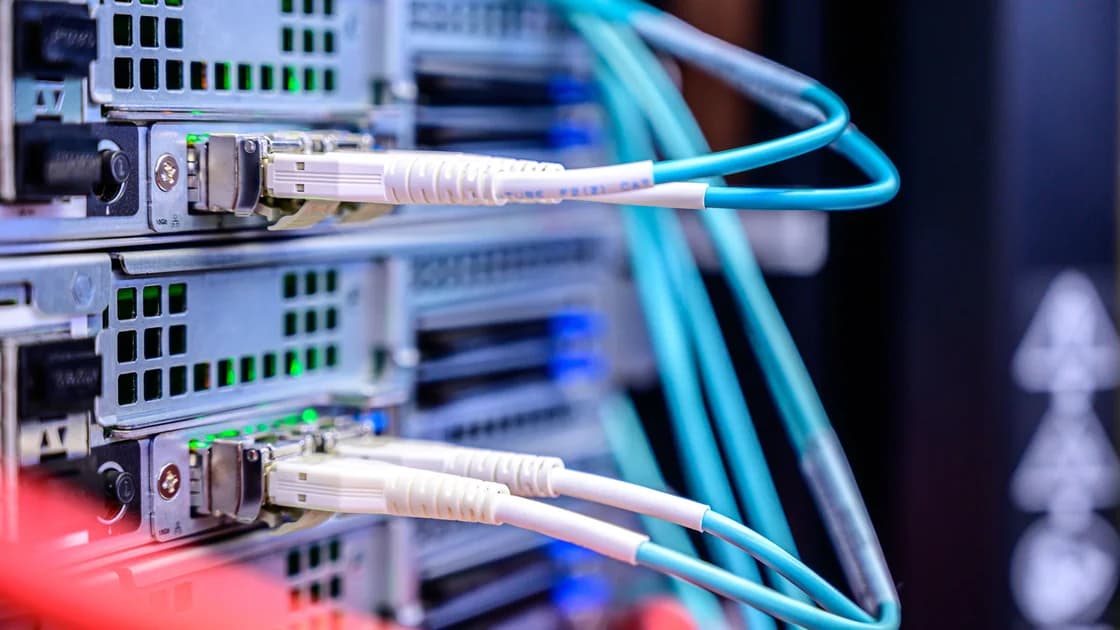
A hardware logger might be an unexpected adapter between a keyboard and a computer or a modification inside equipment. Physical access is usually relevant. An unfamiliar USB component is not automatically a logger: legitimate docks and adapters can look unusual.
Record what you see and compare it with the device owner’s known setup. Do not dismantle shared equipment or attempt electrical inspection yourself.
On phones and tablets, available inspection tools differ from desktop tools. A mobile security application cannot necessarily inspect every other application or the operating system. Review official platform guidance and permissions rather than assuming a desktop-style full scan exists on every device. Managed work equipment may also contain authorized monitoring; ask the responsible team before removing management software.
Unexpected security detections, unfamiliar software with sensitive permissions, or a physically changed keyboard connection are useful leads. New login alerts can indicate account compromise, but they do not reveal whether a keylogger was responsible. Credentials might have been phished, reused after a breach, or stolen through another mechanism.
Treat vague symptoms carefully. A busy update, aging battery, or ordinary browser extension can cause slowness. A sophisticated logger may produce no obvious symptoms.
Record the timing and concrete observation: an application name, a detection message, a changed adapter, or an unfamiliar session. Avoid inventing a diagnosis from how the device feels.
| Observation | What it supports | Appropriate action |
|---|---|---|
| Security software names a threat | A finding that needs validation | Preserve the detection and follow the vendor’s guidance |
| Unknown adapter in keyboard connection | A physical change requiring explanation | Stop sensitive input and contact the equipment owner |
| Unfamiliar login session | Possible account access | Review and revoke access from a trusted device |
| High CPU usage or typing delay | A performance issue with many causes | Investigate the process and recent changes |
| No symptoms or no detection | Limited negative evidence | Continue checking according to exposure and risk |
The broader malicious code overview explains other infection categories. A botnet describes attacker-controlled devices; a logger describes input capture. The same infection can have several functions, but one label does not establish all the others.
Pause sensitive activity on the suspect device. Use a separate, updated device you have reasonable grounds to trust, rather than a public kiosk or equipment supplied by the suspected monitor. Secure your primary email because it often controls other accounts’ recovery. Change affected passwords to unique replacements, check recovery details, and review active sessions and connected applications.
A password change may not invalidate every session or token. Use the provider’s explicit sign-out and access-revocation options where available. Review recent activity for unauthorized actions.
Multi-factor authentication adds protection, but it does not make an already compromised session harmless. Never send recovery codes to someone who offers to diagnose the device through an unsolicited message.
Decide which accounts were exposed based on the period of suspected access and what you used. If you cannot establish the period, prioritize accounts with financial, personal, or work consequences and seek help for the rest. Keep a short record of changes without recording the new passwords in the incident log. Account protection can proceed while the device investigation remains incomplete.
For a personally owned computer, obtain updates and security tools through official channels. Run the platform’s supported security checks and review detections rather than downloading a tool advertised by a frightening pop-up. If an existing security application is disabled or cannot update, that is a reason to escalate; it is not a reason to install several competing tools at once.
Review installed applications, browser extensions, startup entries, and unusual access permissions using the operating system’s normal controls. Compare findings with software you deliberately installed. An unfamiliar technical name may be legitimate.
Deleting system files or disabling essential services based only on a search result can make recovery harder. Save relevant detection names and times for a support professional.
Inspect external keyboard connections if it is safe and you are authorized. A photograph can document the arrangement without handling a suspicious device. If the equipment belongs to an employer, school, or another person, contact the responsible team. Stop there rather than plugging the suspect component into another computer to see what it does.
For a phone, review app installations and permissions, unexpected management profiles where the platform exposes them, and the official update status. A permission review helps identify access you did not intend to grant, but it cannot certify that the phone is free of advanced spyware. The Pegasus guide explains why high-risk targeted cases need specialist support.
Follow the trusted security product’s remediation instructions for a validated detection. After removal, update the system and repeat the supported check. Confirm that the suspicious access or process has not returned. A successful scan is one piece of evidence; it is not proof that no credentials were copied before remediation.
If compromise persists, administrative access was abused, or you cannot establish what changed, a supported clean reinstall or reset may be appropriate. Plan it with the device owner or a qualified technician. Back up necessary personal data cautiously, and avoid restoring unknown applications or a complete suspect configuration. A backup can preserve important work while also carrying unwanted files or settings back into the rebuilt device.
A reinstall of the operating system does not remove a physical keyboard adapter. Removing an adapter does not revoke stolen credentials. These are separate tasks with separate checks.
If the incident may require evidence, consult the responsible response team before wiping. Routine cleanup can overwrite information needed to understand what happened.
Recovery should end with a clear handoff: what was found, what was removed or rebuilt, which accounts were secured, and what remains uncertain. If a professional cannot confirm the initial cause, retain that uncertainty instead of describing the device as conclusively clean. Continue using the safer device for high-impact work until the recovery decision is justified.
Keep the operating system and applications updated, use official software sources, and avoid granting broad permissions without a clear reason. Give each person an appropriate account rather than sharing an administrator login. Physical access matters too: unattended equipment and borrowed keyboards create risks that software settings alone do not address.
Review how the suspicious software or component arrived. Was it installed with an untrusted download, added by someone with access, or delivered through a deceptive message? Fix that route.
The zero-day explanation covers vulnerabilities without an available fix, but not every infection requires a previously unknown weakness. Ordinary updates and permission decisions still matter.
Keep network protection separate from endpoint cleanup. The VPN and virus protection guide describes that boundary. Encrypting a connection does not prevent an unauthorized process on the device from reading input before it travels over the network. Choose controls according to where the information is exposed.
If private messages are later published to intimidate you, address that exposure through the doxxing response guide, separately from device cleanup.
Yes. Some loggers can operate quietly. Lack of typing delay, battery changes, or pop-ups does not rule out unauthorized input capture.
No. Legitimate adapters, receivers, and docks are common. Document unexpected equipment and ask its owner before drawing conclusions or disconnecting managed devices.
A software scan generally does not inspect a physical adapter’s internal function. Physical equipment and software need separate, appropriately authorized checks.
No universal guarantee exists. Other malware capabilities may capture screens, clipboard data, or application input, so avoid sensitive work on a suspect device.
Use a trusted separate device where possible. Otherwise, the replacement credentials may be captured before you finish securing the account.
No. Previously stolen credentials, recovery settings, and active sessions require their own review. A reset also does not remove external hardware.
Follow the organization’s reporting process. Unauthorized removal can disrupt legitimate management and destroy evidence that its security team needs to investigate.
Disclaimer: This is general security guidance, not a forensic diagnosis or legal advice. On managed equipment, follow the owner’s response process. Where monitoring involves stalking or coercion, seek individualized safety support before making changes.
Sources:
Sources checked 5 October 2026.
Related Articles:
Sign up to experience all premium features at no cost.
*Available only to new users. Each user is limited to one trial.