Start your 3-day free trial
Sign up to experience all premium features at no cost.
*Available only to new users. Each user is limited to one trial.
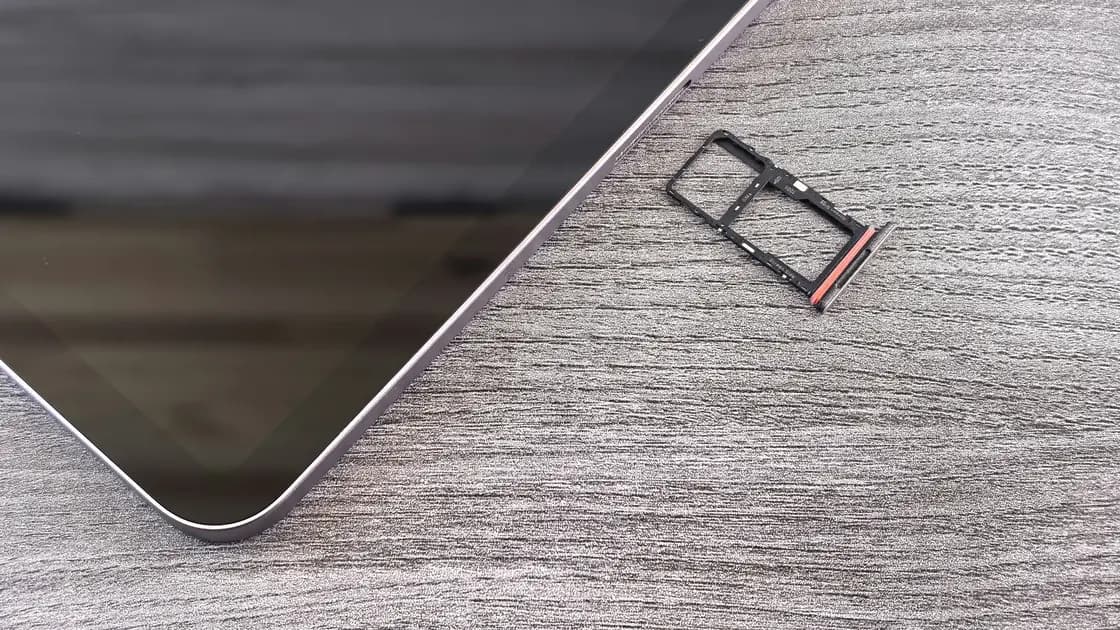

To check if your phone is unlocked, open Settings > General > About on an iPhone and look for “No SIM restrictions” next to Carrier Lock. On most Android phones, Settings > About phone > SIM status shows which carrier serves the line under “Network”, not whether the device is locked, so ask the original carrier to confirm the exact device or IMEI and test a valid SIM or eSIM from another carrier. Do not confuse carrier unlock with eSIM support, destination frequency compatibility, or blacklist status.
Key Takeaways:
- On iPhone, “No SIM restrictions” is the relevant Carrier Lock status described by Apple.
- Android does not provide one universal unlock-status menu across all manufacturers, carriers, and regions.
- Original-carrier confirmation plus a second-carrier test gives stronger evidence than a settings screen alone.
- Only the carrier can officially unlock an iPhone, and carrier unlock policies and eligibility vary.
Add this check to the international travel preparation guide before purchasing a local SIM or travel eSIM. To compare connectivity roles, read travel eSIM vs VPN.
A carrier-unlocked phone can accept service credentials from a different compatible operator, subject to the new operator's activation and network requirements. It does not guarantee that every SIM, eSIM, band, or destination network will work.
Keep these questions separate:
| Question | What it proves |
|---|---|
| Is the phone carrier-unlocked? | Whether another operator's SIM/eSIM may be accepted |
| Does the phone support eSIM? | Whether it can store and activate supported eSIM profiles |
| Does the model support destination bands? | Whether its radio can use the carrier's frequencies and technologies |
| Is the IMEI accepted? | Whether the device is allowed and compatible on that network |
| Is the travel plan active? | Whether the purchased service can register and use data/calls/messages |
A phone can be unlocked but incompatible with a destination carrier. It can also support eSIM while remaining locked to the original carrier.
Apple's documented check is:
If another status appears, or the field is absent or unclear, contact the carrier that supplied or locked the iPhone. Apple states that only the carrier can unlock it and that the carrier may take a few days to complete the request; Apple does not unlock the device for use with another carrier.[1]
After the carrier says the unlock is complete, follow its activation instructions. Depending on whether you already have another SIM or eSIM, the phone may need to activate with that new service or be backed up and restored. Do not erase the phone solely to “see if it helps” without confirming the official process and having a verified backup.
There is no single Android SIM lock check menu that is reliable for every manufacturer, model, carrier, software build, and country. A SIM status page may show the network, signal, service state, or IMEI without proving carrier-unlocked status.
Use this sequence:
Google says a Pixel bought from a mobile service provider can be SIM-locked for up to two years, while Pixel phones sold in the Google Store come unlocked; the provider handles early lock removal.[2] Android Help notes that on most phones Settings > About phone > SIM status shows the carrier under “Network”, which tells you whom to ask rather than whether the device is locked.[3] Manufacturer or carrier-specific instructions remain authoritative for the exact device.
Use a known-valid service from another carrier, preferably before departure where support is easy to reach.
A “No Service” result does not automatically prove the phone is locked. The test plan may be inactive, lack local coverage, require roaming, use unsupported bands, or have an APN problem. A clear “SIM not supported,” “network locked,” or equivalent message is stronger evidence, but confirm it with the original carrier.
Record the phone model, software version, test carrier, SIM/eSIM type, date, location, displayed network, and exact error. Do not publish the full IMEI, SIM identifiers, activation code, or QR code.
Not every result answers the lock question with the same confidence. An eSIM menu, an installed profile, or a phone that recognizes a SIM proves only that the relevant hardware and software can see that credential. “No Service” is inconclusive because activation, coverage, roaming, bands, APN, or account status may produce the same result. A specific lock rejection is stronger, but still preserve the wording and confirm it with the original carrier.
The most useful pre-travel record combines two independent checks: written confirmation for the exact device from the original carrier, and successful registration of a known-valid line from a different carrier. Save the confirmation date, case number, tested service, and outcome without exposing the full IMEI or activation credential. If those checks disagree, do not assume either one is final: ask the original carrier to recheck its device record and ask the test provider to confirm that the line is active and compatible. Resolve the disagreement before buying a non-refundable plan or depending on the phone as the only connection abroad.
Repeat the second-carrier test after any carrier-confirmed unlock completion, because a result recorded before the account or device update cannot verify the final state.
Ask concise, device-specific questions:
Policies vary, so do not rely on an old forum post or another customer's timeline. Use the carrier's official channel and keep the confirmation.
Avoid third-party “unlock” tools that request account credentials, remote-control access, unknown profiles, or payment without a verifiable service. An independent IMEI-check website is not the original carrier's record either, so use the carrier's own account or device-unlock page. This guide does not provide bypass methods. If the carrier denies an unlock, ask for the written eligibility reason and available appeal or consumer-support route.
After confirming the unlock, check:
If the profile installs but does not connect, use the travel eSIM troubleshooting guide. If every line loses registration after arrival, use the broader phone no service abroad guide.
No. It indicates carrier-unlocked status, not worldwide band support, eSIM capability, plan eligibility, coverage, or IMEI acceptance.
Do not rely on a universal dial code. Codes and menus vary by manufacturer, carrier, software, and region. Google documents a Pixel dialer code only for refreshing SIM status after the carrier has removed the lock, not as a lock check.[2] Carrier confirmation and a valid second-carrier test are stronger evidence.
Not always. The profile may come from the same carrier, install without activating, or remain unable to register. Confirm the carrier lock separately.
Apple says only the carrier can unlock an iPhone. For Android devices, the responsible carrier and manufacturer arrangement varies; start with the carrier that supplied or locked the device.
Check unlock status, eSIM support, destination compatibility, and refund or activation terms first. This reduces the risk of buying a plan the device cannot use.
Disclaimer: Unlock eligibility, activation, device compatibility, and consumer remedies vary by carrier, device, contract, destination, and law. Use official instructions for the exact account and model.
Whether a handset is unlocked depends on the lock state set by the manufacturer and the original carrier; a VPN cannot unlock a device or change a carrier's eligibility decision.
Sources checked 4 October 2026.
Sign up to experience all premium features at no cost.
*Available only to new users. Each user is limited to one trial.