Start your 3-day free trial
Sign up to experience all premium features at no cost.
*Available only to new users. Each user is limited to one trial.
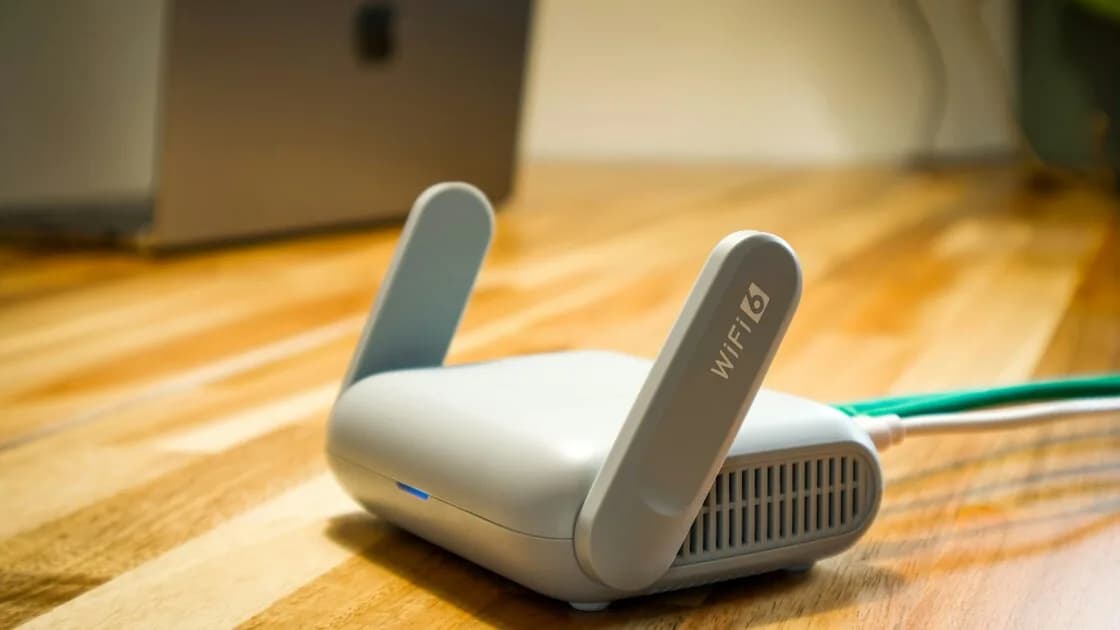

VPN captive portal not connecting? When a hotel or airport Wi-Fi login page will not appear while your VPN is active, the usual problem is that the base network has not finished authenticating. Join the verified Wi-Fi, complete its captive portal, confirm that ordinary internet access works, and then reconnect the VPN. Do not leave the VPN or other security controls disabled as a permanent workaround.
Key Takeaways:
- A captive portal signs in the base Wi-Fi; the VPN tunnel is a separate step that comes after it.
- Pause the VPN only when needed, finish the portal from system settings, and reconnect right away.
- Forget and rejoin a stale network rather than weakening certificate checks or installing unknown software.
- If the network or portal cannot be verified, use cellular data or a trusted hotspot.
A captive portal lets a device associate with Wi-Fi before it has permission to reach the wider internet. The venue may redirect the first request to a sign-in, terms, email, room-code, or payment page. Apple describes this as the normal flow for captive Wi-Fi at places such as hotels and airports.[1]
An active VPN can change the path and DNS behavior that the portal expects. The VPN may try to establish its tunnel before the underlying network allows normal traffic, while the portal waits for a request it can redirect. Private Relay, a system proxy, custom DNS, device-management policy, or another VPN can create a similar symptom. The exact cause varies, so use the connection state—not a guess about one setting—to choose the next action.
| State | What you see | Next action |
|---|---|---|
| Not joined | The SSID is listed but the device is not connected | Verify the name and join from Wi-Fi settings |
| Joined, not authenticated | Wi-Fi shows connected but pages do not load | Open the system sign-in prompt and complete the portal |
| Authenticated, VPN off | Ordinary pages work | Connect the VPN and verify the tunnel |
| VPN on, no traffic | The app says connected but sites fail | Reconnect, try a nearby available server, and check the base network |
| Portal requests an unknown install | A certificate, profile, app, or extension is demanded | Stop and confirm with the venue or device administrator |
This state machine prevents a common mistake: changing VPN settings when the device has not yet obtained internet access.
Follow these steps in sequence:
If the portal works while the VPN remains connected, there is no need to disconnect it. The safe rule is to restore the VPN as soon as the underlying network is authenticated.
In AethoVPN, step 7 is a reconnect, not a fresh setup: once a low-risk page loads on the authenticated Wi-Fi, connect again from the app, let its recommended server pick a nearby location or reuse the one that worked before, and wait for the active state before reopening email or banking. The app cannot accept the venue's terms, enter a room code, or authenticate the Wi-Fi for you, so the portal always comes first. Account setup is the part to finish before you travel: start the 3-day free Pro trial at home, where sign-up only needs an email verification code, and connect once on a known-good network.
Menu names vary by operating-system version, but the principle is consistent: use the system Wi-Fi controls to create a clean network state.
Open Settings > Wi-Fi, select the verified SSID, and wait for the login screen. If you canceled the welcome screen or the device remembers a broken login state, open the network's information panel. Apple documents turning off Auto-Login to show the welcome screen again, and turning off Auto-Join or forgetting the network when you do not want the device to reconnect automatically.[1][4]
Open Settings > Network & internet > Internet, select the network, and wait for the notification or sign-in page. If the saved entry is stale, touch and hold the network and choose Forget, then join again. Google notes that saved networks can reconnect automatically when they are nearby, so review that behavior after travel.[2]
Select the network, sound, or battery area on the taskbar, open Wi-Fi connections, choose the verified network, and select Connect. Microsoft also provides Manage known networks under Network & internet > Wi-Fi for removing a stale saved entry.[3]
Open System Settings > Wi-Fi and select the network. If a work or school profile controls Wi-Fi, VPN, DNS, or proxy behavior, ask the administrator before removing or changing anything. A personal troubleshooting step should not bypass an organization's access policy.
Work through the least disruptive checks first:
Do not use a random “login helper” app, install a certificate from a stranger, or follow a search result that asks you to enter your hotel, email, or payment credentials outside the venue's expected flow.
Separate the base network from the VPN:
For a broader VPN failure diagnosis, see what to do when a VPN is not connecting. If the network itself is suspicious, disconnect and read responding to a suspicious public Wi-Fi connection. Before your next trip, the checks to finish before you travel with a VPN cover the setup that is easier at home.
The portal may need to redirect traffic or resolve a sign-in endpoint before the VPN tunnel can be established. The VPN is not necessarily broken; the underlying network may simply be waiting for authentication. Complete the verified portal first, then reconnect.
No. Try the portal while the VPN is active first. If it will not appear, disconnect only long enough to join the verified network and complete the expected login, then reconnect immediately. Do not keep the VPN off for the rest of the stay just because the portal needed a short setup window.
No. It proves only that the network is requiring an access step. Verify the SSID, inspect the page, and reject requests for unknown profiles, certificates, apps, or extensions.
Confirm that the venue actually charges for access and that the page came from the official network. Use cellular data instead if the domain or request is unclear. Never enter payment details into a page reached through an unexpected message or QR code.
The portal may not have completed, the base Wi-Fi may be offline, another VPN or proxy may conflict, or the chosen server may be unavailable. Disconnect, verify ordinary Wi-Fi, reconnect AethoVPN, and test one nearby available server before changing more settings.
If you will not use it again, forgetting the network or disabling Auto-Join reduces the chance of an unintended reconnect. Apple and Google document those controls; menu names vary by device version.[2][4]
Switch when the SSID cannot be verified, the portal demands an unknown installation, the venue cannot explain the failure, or the task is sensitive and time-critical. A fallback connection is safer than repeatedly disabling security controls.
Disclaimer: This article provides general troubleshooting and network guidance, not legal, financial, medical, compliance, or employer-policy advice. Follow device-management instructions and the rules of the network provider.
Sources:
Sources checked 4 October 2026.
Related Articles:
Sign up to experience all premium features at no cost.
*Available only to new users. Each user is limited to one trial.