Start your 3-day free trial
Sign up to experience all premium features at no cost.
*Available only to new users. Each user is limited to one trial.

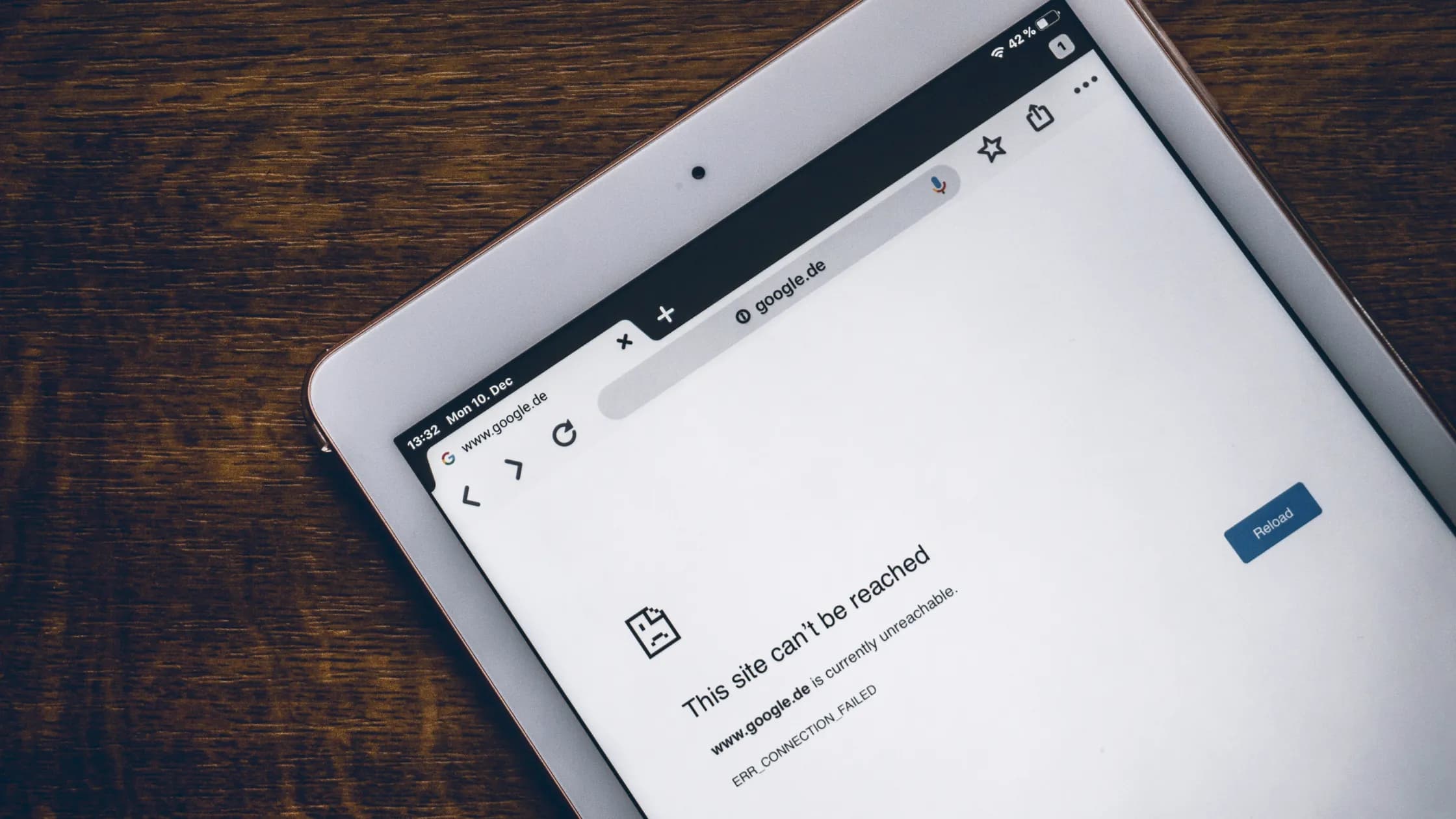
A printer or NAS missing with VPN does not automatically mean the printer, storage appliance, or VPN is broken. A full-tunnel VPN can change which routes your computer uses, while local discovery may depend on broadcasts or multicast traffic that is not sent through the tunnel. Operating-system privacy controls, a guest Wi-Fi network, or an overlapping private subnet can produce a similar symptom.
The safest investigation is a controlled comparison. Keep the printer or NAS private, change one condition at a time, and record whether the device works by name and by its private IP address. Do not expose an administration page to the public internet or leave a firewall disabled just to make the device appear.
Key Takeaways:
- Confirm that the device works with the VPN off and that both devices are on the same trusted local network.
- Test the device's private IP rather than only its name.
- Then inspect local-network permission, firewall rules, and routes.
- Enable a VPN client's LAN-access or split-tunnel feature only when its provider documents that feature and you understand what traffic it excludes.
For background, see the complete VPN guide.
Start from a stable local network. Pause large transfers, save open files, and note the printer or NAS name, private IP address, and the exact action that fails. If possible, use a harmless check such as opening the printer status page, viewing a NAS share, or sending a one-page test job that contains no sensitive material.
Disconnect the VPN briefly and repeat the same check. Reconnect to the same VPN server and repeat it again. This A/B comparison matters: if access fails in both states, follow ordinary device or Wi-Fi troubleshooting instead. The guide to a Wi-Fi printer that is offline covers that broader case. If only the VPN-on state fails, continue with network-path checks.
Do not change the router, firewall, printer, and VPN protocol at the same time. A result is useful only when one variable changed. Also distinguish “not listed” from “listed but unreachable.” The first often concerns discovery; the second more often concerns addressing, routing, permissions, or filtering.
Many routers separate a normal home network from a guest or isolation network. Two devices can show the same Wi-Fi brand name yet still be prevented from contacting one another. Microsoft recommends using a private network profile and enabling network discovery and file-and-printer sharing only on a network you trust.[1] Windows file sharing likewise depends on discoverability and sharing controls within the local network.[2]
Check the Wi-Fi network name and router segment used by the computer, printer, and NAS. If the printer uses Ethernet, confirm that the wired and wireless networks are not intentionally isolated. Leave guest isolation in place; move your own device to the trusted network rather than weakening a guest network for everyone.
Never treat a hotel, airport, office guest network, or unfamiliar shared LAN as trusted merely to reach a printer. Local-device access expands which nearby systems your computer can contact. If the device belongs to an employer or school, follow its network policy instead of changing router or VPN settings yourself.
A printer may appear through mDNS, Bonjour, WS-Discovery, or another local announcement. NAS software can use similar discovery before connecting with SMB or a web interface. Those announcements are commonly limited to one local segment and may not follow the same path as an ordinary connection to an IP address.
Find the device's current private IP in its screen, official companion app, router client list, or administrator-approved inventory. RFC 1918 reserves familiar private IPv4 ranges such as 10.0.0.0/8, 172.16.0.0/12, and 192.168.0.0/16; those addresses are not meant to be routed across the public internet.[4] If you need context, see public, private, static, and dynamic IP addresses.
While the VPN is connected, try the vendor-supported connection method using that private IP. A successful direct-IP test with failed name discovery narrows the issue to discovery or name resolution. Failure by both name and IP points instead toward local permission, a firewall, missing route, client policy, or subnet overlap. Do not scan other addresses or probe devices you do not own.
On Apple platforms, apps may require Local Network permission before they can interact with devices on the LAN. Apple documents that this permission can be reviewed in Privacy & Security settings, while system services such as AirPrint can have different behavior.[3] Check the permission for the specific VPN, printer, file manager, or NAS app involved; do not grant blanket access to unrelated apps.
On Windows, confirm that the current network is classified as private only if it is genuinely trusted. Check that Network Discovery and File and Printer Sharing are allowed for that private profile.[1][2] On any platform, inspect the firewall rule for the actual application or local service. A security suite may switch profiles when a VPN adapter appears and then block local traffic.
Use a temporary firewall-off test only if the device vendor or administrator explicitly directs it, the network is trusted, and you can restore protection immediately. Prefer reviewing logs and narrow rules. Leaving the firewall disabled, allowing every private subnet, or opening NAS management ports to the internet is not a repair.
The computer must have a route that sends the printer's or NAS's private subnet to the physical Wi-Fi or Ethernet interface. A full-tunnel VPN may install broad routes and policy rules. A well-behaved client can preserve local routes, but enterprise policy or a privacy-focused setting may intentionally block them.
Record the local address and device address before interpreting routes. If your home LAN is 192.168.1.0/24 and the VPN's remote network also uses 192.168.1.0/24, the system cannot identify the intended destination from the address alone. It may send the packet into the tunnel instead of to the home router. This is VPN subnet overlap, not a discovery permission problem.
Changing a home LAN subnet can resolve overlap, but it affects every local device and should be planned in the router's official interface. Do not change an employer's remote network. For managed VPNs, give the administrator both subnets and the route result without exposing credentials. If the VPN itself is unstable or never completes connection, start with VPN not connecting before diagnosing LAN access.
Some VPN clients include a setting named “Allow LAN traffic,” “Local network access,” or similar. Others can exclude a specific application or destination through split tunneling. These controls are not interchangeable. LAN access usually preserves communication with nearby private addresses; application split tunneling may send all traffic from one app outside the VPN.
Use only a feature documented by the VPN provider for your operating system. Confirm whether it covers private IPs, discovery traffic, IPv6, and kill-switch behavior. With AethoVPN, run the comparison directly: connect to one location, reach the printer or NAS by its IP address, disconnect, and try again without changing any LAN permission. AethoVPN's Global mode switch only decides whether websites in your own region bypass the tunnel; it is not a local-network exception and cannot change a printer's isolation mode, a NAS firewall, or an operating-system permission. If the device appears only while disconnected, send that matrix to support, which usually replies within 24 hours, and download the current client for your device before repeating the test so an old build is not part of the comparison.
Prefer the narrowest option that restores the required local connection. Re-test the public IP on the What is my IP page and the VPN status afterward so that an overly broad exclusion does not go unnoticed. On a hostile or shared network, disable LAN access again or disconnect from that LAN; convenience should not override the local trust boundary.
If the device still disappears, capture facts rather than secrets. Record the operating system and version, VPN app version, connection protocol, whether the behavior occurs on every VPN server, whether direct private IP works, both private subnet prefixes, and the time of the test. Include the exact error but redact public IPs if unnecessary, account names, file paths, printer queue contents, serial numbers, and NAS filenames.
Contact the device vendor when the device fails even with the VPN off or rejects a supported local connection. Contact the router or network administrator for guest isolation, VLAN, or route ownership. Contact VPN support when the failure is exclusive to the VPN-on state and you have evidence about routes or a documented LAN-access control. That separation prevents each team from repeating unrelated resets.
When a printer or NAS is missing only with the VPN connected, first prove the VPN correlation, confirm a trusted shared LAN, and compare discovery with a direct private-IP connection. Then check operating-system permission, firewall profile, routes, and overlapping subnets. Use a documented LAN-access or split-tunnel feature only after understanding its scope. Keep local devices private and make one reversible change at a time.
Internet traffic can follow the VPN tunnel while local discovery or private-subnet traffic is filtered or routed differently. Test the printer's private IP to distinguish discovery from a broader local-route problem.
It can be reasonable on a trusted home or office LAN when the provider documents the setting. It increases contact with nearby devices, so avoid it on unfamiliar shared networks and disable it when no longer needed.
No. Publicly exposing NAS administration or file-sharing ports creates a different and much larger risk. This guide addresses local access; use the NAS vendor's supported remote-access design if remote access is required.
That pattern usually means the routed connection works but discovery or local name resolution does not. Review local-network permission, discovery services, and the VPN client's documented LAN behavior.
It is a useful single-variable test. If every server fails identically, the issue is more likely client policy, a local route, permission, or overlap. A server-specific result is useful evidence for VPN support.
It occurs when the local LAN and a remote VPN network use the same private address range. The computer may choose the tunnel for an address that actually belongs to a local device, producing a routing conflict.
No. Application exclusions may not restore discovery, and some clients intentionally block local traffic. Use only the provider's documented control and verify what traffic it changes.
Contact the printer or NAS vendor if it also fails without the VPN, the network administrator for isolation or VLAN issues, and VPN support when evidence shows the failure only with the tunnel active.
Sources checked 6 September 2026.
Technical note: Menus and route behavior vary by operating system, VPN client, network policy, and device firmware. Back up configuration and follow the relevant vendor or administrator guidance before changing network settings.
Sign up to experience all premium features at no cost.
*Available only to new users. Each user is limited to one trial.