Start your 3-day free trial
Sign up to experience all premium features at no cost.
*Available only to new users. Each user is limited to one trial.
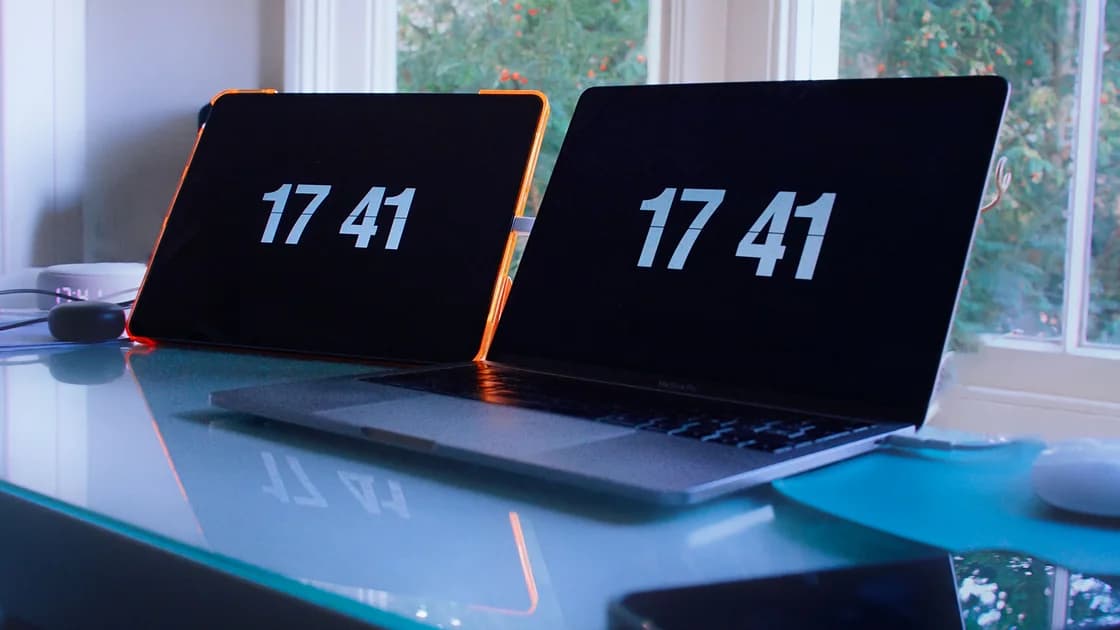

If your VPN connection fails because device time is wrong, the clock usually matters at three points. Wrong device time can break a VPN connection when the client evaluates certificate validity, completes time-sensitive authentication, or validates a short-lived session. Confirm the clock evidence first: record the displayed date, time, time zone, synchronization status, and exact VPN error, then compare the device with a trusted time source.
The complete VPN guide covers the whole connection path. This article handles a narrow causal branch where clock correction changes a certificate or authentication failure. For unrelated errors, use general VPN connection troubleshooting.
Key Takeaways
- Record the clock, time zone, sync status, error, and timestamp before changing anything.
- A correct-looking hour can still use the wrong date, year, time zone, daylight-saving rule, or synchronization state.
- Restore automatic time and time zone through supported settings, synchronize once, then retry the VPN once.
- Never disable certificate checks, backdate the device, or bypass MFA to compensate for clock drift.
- Repeated drift after restart belongs to the OS, administrator, time source, firmware, or hardware owner.
Record the VPN message exactly. Strong clues include “certificate not yet valid,” “certificate expired” when it should not be, timestamp or clock-skew errors, one-time codes rejected immediately, or a login that starts working after the clock is synchronized. A generic timeout, DNS error, or unreachable server is not enough.
Capture these values without exposing secrets:
| Evidence | What to record | Why it matters |
|---|---|---|
| Calendar | Date and year | A wrong day or year changes certificate evaluation |
| Clock | Local time with seconds if available | Shows the size and direction of drift |
| Time zone | Named zone and UTC offset | Correct hour in the wrong zone can still be wrong |
| Automatic time | Enabled/disabled and last sync status | Identifies manual or failed synchronization |
| VPN/auth error | Exact text and timestamp | Connects the clock to the failing stage |
Do not screenshot QR codes, one-time passwords, certificates, usernames, server addresses, or private logs. Write down only the sanitized error category and clock state.
Public-key certificates include a validity interval. RFC 5280 defines notBefore and notAfter; a relying system checks whether the current time falls within that interval.[1] A device set far into the past can treat a valid certificate as not yet valid, while a future clock can treat it as expired.
Time-based one-time passwords also depend on a shared time step. RFC 6238 states that the prover and verifier must know or derive the current Unix time and use the same time-step value.[2] Moderate tolerance may exist, but it is deliberately limited; widening it indefinitely would weaken authentication.
This does not mean every certificate or login error is caused by the local clock. The server certificate may genuinely be expired, the identity provider may be unavailable, the account may be locked, or the VPN profile may point to the wrong endpoint. Clock correction is confirmed only when evidence and a controlled retry agree.
Compare the device with a trusted source such as another automatically synchronized device or the organization's approved time service. Check the full date, year, time zone, UTC offset, and daylight-saving behavior—not just the hour shown on the lock screen.
A device can display the expected local hour while its time zone is wrong because the hour was set manually. Logs and certificates use absolute time, so this mismatch still matters. Conversely, a 12-hour/24-hour display preference does not change the underlying time.
If the device is offline, recently restored, dual-booted, or has a depleted hardware clock battery, note that context. Do not browse to random “what time is it” pages through an untrusted network and treat them as authoritative.
Use the operating system's supported Date & Time controls. Enable automatic time and automatic time zone where appropriate, confirm the correct zone, and request one synchronization. Microsoft documents Windows controls for automatic time, time zone, and manual synchronization.[3] Menu names differ by OS and organization policy.
On a managed device, the setting may be disabled or supplied by policy. Do not change registry keys, management profiles, NTP servers, firmware clocks, or administrator controls without authorization. Ask IT to confirm the approved time source and sync state.
After synchronization, verify the full date and offset again. Restart the VPN client normally and retry one connection. Do not repeatedly change the clock around the certificate window; that can corrupt logs, confuse session expiry, and weaken security evidence.
Wait for a fresh code after synchronization, then enter it once through the official authentication flow. Confirm that the authenticator device and VPN device both show trusted time if they are separate. Do not reuse a nearly expired code or send the code to support.
If fresh codes fail but other certificate checks now pass, use the repeated sign-in guide to separate browser session, account, MFA enrollment, and client state. Recovery codes and MFA reset belong to the identity provider's approved recovery process.
Never ask an administrator to widen TOTP tolerance indefinitely, disable MFA, or accept expired codes. The goal is to restore synchronized clocks, not to weaken the verifier.
Restart the device and recheck before declaring the problem solved. Recurring drift can come from a failed time service, blocked enterprise time source, incorrect dual-boot clock handling, firmware settings, virtualization snapshots, a depleted real-time-clock battery, or a management policy that reapplies the wrong zone.
Record how quickly the drift returns and whether it happens after shutdown, sleep, travel, network change, or virtual-machine restore. The general device date-and-time guide covers the broader system and hardware diagnosis; the VPN is only the symptom here.
Once the clock is accurate and set to update automatically, reconnect AethoVPN to the same server location you used before the correction and compare the result; if the app asks for a new email code, request a fresh one rather than reusing an older message. A connection that still fails with the correct time is a separate problem to diagnose, not a reason for further time changes. AethoVPN cannot bypass certificate validity, time-based authentication, device policy or a failing hardware clock. If the error persists after the clock fix, download the current client for your device so an outdated build is ruled out.
Provide device and OS version, VPN app version, sanitized error, local date/time/time zone before correction, trusted comparison, synchronization method and result, the single post-sync retry result, and whether drift returns after restart. State whether the device is managed, virtualized, dual-booted, or recently restored.
Do not send one-time codes, recovery codes, private certificates, tokens, complete server names, account identifiers, or unrestricted system logs. Administrators can correlate your timestamp with authentication and time-service logs on their side.
If the server presents a certificate that remains invalid on multiple correctly synchronized devices, stop and report it to the service owner. Do not accept the certificate manually or create an exception.
Treat wrong device time as a proven cause only when the clock evidence matches a certificate or authentication error and one controlled synchronization changes the result. Check the full date, zone, offset, and sync status; restore supported automatic settings; then retry once. Escalate recurring drift to the system or hardware owner and preserve certificate and MFA controls.
It depends on the authentication system and its allowed window. TOTP tolerances are intentionally limited, so synchronize both devices instead of guessing how much drift is acceptable.
The date, year, time zone, UTC offset, or absolute time may be wrong even when the displayed hour looks familiar. Check every field and sync status.
No. That bypasses evidence rather than fixing the certificate and can disrupt logs and sessions. Report a genuinely expired certificate to the service owner.
No. A correct clock is a prerequisite, not a reason to remove server identity checks. Stop if a correctly synchronized device still sees an invalid certificate.
The authenticator device may still be unsynchronized, the code may be near expiry, or the account/enrollment may have another problem. Use a fresh code once, then follow approved account recovery.
Contact the administrator with the visible clock, zone, sync status, and error timestamp. Do not modify management policy or choose an unauthorized time server.
If the clock repeatedly drifts after shutdown or restart despite a healthy approved time service, the firmware or real-time-clock hardware may need vendor diagnosis.
Disclaimer: This guide does not authorize disabling certificate validation, bypassing MFA, altering managed policy, or manipulating time to evade authentication and access controls.
Sources:
Sources checked 6 September 2026.
Related Articles:
Sign up to experience all premium features at no cost.
*Available only to new users. Each user is limited to one trial.