Start your 3-day free trial
Sign up to experience all premium features at no cost.
*Available only to new users. Each user is limited to one trial.
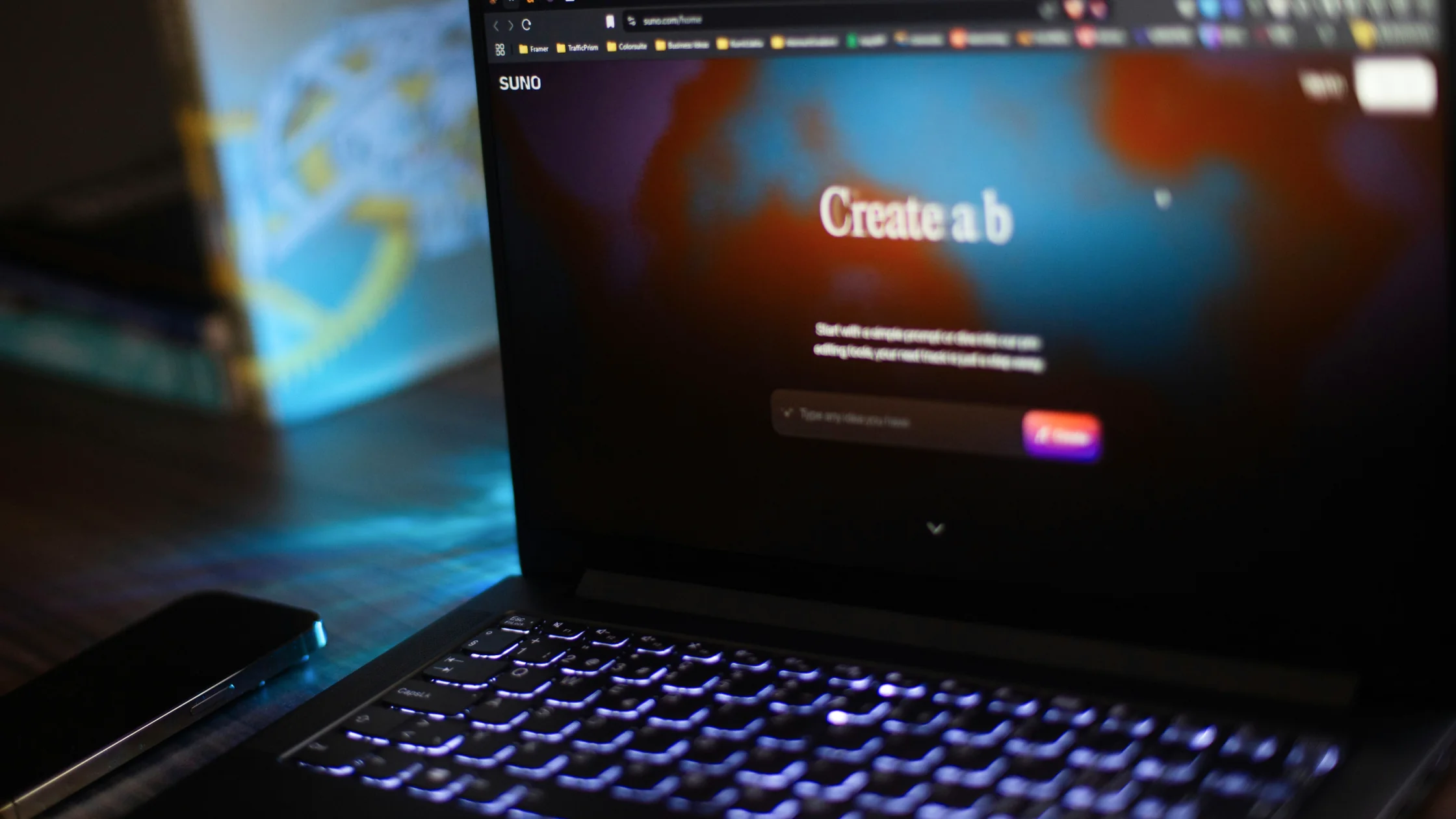

If you find Suno not working or unavailable, a VPN helps only when the fault sits in the network path: it changes the route and the IP location Suno sees, while credits, your plan, and the eligibility rules in Suno's terms stay the same.[1] Region policy, account type, age limits, and the connection can each produce a similar error, so find the layer that failed before you change anything.
Key Takeaways
- Official availability and account eligibility are separate from network reachability.
- Start with the platform's own support, status, and privacy documentation.
- A VPN can only address a network-layer problem.
- Suno access, plan features, licensing, and content rules are separate checks.
Separate site or app sign-in, the generation page, plan or credit limits, and the network path before changing a route. Treat a country or region message, a sign-in failure, a missing feature, and a slow or blocked connection as different signals. Record the exact page or client, account state, full error text, network, and time before changing a route; a VPN can test the network layer, while eligibility, billing, plan entitlements, and platform rules stay with the account and Suno's terms.
As of 4 October 2026, Suno does not publish a list of supported countries. Its terms set a minimum age and bar people restricted by US sanctions or other applicable law, and its help article on phone sign-in says logins from some regions may be restricted, often temporarily, after unusual activity.[1][3] If your region is refused, contact Suno support instead of changing account details. To see how other AI tools publish availability, check where popular AI tools are available.
Use the official app or website, update it, clear only local cache when appropriate, and test one browser or device at a time. Avoid unofficial clients and copied login pages.
Check whether the same URL works on another trusted network, whether DNS and HTTPS are normal, and whether the service itself reports an incident. If a VPN is permitted and the issue is clearly network-level, test one route without making account or billing changes.
Separate sign-in, the create surface, plan or credit status, commercial rights, and the content policy.[2] Use the current Suno Help Center and terms for eligibility; a release post is not a promise of account access. A VPN cannot grant credits, licensing rights, or a plan feature.
Suno failures usually show up at the moment you press Create, but the cause can sit much earlier: in where the service is offered, in your credits and plan, in what you uploaded, or in the network. Checking them in that order saves you from retrying the same song on network after network.
Suno's terms describe who may use the service and from where.[1] Read the current version before assuming a network fault, especially if you are travelling or have recently moved. If the sign-in page itself refuses you, or the site tells you the service is not offered where you are, the answer lives in those terms, not in your connection.
Each generation draws on credits, and the number available depends on your plan and when it renews. Open your account page and note the current balance, the plan name, and the renewal date before you test anything else. A song that queues but never starts, or a Create button that greys out, often means the balance is empty or the plan does not include the option you chose. If you subscribed through an app store, that store handles billing, and the plan can take time to appear on the web. No network change restores credits.
Uploaded audio and custom lyrics go through Suno's content and rights checks.[2] A file that is rejected, or lyrics that trigger a warning, produce a policy message that will look the same on every network. Copy that message, check the help center's guidance on uploads and allowed content, and change the input rather than repeating the request. Keep in mind that the rights you hold over generated songs depend on your plan, so check the terms before using a track commercially.
For each attempt, record the time, the surface (website or mobile app) and its version, the plan and credit balance, the device, the network, whether you used a text prompt, custom lyrics, or uploaded audio, and the exact error. Do not include unreleased lyrics or audio files in the record you share; describe them instead, as the beginner's guide to using AI tools suggests for any sensitive input. If a generation stalls, note how long you waited and whether it later appeared in your library.
Use the same account, the same surface, and a short, simple prompt, and change only the network: home broadband against mobile data, for example. If Suno loads or generates on one network but not on the other, the first network is filtering, mis-resolving DNS, or inspecting HTTPS. If local law and Suno's terms allow it, one VPN route can be a further comparison. Do not create additional accounts, change your account country, or alter billing details to get around a limit; those steps can breach the terms and complicate any support request.
Stop testing once the same failure appears on every network, or once you can see that the cause is credits, plan, or a content decision. Send Suno support your plan, credit balance, surface, the exact message, and the networks you compared. If a subscription was bought through an app store, include that detail, since billing may need to be resolved with the store.
It can change the path between your device and the service and replace the visible exit IP. This may help distinguish local blocking from an account or product restriction. The VPN for AI tools guide places Suno among the other music and video generators, so you can check whether a symptom is specific to Suno or shared by the whole category.
Suno problems often show up as audio that will not play or download, so aim the AethoVPN test at that step. Install the Android APK (it also runs on HarmonyOS) or the Windows client, connect to a location near you whose load reads green, and open the same Suno track you noted in your baseline: check whether playback starts, the waveform loads, and the download completes. If the track plays over the tunnel but not on the plain network, hand that comparison to support as evidence of a path problem. Credits, plan limits, and Suno's handling of uploaded audio stay with the account and the terms, not the route. Start the 3-day free trial with your email to run the comparison on one device.
A VPN does change the IP location Suno sees, so a check based only on IP may pass. Suno's terms, however, prohibit using a VPN to get around geographic restrictions, and Suno may suspend or close an account it believes breaks them.[1] Phone number, payment method, account country, age, plan, and moderation checks are also unaffected by the IP address, so keep account and billing details truthful.
| What you see | Most likely layer | Next step |
|---|---|---|
| Sign-in or the site is refused where you are | Eligibility and geographic rules in Suno's terms | Read the current terms and ask support; using a route against them risks the account |
| Create is greyed out or a song never starts | Credits or plan | Check the credit balance, plan, and renewal date |
| An upload or lyrics are rejected | Content or rights checks | Follow the help center guidance and change the input |
| A paid plan is missing on the web | App-store billing or a different account | Confirm the account and where the plan was bought |
| Suno loads on mobile data but not on office Wi-Fi | Local filtering, DNS, or HTTPS inspection | Compare networks and ask the network administrator |
A loaded workspace does not prove that a generation request can run. Check the account plan, remaining usage, prompt and exact Suno error before testing another network.
No. Check usage and the active plan in your Suno account. A route changes connectivity, not credits, subscription status or generation eligibility.
Check that you hold the rights needed to submit the material and review Suno's current terms. Replacing an IP address does not grant rights or reverse a content decision.
Use the official mobile app and website with the same account and one safe, unchanged test prompt. Note whether sign-in, workspace or generation fails on each surface.
Compare the same official page on two trusted networks if it cannot load. If the page opens but generation fails, investigate the account, input and job first.
Disclaimer: This article is for general informational purposes only and does not constitute legal, technical, or professional advice. Platform availability, account rules, and privacy settings can change; follow official requirements and local law.
Sources:
Sources checked 4 October 2026.
Related Articles:
Sign up to experience all premium features at no cost.
*Available only to new users. Each user is limited to one trial.