Start your 3-day free trial
Sign up to experience all premium features at no cost.
*Available only to new users. Each user is limited to one trial.
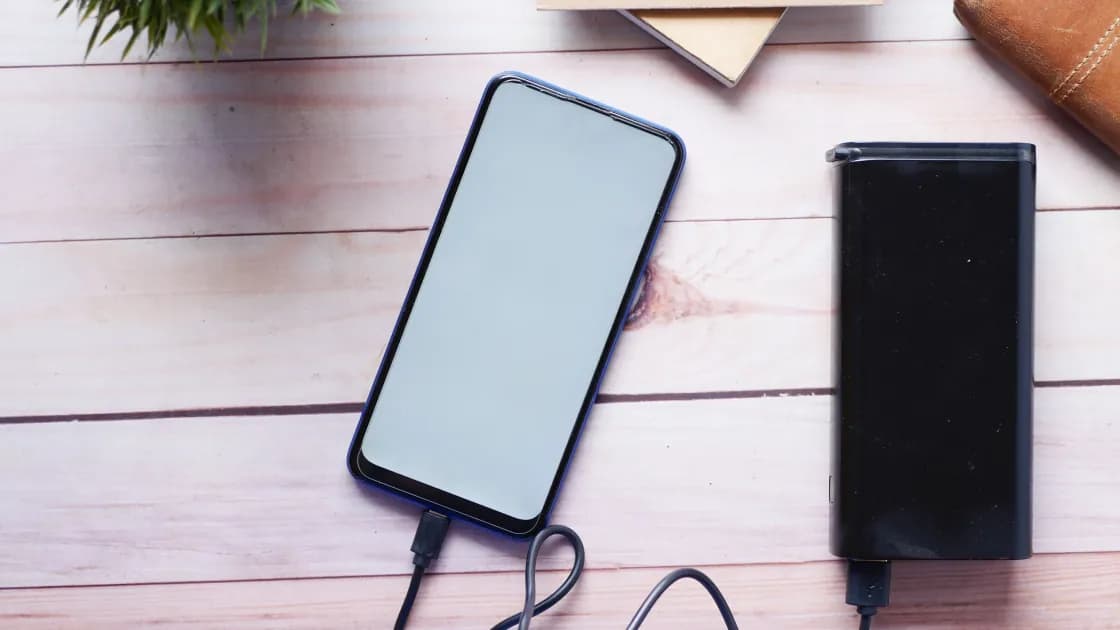

An Android battery draining so fast can be caused by temporary setup or update work, the screen, weak signal, background apps, syncing, location, hotspot use, or an aging battery. Android is not one interface, so use the battery statistics and support path for your exact model instead of following a universal menu claim.
Key Takeaways
- New setup and software updates can temporarily increase drain.[1]
- Compare equivalent usage periods before changing settings.
- Isolate one app or feature at a time.
- Battery Saver can delay notifications and background work.[3]
Follow the evidence-first method in the Device and App Troubleshooting Guide.
Record start and end charge, screen time, signal, temperature, charging, and major activities for a representative day. Navigation, gaming, video, camera use, hotspot sharing, and poor coverage are high-load conditions, so do not compare them with an idle day.
Google says a newly set up or factory-reset Pixel may take a few weeks for optimization to take full effect, and extra drain for a few days after an update can be normal.[1] Samsung likewise describes an initial optimization period.[3] These are model-specific examples, not a promise for every Android phone. Persistent light-use drain after ordinary activity settles needs diagnosis.
Look for Battery, Battery usage, or Device care in Settings. The exact labels vary by manufacturer, carrier, Android release, and app version.
For a current Pixel example, battery troubleshooting is under its Battery settings; for a current Galaxy example, Samsung documents Settings > Battery, a battery graph, and per-app details.[1][3] Do not copy either path to a different brand without checking its support guide.
Review:
A large percentage can reflect legitimate use. Compare activity time and function, not only rank.
Do not disable every service or force-stop every app. Broad changes can break alarms, messages, accessibility, health tracking, backups, and work profiles while hiding the cause.
Update the app and reproduce the same task. Temporarily restrict only its unnecessary background, location, sync, or notification behavior. If drain remains abnormal, back up local app data and uninstall it for one comparable cycle.
Safe Mode can help test whether downloaded apps are involved, but entry steps differ by model and some features will be unavailable. Use the exact manufacturer's instructions or the Android Safe Mode guide. A good result in Safe Mode narrows the cause; it does not identify which app by itself.
Power-saving modes reduce activity to extend runtime. Samsung states that Power saving can restrict background data and high-power features, while sleeping or deep-sleeping apps can have delayed notifications or no background execution.[3] Pixel and other manufacturers use different controls.
Use Battery Saver as a temporary mitigation and note its effect on mail, chat, uploads, navigation, wearables, and work apps. It does not repair battery aging.
Battery-health data is model-specific. Google documents cycle count under About phone > Battery information only for Pixel 8a and later, and its rated-cycle guidance differs between Pixel generations.[2] Samsung offers battery diagnostics in Samsung Members on supported Galaxy devices, while menus vary by model and software.[3]
Do not install an unknown “health” app and treat its estimate as a hardware diagnosis. Short runtime during light use, unexpected shutdowns, swelling, enclosure separation, or an official service warning are stronger reasons for inspection.
If the phone is unusually hot, stop demanding use and follow the Android heat-safety checks. A swollen or physically damaged battery should not remain in use.
Contact the manufacturer or an authorized repair provider when the device swells, shuts down unexpectedly, cannot charge reliably with compatible known-good equipment, reports poor battery condition, or continues severe drain during light use after updates and app isolation. Back up data before service when safe to do so.
Build a fair baseline, inspect model-specific battery statistics, and test screen, signal, sync, location, hotspot, and one suspected app separately. Power saving has notification and background tradeoffs. Persistent light-use drain or physical warning signs need model-specific diagnostics and possible repair.
Setup, restores, downloads, and optimization can increase background work. Pixel and Galaxy documentation both describe an initial period, though duration varies.[1][3]
Installation and optimization can temporarily use more power. If it remains abnormal after a few days, compare usage and investigate.[1]
It can, because the radio works harder to find or maintain service. Compare in strong coverage without changing other variables.
No. Target the app shown by usage evidence. Broad force-stopping can break expected functions and obscure the baseline.
It can. Power-saving and sleeping-app controls restrict background behavior, so important messages or sync may arrive later.[3]
No. Availability and meaning depend on brand, model, and software. Pixel cycle-count paths, for example, apply only to specified models.[2]
No. Improvement in Safe Mode suggests downloaded software may be involved, but apps still need to be tested individually.
Disclaimer: This article provides general troubleshooting information. Menus and battery-health features vary by manufacturer, model, carrier, and Android version.
Sources:
Sources checked 27 August 2026.
Related Articles:
Sign up to experience all premium features at no cost.
*Available only to new users. Each user is limited to one trial.