Start your 3-day free trial
Sign up to experience all premium features at no cost.
*Available only to new users. Each user is limited to one trial.
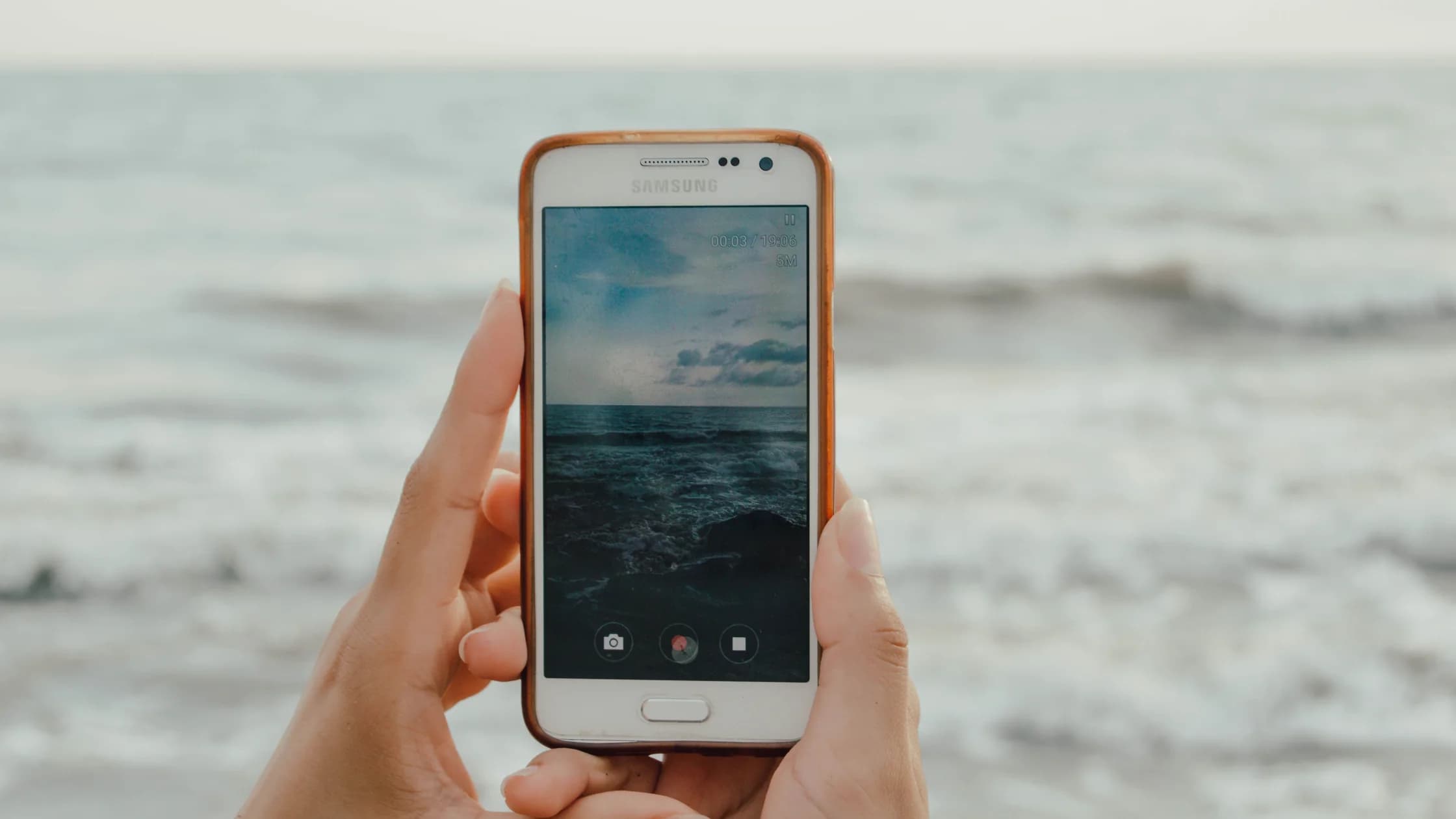

Android mobile data not working usually traces back to one of three places: the carrier side (coverage, plan, SIM or eSIM), a phone setting (mobile data off, the wrong data SIM, Airplane mode, or Data Saver), or a single app or VPN layer. Turn Wi-Fi off, check which of those applies, and keep a note of each change, because menu names differ by manufacturer. Google’s basic sequence starts with restarting the device and switching between Wi-Fi and mobile data.[1]
Key Takeaways
- Test with Wi-Fi off so the status bar shows whether the cellular data path is active.
- Check the mobile-data line, data indicator, carrier plan, coverage, SIM/eSIM, and local outage before changing advanced settings.
- Data Saver and per-app restrictions can block one app while the rest of the connection works.
- Private DNS, a proxy, VPN, or security profile should be tested only after the carrier path is understood.
- Save Wi-Fi, VPN, and managed-device details before resetting network settings.
If the same device also fails on Wi-Fi, start with the device and app troubleshooting guide and review Google’s Wi-Fi connection checks.[2] If Wi-Fi works but mobile data does not, follow this guide. If ordinary mobile internet works and only a VPN fails, use the separate VPN on cellular data guide.
Turn Wi-Fi off and open a normal HTTPS website in your browser. Then try a second app. Note whether the status bar shows a data indicator such as 4G, LTE, 5G, or another carrier label. Google notes that the indicator may be hidden while Wi-Fi is active, so test with Wi-Fi disabled.[1]
Use this quick split:
| Observation | More likely direction |
|---|---|
| Every app and website fails | Mobile-data switch, coverage, plan, SIM, carrier, or device network settings |
| One app fails while others work | Per-app data restriction, account, app version, or service outage |
| Wi-Fi works but cellular data fails | Cellular line, carrier, coverage, SIM/eSIM, or mobile-data settings |
| Data works until a VPN connects | VPN route, protocol, DNS, or security-profile interaction |
Write down the time, location at a broad level, status-bar message, active SIM/eSIM, and whether another device on the same carrier can use data. Do not share a full phone number, IMEI, private IP address, or account screenshot with an untrusted support page.
Open Settings → Network & internet or Settings → Connections. Depending on the device, look for Mobile data, Cellular data, SIMs, or Data usage. Turn mobile data off and on once, then check that the intended SIM or eSIM is selected for data.
With Wi-Fi still off, look for a data indicator next to the signal bars. If there is no indicator, move to an area with better coverage or go outside and test again. A recurring lack of signal is a carrier issue, not a reason to clear app data.
Check the carrier account separately: the plan must be active, the data allowance must be available, the device must not be barred, and there must be no local outage. If you recently changed SIMs, traveled, or moved an eSIM to a new device, ask the carrier to confirm provisioning.
Use one reversible sequence:
Do not toggle several network services at once. If the connection returns after Airplane mode, record that result but continue checking the carrier and SIM if the failure keeps coming back.
If one app fails while the browser and other apps work, inspect Settings → Apps → [app] → Mobile data & Wi-Fi or the closest equivalent. Check whether background data, unrestricted data, or mobile data access is disabled. Also review Data Saver and any battery or enterprise policy that limits background traffic.[3]
OEM names and paths vary. A Samsung, Pixel, Xiaomi, or managed work device may place the same control under different headings. Describe the behavior and the visible setting instead of presenting one manufacturer’s path as universal Android behavior.
If the app has a web interface, test the same account there. A web interface working while the app fails suggests an app session, permission, version, or service problem. Update the app before clearing its data, and back up any offline files or drafts first.
Treat advanced network values as evidence-led checks. Private DNS can alter or disrupt hostname resolution, a proxy can reject traffic, and an APN can be carrier-specific. Do not copy a value from a random forum or change several fields at once.[4][5]
First restore the ordinary baseline: no proxy, the carrier’s normal APN, and the network profile required by your carrier or administrator. If a work or school profile controls the setting, ask its owner before removing it. A reset can leave you without the credentials or certificate needed to reconnect.
A VPN matters only after ordinary mobile data works with the VPN off. If pages load until the VPN connects, disconnect it and retest the same page over mobile data, then reconnect and try one other location or protocol the VPN app offers. Restore the original setting after the test. If the same failure occurs on every VPN route, keep the evidence and use the VPN app’s support channel. If every app fails without a VPN, return to the carrier and device checks instead of repeatedly reinstalling the VPN.
If the opposite happens and some sites or apps load only while a VPN is connected, the direct route to those destinations is failing, for example through carrier DNS, routing, a network restriction, or a Private DNS or proxy change you made. Check the carrier's status and your own settings instead of leaving a VPN on as an unexplained fix.
Use a network reset only after the comparisons point to a device-side problem and you have saved recovery details. Current Pixel phones offer Reset mobile network settings separately from Reset Bluetooth & Wi-Fi, and the Wi-Fi option deletes saved Wi-Fi connections.[6] Other manufacturers may combine them, and depending on the device a reset can also remove Bluetooth pairings, VPNs, and other network preferences. Read the confirmation screen, and record Wi-Fi passwords, enterprise certificates, proxy values, and VPN configuration first.
If the carrier confirms the account, coverage, SIM, and network are healthy but the phone cannot use data on any network, contact the device manufacturer. If several devices on the same carrier fail in the same area, contact the carrier before erasing anything locally.
Signal bars do not guarantee a working data plan or internet route. Check the active data SIM, mobile-data switch, data indicator, coverage, account, and local outage with Wi-Fi turned off.
With Wi-Fi off, a working data connection usually shows a label such as 4G, 5G, LTE, or H next to the signal bars. If nothing appears, the phone has no active data session on that SIM: check the mobile-data switch, the selected data SIM, Airplane mode, and coverage, then ask the carrier. The label may stay hidden while Wi-Fi is connected.[1]
The Play Store may have an app-specific restriction, stale cache, account problem, or service issue. Check storage, date and time, Play Store updates, and the app-specific guidance before resetting the whole network.
Open the app’s mobile-data settings and compare its background-data or unrestricted-data permission with another app that works. Menu names vary by manufacturer.[3]
Only when your carrier or administrator gives the exact settings. An APN is part of the carrier data path, and an unofficial value can disconnect the device.[4]
It can interfere with hostname resolution even when the radio connection is healthy. Test it only after recording the original value and only when the symptoms point to name resolution.[5]
A VPN can compare a route after ordinary mobile internet works. It cannot fix coverage, a carrier plan, a SIM/eSIM, a device ban, or an account restriction.
On Pixel, the Bluetooth and Wi-Fi reset deletes saved Wi-Fi connections; on other devices the scope varies and can include Bluetooth, VPN, proxy, and related network preferences. Save the information needed to reconnect first.[6]
Contact the carrier for account, coverage, outage, provisioning, data-plan, or SIM/eSIM problems. Contact the device manufacturer when the carrier confirms service and the phone still fails across networks. AethoVPN needs an existing internet connection and cannot restore Android mobile service when the SIM, plan, radio, or carrier network is failing.
Disclaimer: This article is for general informational purposes only and does not constitute legal, technical, or other professional advice. We make no guarantees regarding the accuracy, completeness, or timeliness of the content.
Sources:
Sources checked 4 October 2026.
Related Articles:
Sign up to experience all premium features at no cost.
*Available only to new users. Each user is limited to one trial.