Start your 3-day free trial
Sign up to experience all premium features at no cost.
*Available only to new users. Each user is limited to one trial.
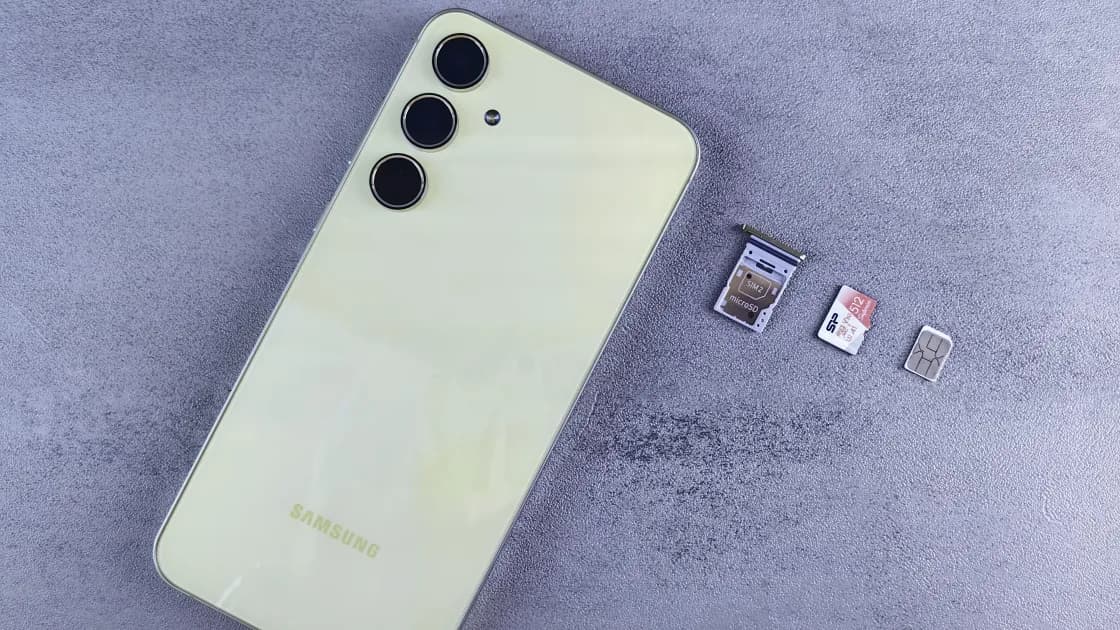

When Android storage is full, remove replaceable downloads and content with verified backups before touching app data, an SD card, or factory reset. If your phone takes an SD card, Google's setup lets you use it as portable storage for files or as internal storage that also holds apps, and either format permanently deletes what is on the card.[2] Storage holds files and memory runs apps, so closing apps does not create meaningful file capacity; menu names vary by manufacturer and Android version.
Key Takeaways
- Storage and memory are different resources.[1]
- Clear cache removes temporary data; Clear storage permanently removes app data.[1]
- Back up photos, files, chats, and app projects before destructive cleanup.
- SD-card support and format choices depend on the phone model.[2]
Use the reversible sequence in the Device and App Troubleshooting Guide, and record free space after each change.
Open the device's storage view, often Settings > Storage, and inspect categories. Google defines storage as the place for data such as photos and music, while memory is where apps and Android run.[1] If the warning concerns installing, recording, or downloading, local storage is the relevant limit.
Some steps in Google's current guide apply only to Android 14 and later, and manufacturers rename or relocate menus.[1] Use the exact model's support documentation when the path differs.
A sync service can propagate deletions. Do not delete the only important copy merely because an app says “backed up” without verifying it.
Start with offline films, music, podcasts, maps, browser downloads, document duplicates, installation packages, and media saved by messaging apps. Delete through the app that created the content when possible, then verify the file is gone.
Sort by size or date if the phone's file manager supports it. Confirm backup status, then remove unwanted recordings, duplicates, and exported copies. Check any recycle bin only after the recovery window is no longer needed.
Uninstall apps you no longer need after checking local data. Supported Google Play configurations may archive infrequently used apps while retaining personal data and the icon, but availability differs.[1] If installation still fails after creating space, use the Google Play download guide.
Open the manufacturer-specific app storage page for one large app. Clear cache removes temporary data and may make the next launch slower. Clear storage, sometimes called Clear data, permanently removes the app's data and may sign you out or delete local drafts and downloads.[1] Use the latter only after backup and account-recovery checks.
First confirm that the model supports an SD card. Android documents two broad modes: portable storage can move between devices but normally cannot host apps; adopted/internal storage can hold apps but is tied to that device.[2] Manufacturer support can differ.
Formatting permanently deletes the card's data.[2] Never format to “fix space” before copying and opening the files elsewhere. Do not remove adopted storage while apps depend on it. A failing, read-only, or repeatedly disconnecting card should be replaced after recovery rather than repeatedly reformatted.
These categories can include the operating system, updates, caches, thumbnails, logs, and manufacturer components. Restart once and allow the storage view to recalculate. Remove known user content and app caches first; avoid unknown cleaner apps or deleting files from protected directories.
If the unexplained category keeps growing, document the model, Android version, category sizes, and recent update or app change before contacting the manufacturer.
A factory reset erases the phone and is a last resort, not routine cleanup. Use it only after verified backups, account recovery, authenticator migration, eSIM or carrier planning where relevant, and manufacturer guidance. If storage fills again immediately after a clean restore, support should investigate the device, update, or specific app.
Confirm local storage rather than memory, verify backups, then clear replaceable downloads, large media, and unused apps. Treat Clear storage, SD-card formatting, and factory reset as destructive operations. Follow model-specific menus instead of assuming one Android path.
No. It may change memory use, but it does not remove the files occupying storage.[1]
It removes temporary app data and is usually reversible, though the next launch may be slower. Still target one app rather than clearing blindly.
No. Clear storage permanently deletes app data; Clear cache removes temporary data.[1]
Manufacturers and Android versions use different labels and paths. Check the exact model's support guide.
No. Hardware support varies. Even supported phones may offer different portable or internal-storage behavior.
Yes. Android warns that formatting permanently deletes the card's data. Back up first.[2]
It is an Android feature that automatically removes photos and videos already backed up, for example to Google Photos, when storage is nearly full. Google documents it for Android 14 and later; some manufacturers offer a similar storage manager under another name.[1]
No, not through normal settings. Packages named com.android.… belong to Android itself; com.android.sharedstoragebackup, for example, is part of Android's backup system. Forcing removal with unofficial tools can break backup or updates and usually frees little space, so clean user files and app caches instead.
Only as a last resort after verified backups and recovery planning. Smaller reversible cleanup should come first.
Disclaimer: This article provides general troubleshooting information. Menus and features vary by manufacturer, model, carrier, and Android version.
Sources:
Sources checked 4 October 2026.
Related Articles:
Sign up to experience all premium features at no cost.
*Available only to new users. Each user is limited to one trial.