Start your 3-day free trial
Sign up to experience all premium features at no cost.
*Available only to new users. Each user is limited to one trial.

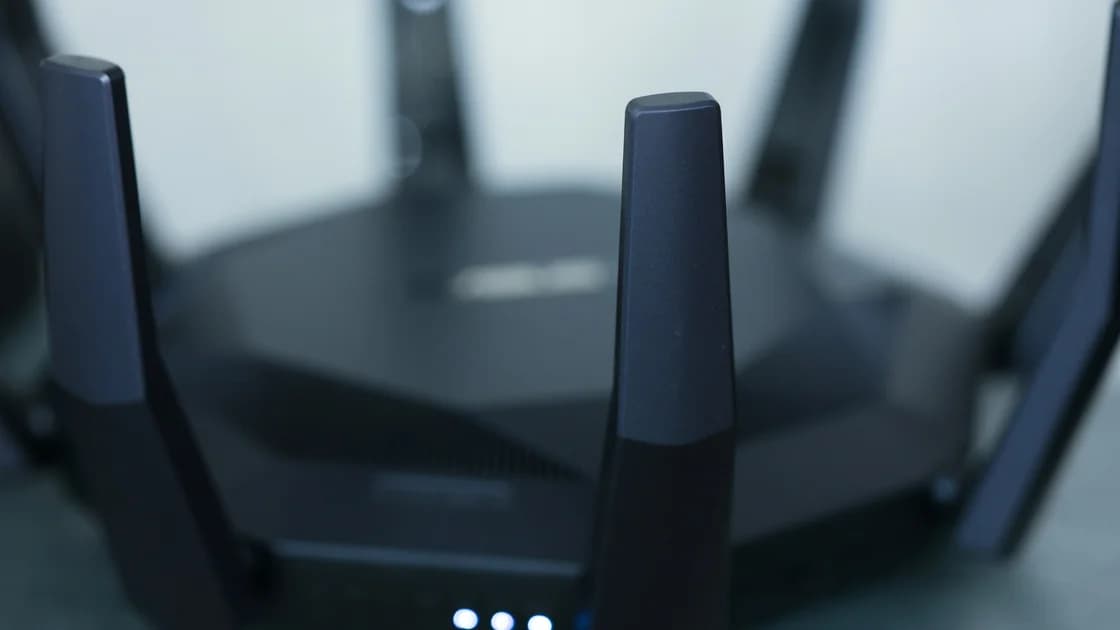
Google TV and Android TV network troubleshooting starts with one comparison: if your phone works on the same Wi-Fi but the TV will not connect, the fault sits on the TV side, so restart it, recheck the network name and password, and test Ethernet before resetting anything. If every device is offline, check the router or provider instead. Menu names vary by maker and software version, so follow the labels on your device and its manufacturer guide. The device troubleshooting guide explains the same layer-first method for other devices.
Key Takeaways
- Treat Google TV and Android TV as related platforms, not identical interfaces.
- Compare another app, device, and network before clearing data or resetting the television.
- Verify the selected Wi-Fi name, password, signal, and router status first.
- Clear an app's cache or data only when the failure is limited to that app.
- Leave network reset and factory reset for the end, after recording accounts and settings.
Write down the device maker and model, whether it is a television or external streamer, the software version, the active network name, and the exact error. Then classify the symptom before opening deeper settings.
| Symptom | Useful first test | Avoid doing first |
|---|---|---|
| Wi-Fi network is not listed | Check range and whether another device sees it | Factory reset |
| Password is rejected | Verify the correct SSID and credentials | Change router security blindly |
| Connected but no internet | Test another device on the same network | Clear every app |
| One app fails | Open a second app and check service status | Forget Wi-Fi |
| Remote casting alone fails | Test normal playback on the TV | Treat casting as general internet failure |
| Settings path differs from a guide | Use manufacturer support for that model | Assume the option does not exist |
Use the path for the interface you confirmed:
Keep the two paths separately labeled in your notes. If neither path matches, use the support guide for the exact television or streaming-device model instead of selecting a similar-looking control.
Setup and error screens sometimes show short addresses such as g.co/tv/help or g.co/tv/services. They are web links, not error codes, so open them on a phone or computer. When checked for this guide, g.co/tv/help led to Google TV Help, which hosts the troubleshooting steps cited here[1], while g.co/tv/services led to a page about adding streaming services to your profile for recommendations[5]. Neither link diagnoses your connection: copy the full message shown beside it, then continue with the comparisons below.
First, open a second app on the same TV. Second, test another device on the same home network. Third, when practical, connect the TV or streamer to another trusted network or Ethernet. These comparisons reveal more than repeating the same connection attempt.
If every device has no internet, use the router no-internet guide. If a television far from the router sees only some network names, review the Wi-Fi band differences. If ordinary playback works but casting fails, that is a local-discovery or casting branch rather than proof of an internet outage.
Proceed from the least disruptive action to the most specific one:
Google recommends checking the network, restarting the router, moving it closer, and considering a wired connection for Google TV. These steps do not prove that a particular band is always better; distance, interference, access-point design, and the device's radio support all matter.
It means the device has joined the local Wi-Fi network but has not demonstrated a working route to the internet. The problem may be the gateway, modem, ISP, DNS, captive authorization, or a network policy. Compare another device before changing television settings.
If only the TV fails, check date and time, active network, signal, and any recently changed router-level DNS, filtering, parental-control, or access rules. Record each custom value before a temporary test and restore it afterward. Do not disable security features permanently to make an error disappear.
Some managed networks require a browser sign-in, device registration, or administrator approval. A television may not be able to complete that workflow even when a phone can. Ask the network owner whether streaming devices are supported rather than cloning identifiers or bypassing access controls.
If the device was supplied or managed by an organization, do not remove certificates, profiles, filtering, or enrollment. The administrator is the correct owner for settings that return automatically or are unavailable to the local user.
Confirm that another app can load content. Check the affected provider's service status and account state, then restart only that app or the device. A single-app error can reflect authentication, service availability, storage pressure, an outdated app, or corrupted local app state.
Android TV support describes clearing app data and cache as an app-specific troubleshooting step. Cache removal is less disruptive, while clearing data can erase local settings, downloads, and sign-in state. Record the account and recovery method before using either action, and do not clear every app as a general network repair.
Update the affected app and system only after confirming a stable connection and adequate storage. If the app is supplied by the TV maker or cannot be updated through the normal store, follow the manufacturer's instructions.
A damaged or incomplete profile can resemble an app problem, but it does not normally explain why the device cannot see a Wi-Fi network. Keep account troubleshooting behind the network comparisons. Removing an account may affect purchases, recommendations, parental controls, and other apps, so use it only when account-specific evidence exists.
Do not mix Google TV profile repair, Google Play purchase eligibility, Chromecast setup, and general network troubleshooting into one reset sequence. Each has a different owner and different data-loss risk.
Check for a system update after basic connectivity is reliable. Google TV places updates under Settings > System > About > System update on supported versions, while Android TV and manufacturer interfaces can use different labels. Keep power connected throughout the update and follow the device maker's recovery instructions if it stalls.
Before a network reset or factory reset, record:
A factory reset erases device state but cannot repair an ISP outage, weak router placement, unsupported captive network, or a failed service. Use it only after the device maker's supported troubleshooting has excluded those layers.
Contact the ISP or administrator when multiple devices fail. Contact the app provider when one app alone fails. Contact the television or streaming-device maker when this device alone cannot join known-good Wi-Fi or Ethernet after supported restarts, updates, and credential checks.
No. They share concepts and may use similar Network & Internet labels, but menu placement varies by platform version and manufacturer. Use the path shown on your device and its official support documentation.
The device may have a local Wi-Fi link while the router, modem, DNS path, ISP, or network policy is failing. Test another device on the same network before clearing apps or resetting the TV.
The TV may be farther from the router, support different bands, have saved incorrect credentials, or be subject to a device rule. Compare signal, SSID, another trusted network, and Ethernet if supported.
Clear cache only after confirming one app is affected. Clear data is more disruptive because it can remove local settings and sign-in state; use it only with recovery details available.
Yes, if the television or streamer supports Ethernet. A known-good wired test can separate Wi-Fi radio and placement problems from broader device or internet failures.
Manufacturers customize menus and ship different Android versions. Search the device maker's official guide for Network & Internet, connection, update, or reset terms instead of assuming the option is absent.
No. A reset cannot improve physical signal, router placement, interference, an ISP outage, or an unsupported managed network. It should remain a last resort.
Not necessarily. Casting also depends on local discovery, compatible apps, permissions, and both devices being on the intended network. Test normal playback on the TV before moving to a casting-specific guide.
When playback on the TV works but the Cast receiver is missing, first check the sender and receiver are on the intended local network and that the casting app has local-network permission. Google documents these requirements and includes disconnecting a VPN or proxy in its Chrome casting checks.[3][4]
If AethoVPN is already active on a compatible device in this setup, record which device uses it. On your own network, where policy permits, briefly disconnect only that VPN and repeat discovery with the same sender, receiver and app. A changed result points to routing or local-access rules worth checking with the provider; it does not prove an internet outage. Restore the connection afterward. If discovery still fails, check guest-network isolation, permissions and receiver compatibility through the casting diagnosis. Do not remove managed controls or reset the TV for this comparison.
Sources checked 4 October 2026.
Sign up to experience all premium features at no cost.
*Available only to new users. Each user is limited to one trial.