Start your 3-day free trial
Sign up to experience all premium features at no cost.
*Available only to new users. Each user is limited to one trial.
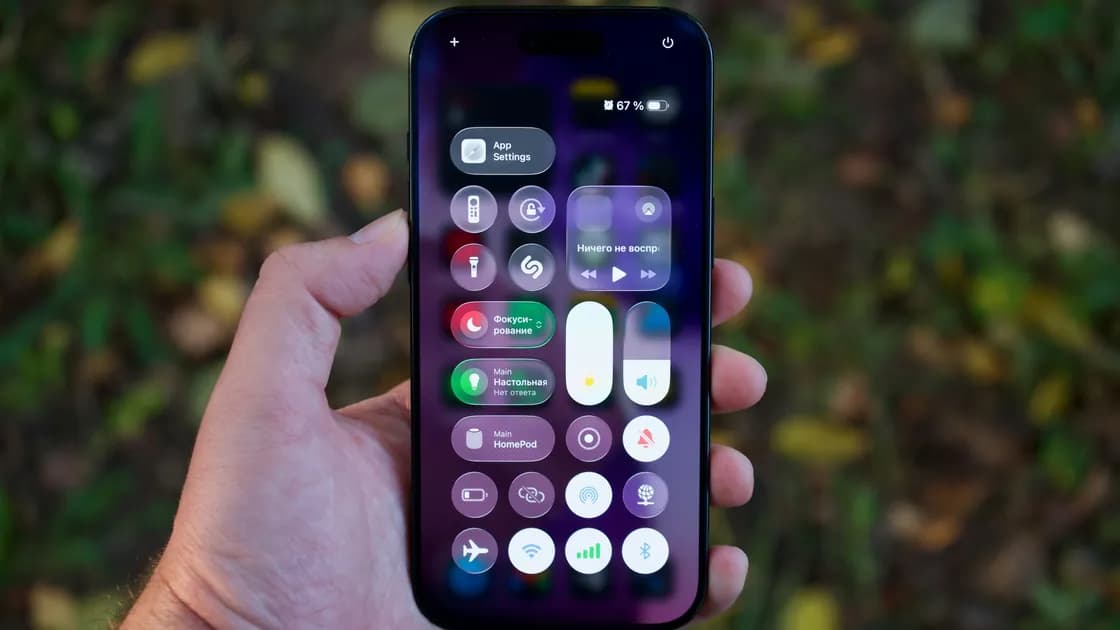

iPhone notifications that are not working, for every app or just one, are usually switched off or muted for that app, held by Scheduled Summary, filtered by a Focus, or never sent by the app. To fix iPhone notifications, find which of these applies with one repeatable test event and change one setting at a time; do not start by resetting the phone or signing out of your Apple Account.
Key Takeaways
- Look in Notification Center before treating a missing banner or sound as a delivery failure.
- Test one app, one contact, and one known event to separate app, person, and system-wide faults.
- Check the app’s notification styles, Scheduled Summary, and every active or automated Focus.
- Do not routinely reset all settings, sign out of the Apple Account, or erase the iPhone for a notification problem.
Use the Device and App Troubleshooting Guide when the same test also fails because the app cannot sign in, reach the internet, or update.
Ask someone you trust to send one new message, or trigger a harmless event you can identify by time. Do not reuse an old notification. Keep the target app closed, lock the iPhone, wait briefly, and then check both the Lock Screen and Notification Center.
Apple explains that Notification Center contains older notifications and that an app can be muted so its notifications go there without a Lock Screen appearance, sound, screen wake, or banner.[1] That gives four useful outcomes:
| Observation | Most likely branch | Next check |
|---|---|---|
| The item is in Notification Center but made no sound | Delivery worked; presentation is silent | Sound, mute state, Focus, and app style |
| The item appears later in a grouped summary | Delivery was scheduled | Scheduled Summary membership and times |
| Only one person or conversation is missing | Contact or thread rule | Muted conversation and Focus people list |
| Nothing appears for one app | App-specific failure | App permission, in-app type, sign-in, and service |
| Nothing appears for several apps | System-wide filter or connectivity | Focus, restart, update, network, and account state |
If the event appears inside the app only after you open it, the app may not have generated or received a push event while closed. That is different from iOS receiving it and hiding the banner.
Record the result before changing a setting: event time, sender or trigger, whether it appeared in the app, whether Notification Center retained it, and whether the phone was locked. Repeat the same event once after each change. This small log prevents an unrelated new message from looking like a fix and gives the developer or Apple Support evidence they can compare. If the test contains sensitive information, record only the category and time rather than message text or a screenshot.
Open Settings > Notifications, choose the affected app, and verify Allow Notifications. Then review Lock Screen, Notification Center, Banners, Sounds, badges, and preview choices. Apple also lets users change notification style and frequency per app.[2] Menu wording can vary by iOS release and app capability.
Next, open the app’s own settings. Messaging, banking, mail, calendar, and security apps often have separate switches for marketing, transactions, mentions, direct messages, or account alerts. The iOS master switch cannot create an event that the app or its service has disabled.
For one silent conversation, open that thread and check whether it is muted. For one missing contact during a Focus, inspect that Focus’s people list rather than changing every app.
In Settings > Notifications > Scheduled Summary, see whether the affected app is included and when summaries are delivered. Scheduled Summary is designed to collect notifications from selected apps and present them at scheduled times. You can also open the app in Settings > Notifications and check whether Notification Delivery is set to Immediate Delivery or Scheduled Summary. Remove the app from the summary only if you need its alerts immediately; do not disable useful summaries for unrelated apps.
Then open Settings > Focus and inspect the Focus currently shown in Control Center, plus Sleep, Work, Personal, Driving, and any custom Focus. A Focus can allow or silence selected people and apps, and time-sensitive exceptions have their own setting.[3] Check automatic schedules, location or app triggers, and cross-device sharing so the Focus does not return after you switch it off once.
On an Apple Intelligence–enabled iPhone (iPhone 15 Pro, iPhone 15 Pro Max, or an iPhone 16 model or later) where Apple Intelligence is available in your language and region, also inspect Intelligent Breakthrough & Silencing inside the affected Focus. Apple explains that this option can let notifications judged important interrupt while silencing notifications judged less important. Turn it off only for one controlled comparison, then restore it or adjust the specific people and app rules. A notification that returns during this test was filtered by the Focus; it does not prove that the app, network, or notification service was repaired.
For safety, do not permanently allow every app through a Focus. Restore only the contacts and alert types you actually need, especially for emergency, medical, security, and two-factor authentication notifications.
After the settings branches are known, use this order:
If several apps fail only on cellular data, use the iPhone cellular data guide. If the target app cannot update or reinstall, use the iPhone app download guide.
Do not delete an app until you know whether it stores drafts, downloads, authentication tokens, or other local-only data. Do not use “Reset All Settings,” Apple Account sign-out, or factory restore as routine notification steps: they widen the fault and can create new account, payment, network, and recovery work.
Repeat the original test with the app closed and the iPhone locked. Confirm the same event appears in the intended location, at the intended time, with the expected sound or vibration. Then test one unrelated app. A fix is verified only when the original branch works without broadly disabling Focus or exposing private previews.
Stop and contact an administrator if notification settings are managed. Contact the app developer if one app alone cannot generate a known event. Contact Apple Support if multiple apps fail after settings, restart, and supported updates, and provide the recorded times and scope.
Scheduled Summary may be holding the app until a chosen time, or a Focus may be silencing it. The app’s service or network connection can also delay event generation.
The app may be muted, Sounds may be off for that app, a Focus may be active, or the alert may be going directly to Notification Center. Check the exact event rather than raising every volume control.
Its iOS permission, in-app notification type, sign-in, service, or app version may differ from the rest of the phone. Give its developer a repeatable event time if settings are correct.
The conversation may be muted, the sender may be in a Focus silence list, or the app may have thread-specific controls. Check the thread and the active Focus people list.
No. It can reduce background activity, but it is not proof that every missing notification is a battery issue. Use the iPhone battery guide if the symptom is tied to power state.
No. Temporarily disable the active Focus for one test, then correct its people, app, schedule, or exception rules. Keep useful safety and privacy filters.
Only after confirming that local drafts, downloads, accounts, and recovery methods are safe. Update, restart, service checks, and developer support are lower-risk first steps.
Not as routine notification troubleshooting. Those actions affect much more than notifications and may create recovery work without proving the cause.
Disclaimer: Notification behavior depends on the app, account, service, iOS release, Focus rules, device management, and network. Preserve security and emergency alerts, and follow current Apple and developer guidance.
Sources:
Sources checked 4 October 2026.
Related Articles:
Sign up to experience all premium features at no cost.
*Available only to new users. Each user is limited to one trial.