Start your 3-day free trial
Sign up to experience all premium features at no cost.
*Available only to new users. Each user is limited to one trial.
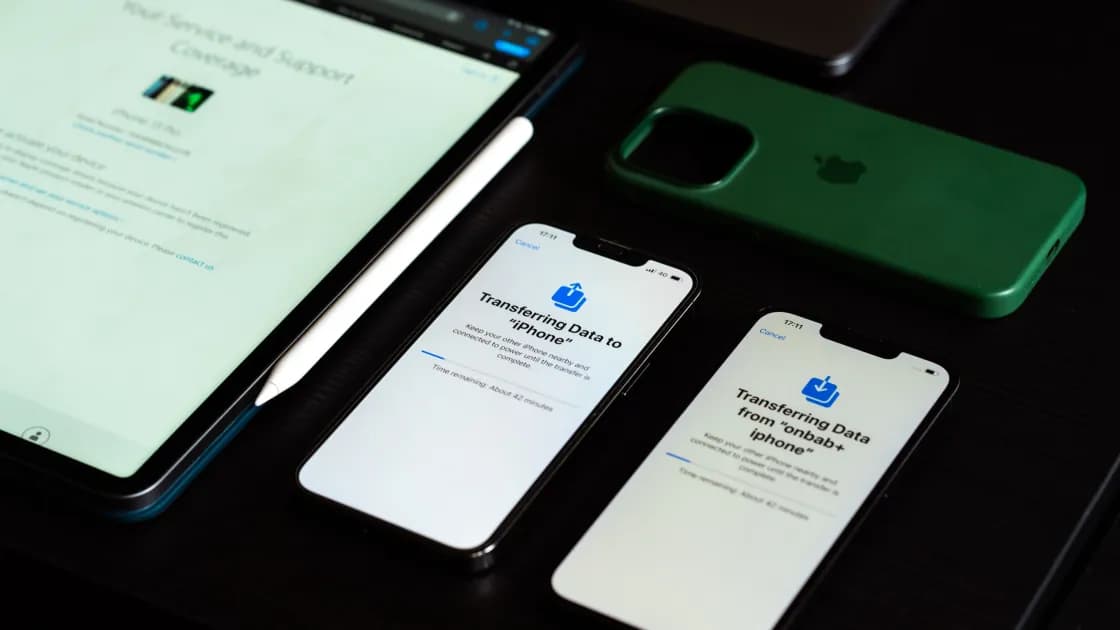

When iPhone storage is full, first confirm what occupies the device, then protect anything that is not safely backed up. Clear replaceable downloads and large media before deleting apps or synced photos. Buying more iCloud storage does not increase the physical capacity of the iPhone.
Key Takeaways
- iPhone storage and iCloud storage are separate limits.
- Review recommendations; do not enable one without reading what it removes.
- Offloading keeps an app's documents and data, while deleting removes both.[1]
- Treat synced libraries and destructive app actions as data-loss boundaries.
Start with the reversible workflow in the Device and App Troubleshooting Guide: observe, back up, change one thing, and verify.
Open Settings > General > iPhone Storage. Apple's support article and iPhone User Guide document this view, including recommendations, categories, and app usage.[1][2] If the warning instead concerns iCloud, open your Apple Account settings and review iCloud storage. A larger iCloud plan may hold more cloud data, but it does not add local capacity.
Note the available space and the largest categories. Photos, apps, messages, downloaded iCloud Drive files, mail attachments, media, System, and Other/System Data have different cleanup paths. Do not assume the largest colored bar is immediately removable.
Sync is not the same as an independent backup. Deleting a photo from a synced library can remove it from other devices too. If the only copy matters, create and verify another copy before deletion.
In iPhone Storage, tap Show All if recommendations appear. Read each description before enabling it; some actions remove local items while others change how content is retained. Apple advises reviewing the contents offered for deletion rather than treating every recommendation as automatic.[1]
Delete offline films, episodes, music, podcasts, maps, language packs, Files downloads, and Safari downloads that can be downloaded again. Use the app that created the download when possible, then reopen it and confirm the item is no longer stored offline.
Videos, duplicates, bursts, and old screen recordings often save more space than hundreds of small files. Confirm the backup or sync behavior first. After deletion, recently deleted items may continue occupying space until that recovery area is cleared; empty it only when recovery is no longer needed.
Large videos, photos, audio messages, and documents can accumulate in conversations. Preserve anything important before removing it. If Messages sync is enabled, a deletion may propagate to your other Apple devices.
Tap an app in iPhone Storage. Offload App removes the app binary but keeps its documents and data; Delete App removes the app and related data.[1] Offload when you expect to reinstall and the retained data is useful. Delete only after confirming the app's local drafts, downloads, authenticator access, and account recovery.
If the App Store cannot reinstall something afterward, use the separate iPhone app download guide rather than deleting more data.
System Data includes caches, logs, indexes, voices, fonts, keychain-related data, and other system resources. Apple explains that the system manages many cached and temporary files as space is needed.[1] A changing value is not proof of corruption.
Restart the iPhone, install the current supported iOS update when adequate working space is available, and let storage recalculate. Avoid third-party “cleaner” claims, repeated account removal, or factory reset solely to chase a category number. If System Data remains abnormally large after ordinary cleanup and a restart, capture the values and contact Apple Support.
Get help if storage does not recalculate, the phone cannot complete an update after reasonable space is available, a category grows immediately after reboot, the device repeatedly restarts, or important data is inaccessible. If the phone is also unusually hot, follow the iPhone heat-safety steps and stop charging or using it if a temperature warning appears.
Separate local capacity from iCloud, verify backups and sync behavior, and work from replaceable downloads toward more destructive actions. Measure free space after each change. Offload before delete when retaining app data is useful, and do not erase synced content until you understand where deletion propagates.
Not by itself. iCloud and the iPhone have separate limits. Some optimized cloud features can reduce local copies, but the plan upgrade alone does not expand the device.
No. Offloading keeps documents and data; deleting removes the app and its related data.[1]
Usually something is still adding data in the background. When you stream or view content, iOS creates cached files so it loads faster next time, and it removes them when the device needs more space.[1] Message attachments, automatic app downloads, and new photos also accumulate. Compare the app list in iPhone Storage a few days apart to see which item grows.
Recently deleted items may still be retained temporarily, and the storage view may need time to recalculate. Verify the deletion and recovery implications before clearing that area.
There is no universal safe “delete System Data” button. iOS manages many caches automatically. Remove known content first and seek support if the category remains abnormal.
It can. Check the library's sync behavior and make an independent copy before deleting the only important version.
There is no single number for every user. Keep enough working space for updates, camera capture, downloads, and the largest routine task, and act before the device reaches zero.
Not as an early cleanup step. A reset erases data and adds recovery risk. Use it only after verified backups and Apple guidance when smaller steps fail.
Disclaimer: This article provides general troubleshooting information. Menu names and available recommendations can vary by iOS version and device.
Sources:
Sources checked 4 October 2026.
Related Articles:
Sign up to experience all premium features at no cost.
*Available only to new users. Each user is limited to one trial.