Start your 3-day free trial
Sign up to experience all premium features at no cost.
*Available only to new users. Each user is limited to one trial.
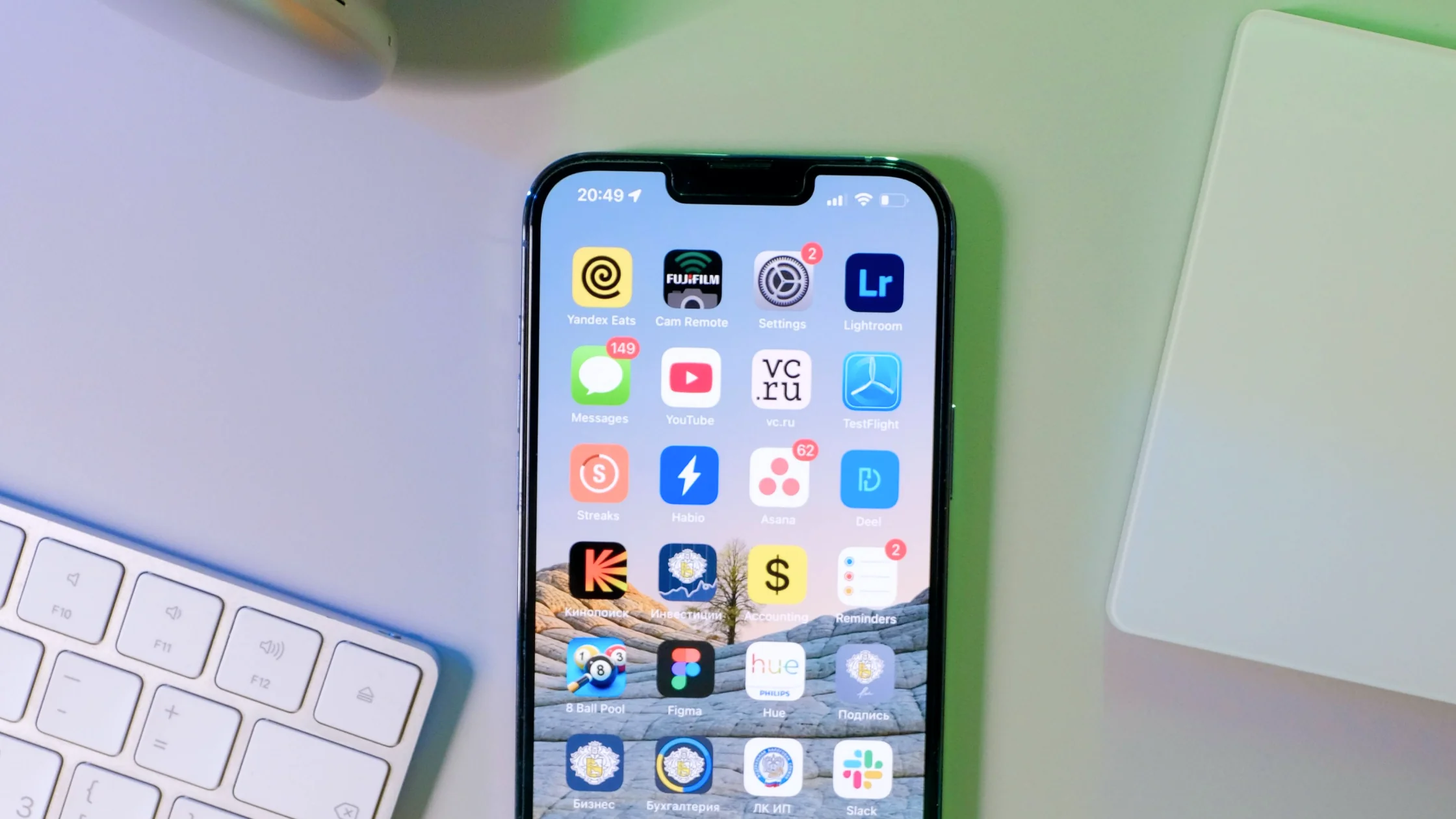

Here is how to check iPhone for viruses: skip "antivirus" apps and work through seven checks, covering unknown apps, Safari pop-ups, permissions, battery and data use, profiles, iOS updates, and your Apple Account. iOS sandboxes apps, so no app can scan the whole phone the way desktop antivirus scans a computer.[2] Most iPhone "virus" cases turn out to be malicious web pages, fake security alerts, suspicious apps, configuration profiles, spam calendar subscriptions, or account compromise.[1][2][5]
This guide follows the practical order. You do not need complex forensics at first; you need to clear the common and easy-to-miss entry points.
Use the privacy exposure review as the wider checklist: it connects this issue to accounts, devices, identifiers, and data-broker exposure.
Key Takeaways:
- iPhone has no desktop-style antivirus scan, so checking focuses on abnormal behavior and high-risk entry points.[1][2]
- Safari redirects, unknown apps, configuration profiles, unusual battery drain, and abnormal data use are all signals worth checking.[2][3]
- Apple advises deleting third-party apps the system flags as malicious instead of continuing to use them.[1]
- If you recently tapped a suspicious link in a text or email, move the check up your priority list.[4]
- If problems keep returning, the safest finish is usually a system update, new account passwords, and, when needed, erasing and restoring.[2][3]
If yes, go through all 7 steps.
Open the Home Screen and "Settings > General > iPhone Storage," then review recently installed apps.
Look for apps that:
Apple says that if iPhone warns a third-party app contains malware, you should delete it.[1]
Look for:
If you see them, clear Safari history and website data, then watch whether the issue returns. Many "virus" problems stay at the web page or notification layer.[2] To cut down repeat pop-ups, open "Settings > Apps > Safari" (just "Settings > Safari" on older iOS) and turn on Block Pop-ups and Fraudulent Website Warning.[5]
If you are not sure whether a pop-up is real, read what a fake virus alert is.
Open "Settings > Privacy & Security" and check:
If a non-location app always has location access, or a simple tool holds contacts and photo access, treat it as suspicious.
Go to "Settings > Battery" and "Settings > Cellular" to review the last 24 hours and 10 days.
You are not looking for "the biggest app must be bad." Look for:
Do not skip this if you have tapped enterprise distribution links, installed beta software, or used unknown "accelerator" tools.
Open "Settings > General > VPN & Device Management" and look for:
These items are not always malicious, but unknown sources deserve caution.
Open "Settings > General > Software Update."
This is not a magic fix. It closes known vulnerabilities. CISA notes that many updates exist to fix security risks and recommends turning on automatic updates, for phones as well as computers.[3] On iPhone, that switch is under "Automatic Updates" on the same screen.
Many people check the device but forget the account layer. Review:
If you entered a username, password, or code on a suspicious page, this may be more urgent than Safari cleanup. Change important passwords and enable two-factor authentication if needed.[4]
If:
then the issue may have been a malicious web page nuisance rather than a deep device compromise.
Do more than surface cleanup if:
In that case, back up important data, then consider erasing and setting up the device again.[2]
Usually no. iOS sandboxes apps and mediates their access to user data, so a "virus scanner" app cannot inspect other apps the way desktop antivirus does. Checking depends on behavior and entry points instead.[2]
Most web pop-ups should not be trusted. Alerts such as "your iPhone is infected with 4 viruses" come from web pages and ads that pose as Apple or another trusted company.[4][5] Close the tab without tapping its buttons, then follow the checks in this guide.
Not always. If the issue comes from an app, permissions, profiles, or account compromise, browser cleanup is not enough.
Delete it first, then see whether the symptoms stop. If iPhone warned that the app contains malware, do not open it again.[1]
Background activity often appears there before you can prove anything else. It is more objective than just feeling that the phone is slow.
Consider it when symptoms keep returning, suspicious items cannot be removed cleanly, accounts are affected, or you knowingly ran high-risk content.[2]
Disclaimer
This article is for general digital safety education only and does not constitute professional forensic, repair, or legal advice. iOS versions and settings paths may differ slightly.
A VPN cannot diagnose a suspicious app, revoke a harmful profile, or reset an exposed Apple Account.
Sources
Sources checked 4 October 2026.
Related Articles:
Sign up to experience all premium features at no cost.
*Available only to new users. Each user is limited to one trial.