Start your 3-day free trial
Sign up to experience all premium features at no cost.
*Available only to new users. Each user is limited to one trial.
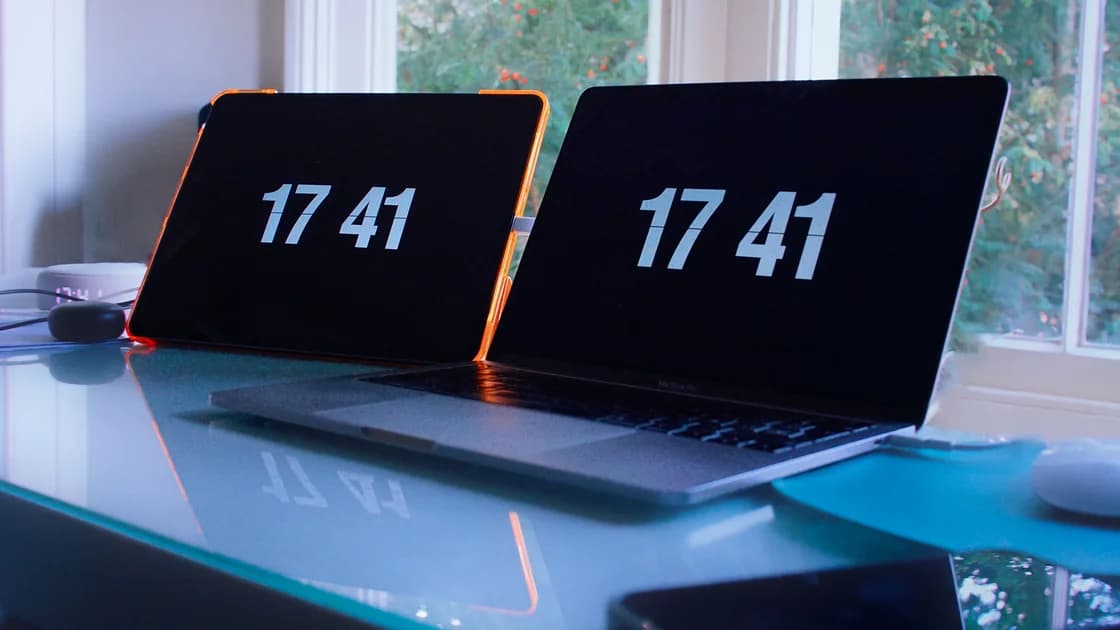

When a laptop clock keeps losing time after you correct it, the timing of the error is the best clue. Measure whether the change accumulates while the laptop is running, appears after sleep, or arrives only after a full shutdown. Then verify automatic synchronization and preserve the exact model before considering firmware or real-time-clock hardware.
Key Takeaways
- Correct the clock once, record a trusted reference, and compare at fixed checkpoints.
- Separate clock drift from a wrong time zone or daylight-saving display change.
- Verify automatic time, network access, and the operating system's time service.
- A reset after shutdown can indicate firmware or RTC support needs, but procedures are model-specific.
- Do not run a generic RTC reset, replace a battery, or open the laptop without the maker's instructions.
Use the device and app troubleshooting guide for the general isolation method. If the date or time is simply wrong once and apps are already rejecting certificates or sign-ins, start with the wrong computer date and time guide. This article begins after a successful correction that does not hold.
Set a clear baseline. Use a trusted phone or another network-synchronized device as the reference, write down both times to the nearest minute, and note the laptop's displayed time zone. Compare again after one hour of normal uptime, after a sleep cycle of at least 30 minutes, and after a full shutdown of at least 30 minutes.
Classify the result before changing settings:
| Pattern | Likely area to investigate |
|---|---|
| Loses seconds or minutes gradually during uptime | Synchronization, system load, virtualization, or time service |
| Correct during uptime, wrong after sleep | Resume behavior, update state, firmware, or managed policy |
| Correct until full shutdown, then resets | Firmware settings, RTC power, or model-specific service path |
| Exactly one or several hours wrong | Time zone, daylight-saving rule, or dual-boot interpretation |
| Date returns to a fixed old value | Firmware/RTC state or a failed settings save |
A time-zone error changes the displayed civil time by a clean offset; it is not clock drift. Changing the time zone repeatedly to make the clock look right hides the cause. Likewise, daylight-saving changes should follow the selected region's rule, not accumulate minute by minute.
Record whether the date also changes, whether firmware settings are forgotten, and whether the battery was fully depleted. Do not use certificate warnings as a measuring tool. Restore accurate time first, then retest affected apps.
On macOS, Apple provides an automatic date-and-time setting and an option to choose the time zone automatically from the current location.[1] Confirm the automatic setting, then make sure the Mac has a working connection and is not blocked by organization policy. If location-based time zone is unnecessary or unavailable, select the correct region manually while leaving the clock itself automatic.
On Windows, confirm “Set time automatically,” the correct time zone, and the current synchronization status. The Windows Time service uses tools such as w32tm for configuration and diagnosis; Microsoft's documentation distinguishes domain hierarchy, manual peers, service state, and resynchronization controls.[2] Ordinary users should start with Settings and the supported sync control rather than copying administrative commands from unrelated server guides.
For a managed laptop, domain or mobile-device policy may own the time source. Do not replace it with a public server or alter group policy. Capture the displayed source and error, then contact IT. A device can reach websites while a time service is blocked, misconfigured, or waiting for the managed network.
After changing a supported setting, synchronize once and record the result. Repeatedly pressing Sync without observing the next drift only erases useful evidence. If synchronization succeeds and the clock later moves again, the checkpoint pattern matters more than the button's success message.
First install supported operating-system updates and restart normally. A time-service fault, resume bug, hypervisor interaction, or old firmware can affect timekeeping. Use official update channels and avoid third-party “clock repair” utilities.
Check whether the behavior occurs only inside a virtual machine, remote desktop, container environment, or dual-boot installation. A guest can inherit time from its host, while two operating systems may interpret the hardware clock differently. Keep the host and guest observations separate; do not change both at once.
Heavy system load does not normally justify large persistent drift, but it can delay a service or make your observation imprecise. Measure with a stable workload and compare the operating system's clock with a trusted reference at fixed times. If the laptop clock jumps rather than slowly falls behind, record the exact moment and inspect the corresponding system or time-service event.
Do not disable security software, firewall policy, or certificate validation to force synchronization. If a time source cannot be reached, identify the source and error through supported diagnostics. For work devices, let the administrator verify policy and network controls.
If the clock is accurate before sleep but wrong immediately after wake, update the operating system and model-specific firmware, then repeat the same sleep duration. Disconnect nonessential docks and devices for one comparison. Record whether the machine truly slept or woke unexpectedly, because a long unplanned wake changes the test.
If the error appears only after a full shutdown, enter firmware setup only through the manufacturer's documented method and observe the firmware clock without changing unrelated settings. A firmware clock that is already wrong before the operating system loads points away from an application-level problem. Also note whether boot order or other firmware settings have reset.
Real-time-clock implementations vary. Some laptops use a separate coin-cell battery; others integrate RTC support with the main battery or board. Dell's RTC reset procedure, for example, is a model-specific recovery action intended for supported no-power, no-POST, or no-boot conditions, not a universal fix for clock drift.[3] That is why a generic button-hold sequence should not appear in a clock guide.
Do not open the case, short contacts, disconnect an internal battery, or replace a cell until the exact service manual confirms the part and procedure. Opening the laptop can damage connectors, compromise water or thermal seals, and affect warranty or organizational ownership.
Correct the clock through the supported automatic-time control. Record the reference time, laptop time, time zone, sync source, power state, battery level, and operating-system build. Then use the following sequence without changing multiple variables:
Use minutes, not impressions such as “a little slow.” A change from zero to two minutes behind after every hour suggests a different pattern from a clock that returns to the same old date after power removal. Repeat the suspect checkpoint once to rule out a missed daylight-saving or synchronization event.
Keep a backup before firmware updates. Do not interrupt an update, and do not install firmware from a third-party archive. If the laptop is managed, obtain administrator approval before firmware or service action.
Contact IT when policy controls the time source, the laptop belongs to an organization, or the error appears only on a domain, VPN, virtual desktop, or managed network. Provide the synchronization status and checkpoint table without changing policy.
Contact the laptop maker when the firmware clock is wrong, settings reset after shutdown, the date returns to a fixed value, or the same shutdown-only drift survives operating-system and supported firmware updates. Give the exact model, service identifier, firmware version, power conditions, and test results.
Seek service promptly if the case is swollen, unusually hot, damaged, wet, or smells burnt. A clock issue alone is not proof of a failed main battery or RTC component. Preserve a verified backup before any repair that could require board work or storage removal.
An exact one-hour change is usually a time-zone or daylight-saving rule, not gradual hardware drift. Verify the selected region and automatic daylight-saving setting before investigating RTC hardware.
The operating system may synchronize correctly while running, but firmware timekeeping may not persist without normal power. Repeat a timed shutdown test and check the firmware clock using the exact model's instructions.
Laptop designs differ. Some RTC circuits use a separate cell and others depend on the main battery or board. Do not infer the failed part without the service manual and model-specific diagnosis.
Only if the manufacturer documents a user-serviceable part and you can follow the safety procedure. Many modern laptops require disassembly that is better handled by qualified service.
Yes. Operating systems can interpret the hardware clock differently. Diagnose the shared-clock convention for those exact systems instead of repeatedly changing the visible time in both.
Time synchronization depends on the configured source, policy, and network path. Diagnose the time service and managed controls directly rather than assuming a VPN is the cause.
Correct it promptly. Incorrect time can disrupt certificates, sign-ins, updates, logs, and file timestamps, as explained in the broader date-and-time guide.
Provide the exact model, OS and firmware versions, time zone, sync source, measured offset, and whether the error appears during uptime, sleep, or shutdown. Mention any other firmware settings that reset.
Sources checked 10 September 2026.
Sign up to experience all premium features at no cost.
*Available only to new users. Each user is limited to one trial.