Start your 3-day free trial
Sign up to experience all premium features at no cost.
*Available only to new users. Each user is limited to one trial.

To stop laptop fan noise, lower the heat the fan is reacting to: let the heavy task finish or close it, use a hard surface with clear vents, choose the recommended power mode, and run the maker's updates and diagnostics. If a laptop fan keeps running at idle, or the sound turns into grinding, scraping, or knocking, treat it as a possible fault rather than normal cooling. A steady rush during updates, charging, indexing, gaming, video calls, or rendering is usually expected.
Stop using the laptop if the case is too hot to touch safely, you smell burning, the battery is swollen, the fan grinds or knocks, firmware reports a fan failure, or the system repeatedly shuts down from heat. Do not open the case, insert tools into vents, or keep running a suspected mechanical fault.
Key Takeaways
- Compare idle, charging, update, indexing, and high-load behavior before assuming a fault.
- Use the operating system's activity tools to identify sustained CPU, memory, and disk work.
- Keep the laptop on a hard surface with clear vents and a reasonable room temperature.
- Update through official channels and run diagnostics for the exact model.
- Do not label a loud fan as malware without independent security evidence.
Use the device and app troubleshooting guide if the fan change began with broader app, storage, power, or system problems.
Listen without placing your face or fingers near a vent. Normal airflow usually sounds like a smooth whoosh that rises and falls with workload. Mechanical trouble may sound like grinding, scraping, clicking, rattling, pulsing from a stalled fan, or contact with an internal object.
Record when the sound begins, how long it lasts, whether it comes from the same side, and whether the laptop is idle, charging, docked, updating, or under load. A short recording can help qualified support identify the sound, but do not include private conversations or screen contents.
Apple explains that fans may run faster during intensive tasks or when ambient temperature is high, and that blocked vents or an uneven soft surface can affect cooling.[1] A fan briefly accelerating is therefore not enough to diagnose failure.
Let the laptop reach a stable state. Save work, close the heavy task you intentionally started, and wait several minutes on a hard surface. Do not force-stop an operating-system update, firmware update, backup, encryption job, or storage repair merely to quiet the fan. Confirm what the process is before ending it.
If the sound continues at idle, note whether the case is merely warm or dangerously hot. Software temperature readings vary by sensor and model; do not compare one number against an arbitrary universal limit. Use the manufacturer's published operating range and diagnostic status.
Open the built-in activity tool: Task Manager on Windows, Activity Monitor on macOS, or the supported monitor for the installed system. Sort by CPU and observe for a few minutes. Then review memory pressure and disk activity. Take a snapshot of process names and usage, but do not post account names or confidential filenames.
Common legitimate causes include:
Do not end an unfamiliar system process only because it uses CPU. Search the official vendor documentation for its exact name and context. If a normal application is stuck, save recoverable work, close it through the regular interface, and reopen it once.
High memory pressure can make the system compress or swap data, increasing CPU and disk work. Nearly full storage can also slow maintenance and create repeated cleanup attempts. Use the Mac storage guide when capacity is genuinely low rather than deleting caches blindly.
On Windows, sustained disk activity has its own causes and evidence. Use the 100 percent disk usage guide instead of assuming the fan itself is the root problem. Slow startup and background launches are covered separately by the Windows startup guide.
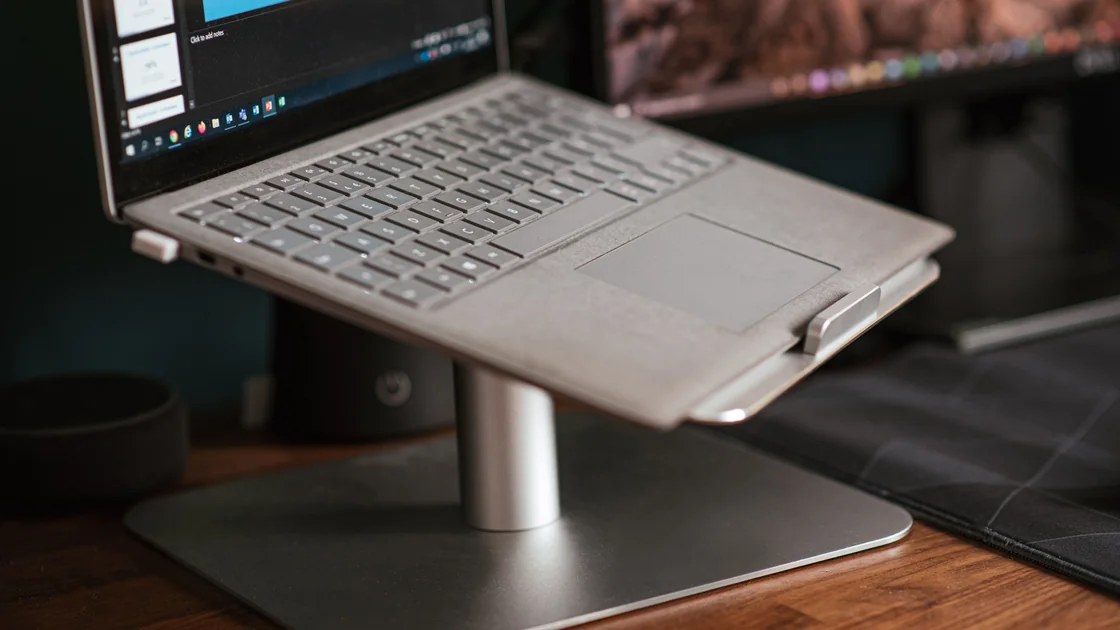
Place the laptop on a stable, hard, flat surface. Bedding, a sofa, a lap, paper stacks, and thick fabric can block lower or side vents. Do not cover the exhaust or place the device in a closed cabinet while running a demanding task.
Inspect external vent openings under good light without opening the case. If loose surface dust is visible, follow the manufacturer’s cleaning instructions. Do not push compressed-air nozzles, brushes, pins, or vacuum tools into the vent; they can damage the fan, force debris deeper, create static, or spin the fan beyond its design.
Check the room temperature and direct sunlight. Move the laptop to a cooler, ventilated indoor location within the manufacturer's operating range. Do not place it in a refrigerator, freezer, on ice, or in front of condensation-producing cold air.
Disconnect unnecessary external monitors, storage, USB devices, and docks for one controlled comparison. Accessories can add graphics, transfer, charging, and driver work. If removing one device quiets the fan, reconnect it once and observe the corresponding process or power change. Do not conclude that the accessory is defective from fan noise alone.
Charging can add heat, especially during a heavy workload or rapid charge. Use the correct adapter on a ventilated surface. Abnormal adapter or connector heat, damage, or odor is a separate electrical safety issue and requires disconnection.
Check the current power or performance mode. A high-performance setting may keep processors at higher power and run fans more aggressively. For an ordinary comparison, select the manufacturer's balanced or recommended mode, keep the same workload, and observe. Do not change firmware voltage, fan curves, or unofficial thermal-control settings.
Review applications configured to start or run in the background. Remove only entries you recognize and do not need. On Mac, use the login items and background apps guide to preserve required helpers and organization controls.
Surface documentation notes that fan operation can increase during CPU-intensive work and while updates or background processes run; checking Task Manager and power mode helps distinguish load from a fault.[2] The exact thermal design differs across laptops, so do not generalize a fanless or low-noise expectation from another model.
A browser or application extension can also create sustained work, but disable one suspected component at a time and keep a record. Clearing every setting or reinstalling the operating system destroys useful evidence and is disproportionate to a single noise symptom.
Do not treat fan activity alone as proof of malware. Security concerns require additional evidence such as an unknown persistent process, unexpected account activity, a verified detection, unauthorized changes, or suspicious network behavior. Use trusted security tools and the appropriate security-response process rather than downloading a “fan virus remover.”
After establishing safe temperatures and stable power, install normal operating-system, firmware, and driver updates through the laptop or operating-system vendor's official channel. Read release notes for thermal, power, or fan fixes when available. Do not flash random BIOS packages or use a model that merely looks similar.
Restart once after updates complete and the system says it is safe. Then observe the same idle and workload conditions. An update can also trigger indexing or optimization afterward, so allow that legitimate work to finish before comparing.
Run the manufacturer's hardware diagnostics for the exact service tag or model. Record fan, thermal-sensor, battery, and adapter results and any code. Dell's overheating guidance recommends clear vents on a hard surface, current BIOS and drivers, a SupportAssist hardware scan, and contacting support when that scan finds a hardware problem.[3]
Do not use a successful quick test to dismiss grinding, swelling, burning odor, or repeated thermal shutdown. Those physical signs outweigh a software pass. Conversely, a noisy fan with no diagnostic error may still be responding correctly to sustained workload or environmental heat.
Arrange service when the fan makes grinding, scraping, knocking, or repeated start-stop noises; a firmware or diagnostic fan error appears; the laptop shuts down from heat; the case is dangerously hot; airflow is absent while the system overheats; or impact, liquid, or internal debris is possible.
Stop immediately for battery swelling, smoke, sparks, or burning odor. Do not remove a swollen battery, open a sealed laptop, or insert a tool to stop or turn the fan. Internal cleaning and fan replacement require the correct service procedure, electrostatic precautions, battery isolation, and replacement parts.
Provide the exact model, operating system, power mode, connected accessories, room and surface conditions, when the noise began, idle-versus-load comparison, top sustained processes, updates installed, and diagnostic codes. A short sound recording may help, but share it only through an approved support channel.
A laptop fan that runs loudly is often responding to real heat from workload, charging, updates, indexing, background applications, blocked airflow, or a warm room. Compare idle and load, inspect CPU, memory, and disk activity, use a hard surface, remove accessories one at a time, and select the recommended power mode. Update and diagnose through official tools. Grinding, fan errors, repeated thermal shutdown, dangerous heat, burning odor, or battery swelling require shutdown and professional service.
It can be normal during sustained work, updates, indexing, charging, or high ambient temperature. Constant high speed at a stable idle state deserves workload and airflow checks.
Charging adds heat, and the laptop may also use a higher performance mode on external power. Compare at idle with the correct adapter and clear ventilation.
The fan is controlled by system firmware and thermal management, not an ordinary process. Identify the workload rather than ending unfamiliar system tasks.
Only if the exact manufacturer procedure allows it. Improper air pressure can overspin a fan, move debris inward, or damage components.
No. Fan noise alone is not evidence of malware. Investigate workload first and use a trusted security process only when independent suspicious evidence exists.
It may alter airflow for some designs but does not repair a failing fan, blocked internal cooling path, battery problem, or runaway process. Diagnose the cause first.
The system may be indexing, optimizing, scanning, or completing background work. Confirm the responsible process and allow legitimate work to finish before comparing idle behavior.
Stop for dangerous heat, burning odor, swelling, smoke, sparks, grinding or knocking, fan errors, or repeated thermal shutdown.
Sources checked 4 October 2026.
This article provides general troubleshooting information. Follow the current safety, thermal, cleaning, and service instructions for the exact laptop and organization.
Sign up to experience all premium features at no cost.
*Available only to new users. Each user is limited to one trial.