Start your 3-day free trial
Sign up to experience all premium features at no cost.
*Available only to new users. Each user is limited to one trial.
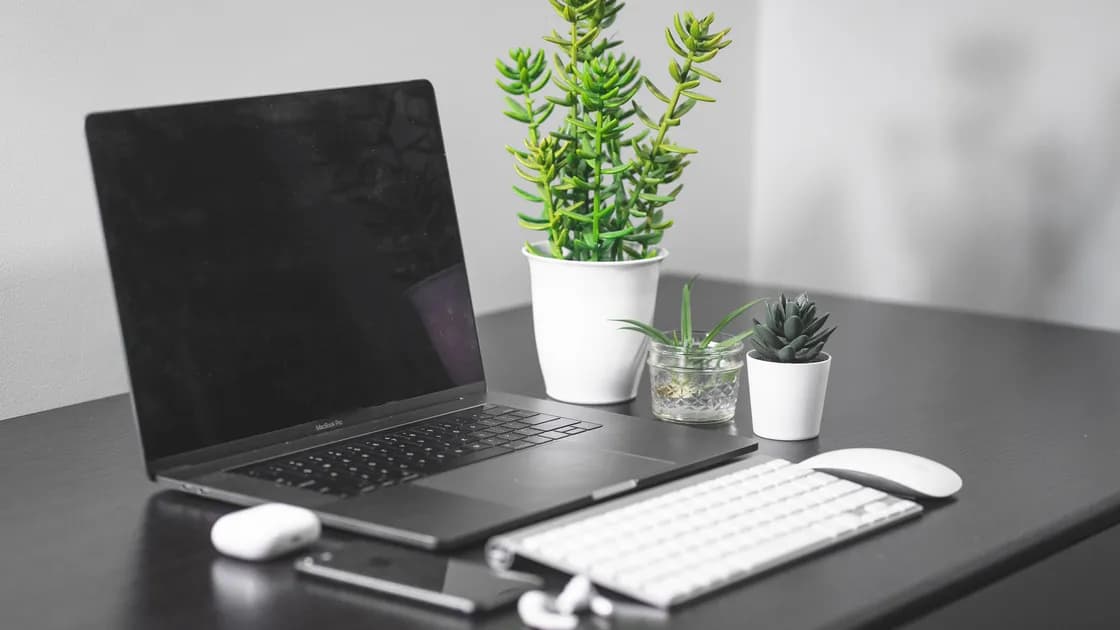

If sound quality is reduced when using Bluetooth headphones with your Mac, an app is usually using the headset microphone: quit that app, then switch output to the Mac's speakers and back to the headphones. For other cases where Bluetooth is not working on Mac, first choose the exact branch: the control is missing or shows Not Available, the device is not discovered, it is paired but not connected, or it connects with no sound or drops out. Check power, charge, distance, discoverable mode, and other-host connections before forgetting and re-pairing only the affected device.
Key Takeaways
- Diagnose missing controls, discovery, connection, audio routing, and interference as separate failures.
- Charge the accessory, move it close, make it discoverable, and disconnect it from other hosts first.
- For audio, verify both output and input selection before re-pairing.
- Forget only the target device; do not erase every pairing, delete Bluetooth plist files, or kill system services.
- On a desktop Mac that relies on Bluetooth input, prepare a working wired keyboard and mouse before turning Bluetooth off.
For a new computer or accessory baseline, use the new Mac setup checklist. For broader device failures, start with the device troubleshooting guide. This page keeps destructive resets out of the default path.
Record the Mac model, macOS version, accessory model, battery level, exact status, and when the problem began. Then pick one branch:
| Symptom | First layer to check |
|---|---|
| Bluetooth control is missing or shows Not Available | macOS state, management, or hardware support |
| Accessory never appears | Power, charge, distance, discoverable mode, other host |
| Accessory is listed but will not connect | Existing session, stale target pairing, compatibility |
| Headphones connect but sound stays on Mac | Sound output and app routing |
| Headset sounds poor when a call starts | Microphone use and Bluetooth audio mode |
| Connection drops or stutters | Charge, distance, interference, firmware, hardware |
Test only one accessory at first. If every Bluetooth device fails on the Mac, the shared Mac layer matters. If one accessory fails on several computers or phones, the accessory is more likely. If the accessory works elsewhere but not on this Mac, preserve that comparison for the re-pairing and support steps.
Do not turn Bluetooth off impulsively on an iMac, Mac mini, Mac Studio, or Mac Pro when the only keyboard and mouse are Bluetooth. Connect and test wired input devices first. Losing the controls needed to turn Bluetooth back on converts a small accessory problem into an access problem.
Apple's normal connection path begins with a powered-on, discoverable device and Bluetooth settings on the Mac.[1] Use the accessory's own manual because discoverable mode varies by model.
For a Magic Keyboard, Magic Mouse, or Magic Trackpad, Apple supports connecting an appropriate cable to the Mac, turning the device on, and allowing the USB connection to charge and pair it. Check that green is visible at the power switch. Some Magic Mouse models cannot be used while the charging cable is connected, so keep another pointing device available.
If the accessory does not appear, test another known-good Bluetooth accessory without clearing existing pairings. If neither appears, restart the Mac after saving work and check for macOS updates. If the Bluetooth control itself is absent after restart, skip repeated pairing attempts and move to support escalation.
A Bluetooth connection does not guarantee that macOS or the current app selected the accessory for audio.
If sound works in one app but not another, keep the Bluetooth pairing intact and fix the app's output selection or permission. If the Mac shows the headphones as connected but they produce no sound anywhere, disconnect and reconnect that one device, then reselect output. Re-pair it only after routing and volume checks fail.
Do not raise volume to maximum during diagnosis. Start low, especially when switching between built-in speakers and headphones. If sound is distorted in one physical earpiece across several hosts, inspect the accessory and contact its manufacturer.
Bluetooth headsets can switch from a higher-quality listening mode to a mode that carries both microphone input and audio output. Apple explains that quality and volume may decrease, and static or popping may appear, while an app uses the headset microphone.[2] This is expected mode behavior, not automatically radio failure.
To test it:
If quality improves as soon as microphone use stops, the pairing is working. Do not clear pairings or reset the Mac for normal headset mode switching. If quality remains poor even when no microphone is active, continue with charge, distance, interference, updates, and comparison on another host.
When the device appears under Bluetooth, move the pointer over it and click Connect. Accept a prompt or enter the displayed numbers only when they match the accessory you are intentionally pairing. Apple documents this normal connection flow.
If the device was paired before but remains disconnected:
Forgetting removes the saved relationship for that device. Do not forget every accessory, remove Bluetooth plist files, terminate system Bluetooth processes, or use a script that clears the pairing database. Those actions erase useful working state and are not needed to isolate one target. If the target is a headset that also fails with your phone, use the Bluetooth headphones connection checklist.
If a keyboard asks you to type a pairing code, use a separate working input device if necessary and follow the on-screen prompt. For older Apple wireless input devices without a cable pairing path, Apple recommends having a wired or already connected mouse or trackpad available; a Mac laptop can use its built-in trackpad.
Use the same accessory, audio, location, and duration for each comparison.
If several accessories fail only at one desk but work a few meters away, local interference or hardware placement is plausible. If one accessory fails everywhere, contact its manufacturer. If every accessory fails only on the Mac in multiple locations, the Mac's software or hardware deserves Apple support.
Keep hubs and cables in the evidence because connecting or removing one can change radio conditions. Do not buy replacement hardware based on a single dropout. A repeatable matrix is stronger than a vague “Bluetooth is unstable” report.
Escalate when the Bluetooth control remains missing after a normal restart and supported macOS update, no known-good accessory can be discovered, the Mac reports a hardware issue, liquid or impact damage is possible, or the failure persists across locations. Also escalate when an essential accessibility or managed peripheral cannot be safely tested.
Give support the Mac model, macOS version, accessory and firmware version, exact status, battery state, other-host result, known-good-device result, and steps already performed. Mention that you did not delete plist files or clear every pairing; the preserved state can help diagnosis.
Do not treat SMC or NVRAM resets as universal Bluetooth steps. Their relevance depends on Mac architecture and a specific Apple-supported diagnosis. Follow current model-specific Apple instructions only if support or an applicable official document directs you there.
It may be off, undercharged, too far away, not discoverable, or connected to another host. Follow the accessory's pairing instructions, bring it close, and compare one known-good device before changing Mac-wide state.
macOS cannot currently use the Bluetooth hardware, so pairing steps will not help yet. On a desktop Mac, connect wired input first. Save your work, shut down fully, start up again, and install available macOS updates. On a work or school Mac, ask the administrator whether management restricts Bluetooth. If the status remains, contact Apple Support.
No. Forget only the target device after power, discoverability, other-host, and normal reconnect checks. Clearing all pairings, deleting plist files, or killing services removes working evidence, can introduce new failures, and forces every accessory to be set up again.
macOS or the app may still route output elsewhere. Select the headphones under Sound output, check the app's own selector and volume, then disconnect and reconnect only that device if necessary.
The headset may be using a combined microphone-and-audio mode with lower playback quality. Quit microphone-using apps to test, or choose a different microphone while keeping the headset as output.
Only after connecting and testing working wired input devices when your keyboard and mouse are Bluetooth. Otherwise you may lose the controls needed to turn Bluetooth back on or complete pairing.[3]
Not as a universal step. Mac models and architectures differ, and broad resets are not required for most power, discovery, routing, or single-device pairing problems. Follow model-specific Apple guidance only when applicable.
Test the accessory on another host and a known-good accessory on the Mac. Repeat in another location after charging and updating. The two-way comparison shows whether the failure follows the accessory, the Mac, or the environment.
Sources checked 4 October 2026.
Sign up to experience all premium features at no cost.
*Available only to new users. Each user is limited to one trial.