Start your 3-day free trial
Sign up to experience all premium features at no cost.
*Available only to new users. Each user is limited to one trial.
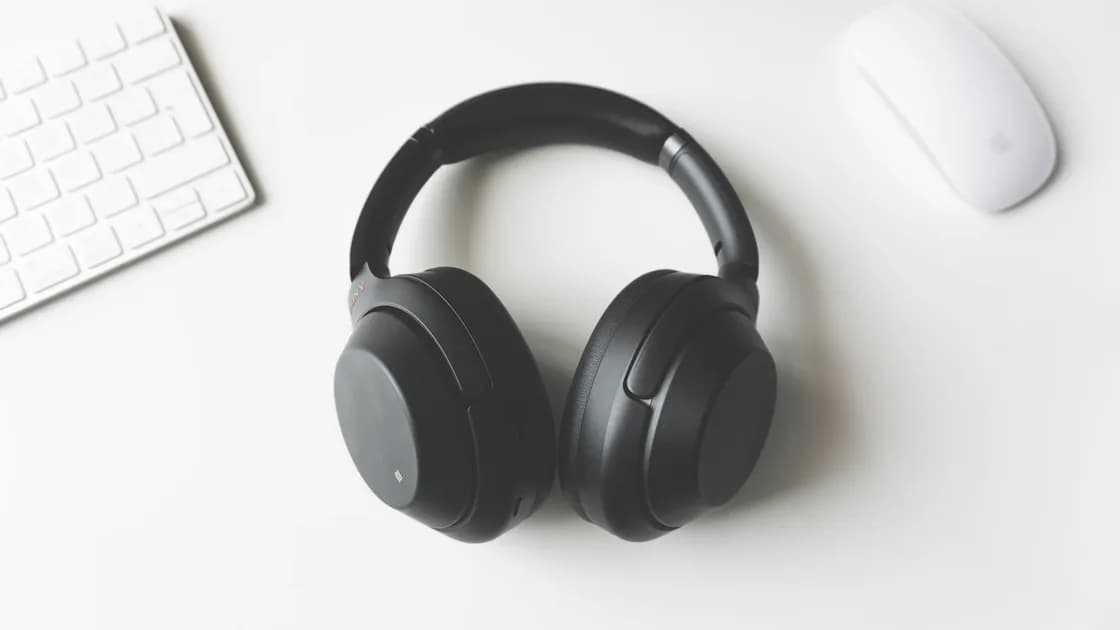

When Bluetooth headphones won’t connect, first charge them, put them in their documented pairing mode, keep them close to the phone or computer, and disconnect them from devices they may already know. Then confirm that the correct headset appears in the Bluetooth list before you forget pairings, reset hardware, or change system services. Most failures are either a discovery problem, an automatic connection to another host, or stale saved state—not proof that the headphones are broken.
Key Takeaways
- Pairing mode is different from merely powering the headphones on.
- Multipoint and automatic switching can make a headset look unavailable while it is connected elsewhere.
- Test one host and one nearby headset at a time before changing drivers or system services.
- Forgetting a device removes saved pairing state; a factory reset may remove every stored host.
- Use the manufacturer’s model-specific reset instructions instead of a generic button sequence.
Start with the device and app troubleshooting guide if you have not yet established whether the problem follows the headset, the host device, or one location.
Bluetooth setup has several distinct stages. Separating them prevents a vague “not working” symptom from sending you toward the wrong fix.
| What you observe | Likely stage | First useful check |
|---|---|---|
| No light, tone, or power response | Power or charging | Charge the headset and inspect the cable or case |
| Headset never appears in the list | Discovery | Enter pairing mode and reduce distance |
| Headset appears but pairing fails | Saved state or authentication | Stop other hosts from reconnecting, then retry |
| It says connected but audio stays elsewhere | Audio routing | Select the headset as the output device |
| It connects briefly, then leaves | Power, range, interference, or another host | Test nearby with other saved hosts disabled |
Write down the exact stage and any message. “The headset appears, then pairing fails” is more useful than “Bluetooth is broken.” Also note whether the headphones have ever worked with this host, whether either device was updated, and whether the problem began after pairing with another phone, tablet, television, or console.
Do not start with a Bluetooth adapter reinstall when the headphones do not power on or are simply attached to another phone. Likewise, do not reset the headset when the computer says it is connected and only the output route is wrong.
Use this low-risk sequence before deleting any saved relationship:
Microsoft’s Bluetooth connection guidance begins with power, range, discoverability, charge, and a retry before deeper Windows repair.[1] Those checks are portable even though menu names differ across systems.
Apple’s AirPods connection procedure likewise checks charge and Bluetooth before removing the saved entry and pairing again.[2] This supports the order of operations, not a universal button sequence for every headset.
Some headphones announce “pairing” only when a button is held for several seconds; others require the case lid to be open or a case button to be pressed. Power-on mode may instead search for the last host and never advertise itself to a new one. Do not infer the sequence from a different model that looks similar.
If the name appears twice, one entry may represent a different audio or control profile. Use the entry identified by the manufacturer’s instructions. Avoid guessing from labels such as “LE” unless the manual explicitly tells you which entry to choose.
Headphones that remember several hosts may reconnect before the device in your hand can finish pairing. Multipoint can maintain two active hosts, while ecosystem switching can move audio based on account state, playback, or calls. The visible symptom may be a failed attempt, a connection that immediately drops, or audio coming from an unexpected device.
For a controlled test:
This test does not prove that multipoint is defective. It shows that another remembered host affects the result. Decide which devices should remain saved rather than deleting every pairing by default.
A call, video meeting, or voice assistant on another host can also take priority over music. End active sessions before judging the new connection. If the headset has a companion app, use only the official app and avoid changing firmware or experimental options until basic pairing works reliably.
The accessory-first checks stay the same, but the host-side branch differs. Keep the test narrow: one headset, one active host, and no unrelated system cleanup.
Open Settings > Bluetooth & devices and confirm Bluetooth is on, airplane mode is off, and the headset appears under the expected category. If it pairs but audio is absent, check Settings > System > Sound and select the headset as output. Restart the PC before reinstalling drivers or restarting services.
If no Bluetooth accessory can be discovered, not just these headphones, move to the Windows Bluetooth troubleshooting guide. That article covers the adapter, troubleshooter, updates, drivers, and services that are intentionally outside this accessory-focused guide.
Open System Settings > Bluetooth, verify that the headphones appear, and connect from that list. Then check System Settings > Sound > Output if the connection succeeds without audio. Disconnect the headset from nearby Apple devices while testing automatic switching.
If several accessories fail or Bluetooth itself cannot be enabled, use the Mac Bluetooth troubleshooting guide. Avoid deleting system preference files or running undocumented Terminal commands for a single reluctant headset.
Open the system Bluetooth settings, use Pair new device or the equivalent option, and refresh the available-device list after the headphones enter pairing mode. Google’s Pixel troubleshooting also separates turning Bluetooth off and on, restarting the phone, and ensuring that the accessory is ready to pair.[3] Menu wording varies by phone maker, so use the built-in search if necessary.
On any platform, a managed device may block new Bluetooth accessories. If the control is missing, locked, or immediately reversed, ask the device administrator rather than trying to bypass the policy.
Forget the device after basic discovery checks pass but the saved relationship will not reconnect or pairing repeatedly fails. This is a targeted removal of pairing state, not a general Bluetooth cure.
Before you do it:
Then select the headset in the host’s Bluetooth settings, choose Forget, Remove, or the platform equivalent, restart both devices, and pair again from the available-device list. Brand-specific screens are examples, not universal instructions for every headset.
If the headset never appears on any host while visibly in pairing mode, forgetting it on one phone is unlikely to help. Test the same headset with one second compatible host and test one known-good accessory with the original host. That two-way comparison tells you which side the failure follows.
A manufacturer reset belongs near the end because it can clear all remembered hosts, custom controls, EQ settings, and accessibility preferences. The required buttons, case state, timing, and indicator pattern vary by model.
Use a reset only when:
Do not combine several internet-sourced button sequences. A long press that resets one model may start firmware mode, call an assistant, or do nothing on another. If the headphones fail to power on, charge, or enter their documented mode, contact the manufacturer or service provider rather than repeating resets.
After a reset, pair with only one host first. Confirm stable audio before restoring multipoint, automatic switching, companion-app settings, or other hosts. This makes the first returning failure meaningful.
Use a small comparison matrix:
| Test | Result | Stronger lead |
|---|---|---|
| Same headphones fail on two compatible hosts | No discovery or pairing on either | Headphones, case, or model-specific procedure |
| Known-good Bluetooth audio device also fails on the original host | Multiple accessories fail | Host adapter, policy, driver, or service |
| Headphones pair elsewhere but not on one managed device | Other host works | Policy or host configuration |
| Pairing works only at very short range | Unstable link | Interference, antenna, hardware, or environment |
| Connection succeeds but one side is silent | Pairing is complete | Use the one-earbud troubleshooting guide |
On Ubuntu, broad adapter or service failures belong in the Ubuntu Bluetooth troubleshooting guide. Do not change kernel modules or system services merely because one headset will not enter pairing mode.
Seek service if there is battery swelling, liquid damage, excessive heat, a damaged charging port, or repeated failure to power on. Stop charging visibly damaged hardware. A successful connection on another host is useful evidence, but it does not prove that every profile or microphone mode is healthy.
Start with charge, documented pairing mode, short range, and other remembered hosts. Then check the host’s Bluetooth list and audio output without expanding a one-headset problem into an adapter overhaul. Forget and re-pair only after the low-risk checks, and reserve a model-specific factory reset for the end. Cross-testing one headset and one known-good accessory usually reveals whether the next step belongs to the headphones, the host, or an administrator.
They may not be in pairing mode, may be connected to another remembered host, may be out of range, or may have insufficient charge. Confirm the model-specific discovery signal before changing the host.
Not always. Many models power on and search for a saved device without becoming discoverable. Follow the exact pairing sequence for your model.
The headset may remember that phone and prioritize its previous session, multipoint state, or ecosystem switching. Disable Bluetooth on the other phone during a controlled pairing test.
No. First check power, discovery mode, range, and other hosts. Forgetting is useful when saved pairing state is stale, but it creates another pairing step.
It is too broad as a first step and can remove unrelated Wi-Fi or network state. Use the platform’s narrow Bluetooth checks and the manufacturer’s documented headset procedure first.
The host may still be routing audio to its speakers, a monitor, or another device. Select the headset in the system sound output and check the app’s own output control.
Yes. A device may power on briefly without having enough charge to advertise, authenticate, or maintain a connection. Charge the headset and case before deeper diagnosis.
Contact support when the headset cannot power on, charge, enter its documented pairing mode, or connect to more than one known-good compatible host. Provide the model, indicator behavior, test hosts, and steps already tried.
Sources checked 28 August 2026.
Sign up to experience all premium features at no cost.
*Available only to new users. Each user is limited to one trial.