Start your 3-day free trial
Sign up to experience all premium features at no cost.
*Available only to new users. Each user is limited to one trial.
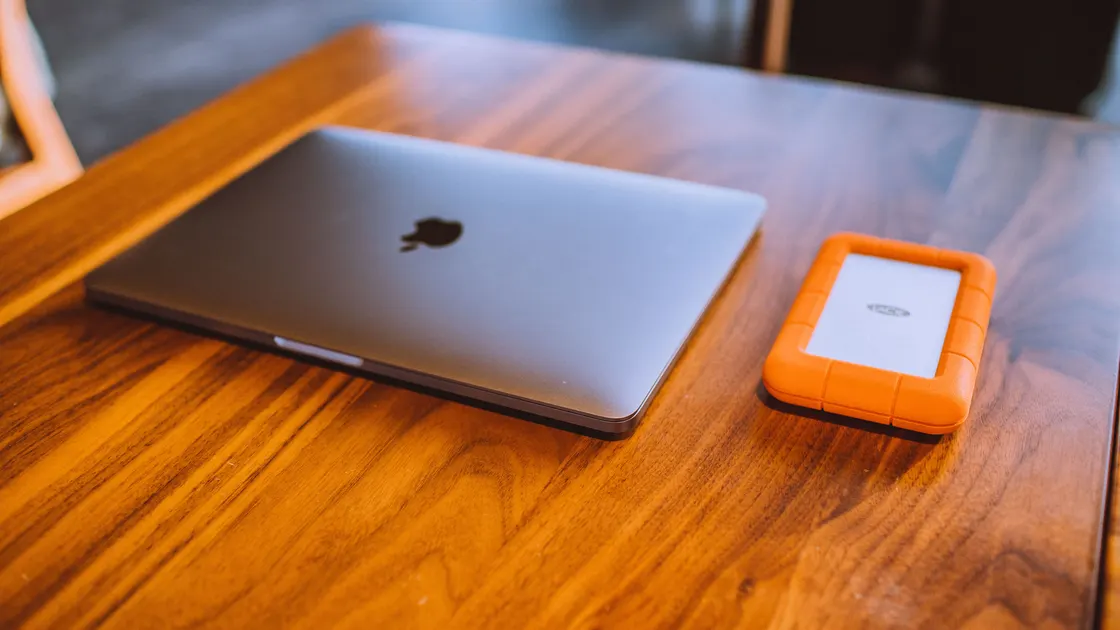

If your Mac keeps restarting because of a problem, macOS hit a software or hardware fault serious enough to force a restart, and Apple says these unexpected restarts are usually caused by installed software or connected devices.[1] The same checks apply to a MacBook, iMac, or Mac mini: save the message, update software, disconnect peripherals, then compare safe mode and Apple Diagnostics before reinstalling macOS.
Back up important files while the Mac remains stable. Stop using it if you see battery swelling, enclosure separation, liquid damage, smoke, a burning smell, electrical noise, or dangerous heat.
Key Takeaways
- Confirm that the Mac actually reports a problem restart, not a normal restart or one app closing.
- Save the time, message, panic report, recent changes, and connected-device list.
- Update first, then disconnect peripherals and test them one at a time.
- Use safe mode to isolate optional software and Apple Diagnostics to check hardware.
- Back up before reinstalling macOS or authorizing hardware repair.
The device and app troubleshooting guide provides a general framework for reversible comparisons.
After a problem restart, macOS may display a message saying the computer restarted because of a problem. Record the message and time. If the Mac simply shut down after the battery emptied, restarted for an update, or only one app closed, use the path that matches that symptom instead.
Distinguish the visible outcomes:
| What you observe | Diagnostic branch |
|---|---|
| Mac restarts and shows the problem-restart message | Kernel panic or low-level system failure |
| One app closes and macOS stays usable | App-specific crash |
| Finder windows stop responding but Mac stays running | Finder or file-location problem |
| Mac powers off with no message | Battery, power, heat, hardware, or shutdown event |
| Restart occurs during an update | Update completion or recovery path |
If only one app exits, use the app troubleshooting guide. If Finder alone hangs, use the Finder guide. Keeping those branches separate protects you from reinstalling the operating system for an application-level problem.
Do not delete diagnostic reports or run a cleaning utility. The report may identify a loaded extension, process, or hardware context, but one name is a clue rather than proof of fault.
Write a timeline covering the last three restarts, including how long the Mac usually runs before it restarts. Apple’s hardware check asks you to use the Mac for about that long before judging a test, so this interval matters later.[1] A repeatable trigger is more useful than a screenshot of an unrelated warning.
Capture:
Save work and complete a current backup through a method you trust. Verify that at least one important file can be read from the backup before taking a destructive step. Record FileVault recovery information without placing secrets in support screenshots.
Check free storage because an extremely full startup disk can interfere with updates and normal operation. Use the Mac storage guide for safe cleanup; do not delete System, Library, log, or panic-report files manually to create space.
Shut down and disconnect all nonessential devices. Remove docks, hubs, external drives, displays, capture devices, audio interfaces, printers, card readers, and third-party adapters. Keep only power, and use built-in input devices when possible. On a desktop Mac such as an iMac or Mac mini, Apple says to leave only a display, keyboard, and mouse or trackpad connected.[1]
Apple instructs users to disconnect peripheral devices and test, then reconnect one device at a time if the restart stops.[1] Follow that order:
If one device recreates the restart, test a known-good supported cable and another compatible port. Check the device maker’s current macOS compatibility and update its firmware or driver only from the official source. Do not repeatedly attach a drive that clicks, disconnects, becomes very hot, or contains the only copy of important data.
A dock can combine power, display, storage, networking, and USB into one connection. Bypass it during the baseline so a stable direct connection can identify which layer returns the problem.
Install stable macOS updates and updates for installed apps. Apple places software updates first in its software checks. If macOS suspects that a particular app caused the restart, it may offer to move that app to the Trash; accept, then ask the developer whether an update is available.[1] Use the vendor’s uninstaller for low-level security, virtualization, audio, storage, or hardware-control software rather than dragging random support files to Trash.
Review the day the restarts began. Prioritize software that loads at startup, installs a system extension, filters network or storage traffic, controls hardware, or changes virtualization. A normal document editor is less likely to panic the system than a low-level extension, but timing and evidence still matter.
Remove or disable one suspect through its supported method, restart, and test once. Do not disable macOS security protections, use unsigned kernel extensions, or paste Terminal commands that delete files by wildcard. On a managed Mac, contact the administrator before changing security agents, profiles, login items, or system extensions.
If the problem began during an update, use the macOS update guide. Confirm whether installation completed before removing software or starting another update.
Safe mode prevents some software from loading, performs certain startup checks, and can help identify whether software loaded during normal startup is involved. Apple provides different entry steps for Apple silicon and Intel Macs, so identify the processor before following the procedure.[2]
On Apple silicon, Apple’s current guide has you shut down, hold the power button until startup options appear, select a volume, hold Shift, and choose Continue in Safe Mode. On an Intel Mac, restart and hold Shift until the login window.[2] To confirm it worked, look for Safe Boot in the menu bar, or check that System Information shows Boot Mode as Safe.[2] Follow the live official guide because screens and timing may change.
While in safe mode:
Safe-mode stability does not prove the hardware is faultless. It shows that startup software, caches, extensions, graphics mode, or a workload absent from safe mode may be involved. A panic in safe mode increases the priority of hardware diagnostics, storage, macOS integrity, and service.
Do not use safe mode as a permanent operating configuration. Do not erase the Mac merely because safe mode works; use the comparison to choose the next narrow change.
Apple Diagnostics checks internal hardware and can provide reference codes, but it does not check external devices or every software conflict. Disconnect external devices except the keyboard, mouse, display, Ethernet if required, and power. Place the Mac on a hard, flat, ventilated surface.
Apple’s diagnostic procedure again differs by processor. On Apple silicon, hold the power button until Options appears, then hold Command-D; on Intel, start while holding D, using Option-D only as documented when needed.[3] In macOS Tahoe 26 and later, you choose a specific diagnostic to run, such as one for the built-in display, keyboard, or trackpad.[3] Use the official instructions for the exact Mac.
Save every reference code and the Mac’s serial or model information. A clean result does not erase a repeatable peripheral or software finding. A hardware reference code, repeated panic under safe mode, memory symptom, storage error, or thermal shutdown supports service escalation.
Do not loop diagnostics on an overheating machine. Do not open an internal-battery Mac or reseat soldered components. If a third-party RAM or storage upgrade is user-serviceable for the exact model, follow the model’s documentation and electrostatic precautions; otherwise leave hardware inspection to a qualified technician.
Some Macs restart again during startup, so you never reach the login window to save evidence or install updates. Apple warns that if the problem makes the Mac restart every time it attempts to start up, the Mac may eventually shut down.[1] That pattern points away from an app you open later and toward startup software, a connected device, macOS, or internal hardware.
Work from outside the normal session:
Apple lists reinstalling macOS as the last of its software checks, after updates and safe mode.[1] Reinstallation is a software-repair step, not proof that the storage, memory, logic board, battery, or peripherals are healthy.
Before reinstalling:
If a normal reinstall does not stop the restarts, provide Apple or the repair provider with the timeline, panic reports, safe-mode result, diagnostic codes, peripheral matrix, and software changes. That packet prevents the service process from starting with guesses.
Arrange prompt service for swelling, liquid, impact, electrical smell, smoke, abnormal heat, repeated no-boot behavior, or an Apple Diagnostics hardware code. If the Mac contains the only copy of important data, discuss data recovery before authorizing erase or storage replacement.
The message usually follows a kernel panic or another low-level failure that forced a restart. Installed software, connected hardware, internal hardware, or macOS itself may be involved.
Back up and record it. One event may not recur, but a second event, repeatable trigger, hardware warning, or physical symptom deserves structured troubleshooting.
The device, cable, port, dock, power delivery, driver, or firmware may be involved. Test the device directly with a supported cable after establishing a stable no-peripheral baseline.
Safe mode is mainly a comparison environment. If the Mac is stable there, use that evidence to investigate startup software and extensions before returning to normal mode.
No before diagnosis. Reports can preserve timestamps, loaded components, and failure context needed by Apple, an administrator, or a repair provider.
Very low free space can disrupt updates and normal system work, but it is only one branch. Free space safely and continue checking the panic trigger and diagnostics.
It can repair some system-software problems. It cannot repair failing memory, storage, power, cooling, battery, logic board, or an incompatible peripheral.
Stop for swelling, liquid, smoke, burning smell, electrical noise, dangerous heat, repeated failure in safe mode, no-boot behavior, or an Apple Diagnostics hardware code.
Sources checked 4 October 2026.
Sign up to experience all premium features at no cost.
*Available only to new users. Each user is limited to one trial.