Start your 3-day free trial
Sign up to experience all premium features at no cost.
*Available only to new users. Each user is limited to one trial.

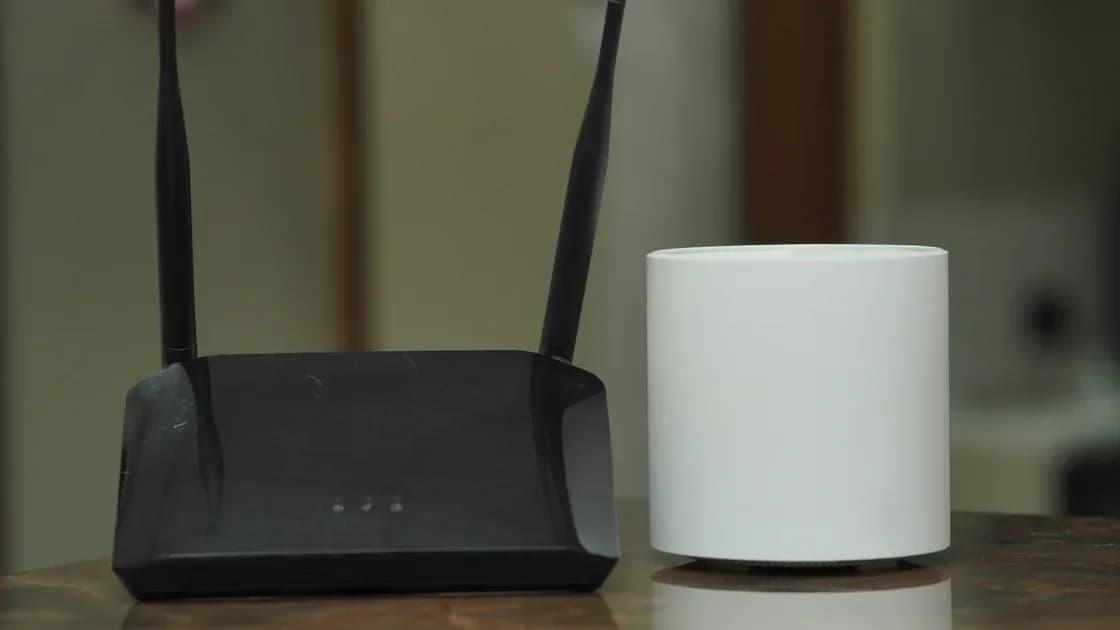
A safe router firmware update checklist starts by identifying the exact model, hardware revision, purchase region, current version, and official update channel. Back up the configuration, read the release notes, protect power and the management connection, then verify both the installed version and real connectivity after the router restarts.
Key Takeaways
- Model name alone may not identify the correct firmware; hardware revision and region can matter.
- Use only the manufacturer’s official support page or built-in official updater.
- Save the configuration and document important non-default settings before upgrading.
- Never remove power or disconnect the required management link during installation.
- A success message is not enough: read back the version and retest wired, Wi-Fi, and guest paths.
If the router already has no internet, diagnose that state with the router troubleshooting guide before adding an update variable. The device and app troubleshooting guide helps distinguish a router-wide failure from one client.
Firmware updates may fix security issues, stability bugs, interoperability problems, or device-specific failures. The FTC advises keeping router software current and checking whether an ISP-managed router receives automatic updates.[1] Apple likewise recommends current firmware and automatic updates when the router supports them.[2]
An update is still a controlled change, not a ritual. Read the release notes and product support status. If the vendor no longer provides security updates, repeatedly checking an abandoned download page does not reduce the long-term risk; plan a supported replacement.
Record these fields from the physical label and the current administration status:
| Identity field | Why it matters |
|---|---|
| Exact model | Similar names may use different firmware families |
| Hardware revision | Internal components can change between revisions |
| Purchase or support region | Radio rules, warranty, and firmware packages may differ |
| Current firmware version | Establishes the starting point and downgrade boundary |
| ISP ownership or customization | Provider-managed devices may use a separate update channel |
TP-Link’s official guide warns that the wrong hardware-version firmware can damage a device, that files for different purchase regions are not interchangeable, and that users should double-check the firmware and hardware version.[3] Those are vendor-specific examples of a general matching rule; do not use TP-Link menu names on another brand.
If the support page does not clearly match every required field, stop and contact the vendor or ISP. Do not guess from a photo, filename, or search-engine result.
Use one of two official paths:
Do not use third-party firmware, forum attachments, mirrors, file-sharing links, or a package for a “nearly identical” model in this checklist. Third-party firmware is a separate migration with different compatibility, recovery, and support decisions.
For a manual package, read the vendor’s checksum or signature instructions if provided, extract the archive exactly as documented, and confirm that the final file type is expected. Do not rename an arbitrary file to make the updater accept it.
Export the configuration when the product supports it, and separately record important settings in human-readable form. The backup may be incompatible across major versions, so do not make it your only recovery plan.
Record at least:
TP-Link explicitly recommends backing up the configuration or writing down changed settings because they may need to be re-entered.[3] Apple advises backing up router settings before changes.[2] Store the export securely because it may reveal network and account configuration.
Choose a time when an outage will not interrupt work, calls, monitoring, or home automation. Make sure someone can reach the router physically if recovery is required.
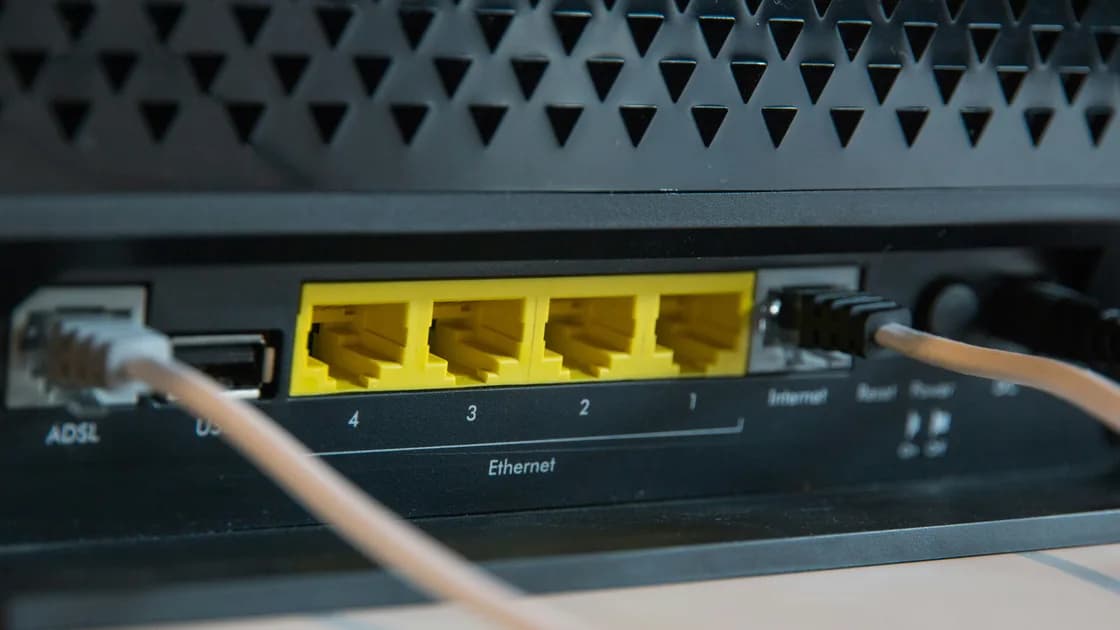
Use stable power. Do not update during an electrical storm, on a loose power connection, or while equipment is being moved. If the vendor requires a wired management connection, use a known-good Ethernet cable and keep it connected. Stop unnecessary network activity so the update path is quiet and observable.
Read the release notes for factory-reset warnings, required intermediate versions, prohibited downgrades, and expected restart time. Download instructions before the network goes offline.
Follow only the exact vendor procedure. Confirm the selected file one final time, start the update once, and wait for the documented completion and automatic restart.
Do not:
TP-Link explicitly says not to turn off power or disconnect Ethernet during the firmware upgrade.[3] If the browser loses contact while the router restarts, wait for the device’s normal status before attempting to reconnect.
Verification has two layers. First, sign in locally and read back the installed firmware version. Compare it with the intended release, check time and WAN state, and review whether settings were retained or reset.
Second, test real paths:
Do not restore an old configuration export automatically if the router behaves differently. First confirm the export is supported by the new version and that it will not reintroduce the problem the update fixed.
Do not cycle power repeatedly or try random firmware files. Record the lights, elapsed time, version screen, error text, and exact file or update path used.
Use the vendor’s recovery procedure for the exact model and revision. Some devices have a documented recovery mode; others require vendor support. If the router is ISP-owned, contact the ISP before using a consumer recovery guide.
Factory reset is not a substitute for the correct recovery procedure. It may clear configuration without repairing incomplete firmware.
Check the vendor’s update channel and support policy regularly, or enable documented automatic updates. Install security and stability updates after confirming compatibility and recovery readiness.
No. Use only firmware that explicitly matches the exact model, hardware revision, and applicable region.
Use the connection method the vendor documents. A wired link is preferable when required or available for manual updates; some app-based official flows are designed for wireless use.
Yes. Export the configuration when supported and also record important settings, because a backup may not restore across every version.
Not during the documented installation window. Wait for the specified timeout and use the vendor’s recovery instructions; removing power can leave the device unusable.
This checklist does not cover it. Third-party firmware is a separate migration that requires explicit compatibility, security, support, and recovery analysis.
Read back the installed version, then test wired, Wi-Fi, guest, restart, and any required mesh or access-point paths.
Reduce unnecessary exposure and plan replacement with a supported model. Lack of future security updates is a lifecycle issue, not something a one-time settings change can solve.
Disclaimer: Firmware procedures and recovery modes are model-specific. Follow the manufacturer or ISP instructions for the exact hardware revision and region. AethoVPN cannot verify a router firmware file or recover a failed flash; follow the exact vendor model and revision instructions on a stable connection.
Sources:
Sources checked 24 August 2026.
Related articles:
Sign up to experience all premium features at no cost.
*Available only to new users. Each user is limited to one trial.