Start your 3-day free trial
Sign up to experience all premium features at no cost.
*Available only to new users. Each user is limited to one trial.
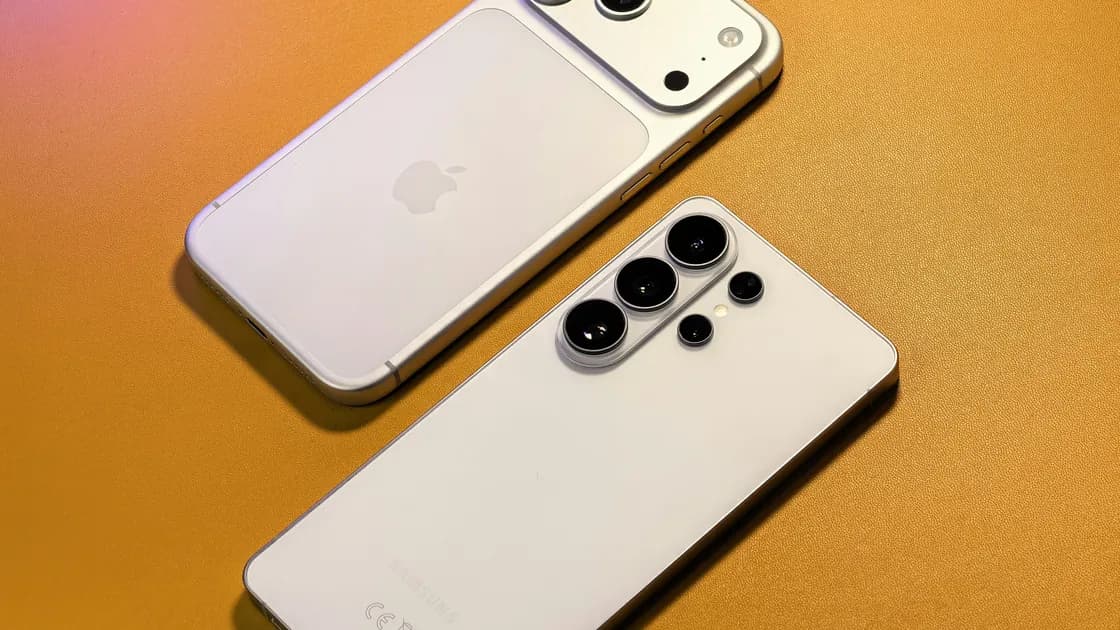

To transfer data from Android to iPhone, use Apple’s Move to iOS flow while the new iPhone is still in initial setup: choose the option to move data from Android, enter the code shown on the iPhone into the Move to iOS app, select content, and leave both phones alone until the iPhone finishes. Prepare account recovery, storage, power, network, local and SD-card files, and SIM/eSIM details first. If the iPhone is already set up, decide whether the missing categories justify starting over or can be moved manually. Never erase the Android phone until critical data and a new iPhone backup are verified.
Key Takeaways
- Compare the Android phone’s used storage with the iPhone’s available capacity before starting.
- Leave both phones alone until the iPhone’s progress finishes, even if the Android side appears done.
- Apps, music, books, PDFs, subscriptions, sign-ins, and app-private data may need separate work.
- Verify WhatsApp, messages and RCS state, authenticator, banking, work apps, SIM/eSIM, calls, and a fresh backup before erasing Android.
Use the Device and App Troubleshooting Guide if the migration reveals a separate network, account, storage, or app-download problem.
Charge both phones and connect them to power. Update the Android apps involved in the transfer, confirm the Android unlock method, and record the Google Account, Apple Account, email, messaging, password-manager, authenticator, banking, and work recovery methods.
Compare Android used storage—including SD-card and local download folders—with the iPhone’s available capacity. Inventory photos, videos, contacts, messages, WhatsApp, recordings, documents, music, books, PDFs, offline files, and work-profile data. Confirm how the carrier will move the physical SIM or eSIM and whether activation needs the old phone.
Stop if the iPhone lacks capacity, the Android phone cannot be unlocked, a critical account has no recovery method, the work profile is managed, or SIM/eSIM activation requires unresolved carrier action.
| Situation | Recommended path | Important boundary |
|---|---|---|
| iPhone is at initial setup | Move to iOS using the current on-screen wireless or cable path | Keep both phones unused until iPhone progress completes |
| Setup offers Transfer without App on compatible devices | Follow the on-screen QR or pairing flow | Availability and transferable categories depend on current device and carrier support |
| iPhone is already set up and only a few categories are missing | Manual transfer or account sync | Do not erase the iPhone by default |
| Broad Move to iOS categories are essential after setup | Back up current iPhone, assess gaps, then decide whether to erase and restart | Erasure is a deliberate choice, not routine advice |
| SIM/eSIM is unsupported by direct transfer | Carrier activation, QR code, app, or store support | Data transfer and mobile service are separate |
| Work or school data is managed | Administrator-approved enrollment | Consumer tools may intentionally exclude it |
Apple’s Move to iOS process can transfer supported contacts, message history, photos, videos and albums, files and folders, accessibility and display settings, web bookmarks, mail accounts, WhatsApp content, voice memos, calendars, call history, and some matched free apps. Exact availability depends on the devices, apps, content, and current Apple flow, and the Transfer without App option below requires a compatible version of Android 17 or later.[1]
Apple also documents a Transfer without App choice for compatible Android devices during iPhone setup. It uses the current on-screen QR or manual pairing flow and may also offer a supported eSIM transfer. Treat it as a separate conditional path rather than renaming it Move to iOS: follow the categories actually offered on both screens, keep the phones nearby, and verify the result afterward. If the option is absent, use Move to iOS or the documented manual methods; do not install an unofficial migration app to imitate it.
On the iPhone’s setup flow, choose the option to move data from Android. Open Move to iOS on Android, follow the code and connection prompts, select content, and keep both phones close, powered, and unused.
Wait for the loading bar on the iPhone to finish. Apple warns that using another app or receiving a call on Android before completion can prevent content from transferring, and it tells users to verify content after the iPhone finishes. Do not treat the Android progress indicator or visible iPhone icons as proof.
If the connection fails, check power, available capacity, local connectivity, cable and adapter support, and whether Move to iOS stayed on screen. Restart the controlled attempt only after recording where it failed. Avoid making calls or switching apps during the next run.
Once the iPhone is set up, the Move to iOS choice is no longer offered on screen. You then have two supported choices: keep the iPhone as it is and move content manually, or back it up, erase it, and run setup again with Move to iOS.
| Choice | Best when | What you risk or give up |
|---|---|---|
| Manual transfer | Only photos, contacts, calendars, mail, files, or music are missing | Message history, call history, and WhatsApp chats usually stay behind unless an app offers its own cross-platform transfer |
| Erase and set up again | Message history, call history, or WhatsApp chats must come across | Anything created on the iPhone since setup that is not synced to an account or saved elsewhere |
To start over, back up the iPhone first, then go to Settings > General > Transfer or Reset iPhone > Erase All Content and Settings, and choose to move data from Android when setup restarts. Do this only after confirming the backup and the Apple Account you will sign in with.
Apple provides manual paths for mail, contacts, calendars, photos, videos, music, books, PDFs, documents, and apps.[2] Expect these categories to need separate attention:
If an app is missing, use the iPhone app download guide. If it is not offered in the new storefront, use the app availability guide rather than installing an untrusted substitute.
Treat phone service as a separate acceptance item. Move the physical SIM as instructed, or use the carrier’s supported eSIM method. Apple says direct Android-to-iPhone eSIM transfer needs iPhone 11 or later with iOS 26 or later, a compatible phone with Android 16 or later, and a supported carrier; otherwise the carrier may need to activate service or provide a QR code.[3] Make a test call and use mobile data after activation.
Then test messaging with both Android and iPhone contacts. Check the old Android phone’s Google Messages RCS status if messages are missing. Google’s current guidance lists Connected, Connecting, Trouble connecting (awaiting retry), and Not supported states, warns that switching RCS off and on can remove you from group chats, and provides a temporary web deactivation path when the old device cannot be used.[4] Do not mechanically turn off RCS for every user: first observe the current status, carrier support, and whether cross-platform messages actually fail.
Use a written checklist before touching the old phone:
The new iPhone setup checklist covers the wider device acceptance process. Keep the old Android phone charged and readable until this list passes. If a critical category is missing, stop, preserve both devices, and use that app’s official transfer or support process.
The broad Move to iOS path is part of setup. If the iPhone is already configured, use manual methods for small gaps or deliberately assess a backed-up erase-and-restart—not an automatic reset.
No. Some matched free apps may be offered from the App Store, but availability, purchases, sign-in, and private app data are separate.
WhatsApp is among Apple’s supported Move to iOS categories, but you must meet the current app requirements and verify chats and media afterward.
Apple says these may need manual transfer. Use the provider account, cloud storage, or Apple’s documented computer workflow.
Not for every user. Check the current RCS state and test messages first. Use deactivation when the number remains registered and messaging is actually affected.
Sometimes: it needs a supported carrier, iPhone 11 or later on iOS 26 or later, and a compatible Android 16 or later phone. Otherwise contact the carrier for activation or a QR code.
Only after critical data opens on iPhone, accounts and codes work, calls and messaging pass, and a new iPhone backup is confirmed.
Stop before transferring. Reduce the selected content safely or use an iPhone with sufficient capacity; do not erase the only copy of data to make the numbers fit.
Disclaimer: Transfer support varies by device, operating system, app, account, carrier, country, storage, and management policy. Follow current Apple, Google, carrier, app, and administrator guidance before erasing either phone.
Sources:
Sources checked 4 October 2026.
Related Articles:
Sign up to experience all premium features at no cost.
*Available only to new users. Each user is limited to one trial.