Start your 3-day free trial
Sign up to experience all premium features at no cost.
*Available only to new users. Each user is limited to one trial.
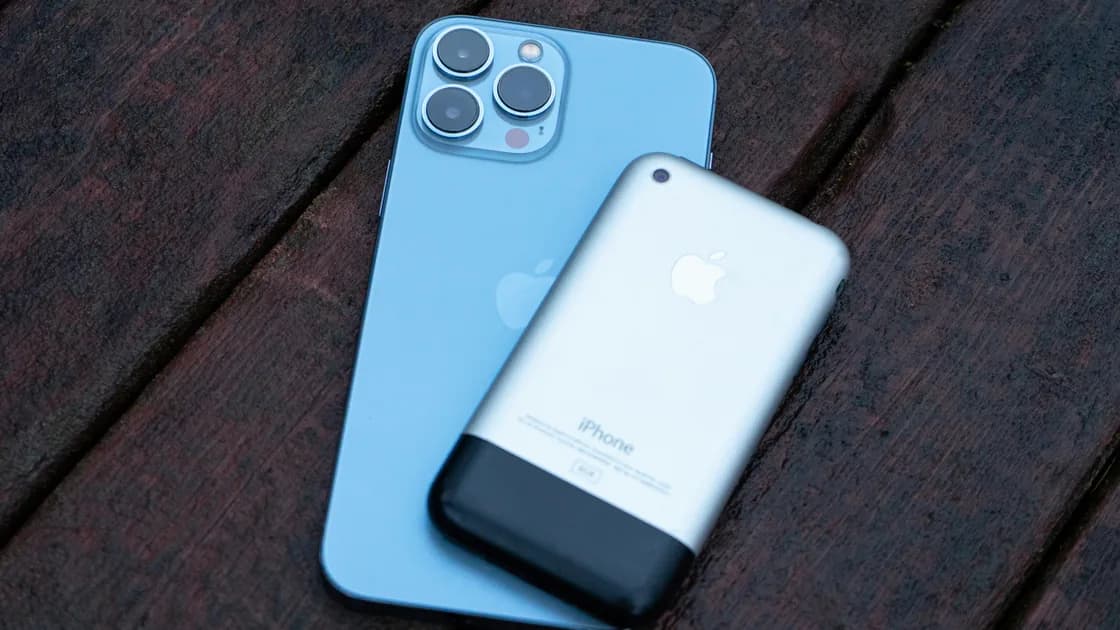

The safest way to transfer data from an old iPhone to a new iPhone is to choose a method before setup, keep both phones available, and verify the result before erasing the old one. Quick Start is usually the simplest direct path, but iCloud and an encrypted computer backup are important alternatives when the phones cannot remain together or the old phone must be returned quickly.
Key Takeaways
- Use Quick Start for a guided direct transfer when both iPhones are available and compatible.
- Use iCloud when you need to start without keeping the old phone connected throughout the transfer.
- Use an encrypted Finder, Apple Devices, or iTunes backup when you want a local recovery point that can include Health and Activity data.
- Do not erase the old iPhone until photos, messages, passwords, authenticator access, calls, mobile service, and a new backup have been tested.
This guide covers migration only. Use the new iPhone setup checklist for Face ID, Find My, privacy permissions, updates, and other first-day settings. For a wider decision tree, visit the Device and App Guide.
Apple's method overview defines the available routes[1]; its Quick Start guide defines direct-transfer conditions[2]; its iCloud guide defines cloud restore behavior[3]; and its computer guide defines encrypted local-backup limits[4].
| Method | Best when | Important limitation |
|---|---|---|
| Quick Start direct transfer | Both iPhones can stay nearby, powered, and unavailable during copying | You generally cannot use either phone until the direct transfer finishes |
| Quick Start with iCloud download | You need to begin using the new iPhone while apps and data continue downloading | Completion depends on Wi-Fi, power, available iCloud data, and time |
| Restore from iCloud backup | The old phone is not beside you, but a recent usable backup exists | Items outside that backup or separately synced services may return later |
| Encrypted computer backup | You want a local recovery point or need Health and Activity data included | You need the encryption password and enough computer storage |
| Supported wired transfer | A cable path is offered for your device combination | Required adapters and menus vary by model and system version |
Apple presents Quick Start, iCloud, and computer backup as separate transfer paths rather than interchangeable buttons. The exact choices shown during setup depend on the two devices, their software, and the connection available.
If the old iPhone is managed by an employer or school, stop and ask the administrator which migration method is supported. Apple notes that devices enrolled through Apple School Manager or Apple Business Manager cannot use Quick Start in the ordinary way.
A wired option may be offered for supported combinations. Treat it as another Quick Start transport, not a guarantee that every model uses the same cable, adapter, or menu.
Choose this route when a recent iCloud backup is the best available recovery point.
If the new iPhone has already been set up, Apple may require it to be erased before the setup-time restore option appears. Do not erase it until any new data created on that phone has been saved elsewhere.
On a Mac, use Finder. On Windows, use the Apple Devices app or iTunes where applicable.
Losing the encrypted-backup password can make that recovery point unusable. Test that the backup exists and record where its password is stored before handing over or erasing the old phone.
A successful setup screen does not mean every account is ready. You may still need to:
Use the dedicated eSIM transfer walkthrough and authenticator migration guide for those two high-risk handoffs.
Open and test the data rather than checking only icons or storage totals:
Only after this checklist passes should you sign out, erase, trade in, or recycle the old iPhone.
Quick Start is the most direct iPhone-to-iPhone route, iCloud offers a setup-time cloud recovery path, and an encrypted computer backup provides a useful local fallback. Whichever method you choose, the real finish line is a tested new phone—not a completed progress bar.
It transfers or reconnects a broad set of data and settings, but some apps, accounts, payment cards, passkeys, work profiles, authenticator entries, offline downloads, and mobile service can require separate action.
With direct device-to-device transfer, Apple says both devices must remain occupied until the transfer finishes. An iCloud download can let you begin using the new phone sooner while content continues in the background.
Not for a supported direct transfer, but a current backup is a sensible fallback in case the phones disconnect, the old device fails, or you need to restart setup.
Some content downloads or synchronizes after the initial restore. Keep the phone on Wi-Fi and power, verify the correct account, and allow background work to finish.
Use encryption if you rely on a computer backup and need protected categories such as Health and Activity data. Apple says those categories are not included in an unencrypted computer backup.
Only when the devices, software, and carrier support a direct transfer. Otherwise, the carrier may require activation, a QR code, its app, or support assistance.
After you have tested important data, account access, authenticator-protected sign-ins, calls, messages, mobile data, voicemail, and a new backup from the new iPhone.
Some setup-time restore paths require erasing the new iPhone first. Save anything created on it before restarting setup.
Device menus and transfer availability vary by model, system version, account, region, and carrier. Back up important data before erasing either phone.
Sources checked 28 August 2026.
Sign up to experience all premium features at no cost.
*Available only to new users. Each user is limited to one trial.