Start your 3-day free trial
Sign up to experience all premium features at no cost.
*Available only to new users. Each user is limited to one trial.


When iCloud backup is stuck or fails, first identify whether a manual backup returns an error, an automatic backup has stopped running, or an iCloud restore is still in progress. A restore that seems frozen usually needs more time on stable Wi-Fi and power, because apps and photos keep downloading in the background. For a stuck backup, check the next backup size, available iCloud storage, network stability, power and lock conditions, and device restrictions before deleting anything.
Key Takeaways
- Local iPhone storage and available iCloud storage are different limits.
- Standard automatic iCloud Backup uses power, Wi-Fi, and a locked screen; supported 5G models and carriers may offer cellular backup, while a manual backup is a separate test.
- Keep the existing backup until a newer iCloud or encrypted computer backup has been verified.
- A VPN is not the default cause; measure the network and Apple service state instead of guessing.
Use the Device and App Troubleshooting Guide if the failure could involve the device, account, network, or Apple service rather than backup alone.
Record the exact message, the last successful backup time, the current iOS or iPadOS version, and whether the device is being backed up or restored.
| Symptom | Meaning to test first |
|---|---|
| “Not enough iCloud storage” | Next backup size exceeds available cloud capacity |
| Manual Back Up Now fails immediately | Account, restriction, service, or network error |
| Manual backup runs for hours | Large first backup, slow upload, unstable Wi-Fi, or a stalled process |
| Automatic backup has an old date | Power, lock, configured network path, schedule, or storage condition was not met |
| Apps or data are still appearing after setup | Restore may still be running, not a new backup failure |
Apple treats backup and restore as different states. Its support guidance says to check restore progress before trying to create another backup.[1] Do not sign out, erase the device, or delete its existing backup while the state is unclear.
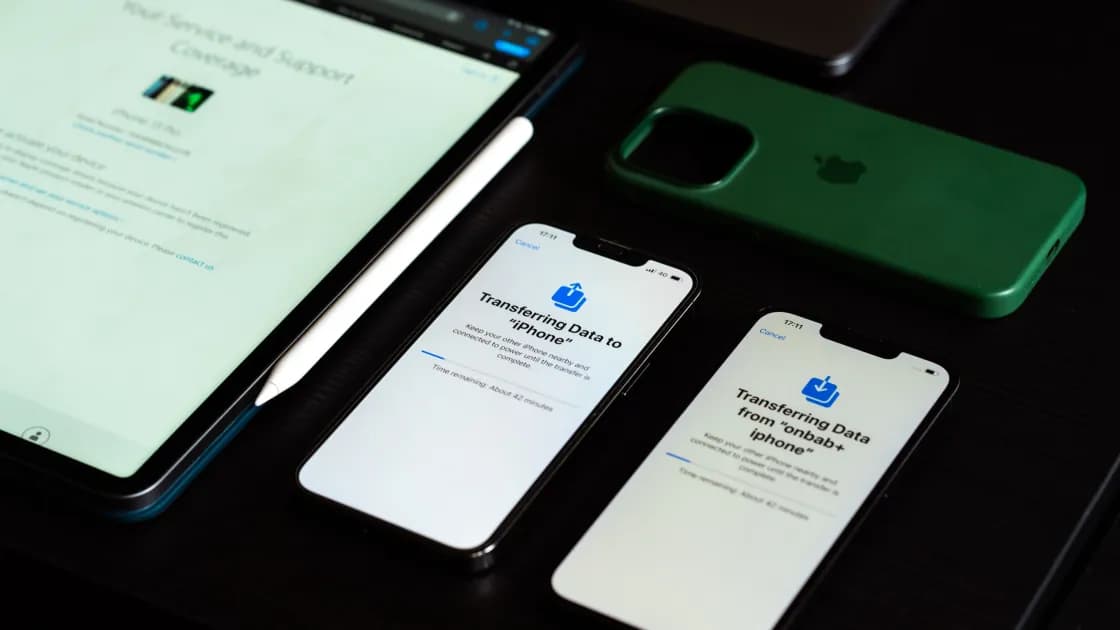
Restoring from iCloud happens in two stages. During setup, a progress bar restores the backup's settings and data; Apple says this can take a few minutes to an hour, and leaving Wi-Fi pauses it until you reconnect. After setup, apps, photos, music, and other content keep restoring in the background, which can take several hours or days depending on how much data the backup holds.[2]
If the remaining-time estimate keeps calculating or the progress looks frozen:
If nothing changes after a long wait on stable Wi-Fi and power, record the exact message and contact Apple Support before erasing and restoring again.
Open the device's iCloud backup details and note the next backup size. Compare it with the available iCloud storage, not with free space on the iPhone. Apple recommends this check when a message says there is not enough iCloud storage.
If the backup is too large, review which apps contribute data. Disable an app only if its data is already synchronized elsewhere, exported, or safe to lose. Photo libraries, message attachments, recordings, and offline projects can be irreplaceable even when an app itself can be downloaded again.
Buying more iCloud storage is one option, but first confirm that the estimate is reasonable. If the phone itself is nearly full, use the iPhone storage guide to create working space without confusing local cleanup with cloud-backup capacity.
Connect to a stable Wi-Fi network with reliable upload capacity, keep the device on power, and run one manual backup. Apple recommends checking the Wi-Fi connection, installing the latest supported software update, and trying another Wi-Fi network when backup fails.
Do not use a successful web page load as proof that a long upload is stable. If possible, compare the same device on another trusted Wi-Fi network. Avoid repeatedly switching networks during one backup.
Check Apple System Status for a reported iCloud incident.[3] A published outage is a reason to stop local changes and retry after recovery. If no outage is reported, it still does not prove every path is healthy; preserve the error and continue with device-side checks.
Apple lists power, Wi-Fi, and a locked screen as the standard conditions for automatic iCloud Backup.[4] On supported 5G iPhone models, a carrier may offer Back Up Over Cellular; that exception applies only when the option is available and enabled.[5] Leave the device on power, locked, and connected through its configured backup network long enough to complete, especially for a first backup or after adding a large library.
Check these conditions separately:
If Apple reports that a backup needs more time, leave the device on power and Wi-Fi for up to the recommended window before deciding it is stalled. Record whether the progress or estimated size changes.
Install the latest supported system update after confirming that important data already has another safe copy. Restart the device once, reconnect to trusted Wi-Fi, and attempt one manual backup.
On a work, school, or otherwise managed device, a configuration profile can restrict backup. Apple advises checking installed profiles when a message says the device is being backed up or that a profile prevents backup. Do not remove management, profiles, certificates, or work accounts without administrator approval; doing so can remove access or trigger data deletion.
If the Back Up Now control is unavailable or the account is restricted, capture the message and contact the administrator or Apple Support with the device version and account context.
If the cloud backup cannot be repaired promptly, make a computer backup using Finder on a supported Mac or Apple Devices/iTunes where applicable. Apple distinguishes iCloud and computer backups and notes that computer-backup encryption is off by default. Health, Activity, and Keychain data require an encrypted local backup.[6]
Use a password you can recover and store it separately. Losing the encryption password can make the backup unusable. After completion, verify the backup date and confirm that it appears in the computer's backup-management view. Do not erase the phone merely because a backup file exists; the important acceptance test is that the backup is current, protected, and available from the expected account and computer.
The new iPhone setup checklist explains what to verify before an old device is erased or traded in.
Run one controlled test and record:
Stop making changes once one current, verifiable backup exists. Avoid deleting older recovery points until you understand retention, device replacement, and account consequences.
The phone's local storage and the account's iCloud storage are separate. Compare the estimated next backup size with available iCloud capacity.
Automatic backup normally does. Apple lists power, Wi-Fi, and a locked screen as the standard conditions. Supported 5G iPhone models and carriers may offer cellular backup, but the phone must still be locked for the automatic run. A manual backup can be started while using the device.
It depends on upload speed, stability, and backup size. A first backup can take much longer than an incremental one. If Apple advises leaving the device on power and Wi-Fi, monitor progress before restarting it.
Not as a first step. An older backup may be the only recovery point. Create and verify another backup before deleting it.
It can be one network variable, but it is not the default explanation. Compare a stable trusted network, Apple service status, storage, and backup conditions before assigning a cause.
The device may not have remained powered, locked, and connected through its configured Wi-Fi or supported cellular-backup path, or available iCloud capacity may be insufficient. Check each condition and run one manual test.
No. They are stored in different places and cover data differently. Computer-backup encryption is optional, but Health, Activity, and Keychain data require it.
Yes. A managed-device policy can restrict backup. Contact the administrator instead of removing the profile yourself.
Disclaimer: Backup contents and controls vary by system version, account, management policy, and service availability. Verify a current recovery copy before deleting data, removing profiles, signing out, or erasing a device.
Sources:
Sources checked 4 October 2026.
Related Articles:
Sign up to experience all premium features at no cost.
*Available only to new users. Each user is limited to one trial.