Start your 3-day free trial
Sign up to experience all premium features at no cost.
*Available only to new users. Each user is limited to one trial.
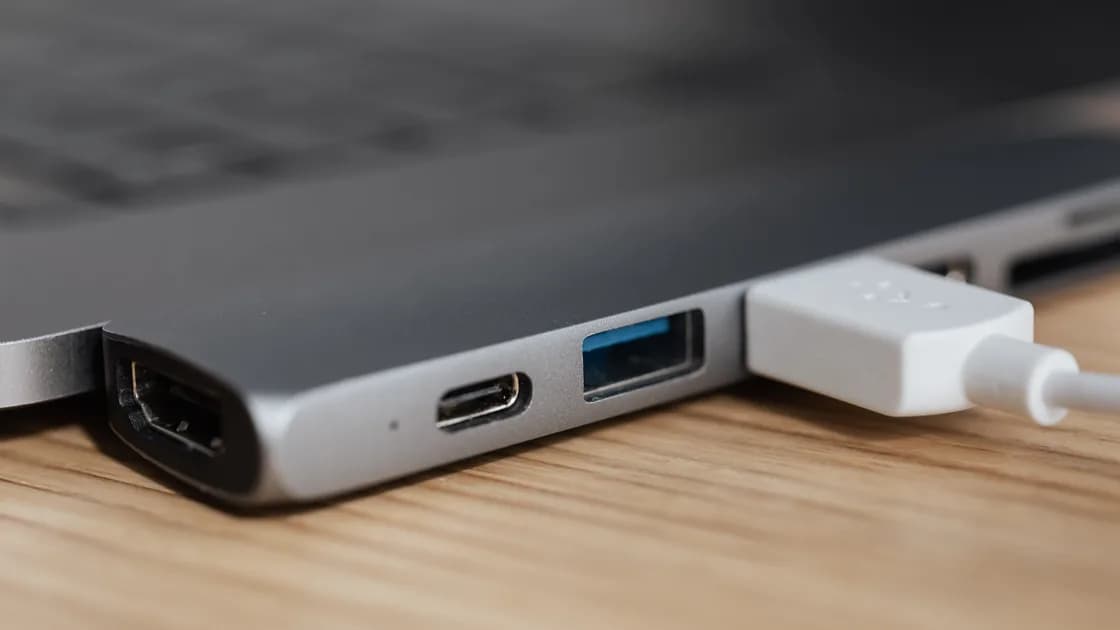

When you find a USB-C dock not working, do not treat it as one device with one failure. Write down whether external power, laptop charging, video, USB data, Ethernet, and audio work independently. That function matrix usually reveals whether the problem is the dock’s power supply, the host cable, a port capability, one downstream device, display negotiation, software, or the dock itself.
Key Takeaways
- USB-C describes a connector shape, not a guaranteed set of data, video, charging, or Thunderbolt features.
- Test the dock with one known-good function at a time instead of reconnecting every peripheral together.
- The host, dock, cable, power adapter, display, and downstream device must support the requested function.
- Direct connection to the host separates a display or peripheral problem from the dock path.
- Do not update random drivers or buy a higher-wattage charger until you identify the failing branch.
Use the device and app troubleshooting guide when several devices are failing and you have not established whether the common layer is the dock, computer, operating system, or power source.
Disconnect nonessential devices and create a simple matrix before changing settings:
| Function | Test result | What it proves |
|---|---|---|
| Dock power indicator | On, off, or absent by design | Only the dock’s own power state |
| Laptop charging | Charging, slow charging, or not charging | Power Delivery path and available wattage |
| External display | Image, intermittent image, or no signal | Video capability and negotiation path |
| USB keyboard or mouse | Detected or missing | Basic downstream USB data path |
| Ethernet | Link present and network works or fails | Network adapter path, not other dock functions |
| Audio | Output appears and plays or is absent | Audio device enumeration and routing |
“The dock is dead” is too broad if charging works but video does not, or if Ethernet works while USB storage disconnects. Record the computer model, exact port, dock model, host cable, power adapter, display input, and which function changed. Photograph labels privately if needed, but do not post serial numbers or company asset tags.
If every function stopped after a spill, impact, burning smell, unusual heat, damaged plug, or frayed cable, disconnect power and stop. Software troubleshooting is not appropriate for an electrical or physical hazard.
Identify whether the dock is bus-powered, has an optional adapter, or requires its own supplied power. Connect the documented adapter directly to a known-good outlet. A light on the adapter or dock does not prove that correct voltage and power reach the host, but it is a useful first observation.
Then test the computer separately with its normal charger. If the computer does not charge directly, fix that host-side problem before judging the dock. If direct charging works but charging through the dock does not, compare:
Microsoft’s USB-C guidance explains that the computer, charger, and cable all need compatible standards and sufficient power. It also notes that a device may need external power or that the computer can temporarily limit power when several devices share it.[1] A larger wattage number does not override the dock’s negotiated limit, and an incompatible adapter can damage equipment.
Do not clean a damaged USB-C port with metal tools or liquid. If the plug does not seat normally, inspect for obvious debris with the device powered down and follow the manufacturer’s cleaning guidance.
Two ports with the same USB-C shape can expose different capabilities. Depending on the computer, a port may support USB data only, charging, DisplayPort Alt Mode, USB4, Thunderbolt, or some combination. A charging-only cable may power a device but carry no useful data; a USB data cable may still lack the bandwidth or video support expected by the dock.
Use the cable supplied with the dock when available. Otherwise verify its documented data rate, video or Thunderbolt certification, charging rating, and maximum length. Avoid diagnosing through an extra extension, magnetic tip, right-angle adapter, or converter.
Apple’s Mac port guide explicitly says that a USB-C port can connect to USB, Thunderbolt, or a display depending on the port’s capabilities.[2] Check the specification for the exact computer model rather than relying on a port icon, connector color, or marketing name from a similar model.
Try another compatible host port one time. If one port works and another does not, confirm whether their capabilities differ before assuming damage. On a managed computer, a dock or Thunderbolt accessory may also require administrative approval or an allowed security policy.
For “dock works but monitor is blank,” test the monitor directly from the computer with a known-good compatible cable or adapter. This removes the dock from the path. Also confirm the monitor is powered, awake, set to the correct input, and not exceeding the computer’s supported number, resolution, or refresh rate of displays.
Use this result tree:
Apple’s display guidance says the adapter must support the relevant DisplayPort Alt Mode or Thunderbolt path, and that supported display count, resolution, and refresh rate vary by Mac model, cable, adapter, and the other displays in use.[3] A successful USB keyboard through the dock therefore does not prove that video should work.
If the display also fails when connected directly, keep the investigation on the host-to-display path instead of altering unrelated USB or Ethernet settings.
Reconnect one low-risk, known-good device at a time. Start with a simple keyboard or mouse, then the network cable, audio device, and other peripherals. Avoid using an irreplaceable external drive as the first test load.
For USB data:
If a directly connected non-storage peripheral is not recognized, use the USB recognition guide. If a storage device enumerates but its disk or volume is missing, use the external-drive guide.
For Ethernet, distinguish physical link from internet access. Check the dock adapter appears in the operating system, the cable and switch port show link, and the expected network interface is active. A link light does not prove DHCP, DNS, captive-portal access, or internet reachability.
For audio, confirm the dock’s audio device appears, select it explicitly as output or input, set a safe volume, and test a local sound. Do not assume a monitor’s speakers, a dock jack, and a USB headset share one audio route.
Update only after the physical function matrix is clear. Install supported operating-system updates and, when the manufacturer provides it for the exact dock, approved dock firmware or a driver package from the computer or dock vendor. Preserve the current version and read power-interruption warnings first.
Do not install a generic “USB driver updater,” random DisplayLink package, registry tweak, kernel extension, or firmware from a similar dock. Some docks use class-compliant components and need no vendor driver; others use a specific display or Ethernet chipset. The exact model and operating system decide.
On a company computer, dock firmware, Thunderbolt authorization, network adapters, and display drivers may be managed. Stop if the process asks you to disable security controls or enter administrator credentials you are not authorized to use.
After an approved update, repeat the same one-function tests. Changing both software and the cable at once destroys the comparison.
The dock itself becomes more likely when it fails across two compatible computers with its documented power adapter and host cable, while the same display and peripherals work directly. The host becomes more likely when several known-good docks or direct devices fail on the same port or computer.
Before replacement or warranty support, collect:
Do not continue using a dock that overheats, smells burned, sparks, repeatedly cuts host power, or has a loose power connector. Disconnect it and contact the manufacturer. If only one downstream device fails, do not replace the whole dock until that device and cable pass a direct comparison.
A USB-C dock contains several independent paths. Build a matrix for power, charging, display, USB, Ethernet, and audio; then check the documented adapter, host port, and host cable. Direct-connect the display and one peripheral to isolate the dock. Use only exact-model software, and keep hazardous hardware disconnected. The USB-C shape alone never guarantees data speed, video, Thunderbolt, or charging capability.
A USB-C dock charging but no display usually means Power Delivery and video are using different capabilities. The host port, cable, dock, and adapter may negotiate charging while lacking DisplayPort Alt Mode, Thunderbolt, bandwidth, or display support.
The video path can work while the downstream USB controller, host cable data lanes, power budget, driver, or individual port fails. Test one known-good USB device directly and through the dock.
No. Some cables carry only charging or low-speed data. Use a cable documented for the dock’s data, video, Thunderbolt, and power requirements.
Not necessarily. The dock reserves power and negotiates a supported host output. The computer, adapter, dock, and cable all limit the result.
The combined power or bandwidth demand may exceed a supported limit, or one device may destabilize the bus. Add devices one at a time to identify the trigger.
No. Use operating-system updates and exact-model packages from the computer or dock manufacturer only. Generic driver tools add risk and obscure evidence.
Usually, after ejecting mounted storage and stopping active transfers. Do not unplug during dock firmware updates or when a damaged connector, heat, or electrical smell is present.
Replacement is reasonable when it fails the same documented functions on multiple compatible hosts with known-good power and cables, while downstream devices work directly, or when it presents an electrical hazard.
Sources checked 28 August 2026.
Sign up to experience all premium features at no cost.
*Available only to new users. Each user is limited to one trial.