Start your 3-day free trial
Sign up to experience all premium features at no cost.
*Available only to new users. Each user is limited to one trial.
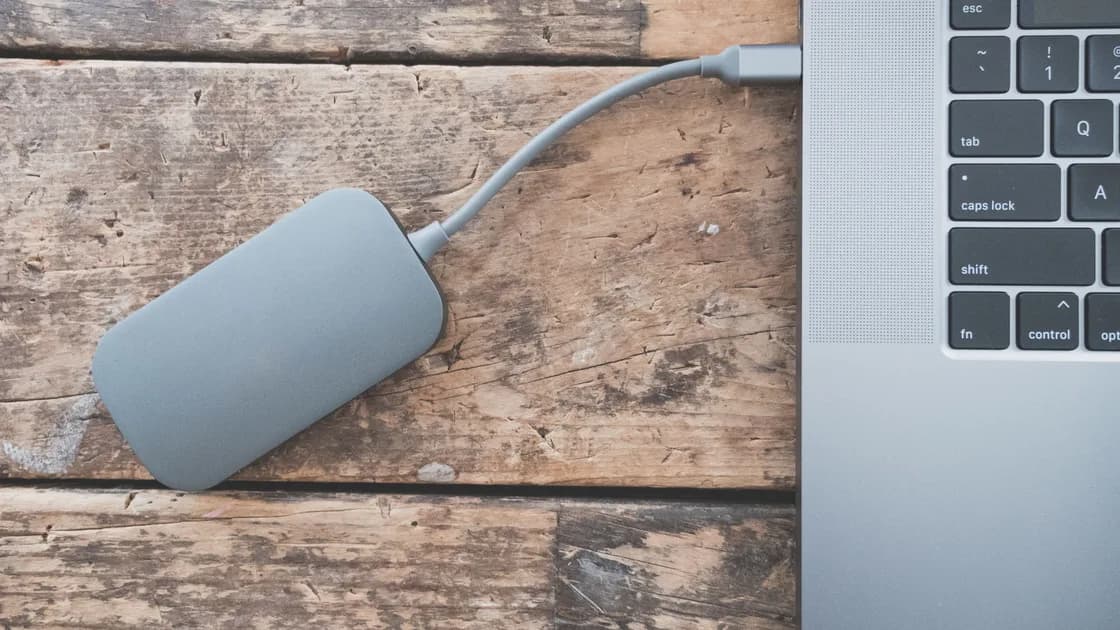

With an external drive not showing up, first protect the data. Listen for abnormal clicking, grinding, repeated spin-up, or disconnect sounds, and stop if there is odor, heat, liquid, or physical damage. Then separate four states: the computer detects USB hardware, the operating system sees a disk, a volume exists and is mounted, and the file system is readable. Do not initialize, format, erase, repartition, or run an aggressive repair until you know whether the existing data matters.
Key Takeaways
- “Not in File Explorer or Finder” does not mean “not detected anywhere.”
- Check power, cable, direct connection, and hardware identity before disk software.
- Disk Management and Disk Utility distinguish a physical disk from its volumes.
RAW,Unallocated,Not Initialized, or a missing device can represent data loss or hardware failure, not an empty new disk.- If the data is important, stop destructive operations and choose recovery or professional service before experimentation.
Use the device and app troubleshooting guide when you have not established whether the problem belongs to the storage device, connection path, computer, or file system.
Disconnect the drive and stop repeated power-on tests when you observe:
Repeatedly powering a mechanically failing disk can reduce recovery options. Do not open a sealed hard-drive enclosure or swap circuit boards based on a video. For an SSD, flash failure may be silent, so the absence of noise does not prove health.
Write down what matters before you change anything: whether the drive is new or previously used, the last computer and operating system that read it, its file system if known, whether it is encrypted, whether another backup exists, and the last operation before failure. Do not publish serial numbers, recovery keys, volume names containing personal information, or screenshots of confidential files.
If the drive is genuinely new, blank, and intended for first-time setup, initialization may eventually be appropriate. This guide treats every unknown drive as potentially containing data until you verify otherwise.
Start with the connection path:
Look for the enclosure or storage device in Windows Device Manager or macOS System Information. If no hardware appears, the problem is still at the drive, enclosure, cable, power, adapter, port, or host-enumeration layer. The USB recognition guide provides the cross-test matrix. If failure exists only through a multifunction station, use the USB-C dock guide.
An enclosure can enumerate while the disk inside it does not. Conversely, a disk can appear in a disk utility without a mountable volume. Record the exact hardware name and capacity instead of assuming every layer is working.
Do not keep reconnecting an unstable drive to “make it appear once.” If it repeatedly drops on direct known-good connections, stop and decide whether the data justifies recovery service.
Open Disk Management and identify the external disk by model and capacity, not only by disk number. Take care not to select the internal system disk. Possible states include:
| Disk Management state | What it may mean | Safe next question |
|---|---|---|
| Disk and healthy volume, no drive letter | Volume exists but is not assigned in File Explorer | Is it unlocked and should it receive a letter? |
| Disk is Offline | Windows sees the disk but has not brought it online | Why is it offline, and is it shared or managed? |
RAW volume | File system is unsupported or damaged | Is the data backed up or recoverable? |
Unallocated space | No recognized partition covers that area | Was a partition lost, or is this truly a blank disk? |
Not Initialized or Unknown | No valid signature is available to Windows | Is it new, corrupted, or failing hardware? |
| Correct disk absent | Lower-level detection failure | Return to power, cable, enclosure, port, and host |
Microsoft’s Disk Management troubleshooting documentation states that a disk shown as Not Initialized may be genuinely new, may have corrupted formatting, or may have hardware problems.[1] Therefore the label is not permission to click Initialize Disk on a drive that previously held data.
Microsoft also distinguishes disk Online and Offline states and notes that a disk must be online before initialization or volume creation.[2] That ordering describes management operations; it does not say that bringing every unknown disk online or initializing it is safe for existing data. Shared, managed, cloned, encrypted, or server-origin disks may have reasons to remain offline.
If a healthy unlocked volume merely lacks a drive letter, assigning an unused letter may restore File Explorer visibility without formatting. First confirm the correct volume, its expected file system, and organizational policy. Do not convert partition style, create a new simple volume, or format to solve a missing-letter problem.
Open Disk Utility and choose View > Show All Devices. This exposes the physical storage device and the containers and volumes beneath it. Apple’s First Aid procedure explicitly uses this hierarchy and runs checks from the lowest volume upward through containers to the device.[3]
Interpret the sidebar:
Do not click Erase because Mount failed. Erase creates a new file-system structure and destroys the current logical layout. Do not repartition the drive as a visibility test.
If the drive uses encryption, unlock it only with the correct password or recovery method. Do not try random recovery keys or upload an encrypted image to an unknown service. On a managed Mac, external-storage access may be restricted by policy.
Once the physical disk is stably visible, identify the next layer:
A disk can be visible while no usable volume is mounted. This may happen because a drive letter is absent, the volume is manually unmounted, encryption is locked, the file system is unsupported, or the logical structures are damaged.
Check whether the drive was last used with Windows, macOS, Linux, a NAS, a camera, a game console, or another appliance. A file system valid for one device may be read-only or unsupported on another. Do not install a random file-system driver merely to make it appear. Verify the vendor, operating-system support, data importance, and whether read-only access is safer.
If the device belongs to a storage pool, RAID set, NAS, backup application, or encrypted container, reconnect it through the original supported system when possible. Initializing one member alone can damage recovery metadata. The NAS overview explains why a network storage volume is not interchangeable with a standalone USB disk.
A repair tool writes to file-system metadata and can make a later recovery harder, even when marketed as routine. Decide in this order:
Apple recommends backing up data before continuing when Disk Utility reports failure, and its First Aid process works through the volume hierarchy. Do not translate that into “run First Aid repeatedly on a disappearing drive.” Microsoft’s general disk guidance similarly distinguishes cable, controller, disk, and file-system states before management actions.
For important data without a backup, stop and seek a qualified recovery path before CHKDSK, First Aid, format, initialize, partition recovery writes, or vendor “secure erase.” A non-destructive scan can still stress failing hardware, and a tool’s preview does not prove the final recovery will succeed.
After recovery or replacement, create at least one additional verified backup. The backup-to-NAS guide covers planning and restoration checks; a single external drive is not a complete backup strategy when it is the only copy.
Replace the cable when a known-good equivalent consistently fixes the connection and the original shows damage or instability. Replace the enclosure only after verifying its required power, bridge compatibility, and whether removing the disk affects warranty, encryption, or hardware-based keys.
The drive itself becomes more likely when it reports abnormal health, repeatedly disappears across known-good direct connections, has physical symptoms, shows the wrong capacity, or fails in another compatible enclosure or host under a safe professional test. Do not continue benchmark or surface-scan workloads on a suspected failing disk containing important data.
For warranty support, collect the model, capacity, enclosure, power adapter, cable, host, operating-system version, hardware-detection result, Disk Management or Disk Utility state, and exact sounds or disconnect timing. Keep file names, recovery keys, and personal data out of public tickets.
An external drive can fail at power, USB hardware detection, physical-disk visibility, volume structure, mounting, unlocking, or file-system readability. Stop immediately for physical warning signs or important unbacked data. Use direct known-good connections, then inspect Disk Management or Disk Utility without accepting destructive prompts. RAW, Unallocated, Not Initialized, or a missing device are reasons to preserve evidence, not instructions to initialize, format, or erase.
The volume may lack a drive letter, be offline, locked, unsupported, or damaged. Identify the exact disk and volume before assigning a letter or changing anything.
The USB enclosure may enumerate while the storage medium or bridge cannot present a usable disk. Return to power, cable, enclosure, and hardware stability.
Only when you have verified it is a new blank disk or that existing data is expendable and backed up. A previously used disk may be corrupted or failing.
Not when existing data matters. Formatting creates a new file system and can reduce recovery options. Choose recovery first.
Yes. A healthy, unlocked Windows volume can exist without a letter. Confirm the volume before assigning an unused letter; do not format it.
No. Confirm physical stability and backups first. Repair tools write metadata and can complicate recovery from a damaged or failing drive.
Possible causes include insufficient power, cable or connector damage, enclosure failure, sleep behavior, or failing storage hardware. Repeated drops on direct known-good connections are a stop condition.
When important data has no verified backup and the drive has physical symptoms, disappears repeatedly, shows damaged structures, or would require destructive operations to continue.
Sources checked 28 August 2026.
Sign up to experience all premium features at no cost.
*Available only to new users. Each user is limited to one trial.