Start your 3-day free trial
Sign up to experience all premium features at no cost.
*Available only to new users. Each user is limited to one trial.
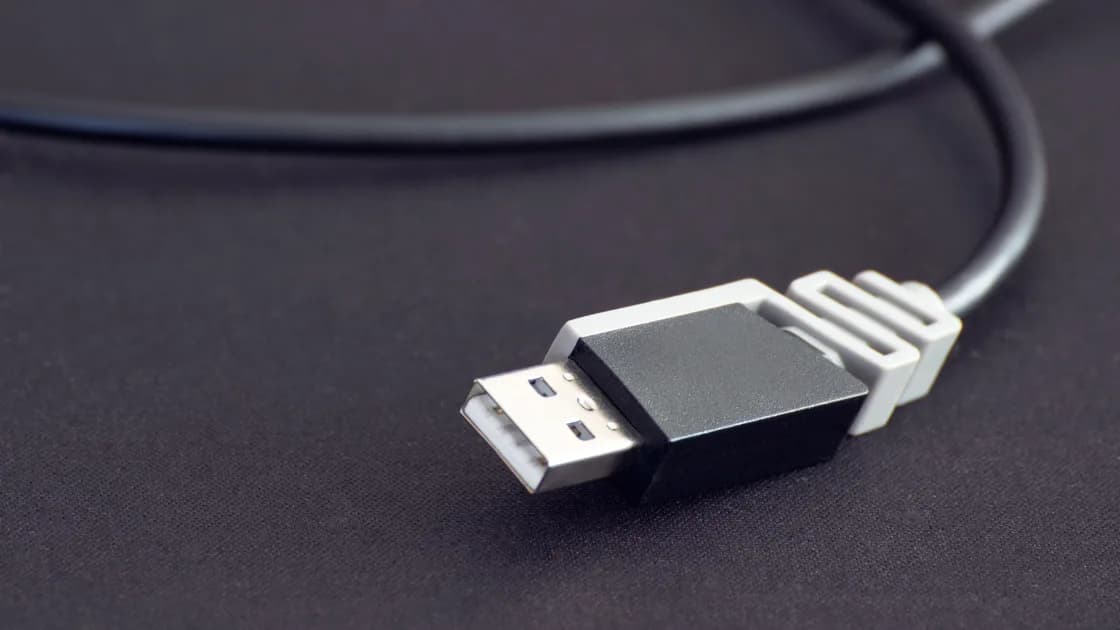

When you see USB device not recognized, first determine whether the host detects any hardware at all. Test the same peripheral with another known-good data cable, another port, and another authorized computer; then test the original port with a known-good peripheral. Those two directions separate the device, cable, power, hub, port, and host far more reliably than reinstalling every USB controller.
Key Takeaways
- A cable that charges is not necessarily a data cable.
- Cross-testing both the peripheral and the host port prevents one-sided conclusions.
- Bypass hubs, docks, extensions, and adapters before changing drivers.
- In Windows, record the device identity and exact Device Manager error code.
- On Apple silicon Mac laptops, an accessory can charge while data access remains unapproved.
This guide covers direct, non-storage USB peripherals such as keyboards, mice, cameras, audio interfaces, scanners, controllers, security keys, and similar devices. For a multifunction dock, use the USB-C dock guide. For a disk or volume, use the external-drive guide. The device and app troubleshooting guide helps when the failing layer is not yet clear.
Start at the peripheral. Read its exact label and documentation, then check whether it needs a battery, external adapter, power switch, unlock action, or a specific operating mode. A camera in charging mode, a phone that has not approved data access, or an audio device set to standalone mode may draw power without presenting the expected USB function.
Inspect the connector and cable without forcing them. Stop if you see bent contacts, a loose socket, liquid, scorching, swelling, unusual heat, or a damaged shield. Do not use metal tools inside a port.
If the cable detaches, replace it with a known-good cable explicitly supporting data and the connector standard. Many USB-C cables are intended mainly for charging. A successful charging icon proves power transfer, not USB enumeration or data integrity.
Record what happens at connection time:
The last case is no longer a basic recognition problem. Check application permissions, input/output selection, and exclusive access instead of repeatedly reconnecting hardware.
Use one change at a time and write down the result:
Interpret the matrix carefully:
| Result | More likely layer |
|---|---|
| Peripheral fails on every compatible host | Peripheral, its cable, power, or required mode |
| Multiple good peripherals fail on one port | That port, host hardware, policy, or controller path |
| Peripheral works directly but not through a hub | Hub power, host cable, bandwidth, hub port, or compatibility |
| Peripheral works on one computer only | Host software, approval, policy, port capability, or power |
| A different data cable fixes it | Original cable capability or damage |
| Device appears, but only one app fails | App permission, selection, service, or device ownership |
Do not use a stranger’s computer for a security key, phone, camera, or device containing sensitive data. Use an authorized test host and reject any unexpected prompt to import, erase, initialize, or trust content unrelated to the test.
Direct connection is the cleanest comparison. A hub introduces its own upstream cable, controller, ports, firmware, and shared power budget. A monitor’s USB ports may depend on a separate upstream data cable even while video works.
For a powered peripheral, connect its approved adapter. For a bus-powered device, disconnect nonessential USB loads and connect the computer to its own power supply. If the peripheral works only when other devices are removed, do not conclude that it needs a driver; measure the supported power design and check the hub documentation.
Avoid chaining several hubs or using an unverified USB-C converter. If the problem exists only through a USB-C dock, return to the dock function matrix rather than uninstalling host controllers.
Intermittent disconnection can result from cable movement, loose connectors, insufficient power, sleep behavior, or the device itself. Once the device enumerates successfully and later drops, treat that as an intermittent disconnection problem rather than a recognition failure.
Open Device Manager after connecting the device. Look under the expected category and under Universal Serial Bus controllers or Other devices. Use View > Show hidden devices only to understand stale entries; do not delete everything shown.
For the affected entry, record:
Microsoft’s Device Manager reference explains how to find the code in the device properties and provides a resolution specific to each code. It distinguishes, for example, an unconfigured device, missing driver, disabled device, resource problem, or hardware-reported failure rather than treating them as one USB error.[1] Follow the exact code and hardware vendor documentation.
Install Windows updates and a driver only from Windows Update, the computer manufacturer, or the peripheral manufacturer for the exact model. Do not use a third-party driver site, copy registry fixes from an unrelated device, or globally uninstall every USB controller as a first step. Those actions remove useful evidence and can disable keyboards, input devices, authentication hardware, and other working ports.
If the device is company-managed, the error may reflect an intentional device-control policy. Do not bypass it. Give IT the model, error code, time, port, and comparison results.
On a Mac laptop with Apple silicon, unlock the Mac and reconnect the accessory while watching for an approval prompt. Choosing Don’t Allow can leave charging available while preventing the Mac from recognizing the accessory or granting data access. Apple documents this behavior and the Privacy & Security > Accessories setting, which may also be controlled on supervised Macs.[2]
Do not change the setting to Always Allow merely to avoid a prompt. Approve a known accessory when needed, and keep the stronger default on a device exposed to unknown cables or public spaces.
Next, open System Information and inspect USB or Thunderbolt hardware. If the peripheral appears there but not in its application, the physical enumeration path is working and attention should move to permissions, driver or system extension approval, app selection, or application support. If it does not appear, return to cable, direct connection, power, port, and another host.
Apple also notes that USB devices can request limited power and recommends reconnecting, trying another port, connecting the device directly, and supplying power where applicable when macOS reports that a device needs more power or USB devices are disabled.[3] A power warning is not a reason to install an unrelated driver.
On a managed Mac, accessory approval, system extensions, security software, and USB restrictions may be controlled by the organization. Stop and ask the administrator rather than reducing security settings.
Restart the affected application first if the hardware appears normally. Restart the computer after saving work when the operating system specifically recommends it, an update has completed, or a stale device instance remains after a controlled reconnect.
Update in this order:
Before peripheral firmware updates, use stable power, the recommended direct connection, and the vendor’s exact cable. Do not interrupt the process. Do not flash firmware from a related model.
Avoid a broad controller uninstall, BIOS change, Registry edit, kernel extension removal, or security-policy change without evidence. These are system-wide actions for a symptom that may still be a cable or peripheral failure.
The peripheral becomes the leading suspect when it fails with two known-good data cables on multiple compatible authorized hosts, while those hosts recognize other devices. The host port becomes more likely when several known-good peripherals fail there but work on another port.
Contact support with the exact product and host models, operating-system version, cable identifiers, direct and hub results, Windows error code or Mac System Information result, and any power warning. This is more actionable than “USB does not work.”
Disconnect and stop testing if there is heat, smoke, odor, liquid, swelling, sparking, a damaged battery, or a loose connector that interrupts power. For medical, security, accessibility, industrial, or work-managed peripherals, follow the responsible organization’s service process rather than experimenting with drivers or firmware.
A USB recognition problem is best solved with a two-way comparison: move the affected peripheral across a known-good cable, port, and authorized host, then test the original host with a known-good peripheral. Bypass hubs and confirm power. In Windows, preserve the exact Device Manager code; on Apple silicon Mac, check accessory approval and hardware enumeration. Use only exact-model official software, and avoid driver sites, generic Registry edits, and global controller removal.
Power and data are separate. The cable may be charging-only, the device may be in the wrong mode, or a Mac may not have approved data access.
Not by itself. Ports can differ in capability or policy. Test more than one known-good device and check the host specification.
Yes. Direct connection removes the hub’s power, upstream cable, controller, and compatibility from the path.
It means Windows detected something but could not identify or start it normally. Record the exact Device Manager status and code before changing drivers.
Apple silicon Mac laptops can require approval before a new or unknown accessory receives data access. Unlock the Mac and approve only a device you recognize.
No. That broad action can disable working input and security devices and destroys diagnostic state. Follow the exact error code or vendor procedure.
Use Windows Update or the exact computer and peripheral manufacturers only. Third-party driver sites can provide incorrect or unsafe packages.
When it fails through known-good data cables on multiple compatible hosts, while those hosts recognize other devices, or when it has physical or electrical damage.
Sources checked 28 August 2026.
Sign up to experience all premium features at no cost.
*Available only to new users. Each user is limited to one trial.