Start your 3-day free trial
Sign up to experience all premium features at no cost.
*Available only to new users. Each user is limited to one trial.
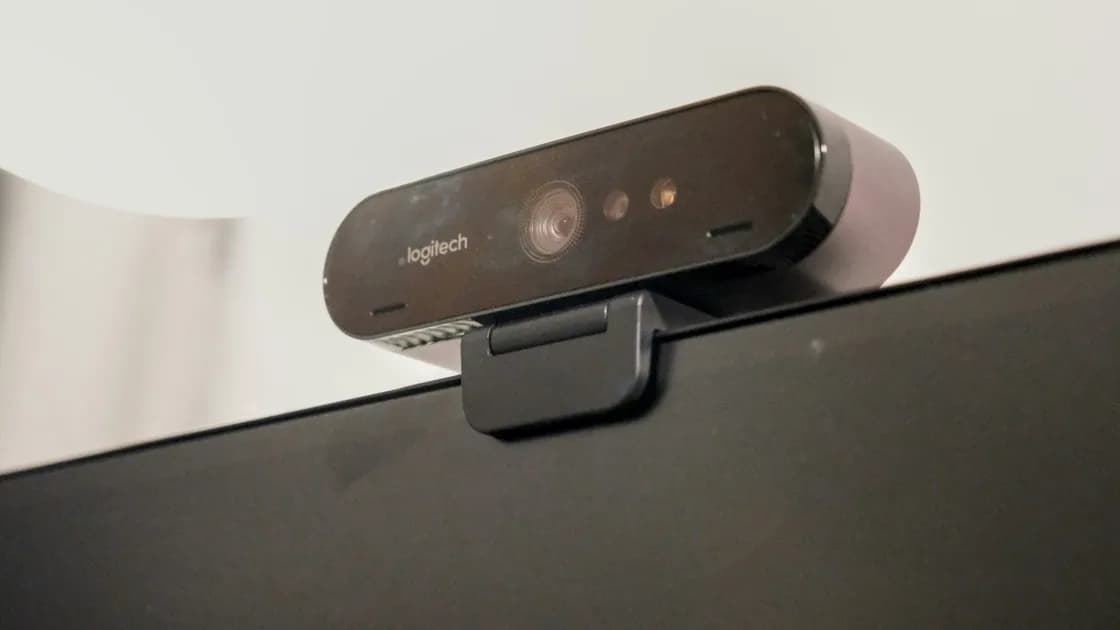

A webcam not working usually fails for an ordinary reason: a closed shutter or privacy key, a loose or hub-connected USB link, blocked camera permission, the wrong camera selected, or another app already holding the camera. Driver and hardware faults are less common, so first identify whether the computer cannot detect the camera, the picture is black or frozen, or the failure happens in only one app. Then work through the connection, selection, permission, and app checks before changing drivers.
Key Takeaways
- “Not detected,” “black picture,” and “one app fails” are different fault paths.
- A physical shutter, privacy key, loose USB connection, or wrong camera selection can look like a software failure.
- Test a second trusted camera app before changing the operating system.
- Permissions should be granted only to the app or site that needs the camera.
- Use drivers and firmware for the exact computer or webcam model only after lower-risk checks.
If several unrelated devices or apps are failing, start with the device and app troubleshooting guide and decide whether the problem follows the camera, the computer, the app, or one user account.
Describe the first observable failure instead of treating every symptom as “the camera is broken.”
| What you see | Likely layer | First useful test |
|---|---|---|
| No camera appears anywhere | Power, USB, hardware detection, or policy | Check the shutter and direct connection, then test a second app |
| Camera appears but shows black | Shutter, permissions, selected input, or another app | Open the shutter and close other camera apps |
| Picture freezes or drops | Cable, port, bandwidth, app, or driver | Use a direct port and a lower-resolution test |
| Camera works in one app only | App or browser permissions and input selection | Compare the failing app with a trusted local app |
| Built-in camera fails after sleep | Session, privacy control, or system state | Close apps, restart, and retest before changing drivers |
Record whether the camera is built in or connected by USB, whether it has ever worked on this computer, and what changed just before the failure. Also note whether the indicator light turns on, but do not treat a light alone as proof that video is being captured or saved.
Microsoft documents camera availability and privacy controls separately.[1][2] Apple likewise treats basic camera access, permissions, and software checks as distinct layers.[3] The exact menu varies, but the diagnostic principle is portable: establish whether the operating system can see the camera before repairing one meeting app.
For a built-in camera, inspect the top edge of the display for a sliding shutter. Some laptops also have a keyboard key or hardware privacy switch that disconnects the camera electronically. Move the control deliberately, then reopen a trusted camera app.
For an external USB webcam:
A ring light or motor may have separate power from the camera data connection. Power or an indicator does not prove that the USB video device is detected. Conversely, an unlit indicator may be normal until an app begins a preview.
Do not repeatedly force a damaged connector or continue using a cable that becomes hot. Physical damage, liquid exposure, a loose internal camera module, or a port that disconnects several devices requires hardware service rather than more software changes.
Close meeting apps, browser tabs, streaming tools, virtual-camera software, screen recorders, and vendor preview utilities. Then open one trusted local camera app and select the expected device.
This comparison creates three useful outcomes:
Some platforms and camera drivers allow only one process to hold the camera at a time. Fully quit the first app rather than only minimizing its window. In a browser, close other tabs that may have an active call or camera preview, then reload the one site you intend to test.
Avoid installing an unknown “webcam test” program. A built-in system app or a well-known meeting application is enough to prove the path without giving camera access to another publisher.
An app may remember a virtual camera, a dock camera, or an old USB webcam. Open the app’s video settings and select the exact current camera. If the preview works there but not in a call, leave and rejoin the call or restart the app.
Then review camera access at two levels:
Microsoft documents system-wide and per-app camera controls in Windows. Chrome similarly lets users review camera permission and the selected device for a site.[4] Grant access only to the app or site needed for the test. Do not disable privacy controls globally or give every installed app permanent access.
On managed work or school devices, a disabled control or a setting that immediately returns may be policy. Record the app, account, device name, and time of the failed test, then ask the administrator. Do not try to bypass management profiles or endpoint protection.
For a broader explanation of permission risk, use the app permissions guide.
Keep the platform branch short. The hardware, second-app, and permission tests above should already tell you which layer deserves attention.
Open Settings > Privacy & security > Camera and confirm access for the required app. Then open the Camera app and select the intended device. Microsoft recommends checking a physical camera switch, permissions, updates, and drivers as separate steps. Its error-code list also helps when an app reports the camera as unavailable: 0xA00F4243 means another app or process is using the camera, while 0xA00F4244 means the system cannot detect it.
If the camera disappeared immediately after a known driver update, use the computer or webcam manufacturer’s support path for the exact model. Do not install a generic driver package from an unrelated download site or remove every imaging device at once.
Quit every app that may use the camera, then reopen one app. Apple’s built-in-camera guidance lists software updates, Screen Time restrictions, camera permission, and a restart as separate checks, and treats a green indicator light that flashes next to the camera as a reason to contact service.
If only one app fails, review System Settings > Privacy & Security > Camera for that app. Restart the Mac before treating the built-in camera as failed. A managed Mac may require administrator help.
Open the Camera app and switch between available cameras if the device has more than one. For a website, use the site permission control and confirm that Chrome has selected the expected camera. Google’s Chromebook hardware guidance also recommends restarting and checking for updates before recovery steps.[5]
Do not powerwash a Chromebook for a single website failure. Test the Camera app and another site first, and ask the administrator if the device is managed.
Close video and recording applications, then test the camera in one trusted app. For USB hardware, connect directly and confirm whether the app lists the device. Install normal Ubuntu updates and consult the computer or webcam manufacturer for model compatibility if the device never appears.
Avoid copying old commands that unload kernel modules or broadly change device permissions. Those actions can affect other hardware and are not justified until a model-specific compatibility problem has been established.
Driver work belongs after the physical path, second-app test, selection, and permissions are known. Prefer the operating system’s normal update channel or the exact computer/webcam manufacturer. Record the current model and version before changing anything so you have a recovery path.
Cross-test an external webcam in both directions:
If the suspect webcam fails on two hosts while the known-good camera works on the original host, the webcam or its cable is the stronger lead. If two cameras fail only on the original host, focus on its USB path, policy, or system software.
For a built-in camera, an external known-good webcam can still separate the app and permission path from the internal module. If the external camera works in the same app and account, service may be appropriate for the built-in hardware.
A normal functional failure does not prove compromise. A closed shutter, revoked permission, app conflict, cable fault, or update problem is more common than an attacker controlling the camera.
Treat it as a separate security investigation if you see camera activity you did not initiate, an unknown app with camera access, unexplained account sessions, or other signs that the device is compromised. Preserve the relevant evidence, disconnect from sensitive work if necessary, and follow the webcam security guide. Do not erase logs or install random cleanup tools before you understand the scope.
Classify the symptom, check the shutter and direct connection, then compare two trusted apps. Review the selected camera and narrow permissions before entering the platform-specific branch. Reserve exact-model updates and cross-host tests for the end. This order protects working settings while revealing whether the fault follows the camera, the app, the computer, or a managed policy.
The shutter may be closed, the wrong camera may be selected, permission may be blocked, or another app may hold the camera. Close other apps, open the shutter, and test a trusted local camera app.
The failing app may have a different camera selection, permission, or saved session. Its failure does not by itself prove a driver or hardware problem.
Support varies. Some camera and driver paths allow only one active app. Fully quit the other camera apps and retry a single controlled preview.
No. Start with the shutter, connection, second-app test, selected input, and permissions. Use an exact-model driver only when evidence points to the system device layer.
A hub, damaged cable, weak port, high video mode, app conflict, or driver issue can interrupt the stream. Test a direct port and a second app before changing software.
No. It shows some camera-related activity on many devices, but its exact meaning is model-specific and does not prove who initiated it or whether video was saved.
Do not disable protection globally. Review the specific app permission or managed policy, and use the security product’s documented support path if it blocks a trusted camera workflow.
Seek service when an internal camera never appears after supported updates and restarts, or when an external webcam and cable fail on two compatible computers. Stop using visibly damaged or overheating hardware.
Sources checked 4 October 2026.
Sign up to experience all premium features at no cost.
*Available only to new users. Each user is limited to one trial.