Start your 3-day free trial
Sign up to experience all premium features at no cost.
*Available only to new users. Each user is limited to one trial.
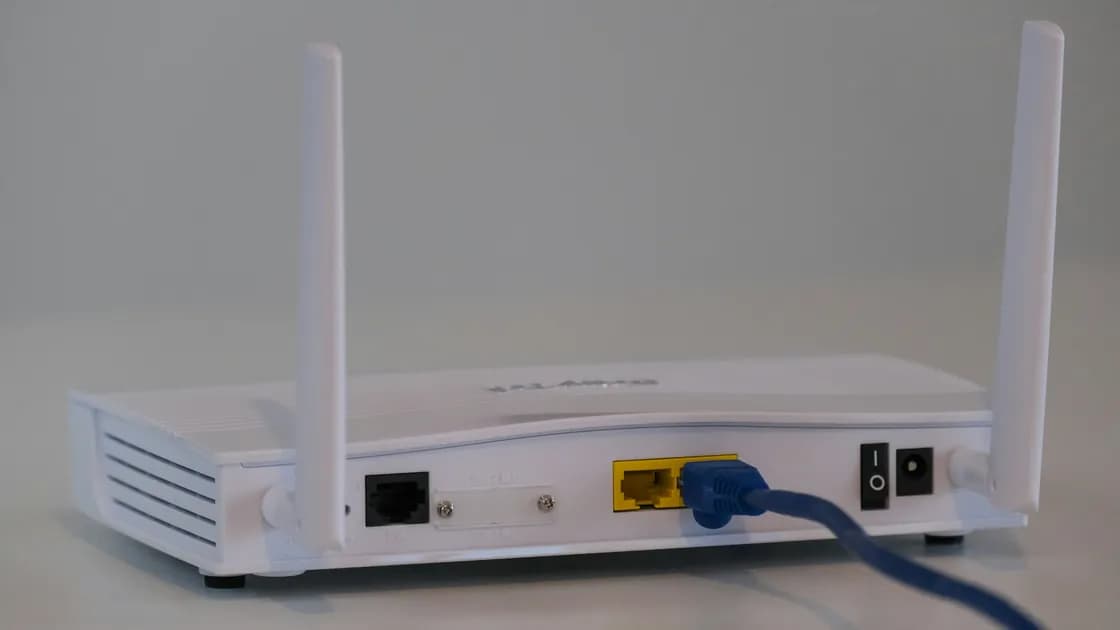

A Wi-Fi extender connected but no internet usually means your device reached the extender, but the extender has no working path through the main router to the internet. The "No internet" warning is your phone or computer reporting that its traffic stops there.
First connect the same device directly to the main router and confirm that the upstream connection works. Then test a second client, inspect the address and gateway received through the extender, and verify whether the extender is using repeater or access-point mode. Reconfigure or reset it only after checking the host network, uplink, location, cable, and access controls.
Key Takeaways
- Joining the extender's Wi-Fi proves only the client-to-extender link.
- A direct test on the main router separates an extender fault from a shared internet outage.
- Repeater mode uses a wireless uplink; access-point mode normally depends on Ethernet.
- A changed router name, password, or security mode can leave an extender advertising an unusable network.
- Resetting is a recovery step, not the first diagnostic step.
Use the device and app troubleshooting guide if you have not yet separated one client from the extender, router, or internet provider. This article is for an already configured extender whose network can be joined but cannot carry normal internet traffic.
It proves that the client completed at least part of the Wi-Fi association with the extender. It does not prove that the extender has a working path to the main router, received a valid upstream configuration, is in the intended operating mode, or is allowed through the router's access controls.
Map the path before changing settings:
| Layer | Useful observation | If it fails |
|---|---|---|
| Client to extender | Client joins the extender SSID and stays associated | Forget and rejoin only on the affected client |
| Address assignment | Client receives a normal local address and gateway | Check DHCP path and extender mode |
| Extender to router | Extender shows a healthy host-network or Ethernet link | Check placement, credentials, cable, or port |
| Router to internet | A device directly on the main router can browse | Diagnose the router or provider first |
| Name resolution | Gateway works but normal site names fail | Check approved DNS configuration after routing |
TP-Link's range-extender guidance for clients that connect but have no network recommends comparing more than one client, testing the main router directly, and checking the client address and gateway rather than assuming the extender radio is the whole problem.[1] Follow your model's interface, but keep that layered order.
Record the extender model, hardware version, operating mode, host-network name, extended-network name, status lights, client address, gateway, and the time the failure began. Do not record the Wi-Fi password in the troubleshooting note.
Most home products use extender, repeater, and range extender for the same device, so these checks also apply to a Wi-Fi repeater connected without internet. The warning normally comes from the client, not the extender: after joining a network, the phone or computer tests whether it can reach the internet and flags the network when that test fails.
Next, check what the extender reports about itself. Its signal or link light shows whether it joined the host network, and on models that report it, the status page in its management interface shows whether the extender itself has internet access. If the extender reports internet but clients still show the warning, focus on address assignment, DNS, and access controls. If the extender also reports no internet, the fault sits in its uplink, the main router, or the provider.
Use the same phone or computer near the main router:
If clients on the main router also have no internet, the extender is downstream of the real failure. Use the router connected but no internet guide and return to the extender only after the shared connection is stable.
If the main router works, reconnect one client to the extender. Test the local gateway before a public site. If the gateway is unreachable, focus on address assignment and the extender uplink. If the gateway works but the internet does not, inspect router access controls, DNS, and the path between the extender and router.
Do not use a VPN, private relay, custom proxy, or manually forced DNS while establishing the baseline. Temporarily return the test client to its approved automatic network settings, record any change, and restore required managed settings afterward.
A client can display a Wi-Fi icon even when it has no usable route. Open the operating system's normal network details and inspect the assigned address, prefix or mask, gateway, and DNS servers. Do not publish or share complete identifiers from a private network.
Compare the values with a working client directly connected to the main router:
Avoid assigning a random static address as a permanent fix. It may hide a DHCP fault and collide with another device. If a temporary static test is part of the manufacturer's documented procedure, record the original automatic setting and restore it afterward.
Test at least two clients. If only one fails through the extender while another works, repair the affected client's saved network, privacy-address compatibility, proxy, or policy before resetting shared equipment.
The two modes have different uplinks:
In repeater mode, check that the extender still recognizes the correct host SSID and that its signal or link indicator is healthy. Move it temporarily closer to the main router as a controlled test. TP-Link explains that an extender's location indicator and management status help distinguish a healthy host link from an extender placed beyond usable router coverage.[2]
In access-point mode, trace the full cable path. Check the extender port, patch cable, wall jack, switch, upstream cable, and router port. Test with a known-good cable and an approved port. A physical link light does not prove that the correct VLAN, DHCP service, or loop-free path is available.
Do not attach Ethernet while leaving an incompatible wireless-repeater topology active unless the manufacturer explicitly supports that combination. An unintended loop can disrupt more than the extender.
An extender may continue broadcasting its extended SSID after losing authentication to the host router. This often follows a router replacement, changed Wi-Fi password, renamed network, disabled band, or security-mode upgrade. TP-Link's recovery guidance says extenders may need reconfiguration after the host router or its wireless settings change.[3]
Check the change history:
Do not weaken the main router to an obsolete security setting for every device merely to keep an old extender online. Confirm the extender's supported modes and update its firmware through the vendor's normal process if a compatible update exists. Replace incompatible hardware rather than lowering the whole network's security without a justified, documented exception.
The router replacement guide explains how reusing a network identity can reduce device re-enrollment, but an extender still has to support the new router's security and operating mode.
Router controls can allow a client to associate while denying useful traffic. Review only the settings that apply to the extender or affected client:
Private or randomized client addresses can interact with allowlists that expect one fixed address. Do not disable privacy features globally. Update the approved policy for the affected trusted device or use the network's documented enrollment method.
If the extender broadcasts a guest network, local-resource isolation may be intentional. Internet access and access to printers, storage, or other local devices are separate properties. Do not enable broad local access merely to test whether the internet works. To confirm what the guest side should and should not reach, verify the guest network's isolation from a test device.
On managed, apartment, school, or workplace networks, unauthorized extenders may be blocked by policy or create interference. Stop and contact the administrator rather than trying to bypass port security, client isolation, or enrollment controls.
Use the least destructive action that matches the evidence:
After each change, wait for startup and association to finish. Test one client, then a second client. Confirm local gateway access before internet access. Do not stack several changes into one attempt; otherwise a temporary success does not identify which layer was repaired.
Escalate when the extender overheats, boot-loops, has a damaged plug or port, cannot retain settings, or fails in a known-good location while another compatible unit works. Disconnect damaged mains-powered hardware and follow the manufacturer's support or replacement procedure.
A Wi-Fi extender can accept a client connection while lacking a usable uplink. Prove the main router first, compare two clients, inspect the address and gateway, and identify repeater versus access-point mode. Then check placement, cable path, changed host credentials, security compatibility, and access controls. Reconfigure or reset only after those narrower tests.
The phone-to-extender radio link may work while the extender-to-router link, DHCP path, gateway, or access policy fails. Test the same phone directly on the main router and inspect its network details through the extender.
Some extenders reuse the host name and others use a separate extended name. Either can work. The important checks are the correct host credentials, compatible security, and a healthy uplink.
Place it where it still has a reliable connection to the main router while serving the weak area. Use the model's link indicator and a temporary closer-location test rather than placing it inside the dead zone.
It may still store the old router's name, password, band, or security mode. Reconfigure it for the new host network and confirm that the new security mode is supported.
Normally yes, because Ethernet is its upstream path. Check the exact model documentation, cable, ports, switch, VLAN, and DHCP service.
Yes. A router may block the extender, the downstream client, or a randomized client address. Use the approved enrollment process rather than disabling controls globally.
Not as a routine fix. A random static address can create a duplicate and hide a DHCP problem. Use one only for a documented, reversible test.
Reset it after direct-router, second-client, address, uplink, mode, placement, credential, and access-control checks. Record the current setup and have the correct credentials before erasing it. AethoVPN cannot create an uplink for a Wi‑Fi extender that lost contact with the router; check backhaul, mode, addressing, and placement first.
Sources checked 4 October 2026.
Sign up to experience all premium features at no cost.
*Available only to new users. Each user is limited to one trial.