Start your 3-day free trial
Sign up to experience all premium features at no cost.
*Available only to new users. Each user is limited to one trial.

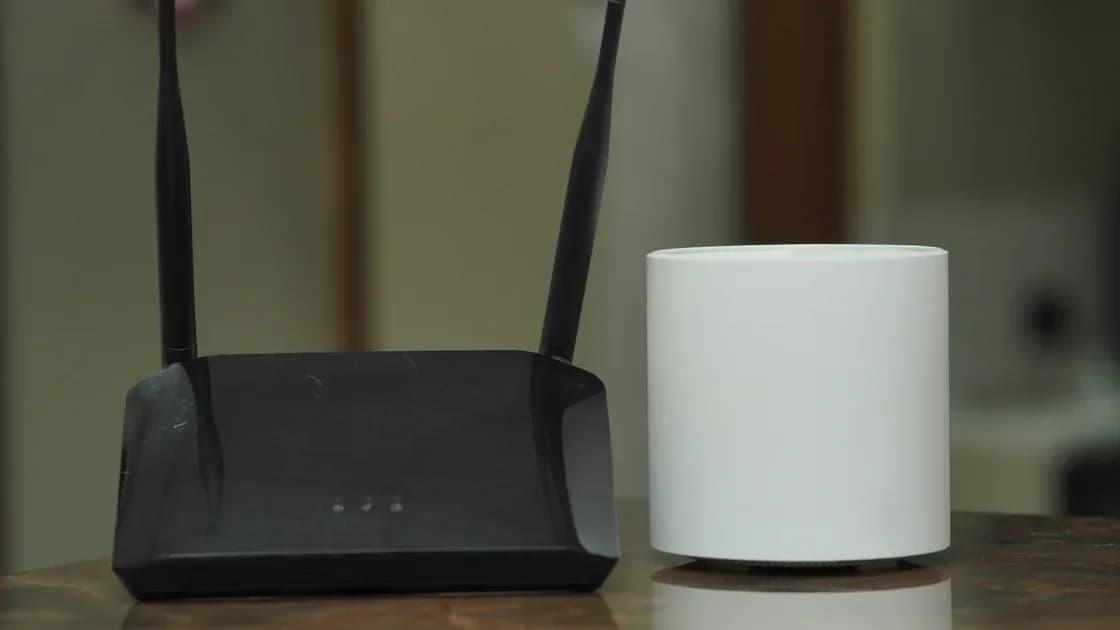
To replace a router at home, record the old router's settings, configure the new one with the exact same Wi-Fi name, password, and a compatible security mode, switch off the old Wi-Fi, and then move the modem cable and test. Matching that identity is how you can often replace a router without reconnecting every device, but it is not a guarantee: some devices remember band, security, vendor, certificate, or onboarding state and will still need individual attention. Stage a rollback and verify critical devices before erasing the old router.
Key Takeaways
- Matching the SSID and password can let many ordinary devices reconnect automatically.
- Security mode is part of the network identity; do not weaken the new router just to preserve one legacy device.
- Never leave old and new routers broadcasting the same SSID in the same place during cutover.
- WAN credentials, VLANs, guest networks, reservations, and special rules do not migrate merely because Wi-Fi reconnects.
- Keep the old configuration and a rollback window until critical devices have passed real use tests.
Use the device and app troubleshooting guide if a failure appears after cutover and you need to separate one client from Wi-Fi, LAN, DNS, or internet service. This guide covers a planned home-router replacement, not an emergency factory reset or a managed enterprise migration.
Often, yes. Most personal devices save a Wi-Fi profile containing the network name, credential, and security expectations. If the new router presents a compatible identity, the device may associate without asking you to choose the network again. Google explicitly advises that using the same network name on replacement Wi-Fi equipment can avoid reconnecting devices one by one.[1]
However, the result depends on more than two text fields:
| Setting or state | Why it matters |
|---|---|
| SSID spelling and case | Devices match the saved network name exactly |
| Password | Authentication must succeed with the saved credential |
| Security mode | WPA2, WPA3, transition modes, and enterprise profiles differ |
| Band and radio support | Older devices may support only particular bands or channel widths |
| Hidden-network state | Changing hidden or visible behavior can affect saved profiles |
| Vendor onboarding | Some smart devices bind setup state to an app, hub, or local discovery flow |
| Certificates or enterprise credentials | Managed networks require more than a shared password |
Set the expectation correctly: the technique reduces work for compatible devices. It does not promise that every camera, printer, appliance, extender, or managed computer will reconnect.
Open the old router's normal local administration interface while it still works. Make a private migration record. Do not post screenshots that expose passwords, public addresses, device identifiers, or recovery information.
Record the settings you actually use:
Use the new-router setup checklist for a broader first-install inventory. If the old router can export a configuration, treat the file as sensitive. An export may not be portable to another model and should never be imported blindly across vendors.
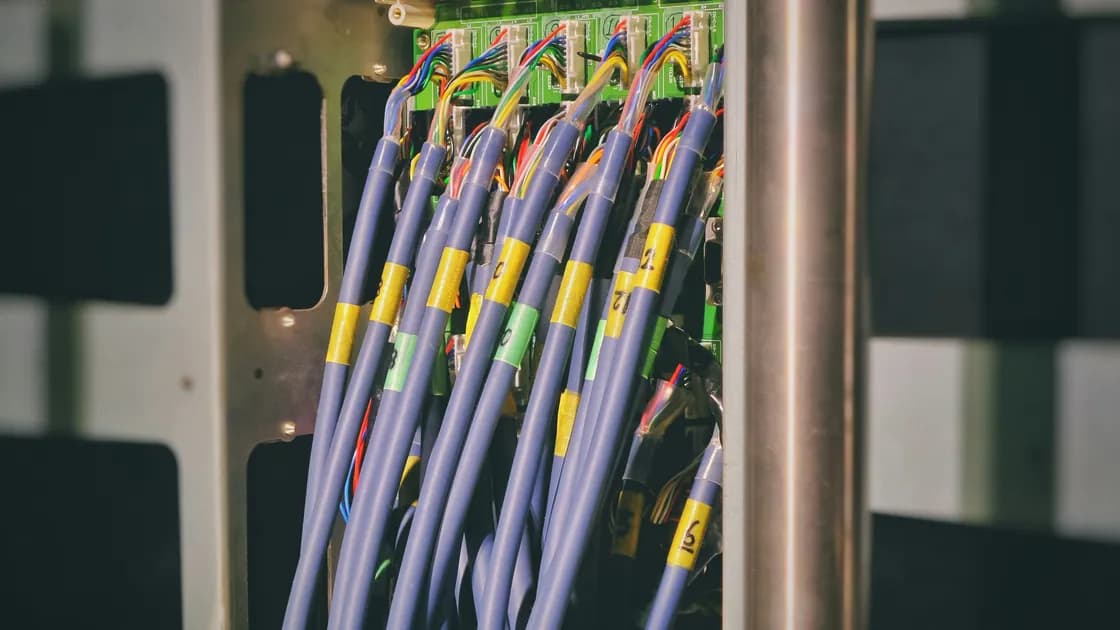
Photograph cable positions only if the images can be kept private. Labels such as WAN, LAN, ONT, switch, and room are more useful than a wide photo full of account details. Confirm that you know which device supplies DHCP and which box is the modem or fiber terminal.
Update and configure the new router through its supported local setup flow. If possible, keep its Wi-Fi disabled or use a temporary setup connection until the cutover. Do not allow both routers to advertise the final shared identity at the same time.
Configure in this order:
Do not copy obsolete port forwards, exposed management, weak wireless modes, or broad allowlists simply because they existed. Migration is an opportunity to confirm that each exception still has an owner and purpose. The router firmware checklist explains how to prepare a safe firmware change.
If a critical legacy device cannot use the new router's secure mode, look for a vendor update, a supported isolated IoT network, or replacement. Do not lower security for every device without understanding the impact.
Usually, yes. If the router is your own and the provider's service ends at a separate modem or fiber terminal, the swap is a settings and cable job you can do at home. Before buying or unplugging anything, check three points:
If any of these is unclear, ask the provider before the cutover rather than discovering it with the household offline.
Two nearby routers advertising the same SSID can confuse clients and create intermittent local or internet failures. Google warns that devices can remain connected to another router using the same network name, and recommends turning off the old router's Wi-Fi or disconnecting the old standalone router.[2]
Use a controlled sequence:
If the modem or provider binds service to the old router, follow the provider's supported release, restart, activation, or MAC-registration procedure. Do not clone identifiers unless the provider explicitly documents and authorizes it.
Avoid connecting the old router behind the new router with the same DHCP and Wi-Fi identity during the baseline. That can create double routing, competing DHCP services, loops, or a second access point that obscures the result.
Match the user-facing Wi-Fi identity where compatibility allows:
Review rather than automatically copy:
Apple's router guidance recommends a unique network name, using the same name across a router's supported bands, and selecting secure, compatible settings.[3] This supports a coherent network identity, but exact options differ by router and client generation.
If the old router used separate 2.4 GHz and 5 GHz names, decide whether preserving both is necessary for onboarding or operation. Do not merge them during the same cutover unless you are prepared to troubleshoot devices that depend on the old distinction. Change one architectural variable at a time.
Guest and IoT profiles are separate identities. Reusing only the main SSID does not reconnect devices saved to another network. Recreate those profiles deliberately, keeping guest isolation and access controls intact.
Test by function, not only by the presence of a Wi-Fi icon. Use a short checklist:
An online dashboard badge is not enough. Test a representative real action while respecting privacy. For a printer, print a non-sensitive test page. For a smart plug, use a harmless local command. For a camera, verify privately and do not capture or share household footage.
If one smart device fails, use the smart-home Wi-Fi onboarding guide. If many devices fail, return to the shared SSID, password, security, band, DHCP, and gateway before resetting them individually.
Group exceptions by symptom:
Forget and rejoin only the affected device when appropriate. Resetting every client's network settings removes unrelated saved networks and policies. Factory-reset a smart device only after confirming that you have the owner account, recovery method, and any physical pairing code.
Some devices cache the previous access point or take several minutes to retry. Give them a normal reconnect window, then power-cycle one device if its manufacturer recommends it. Avoid repeatedly rebooting the new router while clients are still settling.
Keep the old router powered off but available during the rollback window. Do not reconnect it with the duplicate SSID unless you are deliberately rolling back and have first disabled the new router.
Retire it after:
Then follow the manufacturer's supported factory-reset and disposal procedure. Remove the router from vendor accounts or cloud management where applicable. Do not sell, recycle, or give it away with configuration, logs, identifiers, or credentials still present.
If rollback becomes necessary, disable the new Wi-Fi before restoring the old router and its cables. A rollback should restore one known configuration, not leave both systems competing.
Reusing the same SSID, password, and compatible security mode can let many devices join a replacement router automatically, but it does not migrate WAN settings, guest networks, reservations, rules, or product-specific onboarding. Record the old system, prepare the new router, prevent duplicate SSID broadcasts, and verify critical functions by layer. Keep a rollback path and expect a small set of devices to need individual reconnection.
No. Many compatible devices will, but security expectations, band support, certificates, vendor onboarding, or cached state can require individual reconnection.
Yes. Treat the network name as case-sensitive and copy spaces and punctuation exactly. Also match the password and a compatible security mode.
Not during a normal replacement baseline. Nearby duplicate networks can keep clients on the wrong router and create intermittent failures. Disable the old Wi-Fi before enabling the new identity.
Only if it remains secure and supported. Do not weaken the whole network for one old device; prefer an update, an isolated supported profile, or device replacement.
No. They are router configuration, not part of the SSID. Recreate only necessary entries and verify that addresses and rules match the new network.
Smart devices may support fewer bands or security modes, use an app onboarding flow, or belong to a separate IoT SSID. Diagnose those differences before factory-resetting them.
No. Keep it powered off as a rollback option until critical devices and policies are verified. Reset it securely before disposal only after the new network is stable.
Test WAN, DNS, primary clients, work access, printers, storage, smart-home hubs, cameras, guest isolation, and extenders through real but privacy-safe actions. AethoVPN cannot preserve a replaced router's SSID, password, DHCP leases, or smart-home pairing; test those local dependencies before judging VPN connectivity.
Sources checked 4 October 2026.
Sign up to experience all premium features at no cost.
*Available only to new users. Each user is limited to one trial.