Start your 3-day free trial
Sign up to experience all premium features at no cost.
*Available only to new users. Each user is limited to one trial.
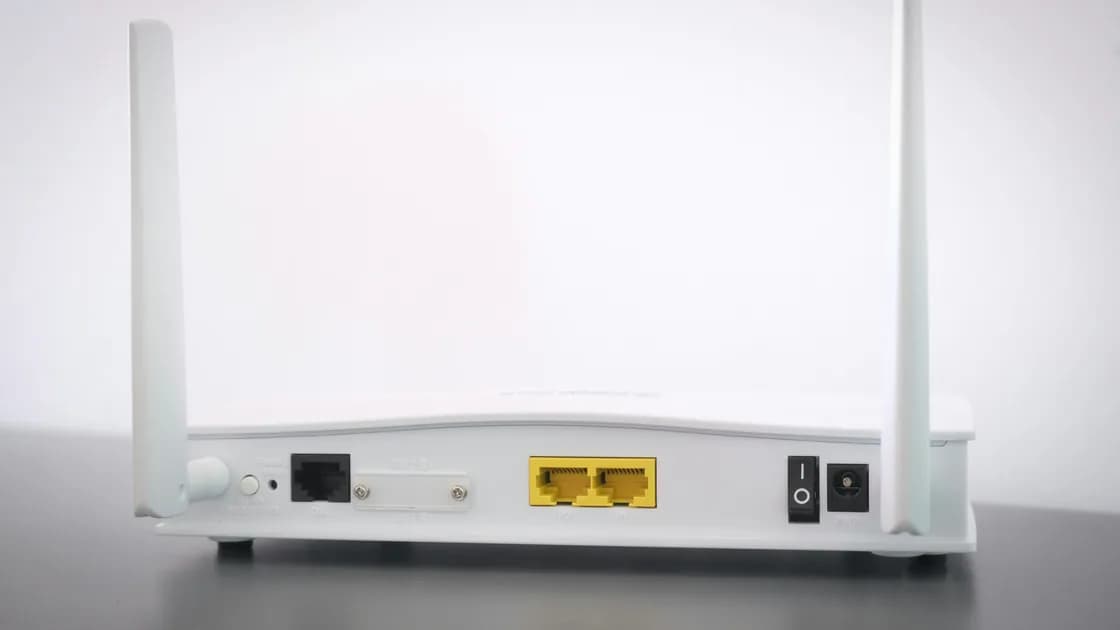

With a Wi-Fi network not showing up, first distinguish “this device sees no networks” from “other networks appear, but my home SSID is missing.” The first points toward the client radio, adapter, switch, driver, or policy; the second points toward router broadcast, range, band, channel, or compatibility. Compare another nearby hotspot and another authorized device before changing router settings.
Key Takeaways
- No networks visible and one SSID missing are separate diagnostic branches.
- Check Wi-Fi, airplane mode, hardware switches, and adapter status before the router.
- Compare distance and another device to separate scanning from router broadcast.
- Hidden SSIDs are not a security feature and should be joined manually only by authorized users who know the exact configuration.
- Do not permanently split network names or weaken encryption as the default fix.
Use the device and app troubleshooting guide when the scope is still unclear.
Open the network list in the operating system’s normal interface and refresh once. Record whether it shows neighboring networks, a phone hotspot you are authorized to enable, or nothing at all.
| Observation | More likely direction |
|---|---|
| No networks appear anywhere | Client Wi-Fi off, airplane mode, hardware switch, adapter, driver, or policy |
| Other networks appear, home SSID does not | Router radio, range, hidden name, band, channel, or compatibility |
| Home SSID appears only near the router | Coverage, interference, placement, or radio power |
| Other devices see the home SSID nearby | Original client adapter, band support, profile, or policy |
| No device sees the home SSID | Router radio, reboot, configuration, or hardware |
Do not begin by resetting the router. First confirm that Wi-Fi is enabled, airplane mode is off, and any physical wireless switch or function key is in the correct state. A managed device may intentionally disable wireless scanning.
Microsoft identifies the Wi-Fi toggle, airplane mode, physical switch, adapter recognition, and supported frequency as separate checks when no networks appear.[1] Menu names change, so follow the current supported interface rather than copying old commands.
Move near the router and refresh the list. If permitted, enable a phone hotspot with a simple recognizable name, but do not expose a reusable password publicly. This test asks whether the client can detect any nearby wireless broadcast.
If the hotspot also fails to appear, focus on the client:
Do not uninstall an adapter driver without an approved reinstall source. Do not use a third-party “driver updater.” On a desktop with external antennas, check that the antennas are attached correctly and not hidden behind metal equipment.
If the hotspot appears but the home SSID does not, the client can scan at least one band. Continue with the router and compatibility branch.
Stand near the primary router, not a mesh satellite or extender, and compare a second authorized phone or computer. Check the router’s wireless status lights or official app without changing settings.
If no device sees the network:
TP-Link’s missing-network guidance separates an adapter that cannot see any networks from a specific wireless network that is absent, then checks wireless broadcast, distance, band, channel, and device support.[2] Use the same reasoning even when menu names differ.
If the router repeatedly reboots, loses its radio after warming up, or shows abnormal lights, use the router restarting guide. Do not keep changing channels while the device is unstable.
A network at the edge of reception may disappear rather than remain visible with one bar. Compare the same device close to the primary router and in the problem location.
Improve the physical conditions before making permanent configuration changes:
If the SSID appears close to the router but not in one room, use the one-room Wi-Fi guide. That is a coverage problem, not necessarily a missing-network configuration problem.
Do not buy an extender before mapping the failure. A poorly placed extender can rebroadcast a weak or unstable link and create another misleading network name.
Older or limited clients may support only 2.4 GHz, while a router may be broadcasting only 5 GHz or 6 GHz. Some clients cannot see particular channel widths or channels. The country or region setting and local radio rules also affect which channels are legal and available.
Check the exact client and router specifications. Then:
Apple recommends using the same name across a router’s bands and warns that separate names can reduce reliability; it also recommends automatic channel selection and appropriate country/region settings.[3] Permanently splitting SSIDs can be useful for a controlled diagnostic or special deployment, but it should not be the default answer to every missing network.
Do not lower the network to WEP, TKIP, or open security. If an older client cannot support the secure modes the household requires, replace or isolate the client rather than weakening every device.
A hidden network does not advertise its name in the ordinary list. Only the network owner or an authorized user who knows the exact SSID, security type, and credential should add it manually.
Enter the name and security type exactly. A mismatch may look like an incorrect password or endless connection attempt. Do not guess hidden network names, and do not join a network merely because someone gave you a familiar-looking SSID.
Hiding an SSID is not a security control. Authorized clients still transmit information needed to discover and join it, and the setting adds troubleshooting complexity. Prefer a visible network protected by a strong, supported WPA2/WPA3 configuration.
If the network was hidden accidentally, re-enable SSID broadcast through an authorized management path. Keep a wired connection or other recovery route while changing wireless settings.
Forget one saved network only when it appears but the saved profile is stale. It cannot make a router broadcast an SSID that the client cannot see. Full network reset should come later, after the adapter, hotspot comparison, updates, and router broadcast have been checked.
Factory reset is not routine. It removes Wi-Fi names, passwords, security, reservations, mesh relationships, schedules, and access controls. Confirm ownership, back up configuration, record ISP requirements, and use the exact model’s process before considering it.
Escalate to the router maker when no device sees a radio that the interface says is enabled, supported firmware is current, and a normal restart does not help. Escalate to the computer maker when its adapter sees no networks, disappears, or reports hardware errors after supported updates. On school, work, hotel, or apartment networks, contact the administrator rather than changing shared infrastructure.
First decide whether the client sees no networks or only one SSID is missing. Verify the client radio, airplane mode, switch, adapter, and a nearby hotspot. Then compare another device at the primary router and inspect radio status, range, band, channel, and regional compatibility. Join hidden networks only with known owner-supplied settings, keep strong security, and reserve resets for documented recovery.
Your router may not be broadcasting, may be out of range, hidden, using an unsupported band or channel, or restarting.
Wi-Fi or airplane mode may be wrong, a hardware switch may be off, or the adapter, driver, or management policy may be blocking scanning.
Yes, as a diagnostic comparison. If the SSID appears nearby, focus on coverage and placement rather than passwords.
No. Keep a supported band enabled or use a compatible client; do not weaken the network’s encryption.
Not by default. A temporary, documented split can diagnose compatibility, but unified names are usually easier to operate.
No. It adds obscurity and troubleshooting cost but does not replace strong WPA2/WPA3 security.
No. Forgetting removes a saved profile; it does not change the router’s broadcast or the client’s scanning capability.
Only as a last resort with ownership, a backup, ISP details, and a plan to restore every dependent device. AethoVPN cannot make an SSID visible to a device; radio state, supported band, hidden-network settings, and router broadcast need local checks.
Sources checked 28 August 2026.
Sign up to experience all premium features at no cost.
*Available only to new users. Each user is limited to one trial.