Start your 3-day free trial
Sign up to experience all premium features at no cost.
*Available only to new users. Each user is limited to one trial.

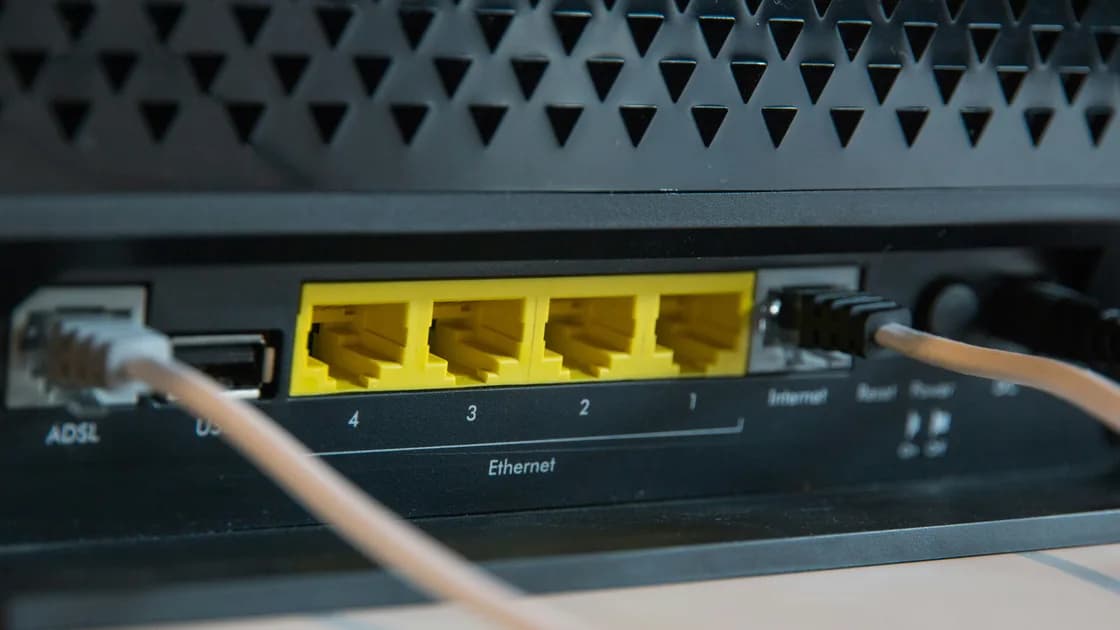
If your router keeps restarting by itself, it is usually reacting to an unstable outlet, the wrong or failing power adapter, overheating, a scheduled auto-reboot, or a firmware fault.[1][2] Before changing anything, prove that the router itself is rebooting: a reset uptime counter, a complete indicator-light startup sequence, or an event log that begins again points to a reboot, while a Wi-Fi drop or WAN outage needs a different fix. Then check power, ventilation, schedules, firmware timing, and attached devices one at a time before considering a factory reset or replacement.
Key Takeaways
- Distinguish a full reboot from a Wi-Fi or internet interruption.
- Use the manufacturer-specified adapter; voltage, polarity, connector, and current rating all matter.
- Keep vents clear and test the router in an open, stable position.
- Match each reboot to a time, load, cable change, firmware event, or schedule.
- A reboot is not, by itself, evidence that the router was hacked.
Use this symptom matrix first:
| What you observe | More likely layer | Next check |
|---|---|---|
| All lights go out, then follow the normal startup sequence | Power or full router reboot | Outlet, adapter, uptime, heat |
| Wi-Fi name disappears but power light remains steady | Wireless radio or firmware | Event log, radio schedule, firmware |
| Wi-Fi stays connected but sites stop loading | WAN, modem, DNS, or ISP | Router WAN status and modem |
| Reboot happens at the same time each day | Scheduled maintenance | Automatic reboot setting |
| Reboot follows heavy traffic or a USB device | Load, heat, or peripheral | Disconnect one optional device at a time |
Log in only through the router's documented local address or official app. Record its uptime, current time, firmware version, and recent log entries. During the next failure, watch the power and status lights without pressing anything. After service returns, check whether uptime restarted near zero and whether the log begins with boot messages.
If uptime continues, troubleshoot the narrower layer. A stable Wi-Fi link with no internet belongs in the router connected but no internet guide. If only one device disconnects, compare another device before changing the router; the device and app troubleshooting guide covers those client-side checks.
TP-Link and ASUS both place outlet and adapter checks early in reboot or startup troubleshooting. Never substitute a random adapter merely because the plug fits. Incorrect voltage, polarity, connector, or insufficient current can damage equipment or create unstable restarts. Do not open the adapter or router.
Place the router upright or in its designed orientation on a firm, open surface. Clear its vents, remove papers or fabric around it, and move it away from radiators, direct sun, and stacked heat-producing equipment. Do not put it in a closed cabinet for this test.
Record whether restarts happen only after several hours or during high traffic. Let the device cool naturally; do not spray it, put it in a refrigerator, or open the case. Persistent abnormal heat, smell, swelling, or discoloration is a stop condition: disconnect power safely and contact the manufacturer.
Look for an automatic reboot, maintenance, eco, or radio schedule using the exact manual for the model. TP-Link, for example, points to an auto-reboot option under System Tools > Reboot in the router's web management page.[1] Confirm the router's time zone and clock. Disable a schedule temporarily only after recording its original value.
Build a short timeline with the reboot time, uptime, light sequence, active devices, traffic load, recent cable or power changes, and firmware updates. A repeatable time or trigger is more useful than changing several settings at once.
Check the installed firmware against the manufacturer's support page for the exact model and hardware revision. Read the release notes and use the router's supported update method. Do not flash firmware from a similar-looking model, an unofficial archive, or an unrelated region.
If the restarting began immediately after an update, preserve the version and timestamps and contact official support before attempting a downgrade. Never disconnect power during a firmware write. Use the router firmware update checklist for the preparation and recovery boundary.
Disconnect one optional item at a time: USB storage, printer, hub, or a newly added Ethernet device. Leave the WAN connection and one test client where practical. Wait long enough to cover the normal failure window, then reconnect items one by one.
Do not disconnect fiber connectors, telephone wiring, or ISP equipment you are not authorized to service. If the router is stable only with a particular peripheral removed, document the port, cable, and device and ask the relevant manufacturer for compatibility guidance.
A normal reboot restarts the device without intentionally erasing settings; a factory reset removes configuration. ASUS documents these as different actions.[3] Use the documented reboot control or power-cycle method, wait for startup to finish, and recheck uptime and connectivity.
Do not repeatedly power-cycle the router. Repeated interruptions can obscure the timeline and may interrupt maintenance. If a factory reset is eventually justified, first follow how to reset a router without losing important settings to preserve the information needed to rebuild service.
Contact the router or ISP supplier when known-good power, ventilation, schedules, current supported firmware, and optional-device isolation do not stop confirmed reboots. Provide the model, hardware revision, firmware version, adapter specification, uptime evidence, log timestamps, and test results.
Replace the unit through an authorized path if support identifies failing hardware. Do not open a mains adapter or router, bypass thermal protection, or treat repeated rebooting alone as proof of compromise. For separate security indicators, use signs a router may be hacked.
Run one controlled observation window instead of changing several variables at once. Choose a period long enough to include the usual failure, keep one test device connected, and write down the router uptime at the beginning. Note whether the WAN link, Wi-Fi name, and local administration page are reachable before and after the event. This separates a full reboot from a radio restart, modem resynchronization, or internet-only outage.
Use a simple record with these fields:
Photographing the adapter label and indicator sequence can help you transcribe details accurately, but do not include Wi-Fi passwords, serial numbers, public addresses, account names, or authentication tokens in a public support post. Share the smallest useful extract directly with the manufacturer or ISP. If logs contain client names or addresses, redact them without changing the event timestamps and boot messages needed for diagnosis.
Treat a stable test as evidence only for the condition you changed. Stability after moving to a wall outlet suggests that the previous power strip or connection deserves investigation; it does not prove the router is healthy. Stability after removing a USB disk narrows the trigger to the peripheral, cable, port, power demand, or firmware path, not automatically to the disk itself. Restore only one item at a time so the result remains interpretable.
Stop the test immediately if the adapter crackles, a connector arcs, insulation is damaged, the case swells, liquid is present, or the device produces smoke or a burning smell. Do not continue collecting evidence around an electrical hazard. Disconnect power only when it is safe to do so, keep other people away, and use the supplier's support or replacement process.
An automatic reboot or maintenance schedule is a strong possibility. Check the schedule and time zone, record the original value, and compare it with log timestamps.
Yes. An unstable outlet, damaged cable, loose connector, or adapter that does not match the manufacturer's specification can cause power cycling. A plug that fits is not enough: use the original or an exact manufacturer-approved replacement with the required voltage, polarity, connector, and current capability.
Your provider may manage it remotely. The Broadband Forum's TR-069 protocol, for example, lets a provider's auto-configuration server download a firmware image to the router and send it a reboot command.[4] If the restarts began with a firmware version you did not install, ask the provider before changing settings on equipment it controls.
It can. Test with clear vents and open placement. Stop using equipment that smells burnt, swells, discolors, or becomes abnormally hot.
No. Rebooting alone does not prove compromise. Power, heat, schedules, firmware, peripherals, and hardware faults are common alternatives.
No. Confirm the symptom and perform reversible checks first. A factory reset erases configuration and may not fix power or hardware faults.
Save the model and hardware revision, firmware version, adapter specification, uptime before and after, light sequence, timestamps, logs, and isolation results.
Consider authorized replacement after confirmed reboots persist with correct power, safe temperature, schedules checked, supported firmware, and optional devices isolated. AethoVPN cannot prevent a router from restarting because of power, heat, firmware, or hardware faults; isolate those causes before judging VPN behavior.
Sources checked 4 October 2026.
Sign up to experience all premium features at no cost.
*Available only to new users. Each user is limited to one trial.