Start your 3-day free trial
Sign up to experience all premium features at no cost.
*Available only to new users. Each user is limited to one trial.

Does a VPN stop buffering? Only when the slowdown sits on the route between you and the service and the VPN route you choose happens to be better; it cannot add line capacity or fix weak Wi-Fi or a slow player. Streaming keeps buffering when the player uses video data faster than the connection can refill its temporary reserve, so classify the symptom first, then compare the service, household load, Wi-Fi, playback device, and VPN path one variable at a time.
Key Takeaways
- A slow start, repeated pauses, quality drops, and VPN-only failures point to different layers.
- Test the same title, quality, device, and time window so each comparison changes one variable.
- A fast broadband plan does not rule out weak Wi-Fi or a slow playback device.
- Keep the smallest change that fixes a repeatable problem, then restore unnecessary changes.
For the wider streaming decision guide, see the best VPN for streaming.
Use the symptom as your first filter:
| Symptom | First layer to test |
|---|---|
| Playback takes a long time to begin | Service reachability, device state, or very low throughput |
| Playback pauses every few minutes | Unstable sustained throughput, congestion, or Wi-Fi interference |
| Quality drops but playback continues | Adaptive quality responding to lower available throughput |
| Only one title or service fails | Content, account, app, or service-side issue |
| Only one device fails | Device app, software, decoder, or local radio issue |
| Failure begins only with VPN connected | VPN route, server distance/load, or local-network policy |
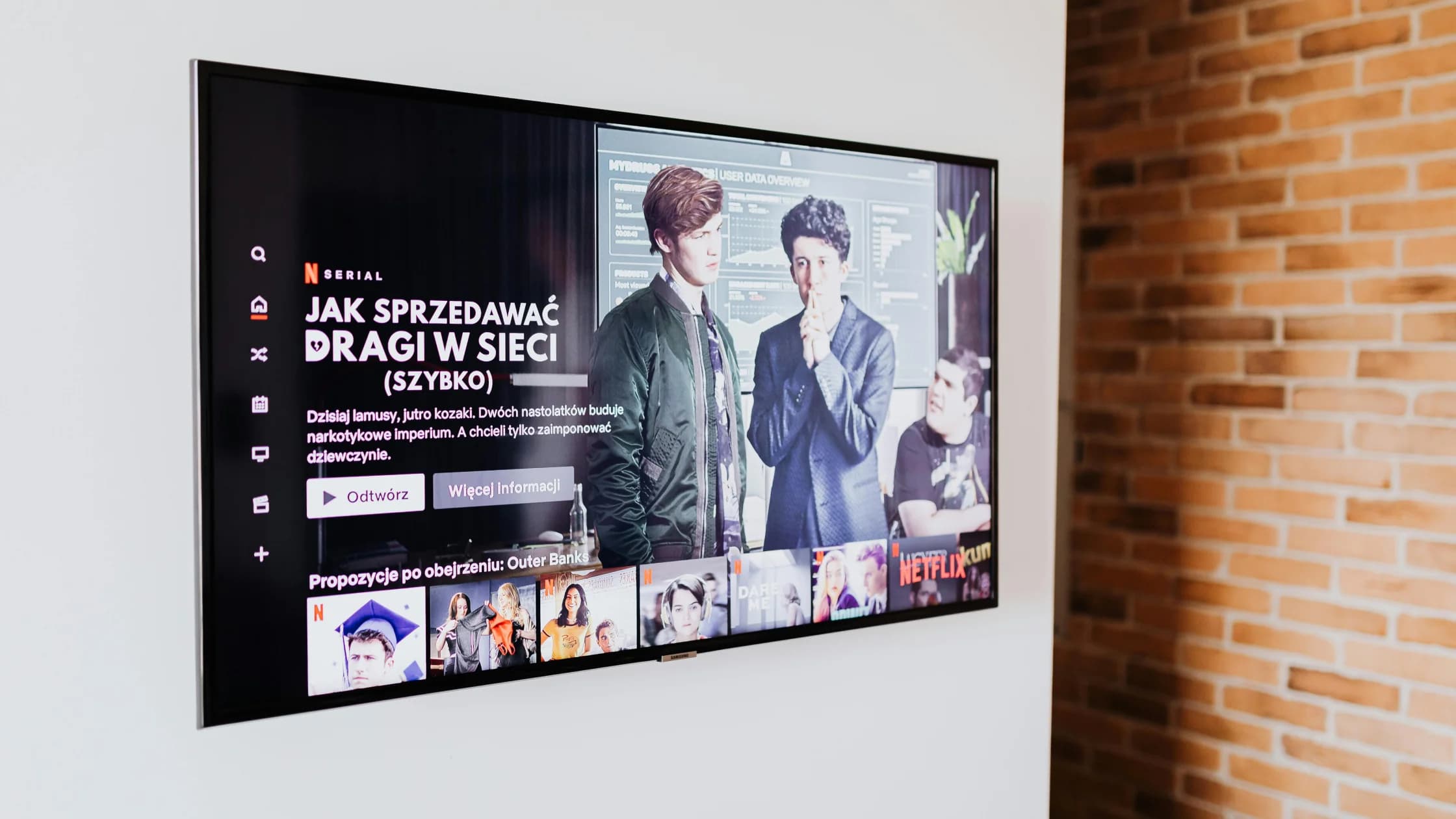
Netflix says slow loading and rebuffering are often linked to a weak or unstable connection or a device that needs an update, and its own flow checks the network, connection speed, device, home network, Wi-Fi signal, and software rather than assuming one universal cause.[1]
Try another title in the same app, then another streaming service on the same device. If one title fails while others play, keep your home network unchanged and check that service's status or support guidance. If several services fail together, move down the local path.
Repeat the test at the same requested quality. A successful low-resolution clip does not prove that a higher-quality stream has enough sustained throughput.
Pause large downloads, cloud backups, game updates, and other streams for five minutes. Replay the same scene. If the pauses disappear, household contention is a stronger explanation than the playback app itself.
Measure from the playback device or as close to it as possible. Record a short series rather than one peak result: time, device, connection type, requested quality, and whether playback paused. What matters is whether usable throughput stays above the stream's demand, not whether one speed test briefly reaches the plan's advertised maximum.
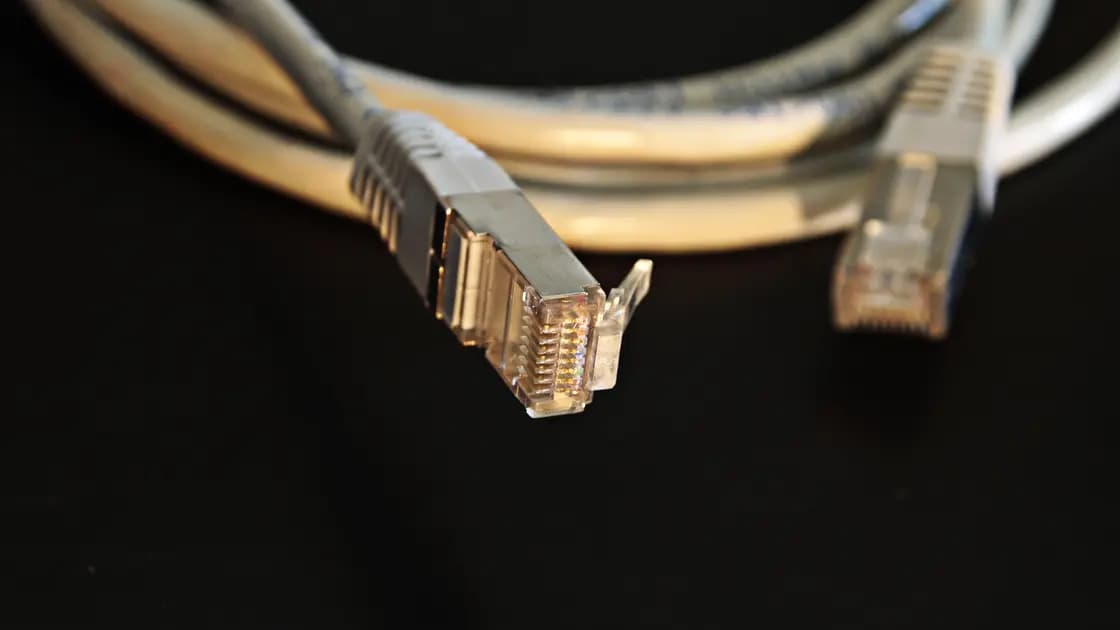
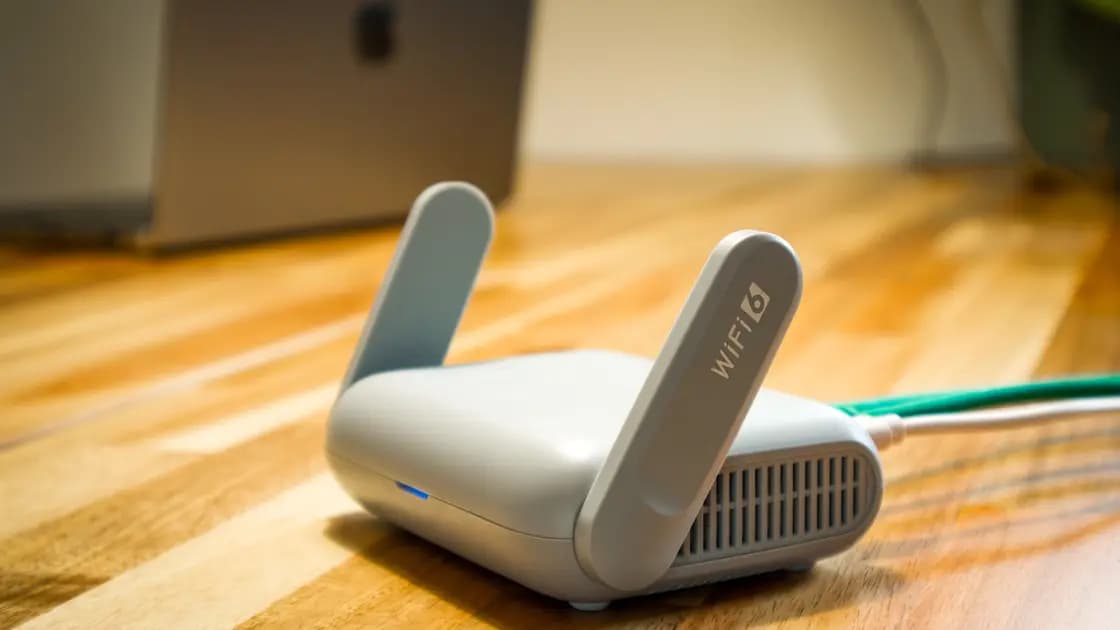
For a television or set-top device, test Ethernet if the hardware supports it. Otherwise move the device near the router temporarily and repeat the same scene. Improvement on Ethernet or at short range isolates the wireless segment; it does not prove the internet plan is too slow.
Then restore the normal location and change one Wi-Fi variable at a time:
Play the same title at the same quality on a second device connected to the same network. If the second device is stable, update and restart the failing device and app. Check free storage, thermal throttling, browser extensions, and whether the device supports the requested codec and resolution. If every device fails, return to the shared network or service layers.
Use a trusted home network and keep the service, title, quality, device, and test window unchanged across one VPN-off row and at least two connected rows.
With AethoVPN, a connected row means picking a low-load location in the app, preferably one labeled for streaming, and replaying the scene logged with the VPN off; the second row uses another nearby location. A VPN changes route length, congestion points, and protocol overhead, so this shows a better, worse, or unchanged path for one service at one time; it does not automatically raise line capacity or repair Wi-Fi or the player. If the app is not installed yet, start the 3-day free trial before you run the connected rows.
Run the rows in this order:
Do not switch countries to bypass account eligibility, licensing, or platform terms. If the service explicitly reports a VPN or proxy restriction, follow its current rules and support guidance.
If playback stays stable in these rows but casting disconnects, use the separate VPN casting diagnosis, because discovery and control traffic add another local-network layer.
Before paying for more capacity, compare it with what the stream actually needs. Netflix currently gives service-specific examples of 3 Mbps for 720p HD, 5 Mbps for 1080p Full HD, and 15 Mbps for 4K UHD, but those numbers are Netflix recommendations, not an industry-wide household formula.[2] If several simultaneous streams are normal in your home, add their service-specific requirements and leave room for other traffic and normal variation. The HD and 4K speed guide explains that calculation in detail.
After the fix, restore unrelated settings and replay the original test. A diagnosis is useful only when the failure and recovery are repeatable.
A useful log does not need specialist software. Record the start time, service and title, requested quality, playback device, connection type, other household activity, VPN state, and the exact symptom. Add the time until the first pause or quality drop. This prevents a vague memory of “it seemed better” from replacing a controlled comparison.
Use one row for each test and change only one field between adjacent rows. For example, compare the same television and scene over Wi-Fi and Ethernet before changing router placement. Then restore Wi-Fi and compare the normal location with a temporary short-range test. If VPN behavior is relevant, run that A/B pair only after the service, device, and local connection are stable.
Keep negative results as well as improvements. A second device that fails in the same way shifts attention toward the shared service or network path; a second device that works narrows the problem toward the original player. When contacting a service, device maker, ISP, or network administrator, provide the smallest repeatable case and the tests that did not change it. That evidence is more useful than a long list of settings changed together.
A speed test may use a nearby server and report a short peak. Streaming needs sustained delivery through the service's actual path, while Wi-Fi interference, household contention, or device decoding can still interrupt playback.
No. A service outage, one broken title, weak Wi-Fi, an outdated app, limited device resources, or a changed VPN route can produce similar symptoms.
Many players adapt quality to available throughput. A quality drop can be the player's attempt to avoid exhausting its buffer.
Record a baseline first. A restart may clear a temporary state, but starting with it can erase the evidence needed to identify congestion, placement, or a device-specific issue.
It can change the network path, so a particular comparison may improve or worsen. There is no guarantee that a VPN increases sustained throughput or fixes a service, Wi-Fi, or device problem.
The TV may have weaker Wi-Fi placement, older software, limited decoding resources, or a different app build. Compare the same stream on another device and, if possible, compare Ethernet with Wi-Fi. If the TV fails over Wi-Fi but works over Ethernet, its radio placement may be the bottleneck.
Long enough to cover the usual failure interval. If buffering normally happens every ten minutes, a one-minute test is not meaningful; repeat the same scene or session under each condition.
Sources checked 4 October 2026.
Sign up to experience all premium features at no cost.
*Available only to new users. Each user is limited to one trial.