Start your 3-day free trial
Sign up to experience all premium features at no cost.
*Available only to new users. Each user is limited to one trial.
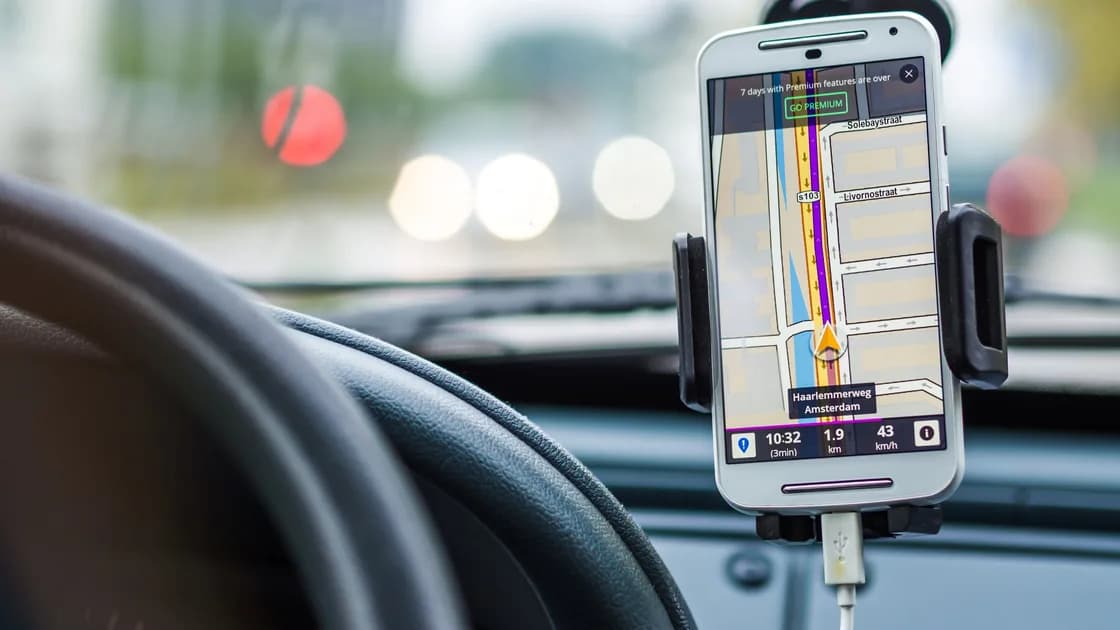

If a crypto exchange geolocation check failed, record which step failed and compare the signals the service may be using: public IP, GPS, Wi-Fi or mobile network, browser or app permission, device time, verified residence, and regional policy. Restore a stable, truthful environment and use official support if the signals still conflict.
Key Takeaways
- “Location failed” can describe a permission error, inconsistent signals, unsupported region, or account-profile mismatch.
- Do not keep changing networks and settings; test one variable at a time on a trusted device.
- IP geolocation and GPS are independent clues, and neither changes verified residence.
- Disable VPN, proxy, relay, spoofing, and aggressive privacy extensions while completing a provider-required check.
- Never fake GPS, residence, documents, or device data to defeat a regional control.
Write down the complete error, code, timestamp and time zone, device model, operating system, app or browser version, network type, and current physical country. Note whether failure occurred before login, after MFA, during identity verification, when enabling a product, or just before a trade. Those stages may use different controls.
Coinbase's device-confirmation guide notes that device changes, cleared cache, private browsing, VPN or Tor use, and completing confirmation on a different device can trigger new confirmation.[1] Its identity-verification troubleshooting asks users to keep account information consistent with documents, use a stable connection, and address browser or upload problems.[2] Kraken explains that service and feature availability depends on verified residency and country-specific restrictions.[3] Your exchange may combine these signals differently, so treat the error text and official policy as primary evidence.
If the message explicitly says the current country is prohibited, do not turn this into a technical spoofing exercise. If login as a whole is blocked during travel, use the travel login decision tree. This guide is for diagnosing the location check itself.
No single label tells you which input is wrong. Compare each layer:
| Signal | What it represents | Common failure | Safe check |
|---|---|---|---|
| Public IP | Internet exit seen by the service | VPN, proxy, carrier gateway, corporate tunnel | Use one ordinary permitted network |
| GPS/location services | Device-derived position | Permission denied, low accuracy, spoofing setting | Enable precise permission temporarily if required |
| Wi-Fi/mobile context | Nearby or carrier network evidence | Captive portal, weak signal, routing mismatch | Finish portal login or test normal mobile data |
| Browser/app permission | Access granted to the client | Blocked prompt, stale site decision | Review permission for the official origin/app |
| Device clock | Time used by tokens and requests | Manual or wrong time zone | Enable automatic date, time, and zone |
| Account residence | Verified customer profile | Old address or pending review | Check authenticated profile and notices |
| Regional policy | Provider's allowed locations/features | Unsupported or prohibited jurisdiction | Read the current official country policy |
The goal is consistency, not a chosen result. A phone can report accurate GPS while its corporate tunnel exits in another country. Mobile data can use a carrier gateway far from the device. A browser can deny location while an app has permission. These conditions justify careful diagnosis; they do not authorize falsifying a signal.
Record the state before and after each change. If you alter permission, network, and browser at the same time, a successful retry will not reveal which input mattered, while another failure may create more device-risk events. A simple one-variable log is safer and more useful to support.
AethoVPN affects the network exit, which is only one location clue. It cannot provide truthful GPS, repair device permission, rewrite verified residence, or establish legal eligibility. For a provider-required check, disconnect it and other intermediaries so the exchange can evaluate a stable ordinary connection.
A technical check becomes an account issue when the device and network are stable but the exchange reports that the profile, document, product, or jurisdiction is unsupported. It may also be an account issue if every device fails after an address update or identity review. Do not create a new account or alter facts to escape the result.
If you permanently moved, use the country-of-residence update guide. If the exchange requests identity evidence again, follow the repeat verification checklist. Those processes address account facts; GPS and IP troubleshooting cannot replace them.
Treat the case as a security incident if you see a location or device you cannot explain alongside unknown sessions, trades, API keys, profile edits, or withdrawals. Lock the account through the official route and secure the primary email before routine troubleshooting.
Send one concise case through the authenticated help center. Include the error text and code, UTC or local timestamp with zone, current physical country, verified residence, device and OS, app or browser version, permission state, network type, and the troubleshooting steps already completed. Mention whether another official device works.
Attach redacted screenshots only through the secure case. Do not publish coordinates, identity documents, balances, full addresses, or case identifiers. Never disclose a password, MFA code, recovery code, seed phrase, private key, or remote-control access. Ask which signal or policy category requires action and what official evidence is accepted.
Keep the case open until the exchange identifies a final status or a documented next step. Recheck permissions and network settings after the process, and remove any temporary access you no longer want to grant.
The exchange may lack precise permission, may combine GPS with IP or account data, or may reject the jurisdiction. Check its permission and exact error.
Yes. Its exit IP can differ from device GPS or residence. Disconnect it during a provider-required check rather than selecting a location to defeat the rule.
Only if the official provider requires it and you accept the privacy tradeoff. Grant it to the verified app or site, complete the check, and review permission afterward.
It can. Captive portals, shared gateways, filtering, and distant IP registration can interfere. Finish portal login or use normal mobile data if lawful and supported.
Use automatic accurate time and time zone. Do not set a false zone; the purpose is valid requests, not simulating another location.
Preserve the first error and confirm recovery access first. Clearing data may remove useful state and create another new-device challenge.
Use the exchange's formal residence-update process with real current evidence. Do not change only the location permission or IP and assume the profile is corrected.
Use only instructions delivered through the authenticated official case. Reject remote-control software, unknown profiles, APKs, or requests for credentials and recovery secrets.
Disclaimer: This article provides general security and technical information, not legal, financial, investment, sanctions, privacy, or individualized account advice. Location and eligibility controls vary by provider and jurisdiction.
Sources:
Sources checked 12 September 2026.
Related Articles:
Sign up to experience all premium features at no cost.
*Available only to new users. Each user is limited to one trial.