Start your 3-day free trial
Sign up to experience all premium features at no cost.
*Available only to new users. Each user is limited to one trial.
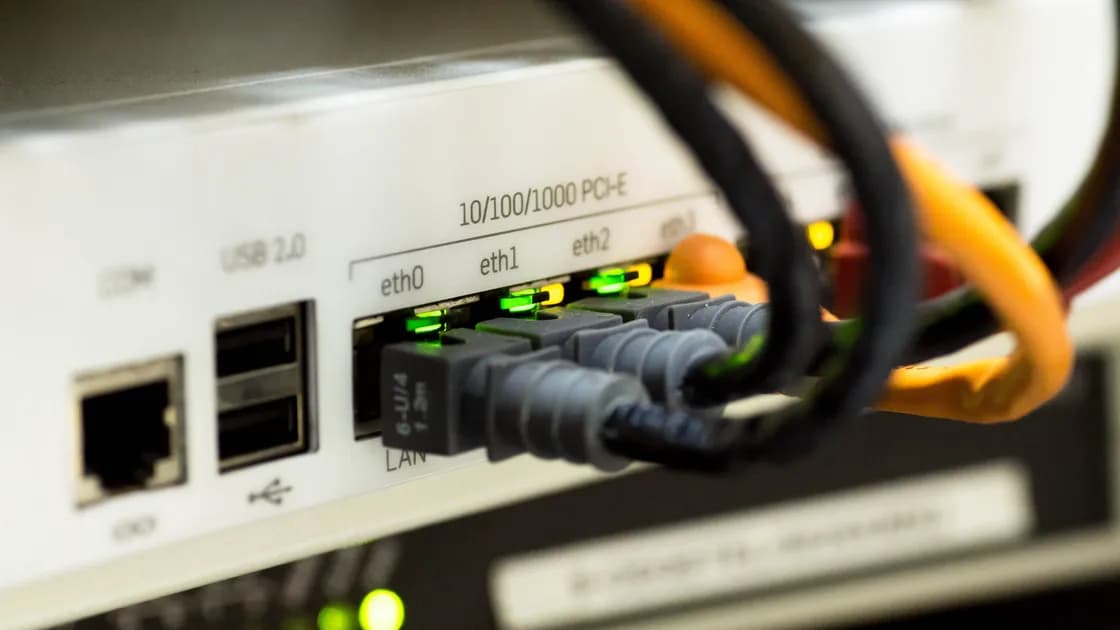

When a VPN connects on Wi-Fi but not Ethernet, the useful clue is the interface change. The VPN account and server may be healthy; the wired connection can still receive different addresses, DNS servers, route priority, firewall treatment, or organization policy. Keep the same server and protocol while you compare the two paths so that one change produces evidence instead of noise.
Start with the wider VPN beginner guide if terms such as gateway, DNS, or route are unfamiliar. This checklist focuses only on a VPN failure tied to Ethernet, not on choosing whether Wi-Fi or Ethernet is generally faster.
Key Takeaways
- Prove that Ethernet reaches the internet with the VPN disconnected before changing the VPN.
- Compare Wi-Fi and Ethernet with the same server and protocol.
- Record the IP address, default gateway, DNS servers, network profile, and route priority for each interface.
- Treat network reset as a late step because it can remove saved adapters, VPN profiles, and custom settings.
Disconnect the VPN, turn Wi-Fi off, and connect the Ethernet cable. Open two ordinary HTTPS sites that you know are available. If neither loads, the fault is below the VPN: cable, dock, adapter, router port, DHCP, gateway, DNS, or the wired network itself. Follow ordinary Ethernet troubleshooting before returning to the tunnel.
Do not rely only on an Ethernet icon. Record whether the device obtained a normal address, default gateway, and DNS server. A self-assigned address, missing gateway, or blank DNS entry shows that the wired interface did not receive a usable configuration. Microsoft likewise separates basic network reachability from the VPN status shown in Windows.[1][3]
If Ethernet works normally with the VPN off, reconnect the VPN once. Note the exact stage: the client cannot start connecting, authentication succeeds but the tunnel fails, the client says connected but no sites load, or only internal destinations fail. Those symptoms point to different layers.
Use a small comparison table before trying fixes:
| Test | Interface | VPN server | Protocol | Result |
|---|---|---|---|---|
| A | Wi-Fi | Same location | Same protocol | Connects or fails |
| B | Ethernet | Same location | Same protocol | Connects or fails |
| C | Ethernet | Second location | Same protocol | Connects or fails |
| D | Ethernet | Original location | Second protocol | Connects or fails |
Tests A and B isolate the physical interface. Only after that comparison should you change the server or protocol. If all Ethernet tests fail while the matching Wi-Fi tests pass, examine the wired configuration. If one server alone fails on both interfaces, the interface is probably not the cause.
Also test immediately after a full disconnect rather than switching interfaces under an active tunnel. Some clients keep routes and DNS state until the session closes. A clean transition avoids mistaking stale state for an Ethernet defect.
Compare the wired and wireless configuration, but do not expect identical values. They can use different subnets and DNS servers legitimately. What matters is whether each has a usable address, a default route, and resolvers appropriate for that network.
Renew the wired DHCP lease through the operating system's supported network controls. Then disconnect and reconnect the cable or dock. If the gateway is unreachable, change the cable or router port and test another trusted device. If direct IP connections work but names fail, investigate DNS rather than repeatedly reinstalling the VPN. Microsoft lists DHCP address and DNS checks among its network troubleshooting steps.[3]
Avoid copying the Wi-Fi address, gateway, or DNS configuration blindly onto Ethernet. A static address from the wrong subnet can create an address conflict or send traffic to the wrong router. On a managed network, preserve the supplied settings and ask the administrator before changing them.
Operating systems select routes using destination prefix, route cost, and interface preference. Microsoft documents that Windows combines route metric and interface metric when it chooses an interface; a lower overall cost normally receives preference.[2] A VPN may add its own routes on top of those physical-interface routes.
Inspect the active route table after connecting Ethernet and again after connecting Wi-Fi. Look for the default route, the route to the VPN server, and routes installed for the tunnel. The VPN server itself must remain reachable through the physical network; if its route points into the tunnel or toward an inactive adapter, connection can fail or loop.
Do not set every metric to the lowest number. That creates ambiguous preferences and makes later diagnosis harder. Prefer automatic metrics unless you have evidence that a manual value is wrong. If a managed profile installed the routes, send the comparison to the administrator rather than overriding policy.
Windows, endpoint security tools, and enterprise controls can classify Wi-Fi and Ethernet differently. A home Wi-Fi connection might use a private profile while a new Ethernet network is classified as public or unidentified. The stricter profile may block the VPN process, required outbound traffic, or local authentication helpers.
Check the active profile and the security log for a narrow block. Allow the signed VPN application or required service only through the appropriate profile. Do not disable the firewall permanently, and do not change an office network to private merely to pass a test. If a brief administrator-approved test changes the result, restore protection immediately and replace it with a specific rule.
Some organizations intentionally permit remote access only from approved network segments. A dock, wired VLAN, or office wall port can have a policy different from guest Wi-Fi. That is not a setting to bypass. Record the port, network name, time, and error, then ask the network owner.
An Ethernet path may involve a built-in adapter, USB adapter, dock, or vendor driver that Wi-Fi does not use. Update the operating system, VPN client, dock firmware, and wired adapter driver from their official sources. Restart the device after an update so network services and filter drivers load together.
In the operating system's network panel, disable and re-enable only the wired adapter. Then reconnect the cable and wait for base internet access before starting the VPN. If the problem began after installing packet-capture, firewall, virtualization, or another VPN tool, inspect those products for filter-driver conflicts rather than deleting unrelated adapters.
Once Ethernet works without the tunnel, use AethoVPN for a controlled wired-versus-Wi-Fi comparison: keep the same server location, turn Wi-Fi off, connect over Ethernet, then reverse the test, and record the active interface each time so an automatic Wi-Fi fallback does not masquerade as an Ethernet success. If the wired attempt fails on every location you try, the fault sits below the tunnel. AethoVPN builds its tunnel only over a working, permitted network path and cannot repair a defective cable, an invalid lease, a blocked VLAN or a third-party adapter driver. Download the current Windows or Linux client before the comparison so an old build is not a variable.
Network reset is appropriate only after you have recorded the current configuration and exhausted reversible checks. It can remove and reinstall adapters, clear custom DNS or proxy settings, and require VPN or virtualization software to be configured again. Microsoft places reset after simpler connection checks rather than at the start.[3]
Before resetting, save required Wi-Fi credentials, VPN configuration details, static addressing, proxy settings, and administrator instructions. Confirm that you can reinstall the VPN client from an official source. Do not reset a managed device without approval because the profile may be difficult or impossible for you to restore.
After the reset, prove Ethernet access without the VPN first. Install or repair the supported VPN client, use the original server and protocol, and repeat the A/B comparison. If the same interface-only failure returns, stop cycling resets and prepare an escalation record.
Record the operating system build, VPN client version, adapter or dock model, driver version, wired subnet prefix, DNS source, active network profile, server location, protocol, and exact timestamp. State whether Ethernet works without the VPN and whether Wi-Fi succeeds with the same VPN variables.
Include the connection stage and sanitized route information. Remove account names, full public IP addresses when unnecessary, tokens, certificates, and unrelated device names. Contact the adapter or dock vendor if base Ethernet is unstable, the network administrator if a specific wired segment blocks the traffic, and VPN support if the failure follows the client only on a healthy Ethernet path.
For a broader failure affecting every interface, use the general connection checklist. To verify the final result rather than trusting one icon, follow the VPN connection test. The Ethernet and Wi-Fi comparison remains useful for performance choices after the fault is fixed.
If a VPN connects on Wi-Fi but not Ethernet, first prove that the wired network works without the tunnel. Then hold the server and protocol constant, compare addressing and DNS, inspect the route to the VPN server, and check whether the wired interface receives a different firewall profile or policy. Update only the components unique to the wired path. Back up settings before a network reset, and stop repeating destructive steps once you have a reproducible interface-specific result.
The router can place wired and wireless clients on different subnets, profiles, or policies. The wired adapter can also have a different DHCP lease, DNS source, route metric, driver, or security filter even when both paths use the same internet connection.
No. They are separate interfaces and normally receive different addresses. Each address must be valid for its own subnet, with a usable gateway and DNS configuration.
Intermittent loss or an unstable dock can affect larger or sustained flows before short web requests make the problem obvious. Test base Ethernet, replace the cable or port, and check adapter errors before blaming the tunnel.
It can reveal a network policy or packet-handling difference, but change it only after the same-server and same-protocol comparison. Otherwise you will not know whether the interface or protocol caused the result.
Only when route evidence shows that the current preference is wrong. Arbitrarily lowering metrics can create new route ambiguity. Preserve automatic settings on managed devices.
Permanent disabling is unsafe. Prefer logs and a narrow application rule. If an administrator authorizes a brief isolation test, restore protection immediately afterward.
Use it after DHCP, DNS, route, profile, driver, and client checks have failed and only after backing up restorable settings. It is not a first response to an Ethernet-specific VPN problem.
Sources checked 6 September 2026.
Technical note: Menu names and route behavior vary by operating system, VPN client, adapter, and network policy. Make reversible changes and follow vendor or administrator instructions.
Related Articles:
Sign up to experience all premium features at no cost.
*Available only to new users. Each user is limited to one trial.