Start your 3-day free trial
Sign up to experience all premium features at no cost.
*Available only to new users. Each user is limited to one trial.
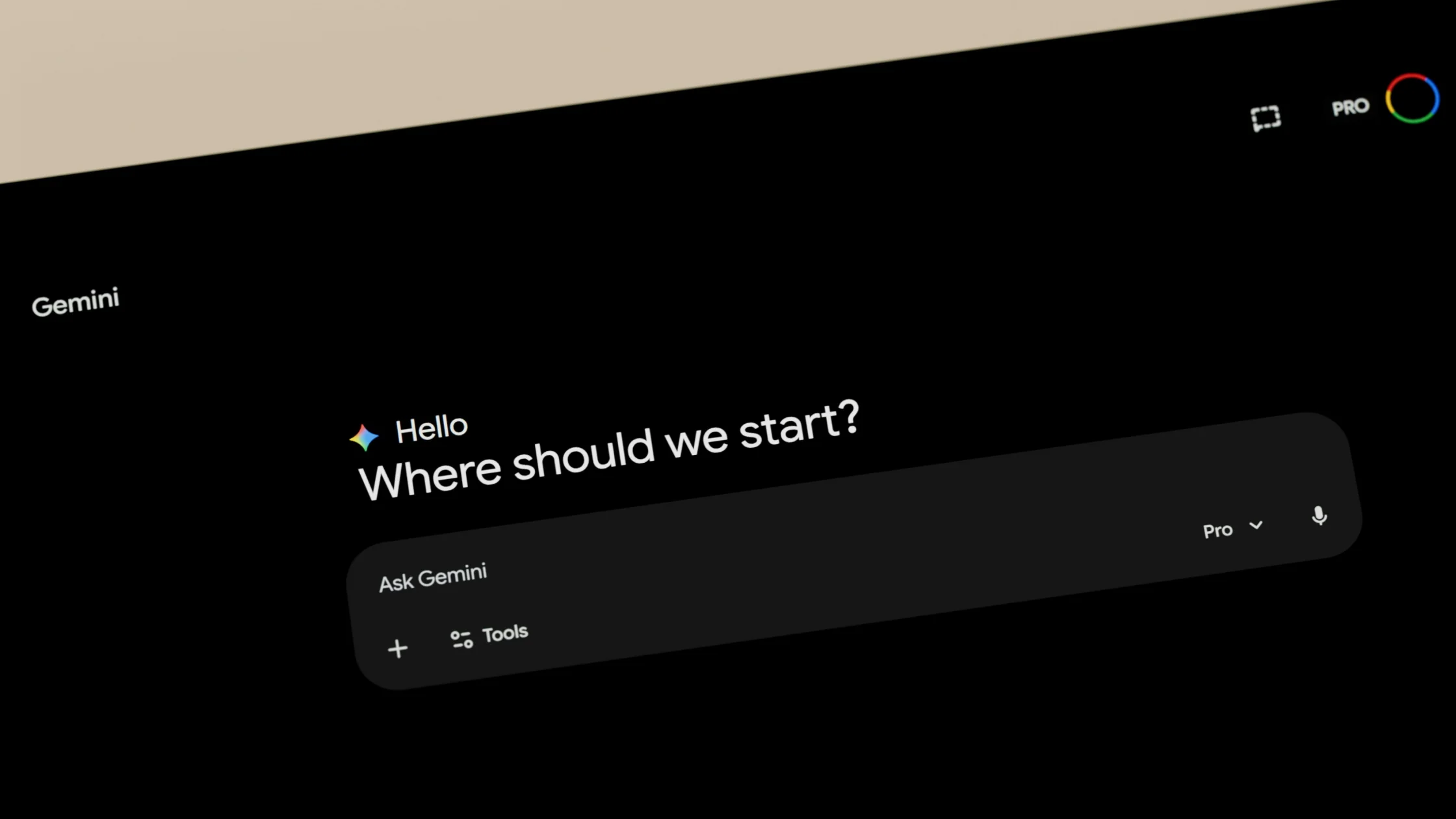

Gemini not available in your region usually means Google does not offer Gemini to that account where it detects you: the web app is listed in more than 230 countries and territories, but not in Russia, Iran, or North Korea, and mainland China is listed for Workspace accounts only.[1] If you are somewhere on the list, such as Japan, the block more often comes from the account itself, through age, a Workspace policy, or the account type, so check that before changing networks.
Key Takeaways
- Official availability and account eligibility are separate from network reachability.
- Start with the platform's own support, status, and privacy documentation.
- A VPN can only address a network-layer problem.
- Gemini availability can depend on Google account type, age, product, and region.
Google's list of places where the Gemini web app works covers more than 230 countries and territories, including Japan, Hong Kong, Macau, and Taiwan; mainland China appears for Workspace accounts only, and Russia, Iran, and North Korea are absent.[1] The mobile app has a shorter list of more than 150 countries and requires users to be 13 or the applicable local age.[3] The Gemini API and Google AI Studio follow a third list, which leaves out mainland China, Hong Kong, and Russia.[2] We checked all three pages on 4 October 2026; read the current versions before you travel, because Google adds places over time.
Those lists are also where the rules apply. The Gemini API terms allow access only from an available region, and Google's general terms let it suspend or end access after material or repeated breaches of its terms or service-specific terms.[4][5]
Check the Google account, web or app surface, and product documentation separately before changing the network. Treat a country or region message, a sign-in failure, a missing feature, and a slow or blocked connection as different signals. Record the exact page or client, account state, full error text, network, and time before changing a route; a VPN can test the network layer, but it cannot change eligibility, billing, plan entitlements, or platform rules.
Read the current supported-country, account, plan, age, and service-status pages. Changing the IP address does not make an unsupported account or feature eligible under Google's rules.[2]
Use the official app or website, update it, clear only local cache when appropriate, and test one browser or device at a time. Avoid unofficial clients and copied login pages.
Check whether the same URL works on another trusted network, whether DNS and HTTPS are normal, and whether the service itself reports an incident. If a VPN is permitted and the issue is clearly network-level, test one route without making account or billing changes.
Google publishes separate web and mobile availability guidance.[3] Check the exact Google account, Workspace policy, age requirement, connected app, and rollout before changing a route. A VPN cannot grant a Workspace feature or alter the account's eligibility.
Gemini sits inside the wider Google account system, so most access problems come from the account, the surface, or the rollout rather than from the network. Google keeps separate availability pages for the Gemini web app, the mobile app, and the developer API, and each can give a different answer for the same person.[1][2][3]
Check this first, because it changes everything else. A personal Google account, a Workspace account from work or school, and a supervised or under-age account can all see different Gemini features. Workspace administrators can turn Gemini on or off for their organization, and an account that does not meet the age requirement may be refused even in a supported country. If you switch between accounts in the same browser, write down which one was active when the message appeared; many "Gemini is unavailable" reports turn out to be the wrong account in the corner of the page.
Google documents web availability, mobile availability, and API regions separately.[1][2][3] The web app can work while the mobile app is not yet offered in your country, and a developer can call the API from one region while the consumer app is restricted. Record the exact surface and, for mobile, the app version and the store region your phone uses. For the API, note the project, the key, and the response; it says nothing about whether the consumer app will open for you.
A missing extension, connected app, or newer capability is usually a rollout or settings question. Check the relevant setting in your Google account or the Workspace admin console, and look at the feature's own help page before treating it as an outage. If Gemini opens but one connected Google app is unavailable, that is a different problem from a region message that blocks the whole product.
Keep a short record for each attempt: time, account type, surface, device, network, and the exact message, with personal data and prompts removed. Then compare the same account and surface on a second trusted network. A result that changes between office Wi-Fi and mobile data points to filtering, DNS, or HTTPS inspection on the first network. If local law and Google's terms allow it, a single VPN route can add one more comparison, but leave your account's country, age, and payment details exactly as they are; changing them to match a route can trigger additional Google account checks.
If you rely on Gemini abroad, check the availability pages for your destination before you leave, update the mobile app, and confirm that the account you will use is the one with the features you need. Work and school accounts may follow their administrator's policy wherever you are, so ask the administrator rather than assuming a supported country is enough.
Stop changing networks once the same message appears everywhere. Account, age, and region eligibility belong to Google; Workspace feature settings belong to your administrator; API quota and billing belong to the project's own console. Send the redacted record and say which networks and accounts you compared, so support can work on the actual layer.
It can change the path between your device and the service and replace the visible exit IP. This may help distinguish local blocking from an account or product restriction. Gemini availability can differ between the web app, the mobile app, and the developer API, and other assistants draw their own lines; the map of where popular AI tools are available puts those lists side by side.
A VPN also changes the IP location Google sees, so a location check that relies on the IP address may pass. Using Gemini that way from a place Google does not list still falls outside the terms above and can lead to account restrictions.[4][5] Checks tied to the account itself, such as age, a Workspace policy, the phone number, the payment method, and the account country, do not follow the IP address.
When Gemini times out on hotel or office Wi-Fi in a country Google lists, testing the same account through AethoVPN shows whether that local network is the problem; the overview of what a VPN can and cannot test for AI services covers how to read the result.
It cannot change country or identity data on an account, payment eligibility, age checks, subscription status, plan entitlements, moderation decisions, or the platform's terms. Do not create accounts, alter billing, or bypass unsupported service rules based on a VPN route.
| What you see | Most likely layer | Next step |
|---|---|---|
| A region message on every network | Gemini availability for your country | Check the web and mobile availability pages |
| Gemini works on the web but not in the phone app | Mobile availability or app version | Check mobile availability and update the app |
| A Workspace account sees no Gemini option | Administrator setting | Ask the Workspace administrator |
| An extension or connected app is missing | Feature rollout or account setting | Check the feature's help page and account settings |
| The consumer app works but API calls fail | API region, project, key, or quota | Check the API regions page and the project console |
Google publishes separate guidance for the web and mobile apps. Record which interface failed and check its current requirements, the signed-in Google account, and device state; a successful web session does not establish that the mobile app is supported.
A route change cannot grant a Workspace entitlement or change an administrator's policy. If the page loads but your managed account cannot use the feature, ask the organization's administrator to check the account and enabled services before further connection tests.
Account type, age requirements, connected apps, and feature rollout can affect what is offered. Compare the exact accounts and requested function against Google's current documentation instead of assuming that a shared device or network gives both accounts the same access.
It tells you to check the official availability rules for that surface and account. Do not treat it as proof of a DNS failure or keep altering account country and billing details; network reachability cannot establish product eligibility.
Record web or mobile, the Google account type, app or browser version, exact error, time, and one controlled comparison. Mask personal information and keep Workspace authorization questions with the administrator; billing and account decisions need their official support route.
Google's list of places where the Gemini web app works includes Japan, Hong Kong, Macau, and Taiwan, while mainland China appears only for Workspace accounts.[1] So when Gemini says it is not available in your country while you are in Japan, check the account first: age, a Workspace policy, or the country Google associates with it. For travel and network questions in mainland China, see Gemini in China.
Disclaimer: This article is for general informational purposes only and does not constitute legal, technical, or professional advice. Platform availability, account rules, and privacy settings can change; follow official requirements and local law.
Sources:
Sources checked 4 October 2026.
Related Articles:
Sign up to experience all premium features at no cost.
*Available only to new users. Each user is limited to one trial.