Start your 3-day free trial
Sign up to experience all premium features at no cost.
*Available only to new users. Each user is limited to one trial.
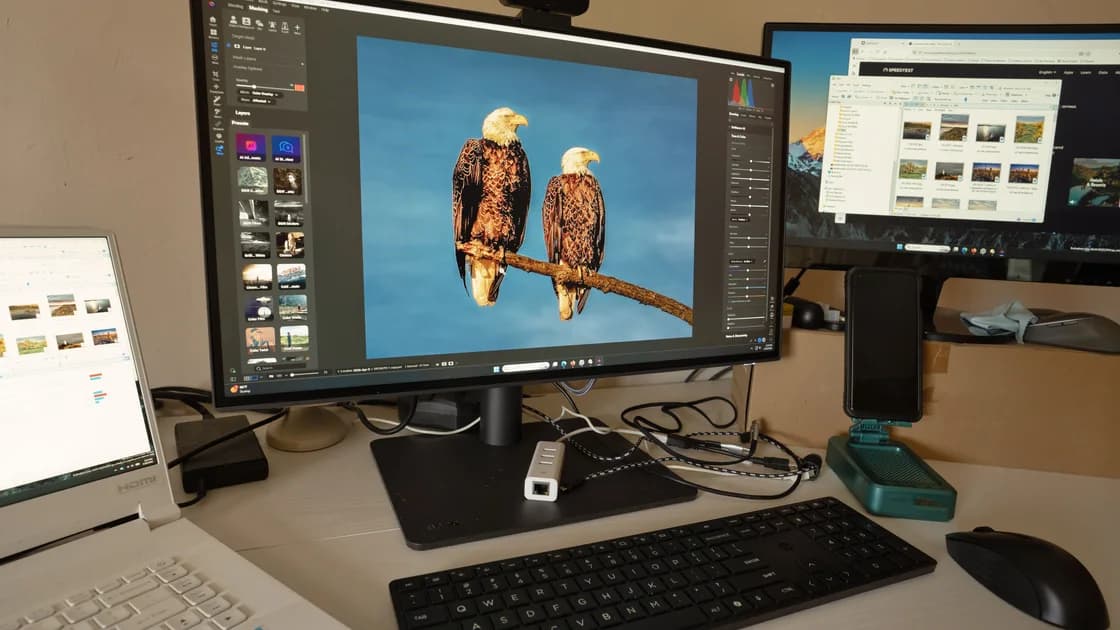

The safest way to edit photos with AI is to define one limited target, preserve everything outside it, and compare the result with the untouched original at full size and high zoom. AI can remove a distraction, extend a background, or adjust a local element, but it can also change faces, text, reflections, shadows, and context that you never intended to touch.
This guide is for photographs you own or are authorized to edit. It does not cover face swaps, impersonation, hiding manipulation, bypassing detection, or making a fabricated event look authentic. If you need a new synthetic scene rather than a faithful local edit, use the separate text-to-image workflow.
Key Takeaways
- Confirm ownership, consent, and the permitted destination before uploading a photo.
- Keep an untouched original and write both the target change and non-target invariants.
- Upload the minimum necessary crop or resolution when the service allows it.
- Inspect faces, hands, text, logos, reflections, edges, lighting, and perspective after every edit.
- Roll back when the edit changes meaning, identity, evidence, or unaffected regions.
Treat the task as constrained restoration, not open-ended generation. First describe the one region that may change. Then list the facts that must remain identical: identity, pose, object count, background geometry, visible wording, lighting direction, camera perspective, and documentary meaning. It is the same define-generate-check loop from our beginner's guide to using AI, applied to pixels instead of text.
Some tools accept a selected area and a text instruction, but a selection is not a perfect fence. OpenAI’s help documentation warns that a highlighted area is not always precise and that an edit can extend beyond it.[1] Adobe’s current text-edit workflow describes uploading an image and stating the desired change in text; it does not establish that every tool uses the same selection step.[2] The practical lesson is simple: the tool proposes a result; your comparison decides whether the boundary held.
Use deterministic editing for exact color correction, resizing, cropping, typography, or pixel-level retouching when ordinary tools can do the job. Use generative editing only when it adds real value, such as reconstructing a small background region after removing an object.
Do not use a generative edit when the photo functions as evidence and the change would alter the claim. A removed person, changed sign, replaced product, or expanded crowd can transform what the image communicates. If an editorially necessary cleanup is allowed, document it and follow the destination’s disclosure rules.
Use these eight steps to keep the edit narrow, reversible, and visibly consistent with the original photograph.
Before uploading, identify the owner, subjects, permitted edits, permitted service, and publication destination. A right to view a photograph is not automatically permission to upload it to a third-party model or publish a modified version.
Ask these questions:
If any answer is unclear, stop. Use a neutral test image to learn the workflow while permission is resolved. The broader AI privacy guide explains why minimizing uploaded data matters even when the intended edit seems harmless.
The U.S. Copyright Office separates digital-replica, copyrightability, and AI-training questions in its AI initiative. Use that material as a U.S.-specific orientation only; it does not decide whether a particular photograph, upload, or edit is authorized.[4]
Never begin from the only copy. Preserve the original file without overwriting it, including its original dimensions and available metadata. Create a working copy with a version name that identifies the edit round.
A simple file set is enough:
photo-original.ext — untouched source;photo-edit-v01.ext — first generated option;photo-edit-v02.ext — one controlled revision;photo-approved.ext — exported result after review;photo-edit-record.md — scope, prompts, decisions, and reviewer.Keeping versions prevents a plausible result from replacing the evidence needed to detect drift. It also lets another reviewer compare the exact input and output rather than relying on memory.
Describe the allowed change in one sentence. Then write a separate list of properties that must not change.
For example:
Target: Remove the empty paper cup from the lower-right corner and reconstruct the wooden table surface.
Non-target invariants: Keep both people unchanged; preserve faces, hands, clothing, posture, laptop, readable notebook text, window shape, table edge, reflections, light direction, color balance, crop, and perspective.
This distinction is more reliable than “remove the cup and keep everything realistic.” Realism is subjective; an unchanged face or table edge is observable. If you cannot describe the invariants, the edit is too broad to review confidently.
This is an official Adobe support-page screenshot of Firefly’s English-language edit workspace using Adobe’s neutral demonstration image. It is not our local account, a private upload, or a claimed before-and-after result, and the interface may change.
Upload only what the edit requires. If the service supports a cropped input and the missing context will not harm reconstruction, exclude unrelated people, screens, documents, or surroundings. Remove hidden metadata only when doing so is compatible with your preservation and publishing requirements; keep the untouched original separately.
Do not assume a tight crop eliminates all privacy or rights concerns. A face, tattoo, address, badge, reflection, or filename may still identify a person or project. Inspect the visible pixels and the file context before upload.
For sensitive organizational material, verify the service’s current data handling, retention, access, and training controls with the responsible policy owner. A generic consumer workflow is not a substitute for an approved enterprise process.
Make the selection slightly larger than the object that must disappear so the tool has enough neighboring texture to rebuild the background. Do not include unrelated faces, hands, logos, text, or structural edges unless they are part of the target.
Write a literal instruction such as:
Remove the paper cup and continue the existing wooden tabletop. Preserve the grain direction, table edge, shadow softness, and warm side lighting. Do not add any new object.
Avoid requests such as “clean up the whole photo,” “make everyone look better,” or “fix everything.” They do not define a review boundary and invite changes to identity, skin texture, body shape, lighting, and scene content.
Generate a small number of variants. Label them before choosing, and do not continue editing the only downloaded version. If all options change protected details, narrow the selection or switch to a deterministic repair tool.
Place the untouched original and candidate side by side at the same scale. First compare the whole frame. Check whether the edit changed visual weight, story, chronology, or the apparent relationship between people and objects.
Then inspect the target boundary and every high-risk region at high zoom:
The target can look convincing while a face on the opposite side has subtly changed. That is why a local boundary check and a full-frame invariant check are both required.
Ask what a reasonable viewer would infer from the edited image. Removing litter from a staged product photo may be a routine cleanup. Removing a protest sign from a news photograph changes the record. Extending a scenic background may be acceptable for a clearly creative campaign but misleading in a property listing.
Apply the same evidence discipline used to fact-check AI answers: separate what the source proves from what the generated content merely makes plausible. The image’s polished appearance is not evidence that the depicted state existed.
If the destination requires a caption, disclosure, or edit note, write it before export. Do not strip a required disclosure because the result “looks natural.” This guide aims to preserve realism, not to conceal AI involvement.
Save the source identifier, owner or license record, consent boundary, service, date, selected area, prompt, version labels, rejected options, accepted changes, reviewer, disclosure decision, and export settings.
C2PA Content Credentials can carry signed assertions about origin and editing history, but those assertions do not independently prove that the picture is truthful or that every depicted fact is accurate.[3] Preserve provenance when the workflow supports it, and keep your own decision record because metadata may be removed downstream.
Export a copy in the dimensions, color profile, and compression needed by the destination. Reopen the exported file and repeat the full-frame and zoom checks. Compression and resizing can hide thin halos, damage text, or create new edge artifacts.
Roll back when identity changes, text becomes unreliable, non-target geometry moves, reflections no longer match, the edit changes documentary meaning, consent is missing, or the source cannot be preserved. Also roll back when reviewers cannot agree on what changed outside the target.
Do not repair a failed generative edit with a second broad generative request. Return to the untouched original and choose a narrower selection, a deterministic tool, a licensed replacement image, or no edit at all.
Two common kinds can. Chat assistants such as ChatGPT accept an uploaded image plus a written edit request.[1] Image editors such as Adobe Firefly offer text-guided generative edits.[2] Whichever you choose, apply the same target, invariants, and side-by-side check described above.
It can produce a convincing local edit, but no selection should be treated as a guaranteed boundary. Compare the entire result with the original because changes can appear outside the selected area.
Match existing perspective, light direction, shadow softness, texture, grain, and object scale. More importantly, verify that all non-target details remain unchanged rather than judging only the edited patch.
Only when the service and task require it and your permission boundary allows it. Prefer the minimum useful crop or resolution, while preserving the untouched original separately for review.
It depends on context and the claim the image makes. Removing a studio distraction can be routine; removing a person or sign from documentary evidence can materially mislead viewers. Follow the destination’s rules and record the change.
This guide does not cover face replacement, impersonation, or identity manipulation. Use only authorized, narrowly scoped edits with informed consent and an accountable human reviewer.
Reflections, shadow direction, repeated textures, thin halos, text, logos, jewelry, fingers, hair edges, and lines that cross the selected boundary commonly need close comparison.
No. They can help communicate origin and edit history, but authenticity and truthfulness still require source evidence, context, and editorial judgment.
Disclaimer: This article provides general workflow information, not legal advice. Confirm ownership, consent, privacy, platform terms, disclosure, and evidentiary requirements for your specific use.
Sources:
Sources checked 4 October 2026.
Related Articles:
Sign up to experience all premium features at no cost.
*Available only to new users. Each user is limited to one trial.