Start your 3-day free trial
Sign up to experience all premium features at no cost.
*Available only to new users. Each user is limited to one trial.
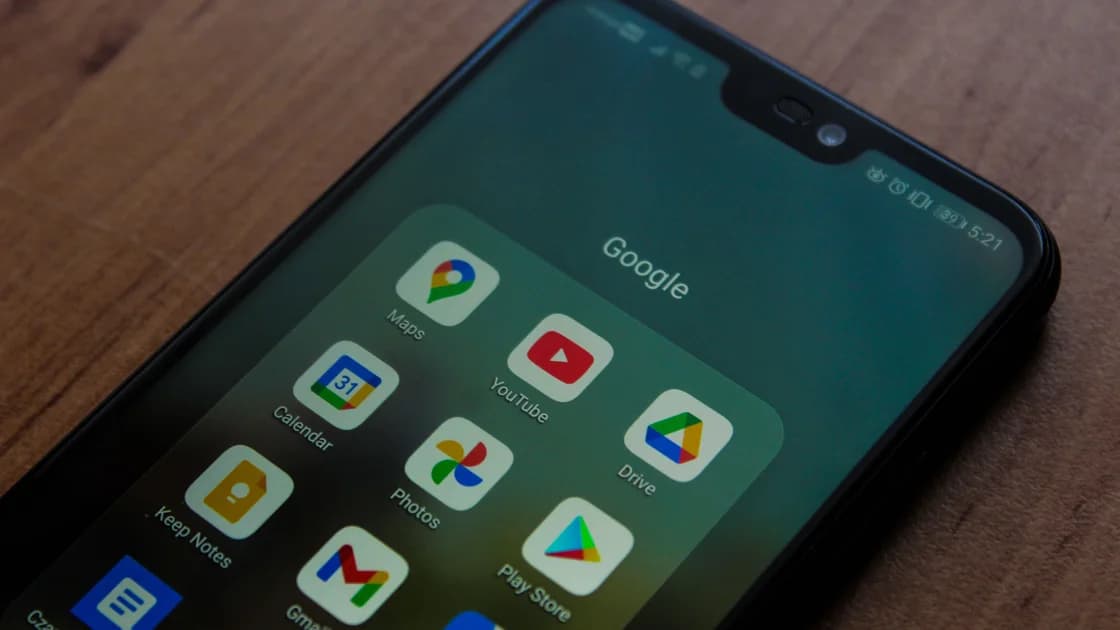

Does Google Play work in China? Do not expect a normal mainland connection to provide dependable Google Play access: public travel advice identifies Google among restricted services. Store access also depends on the device's Google software, certification and account conditions, so changing the connection alone cannot make every mainland-market phone compatible.[1]
Key Takeaways:
- The Play Store and Google Play services are different components.
- Check the exact device's certification before trying to install missing Google software.
- A stalled download, absent app and payment refusal need different checks.
- Preserve installed travel apps and account recovery before attempting destructive repairs.
Before departure, update the travel apps already installed on your certified phone and prepare an authorized connection client independently of the store. AethoVPN offers an Android APK, including for HarmonyOS, so its installation does not require a functioning Play Store. Inspect the app's currently available server locations and compare one permitted route using a small free app update, while leaving the Google account and country unchanged.
A changed route cannot install licensed Google components, certify the phone, expand a developer's distribution territory or repair payment eligibility. There is no promised mainland availability; follow local law and Google's terms. Create an account for a 3-day Pro trial; registration uses an email verification code without a new password.
Keep a record of the device model, system version and apps that matter for arrival. Do not uninstall a working navigation or transport app merely to prove that you can download it again. The China internet preparation guide covers the wider connectivity plan, including keeping essential information usable without a fresh login.
The Play Store distributes applications and updates. Google Play services is a separate background component used by Google apps and other applications for functions such as sign-in and related integration. Google's support guide explicitly distinguishes it from the Store. A store page opening therefore does not verify all the dependent background functions.[2]
| Observation | First boundary to inspect | What a connection cannot establish |
|---|---|---|
| Store is absent | Exact model, firmware and licensed Google components | Permission to add unofficial Google packages |
| Store will not load | Network, account and component state | Device certification |
| One app is unavailable | Developer distribution and device compatibility | Universal catalog access |
| Download is pending | Queue, storage, preferences and route | Successful installation |
| App starts but Google sign-in fails | Play services, account and network | A fix from opening the Store alone |
| Payment fails | Payment profile and accepted billing method | Purchase eligibility from a different IP |
Use this table to name the failure before following a recovery guide. If only one application is unavailable, compare its requirements rather than declaring the entire store broken. If all newly requested downloads stall, inspect the queue, network and storage before blaming a particular developer.
For a detailed stalled-download procedure, see Google Play apps not downloading. This article adds the mainland travel and device boundaries; it does not repeat every generic cache-clearing instruction.
Android branding does not establish the presence of licensed Google applications. Certification is tied to the actual device and software combination, and mainland-market firmware can differ from international versions of a similarly named phone. Check the manufacturer documentation for the exact model and regional build instead of assuming that a brand guarantees Google support.
Google says Play Protect-certified devices have passed compatibility testing and include licensed Google applications. Its support page warns that uncertified devices can have problems with updates, features and backups. This is a software and licensing boundary that a network subscription cannot repair.[3]
If the Store exists, inspect its profile menu, Settings and About for the certification status. Interface wording can differ by version. If the Store is missing or cannot be used, consult Google's certified-device information and the manufacturer's support for the exact model; do not infer certification from an unofficial installation video.[3]
Do not casually root the device, unlock its bootloader, flash another region's firmware or use an unknown “Google installer.” These actions can affect data, warranty, integrity and account security. If official device recovery requires a reset or firmware change, back up important data and obtain model-specific manufacturer instructions first.
No: store country is an account and catalog setting, while reachability is a connection condition. Changing one can leave the other untouched. It can also affect available content and billing, so a temporary trip is not a reason to repeatedly migrate the account as a diagnostic experiment.
Keep your actual residence and payment details accurate. If you have genuinely moved, use the Google Play country-change guide for the official conditions and consequences. Keep that task separate from this article's question about opening and using the store during a visit.
An app can be unavailable because the developer does not distribute it to your account market or because your device does not meet its requirements. A working connection does not make every app appear. Do not create speculative payment profiles or buy a second subscription to solve a download queue problem.
Similarly, a purchase receipt does not prove that a different device can install the application. Check the exact account, device compatibility and purchase type. If the error concerns billing, use official payment support and preserve the transaction information privately rather than posting screenshots with card or identity details.
Choose a small, non-essential free update on the same certified device and account. Record the initial queue state and ensure enough local storage. If the update completes, confirm that the application launches and that its intended function works; a progress bar reaching the end is not the only acceptance condition.
Keep the original working travel applications installed while doing this check. Reinstallation is a larger change than an update, especially if account recovery or store reachability is uncertain. Back up locally stored data before following any instruction that clears an application's storage.
If the download succeeds but the app's Google sign-in or notifications fail, inspect the background services separately. Google's Play services guide explains that clearing its storage is not the first troubleshooting step and can remove locally stored information or require reauthentication. Avoid treating it as a harmless universal reset.[2]
First determine whether the device is supposed to support licensed Google software in its current manufacturer build. An absent Store on a device intended for another ecosystem is different from a damaged Store on a certified phone. The appropriate owner is the manufacturer or Google support, rather than an unofficial package repository.
Google distinguishes device certification from the Play Protect malware-protection feature. Turning off Play Protect does not solve a “device is not certified” message. Keep that distinction explicit so you do not disable a security feature while leaving the certification problem unresolved.[3]
If the device has an authorized manufacturer store, investigate whether your essential travel applications are available there. Verify the developer, package identity and required permissions. Avoid promising that another store offers an identical build or every Google-dependent function.
Stop before any destructive device recovery if you cannot preserve important files and authentication access. A factory reset can remove the very apps, tickets and recovery information required for the trip. Manufacturer instructions may be necessary, but they are not a routine network workaround.
A functioning store does not establish that cloud backup is running. For photographs, use the Google Photos checks for China: local images and completed cloud uploads are different states. Conversely, an old photo visible in the Photos app does not prove Play downloads work.
The apps and websites access guide for mainland China can help classify broader failures. Public travel advice describes restrictions and tells visitors to follow local law; it does not certify a particular connection method or device setup.[1]
For a new phone purchase, verify Google compatibility before relying on it for the trip. Ask for the exact regional model and manufacturer support statement, not simply whether the phone “runs Android.” Keep a working device until the replacement has passed the functions that matter to you.
No. Check the exact device and manufacturer software; Android branding alone does not establish licensed Google components or certification.[3]
No. Play services is a separate background component, so a working Store does not prove every Google-dependent function works.[2]
No. Network routing cannot supply device certification or licensed Google software; use manufacturer and Google support for those conditions.[3]
No. Account country and network reachability are separate. Change country only under the official conditions for your actual circumstances.
No. Google distinguishes certification from malware protection and says disabling Play Protect does not resolve certification failure.[3]
No. Preserve data and try less destructive checks first; clearing that component can remove stored information or require reauthentication.[2]
No. Verify photo backup separately using the correct account, per-item status and a confirmed cloud copy.
Disclaimer: This is device and travel preparation guidance, not legal advice or a fresh mainland access test. Follow local law, Google terms and manufacturer instructions.
Sources:
Sources checked 4 October 2026.
Related reading:
Sign up to experience all premium features at no cost.
*Available only to new users. Each user is limited to one trial.