Start your 3-day free trial
Sign up to experience all premium features at no cost.
*Available only to new users. Each user is limited to one trial.
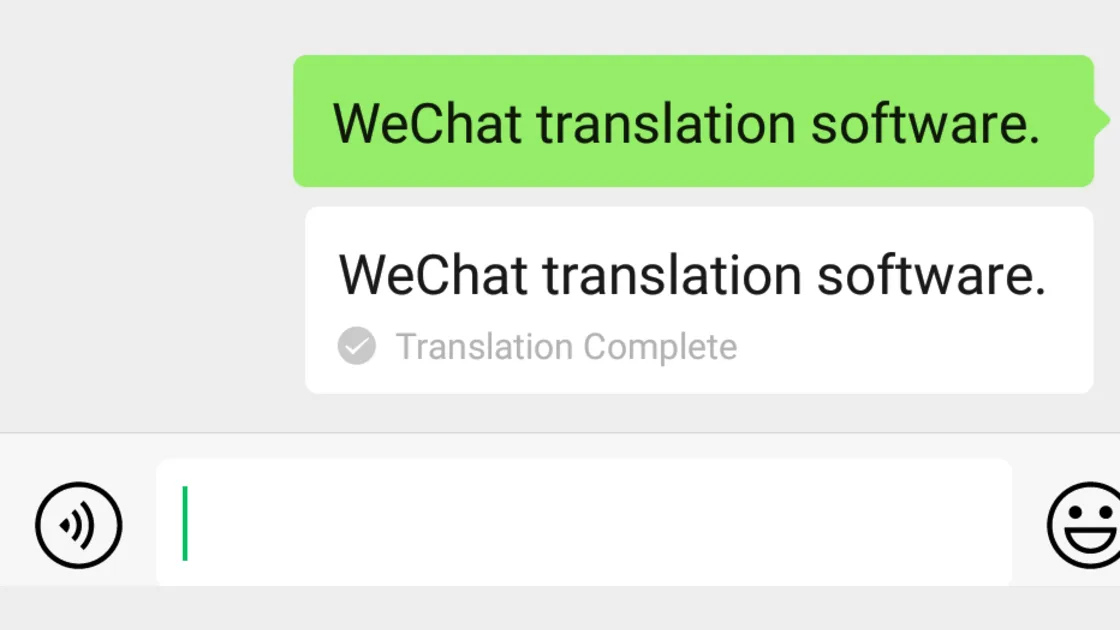

WeChat translation works on received messages: long-press a text message and choose Translate, and set the target language under Settings, General, and Translation[1]. The Shanghai Government's current visitor guide also describes Scan/Translate for photographed Chinese text[1], and some builds extend translation to posts, pages, or images. These tools are convenient, but they are machine assistance. Preserve the original and independently confirm any name, address, amount, time, medical instruction, ticket condition, payment request, or legal term that matters.
Key Takeaways
- Check both the interface language and translation language in the current official app.
- Long-press a received text message and choose the translation action shown to your account.
- Treat translation for Moments, articles, images, and writing as conditional by content type and version.
- Use Scan/Translate for signs and menus, keeping the original text in frame.
- Verify critical details with the sender or responsible provider; never rely on translated wording alone.
- A VPN cannot add a missing feature or make a machine translation authoritative.
For network preparation before using WeChat, see the Best VPN for China guide. Connectivity cannot add a translation feature or validate its result.
Install or update WeChat from the official app store. The official distribution page currently lists more than 20 interface languages and multilingual message translation, but the exact list, menu position, and availability can change[2]. Avoid modified packages that promise unlocked translation or extra account functions.
Interface language and translation language solve different problems. The interface setting changes menus and labels. The translation setting controls the target language used for supported content. In the current Shanghai visitor guide, the route is described under Settings, General, and Translation, while interface language is described under General and Multilanguage[1]. Use that as orientation, then follow the labels actually shown in your installed build.
Choose a target language you read confidently. If you are bilingual, translate into the language in which you are best at noticing wrong numbers, negation, dates, and names. After changing the setting, test it on a simple, non-sensitive message before depending on it in a live transaction.
Do not confuse a missing menu with a network failure. First check app version, operating system, account, target language, and content type. Some actions appear only after selecting or long-pressing supported text. If an old guide does not match, trust the current official app and support information.
For a received text message, long-press the message and choose Translate if that action appears. WeChat normally presents the translation near the original, which makes comparison easier. Keep both visible and look for names, numbers, dates, times, addresses, floor or gate identifiers, currency, and negative words such as “not,” “closed,” or “cannot.”
Translate one complete thought at a time. A short fragment may omit the subject, while a very long multi-topic message may produce unclear references. If the sender used voice, handwriting, a sticker, or text embedded in an image, the normal text-message action may not apply. Ask the sender to type the key sentence or use an image/scan route when appropriate.
Reply with a confirmation that repeats the critical data in a simple structure. For example: “Please confirm: Hongqiao Railway Station, Entrance 2, 14:30, total ¥80.” Ask the sender to answer yes or correct the line. This is safer than replying only “OK” to a paragraph you may have misunderstood.
Machine translation can mishandle pronouns, omitted subjects, slang, dialect, abbreviations, and context from earlier messages. It may also transliterate a place rather than identify the branch. Copy the original Chinese place name into a map or booking record and compare it with the sender's pin.
Never use a translated chat message alone as proof of a refund, ticket change, medical dose, contract, or payment destination. Confirm through the order, ticket, clinic, merchant, or official service that owns the decision.
Translation actions outside chat can depend on the content type and app build. A text post, article paragraph, mini-program page, image caption, and text embedded in an image are not the same object. Long-press or use the current page menu and look for an official translation action, but do not assume every page supports it.
When a translation appears, distinguish the author's words from the platform, merchant, or government record. A translated Moments post remains a social post. A translated article may be an opinion or an old instruction. Use it to understand context, then open the current official source for any action-critical detail.
For selectable text without an in-page translation action, copy only the necessary passage into a trusted translation tool if the app and your privacy needs permit. Remove phone numbers, booking codes, identity details, and private conversation unless they are essential. Keep the original and record where it came from.
If text is inside an image, use Scan/Translate or a reputable OCR/translation route rather than retyping unknown characters. Check that the crop includes the whole sentence and that decorative text, vertical layout, glare, or overlapping stamps did not split it incorrectly.
The Shanghai Government guide describes opening the plus menu, choosing Scan, selecting Translate, and photographing Chinese text[1]. Current labels may differ. Use the in-app route shown on your device and allow camera access only when you need it.
Frame the text squarely in good light. Include the heading, unit, price, warning symbol, and surrounding line that gives context. Avoid glare, motion blur, extreme angles, and fingers covering characters. For a menu, capture the dish name and price together. For a notice, include the issuing organization and date. For a sign, include the arrow or location marker.
Review the detected original before trusting the translation. OCR can confuse similar characters, decimal points, dates, and room numbers. If the result looks odd, move closer, flatten the page, improve light, or scan a smaller section. Compare two captures rather than repeatedly accepting the first result.
Respect privacy and local rules. Do not photograph passports, payment screens, other people's chats, hospital records, security checkpoints, or restricted areas merely to translate them. Ask permission before photographing a document or menu held by another person.
For allergy, medicine, emergency, legal, immigration, ticketing, or payment text, show the original to the responsible person and ask them to confirm the exact meaning. Translation helps form the question; it does not transfer responsibility from the provider.
Some WeChat versions or accounts may show a translation action while composing text, but availability, trigger, and supported language pairs are dynamic. If the feature is present, write a short, literal sentence, invoke the current translation action, and read the output before sending. Avoid idioms, humor, and several requests in one message.
Preserve critical names and structured values instead of translating them freely. Keep the official Chinese venue name, order number, train number, address, time, date, amount, and phone number on separate lines. Ask the recipient to correct any wrong item.
If translate-while-typing is absent, draft in a trusted translator, remove unnecessary personal information, paste the result into WeChat, and include the original language if the recipient can use it. You can also send a simple bilingual checklist rather than a polished paragraph.
Do not repeatedly change app language, device region, network location, and account settings trying to unlock a feature. That makes diagnosis harder and may trigger account checks. Use the available route or a transparent alternative.
Names should be checked against the original booking, passport, contact card, or official Chinese place name. Addresses should be copied into a map and matched by district, road, building, and branch. Dates and times should be restated with a clear format and time zone when relevant. Amounts should include currency, total, deposit, and whether the payment is due or already paid.
For train, flight, attraction, and event information, confirm in the official ticket record. For merchant payments and refunds, confirm in the order and payment provider rather than a translated chat. For medical instructions, ask a qualified clinician or pharmacist to verify the original label and dosage. For contracts, legal notices, immigration, police, and regulatory matters, use an authorized professional or responsible authority.
Watch for negation and conditions. A translation can preserve the main noun while losing “not,” “unless,” “only after,” or “before.” Lists can also attach a condition to the wrong item. Ask a yes-or-no confirmation followed by a structured restatement.
If a stranger uses translation to pressure you into sending money, a code, or an identity image, stop. Independently locate the official organization and contact it through a known channel. Translation accuracy does not establish the sender's identity.
First identify the layer: no translation action, no camera access, text not detected, wrong target language, poor output, or no network response. Update the official app, reopen it, confirm the selected language, and test on a simple typed message. Then test the specific content type.
For scanning, improve focus, contrast, angle, and crop. For chat, ask for typed standard language instead of voice, slang, or an image. For a page that does not expose text, use the scan route if safe. If one language pair is weak, translate to another language you understand or ask a bilingual person to check the original.
Connectivity problems can prevent an online feature from responding, but a VPN is not a translation repair tool. It cannot add a menu to an unsupported build, change account rollout, correct OCR, or validate meaning. Keep an offline phrase list, hotel card, destination names, emergency contacts, and a second translation method for travel-critical situations.
If the feature remains unavailable, use official app help for current support. Do not install unofficial “enhanced” builds or share an account with a person offering remote setup.
Use WeChat translation in layers: set the target language, translate received messages, translate supported posts or pages, scan real-world text, and use writing assistance only when the current build provides it. At every layer, preserve the original and verify critical details with the sender or responsible provider. Machine translation is a convenience, not a legal, medical, ticketing, payment, safety, or contract authority.
Long-press the text message and choose the translation action shown in the current app. If it is absent, update the official app and confirm that the content is selectable text.
The Shanghai visitor guide describes Settings, General, and Translation, but menu names can change[1]. Follow the current labels on your device and test the result.
In the route the Shanghai visitor guide describes, there is no separate translator to install: long-press a received message, choose Translate, and pick the target language under Settings, General, and Translation[1]. If your build shows an extra translation switch, follow its current label.
When Scan/Translate is available, you can translate a Chinese menu in WeChat, or a sign, by photographing the text clearly; review both the detected original and the translation. Confirm allergy, price, warning, and safety information with the responsible person.
Do not assume the normal text-message action applies. Ask the sender to type the critical sentence or use the current voice-to-text and translation options only if the app presents them.
No. Treat it as conditional by version, account, operating system, and language pair. A paste-back workflow with a trusted translator is a practical alternative.
No. Confirm the amount and status in the official payment, order, or ticket record. Use the translation only to understand or formulate questions.
No. It may affect reachability to an online service, but it cannot correct OCR, language context, feature rollout, or the meaning of important terms.
Sources checked 4 October 2026.
Cover source: archival WeChat Translate interface excerpt by Tencent, Inc. The source page marks this simple interface excerpt as public domain (ineligible for copyright) and trademarked. It was proportionally resized and centered on a 16:9 canvas for editorial identification.
Sign up to experience all premium features at no cost.
*Available only to new users. Each user is limited to one trial.


.png)